"Failed renewal" and "perks vanished" aren't the same problem
Same symptom, almost nothing else in common. A failed renewal is a money event: declined card, dead payment method, a regional billing wall that killed the charge. Perks not showing is a server event: the charge cleared, but the client hasn't pulled your entitlement down yet. The Google Play agreement and the patterns I've watched in the community both point the same way. "Renewal failed" usually means a decline, an expired card, or a regional block. That's a different animal from a sync stumble.
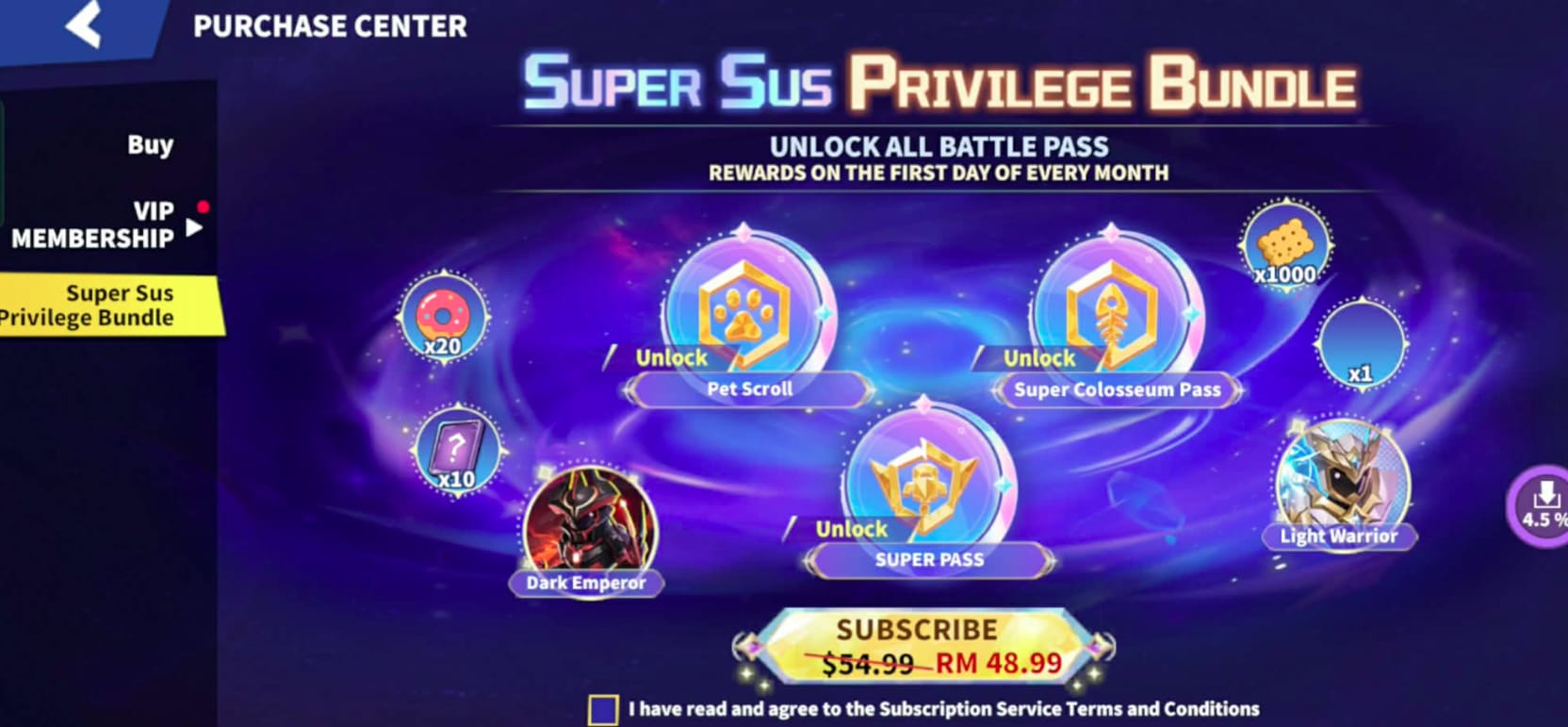
Now the part nobody bothers to explain. Privilege Bundle perks land server-side. Your store confirms payment, then the Super Sus servers grant your Super Pass, Colosseum Pass, Golden Stars perks, and roles like Dark Emperor on the client's next handshake (the bundle contents come straight from Super Sus Facebook posts, 2025). That handshake can run late. So a charge that went through fine can still show zero perks for a stretch, and a plain relaunch or re-login often credits the lot with no "fixing" needed at all.

Which is why the cheapest first move is also the smartest. Close the app all the way. Reopen it. If your perks are back, you never had a renewal failure, just a lazy sync, and you're done. Still gone? Now you check the store. That order spares you the priciest blunder in this whole mess, which I'll hit shortly.
What actually kills an auto-renewal
Three things cause nearly every real failure. Knowing which one you're staring at matters, because the fix changes.
Declined and expired cards run away with first place. An auto-renewal dies the second your card expires, your bank flags a recurring foreign charge, or your wallet can't cover the bill. The agreement doesn't soften it: "Any risks and/or losses arising from account problems or insufficient balance resulting in renewal failure are your responsibility." That's not the studio being harsh. It's the studio admitting it can't touch a transaction the store already refused.
Store outages and pending charges are the sneaky middle child. A payment can freeze in "pending" during a processor wobble. While it sits there, it quietly blocks any retry, because the store thinks a payment's already in motion and won't fire a second. Let that pending charge resolve, or clear it on the store side, and the renewal unsticks. Retry button doing nothing? A phantom pending charge is the usual reason.
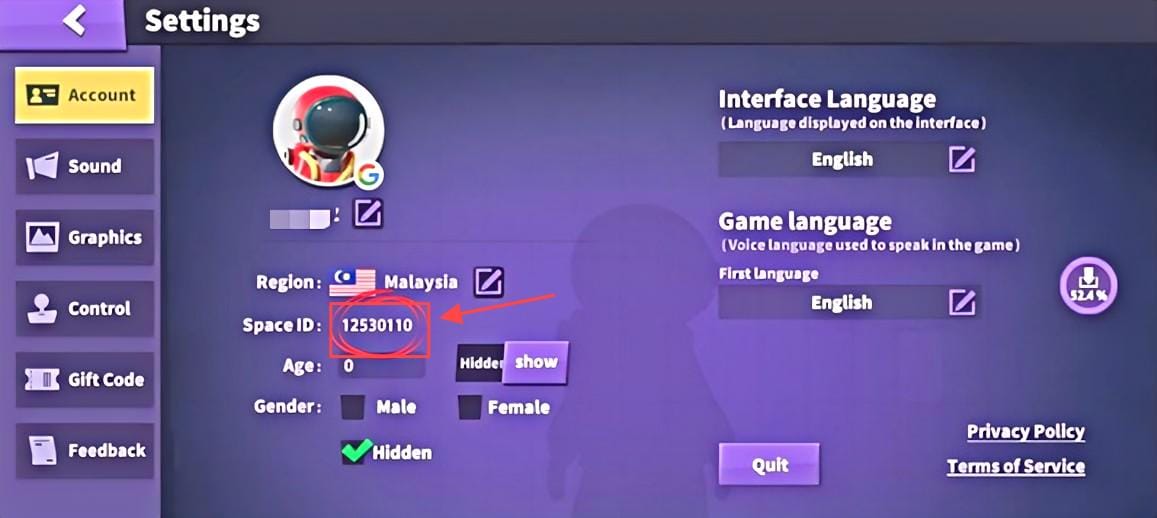
Account de-sync after an update or a new phone wears a billing-failure costume but isn't one. You update, or jump to a new handset, premium looks gone, and you assume the renewal croaked. It didn't. The subscription's healthy. The client just isn't reading your entitlement. Steam troubleshooting threads for the game make the rule clear: account binding is required for cross-device perk sync, and an unlinked reinstall will flash "lost premium" when nothing was lost. In my read, cross-device logins spawn more panic posts than actual billing failures do.
| Symptom |
Likely cause |
Fastest fix |
| Charged, no perks |
Server sync lag |
Relaunch / re-login first |
| "Renewal failed" notice |
Declined or expired card |
Update payment in store, retry |
| Retry button dead |
Pending transaction |
Let pending clear on store side |
| Premium gone after reinstall |
Unlinked account |
Bind account, then Restore Purchases |
Source: Super Sus Auto Renewal Subscription Agreement (Google Play, 2025) and Steam Community discussions (2026).
The Google Play and Apple steps worth your time

Where you bought decides the fix. The two stores route differently enough that following the wrong walkthrough just leaves you spinning.
Android first. Open the Play Store, tap Payments & subscriptions → Subscriptions, pick Privilege Bundle, then manage or retry the payment, per Google Play Help. Swap the card or top the wallet if it's expired, push retry, hop back into Super Sus, and run Restore Purchases. Relaunch one more time so the handshake fires. Fix payment, restore, relaunch. That sequence clears most Android cases without ever pinging support.
On iOS the path forks. Head to Settings → Apple ID → Subscriptions, pick Super Sus Privilege Bundle, and use the renew or restore controls (Apple's subscription docs, 2026). Update billing if it needs it, open the app, tap Restore Purchases. The thing to lean on here is the grace period. If Apple's billing grace window is live on the subscription, your access can hold while the retry sorts itself out in the background.
Here's the routing rule I'd staple to every panicked subscriber's forehead: for a straight billing failure, your app store is the first contact, not the studio. The studio doesn't hold your money and can't reverse a store charge. Escalate to them and they'll bounce you back to the store anyway, costing you days you didn't need to spend. Game support is for entitlement trouble: you paid, the store confirms it, but the perks won't surface. Billing goes to the store. Keep the lanes clean and you dodge the runaround entirely.
A clean order of operations, either platform:
- Relaunch the app first. Rule out a sync delay before you assume a failure.
- Open the store subscription page and check the status.
- Fix or update the payment method, then retry the charge.
- Tap Restore Purchases in-game.
- Relaunch one last time to force the handshake.
Device-switchers, one chore before any of that: bind your account to a third-party login. Binding keeps Privilege Bundle status alive across reinstalls even when local data gets wiped, per the Steam troubleshooting patterns. Reinstall without binding and you risk apparent perk loss that mimics a renewal failure to the letter, while being nothing of the kind.
Charged but no premium, plus the two traps that cost the most
Money left your account but premium never arrived? That money's parked with your store, Google Play or the App Store, not with Super Sus. The recovery's short. Confirm the charge in your store's purchase history, grab the order ID / receipt, run Restore Purchases, and relaunch to let the server-side delivery catch up. If perks still won't land after that relaunch, then file a ticket, and hand over the order ID, the email tied to your store account, your in-game ID, and the charge date. Support clears these fastest when you front the proof instead of making them drag it out of you.
But recovery only holds if you sidestep two traps that turn a five-minute fix into a money pit.
Trap one: re-buying the bundle to "fix" it. Don't. Common subscription guidance across game communities says the same: re-buying the Privilege Bundle to patch a failed renewal can stick you with a double charge. Now you're chasing a refund instead of reviving a subscription you already own. A failed renewal almost never erases your purchase history, and the in-game Restore Purchases button settles more of these cases than support tickets do, yet most guides shove it three scrolls down the page. Restore first. Every time.
Trap two: refunding before you relaunch. Asking for a refund on a charge you can't immediately see can cancel the very subscription you're trying to save. If the charge was legit and the perks are just dragging their feet, a relaunch credits them, and a refund would've nuked your access for nothing. The refund-or-wait call comes down to store and timing. Genuine duplicate, or an undelivered charge that survives a relaunch? Pursue the refund through the store (both Google Play and Apple post their refund windows on their official policy pages). Single charge with perks that simply haven't synced? Wait one relaunch cycle before you do anything you can't undo.
Once the subscription's breathing again and you're restocking premium currency, that's when to size up in-app pricing against the alternatives. If you'd rather skip in-app rates, a SuperSus Golden Stars & Passes top up through a third-party channel like VGTopup, which publishes this guide, is one transparent option. The aim is to compare in the open, not to rush. Disclosure noted, weight it as you see fit.
The grace period nobody explains, and what gets revoked first
A failed renewal doesn't strip your perks the instant it happens. Both stores run a buffer, and knowing how long it lasts tells you precisely how much room you've got before anything truly disappears.
Google Play hands out grace periods of 7, 14, or 30 days on monthly subscriptions, then an account hold running up to 60 days minus the grace length, per Google Play subscription lifecycle documentation. Apple's grace window on monthly-or-longer subscriptions runs 3, 16, or 28 days, per its developer docs. And Apple tacks on a recovery wrinkle worth knowing: if the subscription renews within 60 days of the billing snag, paid service days resume from the recovery date. A fast fix loses you almost nothing.
| Store |
Grace period options |
Account hold |
| Google Play |
7 / 14 / 30 days (monthly) |
Up to 60 days minus grace |
| Apple App Store |
3 / 16 / 28 days (monthly+) |
60-day recovery window |
Source: Google Play & Apple Developer Docs (2026).
Inside the grace window, your premium usually keeps ticking while the store quietly retries the charge. Sort the payment before the window closes and you might never lose a single perk. Slide into the account-hold phase and access pauses until billing's settled, but your purchase history and account binding ride it out untouched. That survival is the whole reason the panic's overblown.
What actually gets revoked, and in what order, tracks the entitlement. The recurring perks pinned to the active subscription period (monthly Super Pass and Colosseum Pass access, role unlocks like Dark Emperor, ongoing Golden Stars perks) pause when the paid period lapses unrenewed. The Super Pass itself runs on seasons; Season 14 followed Season 13, per Super Sus Wiki Fandom, so a lapse mid-season costs you the current cycle's running benefits, not your account. For most subscribers the grace period turns a failed renewal into a notification to handle this week, not a fire to put out in the next ten minutes. Relaunch, check the store, and you've almost certainly got days of runway.
Not everyone's a fan of the model, fair enough. Rei Ken (Super Sus Facebook comment, Feb 2025) said the quiet part loud: "Why can't I buy sp. Why does there have to be a subscription system? This is quite annoying." The recurring-billing setup is genuinely friction-heavy. It's also the reason a missed charge is recoverable rather than fatal.
If I'm leaving you with one thing: never, ever re-buy that bundle in a panic. Relaunch, then check the store, in that order. Do that and almost every "renewal failed" scare turns out to be nothing.
Frequently Asked Questions
How long do I have before I actually lose Privilege Bundle perks after a failed renewal?
Depends on your store's grace setting: 7, 14, or 30 days on Google Play, or 3, 16, or 28 days on Apple for monthly subscriptions, per their developer docs (2026). One detail few people clock: the grace length is set by the app, not picked by you, so read the renewal-failure notice itself. It usually states the live window rather than the maximum.
Can I get a refund for a charge where premium never showed up?
Maybe, but relaunch first. A server-sync delay credits the perks with no refund needed, and refunding can cancel the subscription you wanted to keep. If they still won't appear, both Google Play and Apple publish their refund eligibility windows on their official policy pages. Pursue it through the store that took the money, not the studio, with your order ID ready.
A pending transaction is quietly blocking it. The store reads an unresolved pending charge as a payment already in flight, so it refuses to start a second one and the retry looks dead. Let the pending charge clear or resolve on the store side, then the retry frees up. Re-buying instead just courts a double charge.
Will reinstalling Super Sus on a new phone make me lose my premium?
Only if your account isn't bound. Binding to a third-party login keeps Privilege Bundle status across reinstalls even when local data is wiped, per the Steam troubleshooting patterns. The bit most device-switchers fumble: bind the account before you uninstall the old copy, then run Restore Purchases on the new device. Binding after a wipe is far harder to recover.
For a straight billing failure (declined card, charge that didn't process) the app store is the faster first contact, since it holds the money and the studio can't reverse a store transaction. Save a Super Sus ticket for the case where the store confirms your payment but perks won't appear after a relaunch. That's an entitlement issue the studio can actually fix, and it's where your order ID earns its keep.









Comments