Lead with the Order ID, not the bank screenshot you grabbed first
Charge goes sideways, and your first instinct is to screenshot the banking app. Feels like proof. Money's gone, here's the picture. But a statement only proves a charge happened. It can't tie that charge to a specific in-game order, and support can't match it against the developer's logs. General in-app purchase advice across Google Play community threads says the same thing: lead with a bank screenshot and your ticket stalls.
The platform Order ID is what support can actually work with. On Google Play it starts with GPA and sits in your order history. Open the Play Store app, go Profile > Payments & subscriptions > Budget & history, tap the order. Prefer a browser? The same record lives at play.google.com. Apple doesn't expose a "GPA" prefix the same way. You go through reportaproblem.apple.com, sign in, and your purchase history shows up directly, according to Apple Support.
Bought through an official partner storefront instead of an in-app purchase? Your proof is the confirmation email. Codashop, a listed Ludo Club partner, fires off an email receipt when you enter your address at checkout and ships the gems or coins straight to your Player ID, per Codashop. That email is the single strongest thing you can bring to a dispute. It's timestamped and tough to fake, which a cropped screenshot never is. Delete it before the currency lands and you've turned a clean case into a shouting match.
| Receipt source |
What it shows |
Where to find it |
Order ID format |
| Google Play |
In-app purchase record |
play.google.com or app > Budget & history |
GPA.XXXX-XXXX-XXXX-XXXXX |
| Apple App Store |
Purchase history |
reportaproblem.apple.com |
Not exposed as a fixed prefix |
| Confirmation email (partner) |
Itemized order + timestamp |
Your inbox at checkout |
Site-specific reference |
Source: Google Play Help / Apple Support / Codashop (2026)
Two minutes of receipt-hunting saves two days of email tag

Grab the proof first. Open a ticket without the Order ID and the only reply you'll get is one asking for it. Android path is short: Play Store > profile picture > Payments & subscriptions > Budget & history > pick the Ludo Club order, then screenshot the full GPA string plus amount and date. iPhone? Sign in at reportaproblem.apple.com to pull the matching line. Apple's flow doubles as both your receipt lookup and your refund-request door, handy when you're not sure yet which one you need.
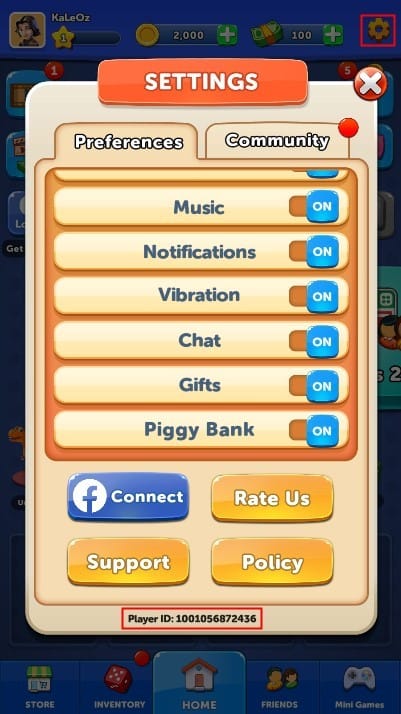
Your Player ID goes in the same screenshot bundle, and plenty of people forget it. Grab it in-game via the Settings icon (top right). The ID sits at the bottom of the pop-up, per Codashop's instructions. Why, if the store already has your purchase? Because the store can prove you paid. Only the game knows which profile should get the currency, and the Player ID is how the developer routes a manual delivery. Regular spender? Build a habit. The second an order completes, screenshot the Order ID and email receipt, and note the Player ID once. That's a one-pass ticket versus a thread that drags on for days.
For a first-timer or F2P buyer dropping one small purchase, I'd lean toward the official in-app route. It bundles platform-level receipt protection. Keep the confirmation email and you've got everything a refund flow could possibly want, per general Google Play and Apple policies.
Delivery problems go to the game. Money problems go to the store.
Cleanest way to think about it: the platform owns refunds, the developer owns delivery. Google and Apple process refunds for in-app purchases. The game handles sync and delivery snags where the payment worked but the currency never showed, per Google Play and Apple policies. Sort your ticket by symptom and you dodge the biggest time-sink, which is bouncing between two support queues that each blame the other.
To reach Ludo Club directly, use the published addresses: ludoclub@moonfroglabs.com, ludoclubsupport@moonfroglabs.com, or support@moonfroglabs.com, listed on the Google Play app page and Moonfrog's site. In-game support works too. But email leaves a written trail with your attachments intact.
Whatever channel, dump everything into one message so support never has to circle back for a missing field. Include:
- Player ID — so they find and credit the right profile
- Order / Transaction ID — the GPA string or partner reference tying to the payment
- Purchase date and exact amount — to match against the logs
- A one-line description — "charged, gems not delivered" beats a paragraph of venting
That's the field set developers in comparable titles ask for, and what Moonfrog's contact flow expects. A ticket landing with all five is the one that closes without a reply-chain.
| Symptom |
Contact first |
Why |
| Charged, no gems delivered |
Game support (Moonfrog email) |
Delivery/sync is the developer's domain |
| Want your money back |
Store (Google Play / Apple) |
Refunds are processed platform-side |
| Payment failed but money deducted |
Wait, then store |
Often a pending hold that auto-reverses |
| Double charge |
Store refund flow |
The storefront can void the duplicate |
Source: Google Play Help / Apple Support / Codashop (2026)
Refunds run on the store's clock, and a pending charge isn't the crisis it looks like
You can file a Google Play refund yourself, and the realistic window for approval is the 48 hours their docs cite for in-app purchases. Apple's looser. No fixed eligibility window, requests at reportaproblem.apple.com judged case-by-case, per Apple Support. So the honest answer to "are these refundable?" is: sometimes, at the store's discretion, and faster the earlier you file. The game's goodwill credit, a manual re-delivery of currency, is your fallback when a refund's off the table. Not your opening move.
Now the failed-but-deducted mess, which spooks people more than it should. When a payment fails, the storefront often drops a pending authorization that looks like a finished charge in your banking app. These usually auto-reverse. Google Play community guidance puts the reversal in the 24–48 hour range when the payment doesn't go through. Better still, in some cases the currency arrives anyway once the transaction settles, no ticket required. Filing a dispute or re-buying during that window is exactly how folks end up double-charged. My read: money left, no gems came, charge says pending? Wait a day before touching anything.
There's a faster fix for genuine missing-gems cases that almost nobody mentions: Restore Purchases. Re-syncing entitlements tied to the same store account clears a shocking number of "currency vanished" reports without a single ticket, because the purchase went through and only the sync stalled. Try it before drafting an email.
A true duplicate charge? Skip the game entirely. Go straight to the store refund flow, which can void the extra transaction at the source. On Google Play that's the same Budget & history path. On Apple it's the reportaproblem refund request, selecting the duplicated line.
Account mismatch causes more "missing gems" than fraud ever will
The real villain behind most "I paid and got nothing" posts isn't scams. It's account mismatch. Top up through a partner storefront while the app's on a guest or wrong account, and the gems route to a different profile entirely, exactly as Codashop's instructions warn. Money spent, currency delivered, just to a profile you're not staring at. Before any purchase that wants your Player ID, confirm you're on your linked account, not a guest session, and check that ID character by character.
A few habits keep disputes rare:
- Link your account before spending — a guest profile is the easiest way to feed a top-up to the void.
- Keep the confirmation email, not just a screenshot — timestamped, harder to dispute. Don't delete it until the currency shows.
- Screenshot the Order ID at checkout — for regular spenders, every future ticket becomes a copy-paste job.
- Verify the Player ID on partner top-ups — one wrong digit sends gems to a stranger.
Cheapest insurance any spender can buy. A few seconds of receipt discipline against the odds of a lost purchase. Weighing where to buy? Compare the in-app price against partner-store pricing, then pick the channel whose receipt you'll actually keep. Official in-app purchases bundle platform refund protection, while a partner like VGTopup for Ludo Club Gems & Coins top up issues an email receipt at checkout (disclosure: VGTopup publishes this article). The rule holds either way: save the confirmation the instant the order completes. And to be straight, Ludo Club publishes no receipt or response-time policy of its own, per Moonfrog Labs, so your storefront receipt is the one piece of protection you actually control.
Keep the receipt before you tap buy. Route by symptom. Lead every ticket with the Order ID and Player ID. Do those three and the missing game-side policy stops mattering, because the storefront's policy plus two screenshots is all the buyer protection this purchase ever needed.
Frequently Asked Questions
How do I get a receipt for my Ludo Club top up?
Depends where you paid. In-app purchases sit in your store's order history, either Google Play's Budget & history or Apple's reportaproblem.apple.com. Partner-storefront top-ups send an email receipt if you enter your address at checkout, per Codashop. There's no separate game-issued receipt. The storefront record is your document. Screenshot it right away so you're never rebuilding it later.
Why didn't my Ludo Club gems arrive after paying?
Usually not fraud. Most often you were on a guest or wrong account, so the currency landed on a different profile, as Codashop's setup notes flag. Before opening a ticket, run Restore Purchases to re-sync entitlements on the same store account. It clears plenty of cases on the spot. If the charge still reads pending, give it 24–48 hours to settle, since failed payments often auto-reverse per Google Play community guidance.
How long does a Ludo Club refund take?
The store sets that, not the game. Google Play usually allows requests within 48 hours of purchase per Google Play Help, and approved refunds post back through your original payment method after. Apple runs case-by-case with no fixed window, per Apple Support, so file sooner rather than later. The fresher the request, the better your approval odds.
Five fields, one message: Player ID, the Order or Transaction ID, purchase date, exact amount, and a one-line description of the issue. That mirrors Moonfrog's contact flow and what comparable developers request. Leave out the Order ID and you trigger the reply asking for it. Attach it up front and you skip a whole round of back-and-forth.
What do I do if I was charged twice for the same top up?
Store, not game. A duplicate charge gets voided at the source through Google Play's Budget & history refund path or Apple's reportaproblem request. Select the extra transaction specifically. Before filing, make sure one charge isn't just a pending authorization that hasn't reversed yet. Per Google Play community guidance those clear on their own within a day or two, and disputing a hold that was about to vanish only tangles your account.









Comments