The wallet hasn't budged but you swear you paid
First, make sure you're actually short what you think you're short. The most common false alarm isn't a busted transaction at all. It's people mixing up their currencies. Destiny Rising sells a premium currency called Silver for real cash, and you trade that Silver for in-game summon currency at a flat 1:1 rate, per a BlueStacks gacha guide. Silver's the number that climbs when you top up. If you bought Silver but you're glaring at some other balance waiting for it to tick up, nothing broke. You're just looking at the wrong tab.
The sneaky one nobody really warns you about: top-up bonuses and reward bundles sometimes land in your mailbox instead of your wallet. So the wallet reads identical to before you paid, while the extra Silver waits one tap away in your mail, unclaimed. Open the mailbox before you touch anything else.
Quick verification run, under five minutes:
- Open the in-game mailbox and claim everything pending; bonus Silver and reward items love routing here.
- Hard-close the client, relaunch it, log back into the same character.
- Re-check Silver in your inventory wallet.
- Line that up against your receipt's order ID.
People sleep on that relog step. The Destiny 2 delivery flow over at Bungie Help basically says wait up to 30 seconds, relaunch, sign back in, then check both the balance and your mail. The client doesn't always refresh the wallet on the fly, and a restart pulls a fresh server sync. The first time mine "didn't update," that was the whole story. The Silver was already credited server-side; my client just hadn't grabbed it yet.
So if the cash left your account and the wallet's sitting flat: claim your mail and relog before you decide anything vanished.
When you can't tell which account got the credit
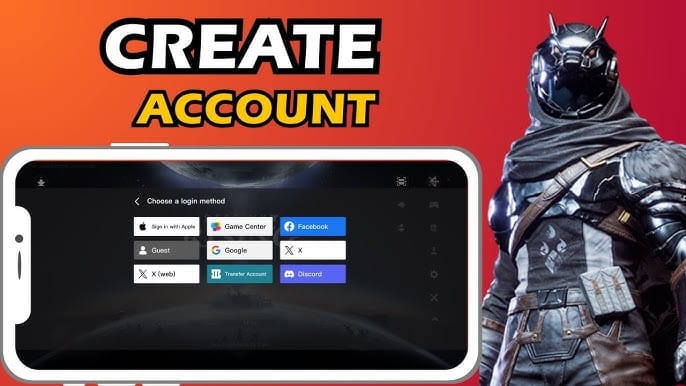
This is the scary boat. It's where the genuinely unrecoverable mistakes actually live. Topping up on a guest or unlinked account during the beta meant no refunds and no rewards unless you'd bound to Facebook, X, or Google Play first, per the official Refund and Reward Program. Binding isn't optional flavor. It's required for rewards and cross-platform access, and the first character on your linked account after launch is the one that catches credited refunds and rewards. Buy Silver while signed into the wrong linked identity and the currency may well have arrived just fine. Just on an account you're not currently standing in.
Two things to nail down before you file anything: which social login you're authenticated through right now, and which one your payment platform was tied to when you bought. Regional store mismatches can pile on top of this. In-app purchases run through Google Play and the App Store with regional pricing, per the Google Play listing, so a buy made on a different regional store or device profile can post to a totally different account context than you'd assume.
Run this:
- Note the login you're currently signed in with.
- Crack open your store purchase history and read the account email on the receipt.
- Don't match? There's your answer. The Silver isn't gone, it's on the other account.
If you top up across multiple devices or logins, verify the linked account before every single purchase. This is the one screwup that's usually beyond fixing once it's done.
Your bank says "charged" but the wallet's empty

A bank ping isn't proof of a finished sale. Mobile payments lean on authorization holds, so your bank app flashes "charged" the second the hold drops, even though the actual capture (and the in-game delivery hanging off it) might wrap a few minutes later. Which means "money taken, no Silver" is frequently just a pending capture sorting itself out, not a dead transaction. Give it the full delivery window before you call it broken.
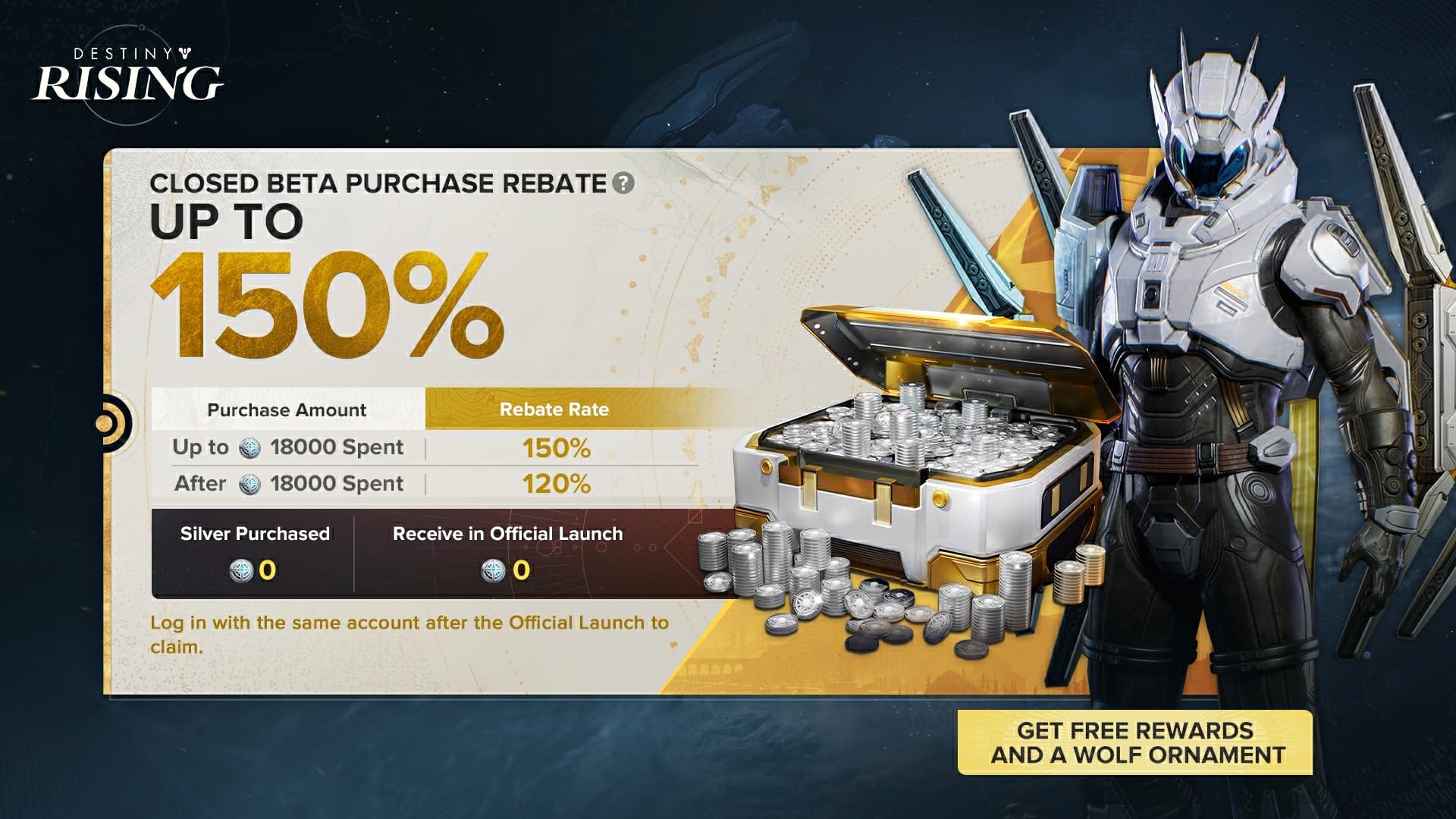
What counts as a real delay, though? Third-party top-ups usually deliver in 1–3 minutes, occasionally stretching to 10, per service guides like LootBar. Direct store buys that funnel bonuses through the mailbox can feel slower since the wallet itself never moves. My rule of thumb: under 15 minutes is fine, an hour-plus with a valid receipt earns a ticket.
Triage with this before you escalate:
| What you're seeing |
Most likely cause |
The fix |
Typical resolution |
| Wallet flat, bank shows charged |
Authorization hold not yet captured |
Wait, relog, re-check |
Usually minutes |
| Bonus Silver "missing," base credited |
Reward routed to in-game mail |
Claim mailbox |
Immediate once claimed |
| Nothing credited anywhere, valid receipt |
Server sync / processing |
Relog, restart client |
Minutes; escalate after ~1hr |
| Credited but you can't find it |
Wrong linked account / server |
Verify account context |
Depends on binding |
| No order ID, unverifiable channel |
No proof of purchase |
Limited; gather any records |
Often unrecoverable |
Source: synthesized from Refund and Reward Program (2025), LootBar top-up guide (2026), and the analogous Bungie Help delivery process (2026).

One display quirk worth filing away: bound and unbound currency can surface in separate tabs, so someone seeing only one slice of a buy figures the rest evaporated. It didn't. It's just filed under a different label.
If you're refreshing your bank app every ten seconds, that "charged" notification is a hold, not a verdict. Let the capture finish.
Filing with support? Bring proof or skip it
The order ID is the whole ballgame. Buy from some unverifiable channel without one and you've got nothing to dispute with, per multiple top-up service warnings (2026), and an agent flat-out can't credit Silver to a transaction they can't see. The folks who never screenshot a receipt are the ones whose cases go nowhere. So before you open a ticket, gather:
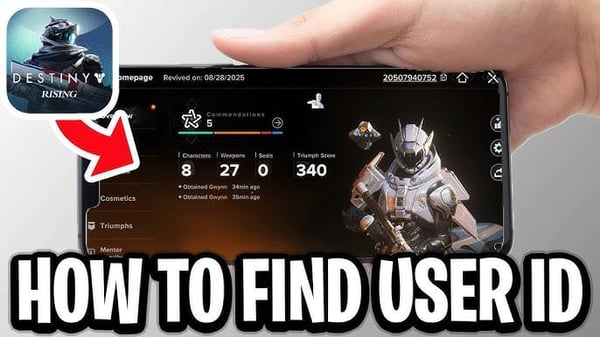
- Your account's linked social login and in-game ID
- The order ID / transaction reference from your purchase history
- The platform receipt (Google Play or App Store), or the third-party order confirmation
- A timestamp of the purchase and a screenshot of the current wallet
Official support runs through NetEase. The published route for the global build is DestinyRising@global.netease.com, sitting right alongside the store entry on the Google Play page. Attach all of the above in your first message. A ticket carrying a clean order ID closes way faster than three follow-ups that don't.
Now the dicey recovery move. Don't grab a bank chargeback as your opening play. Sure, a chargeback can claw your money back, but publishers routinely treat a reversed charge as ban-worthy, so you'd be swapping a delayed purchase for a locked account. The clean route is the platform's own refund flow plus a support ticket. Slower, but it won't torch your progress. I'd only reach for a chargeback after the official channels have genuinely left me hanging, fully aware of the account risk I'm taking on.
And that 90-day claim window on beta refunds and rewards, per the official program? That's your reminder that proof has a shelf life. Don't let a missing-purchase case sit for weeks figuring it'll fix itself.
If you've got a real failure and a valid receipt, one well-documented ticket beats five frantic ones. And give the chargeback a wide berth unless you're genuinely fine losing the account.
Two habits that kill the next missing-Silver scare
Almost every flavor of this problem dies to two small routines. One, confirm your linked account before every top up. That's the antidote to the one unrecoverable error. Two, save the order ID every time, no exceptions, because it's what separates a winnable dispute from a shrug. Currency-type mix-ups and mailbox deliveries spawn way more bogus "missing Silver" reports than actual failures do, so a mailbox check should be reflex, not your last desperate move.
Honestly, where you buy matters less than whether you can verify delivery. The question isn't strictly cheapest price, it's whether the channel hands over a clear order ID and a delivery you can actually confirm against your wallet. If you'd rather dodge the wrong-account and delivery guesswork entirely, a Destiny: Rising top up channel that shows your order ID and delivery status plainly is worth keeping on the radar. The verification trail is the bit that protects you, not whatever brand's stamped on the receipt.
Sorted by who you are:
- Low-spender, occasional top-up: mailbox-check-then-relog clears nearly all your scares; you'll rarely need support.
- Multi-device or multi-login player: account verification before purchase is non-negotiable, specifically for you.
- Higher-volume buyer: screenshot every order ID; your dispute exposure runs bigger, so your proof discipline should too.
Frequently Asked Questions
Why is my Silver not showing in Destiny Rising after I paid?
Usually it's server sync lag, currency parked in your in-game mailbox, or a purchase that posted to a different linked account. Relog to force a sync, claim your mail, and double-check which social login you're signed into. If your base Silver credited but a bonus didn't, that bonus is almost certainly an unclaimed mail item, not a failure.
How long should I wait before assuming the top up failed?
Third-party top-ups usually deliver in 1–3 minutes, maybe 10 at the far end, per top-up service guides (2026). Direct store buys can feel slower when the bonus routes through the mailbox. Under 15 minutes is normal. An hour-plus with a valid receipt is when you file.
Can my Silver get credited to the wrong account?
Yep, and it's the priciest mistake of the bunch. Binding to Facebook, X, or Google Play is mandatory, and rewards drop on the first character of the linked account, per the official Refund and Reward Program. A purchase under a different login or regional store context can post somewhere you're not standing, so check your receipt's account email against your current login before you cry theft.
Your in-game ID and linked login, the order ID from your purchase history, the platform receipt or third-party order confirmation, and a timestamped screenshot of your wallet. Send the whole bundle to the published support email on your first try. Tickets without an order ID are the ones that stall, since agents can't credit a transaction they can't trace.
Is initiating a bank chargeback a smart way to recover my money?
Rarely worth it. A chargeback might recover the charge, but publishers commonly treat reversed payments as ban-worthy, so you risk losing the account just to get the cash back. Exhaust the platform refund flow and an official ticket first, and save the chargeback for a true dead-end, only if you accept the account risk.






Comments