Diagnostic Matrix for Instant Startup Crashes
Match your specific startup symptoms to the technical root causes below before modifying system files.
| Failure Category | Specific File Path or Offending Software | Technical Trigger & Fix Action |
|---|
| Corrupted Local Cache | %localappdata%\Roblox & %temp%\Roblox | Purge directories to delete corrupted textures, assets, and temporary script files. |
| Anti-Cheat Injection Clash | RTSS, MSI Afterburner, Discord, Bloxstrap | Terminate DirectX/Vulkan OSD hooks triggering Byfron Hyperion shutdowns. |
| Missing Runtime Libraries | Visual C++ 2015–2022 (x86 & x64) | Repair corrupted runtime DLL packages required by the 64-bit client binary. |
| Hardware Input Driver Clash | Logitech G920 Racing Wheel / inpoutx64 | Disconnect specialty controller hardware and delete outdated kernel RGB drivers. |
| System Image Damage | verifier.dll / Damaged System Files | Run DISM and SFC scans to repair damaged Windows 11 component dependencies. |
| Dynamic Port Filtering | Outbound UDP Ports 49152–65535 | Whitelist client executables in firewall policies to allow server negotiation. |
Reviewing these six primary failure categories pinpoints why the client terminates before loading the main interface.
Step 1: Kill Conflicting Overlays and Background Utilities
Byfron flags third-party screen overlays as potential code injection vectors. Running hardware monitors, screen recorders, or custom launchers causes the anti-cheat engine to terminate the client before the main menu renders.
RivaTuner Statistics Server (RTSS) and MSI Afterburner cause the majority of these crashes. Both utilities use low-level DirectX and Vulkan hooks to display on-screen framerate and temperature counters. When Byfron detects these hooks attaching to RobloxPlayerBeta.exe, it kills the process.
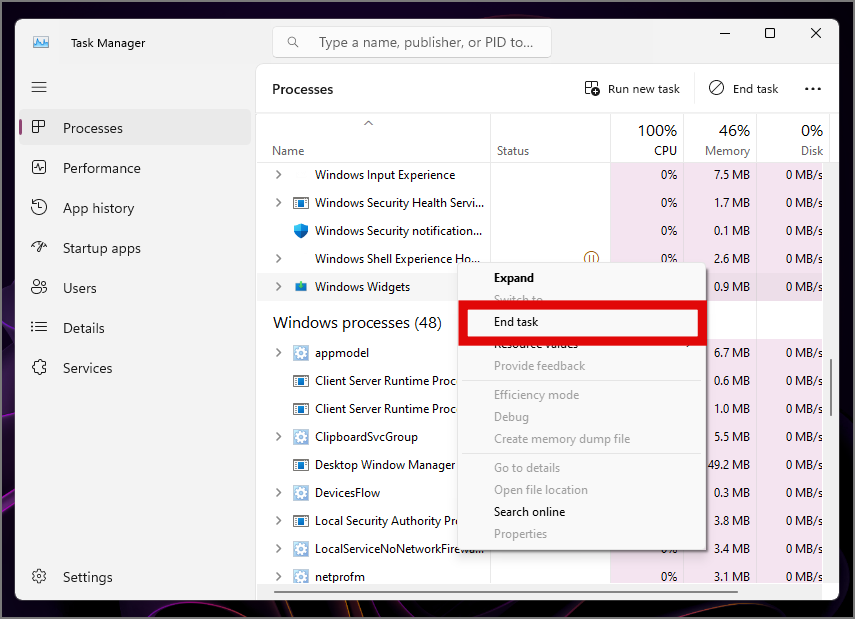
To clear software conflicts:
- Press
Ctrl + Shift + Esc to open Task Manager. - Locate RTSS, MSI Afterburner, OBS Studio, and Discord in the background processes list.
- Click each process and select End Task.
- Check the system tray for peripheral management tools like Logitech G HUB or custom RGB controllers.
- Terminate third-party client modifiers such as Bloxstrap, Fishstrap, or RbxFpsUnlocker.
Older motherboard lighting utilities often install an insecure kernel driver named inpoutx64. Windows 11 flags this driver under core security rules, and Byfron blocks launch sequences whenever inpoutx64 is active. If your motherboard software runs this library, close the lighting service before launching.
Once your client runs without overlay conflicts, you can redeem a Roblox gift card balance to pick up avatar accessories and game passes.
Step 2: Disconnect Specialty Peripherals and Racing Wheels
Non-standard driver polling routines on specialty peripherals crash the client during its hardware query. Racing wheels, flight sticks, and custom input adapters frequently conflict with the engine's controller detection routine.
The Logitech G920 steering wheel is known for triggering silent launch failures. When the executable boots, it queries active DirectInput and XInput devices. The driver hooks used by Logitech G920 software interrupt this initialization check, forcing the engine to abort.
If you have a wheel, pedals, or flight simulator hardware connected:
- Unplug the USB cable connecting the peripheral to your PC.
- Open Task Manager and end any associated controller software processes.
- Launch Roblox from your browser or desktop shortcut.
- Wait until the experience loads completely before reconnecting secondary controllers.
Standard Xbox and PlayStation gamepads run on standard XInput pathways and rarely cause crashes. If issues persist, disconnect auxiliary USB hubs to isolate the offending input device.
Step 3: Purge Corrupted AppData and Temporary Cache
Every server join downloads asset bundles, place geometries, custom sounds, and UI scripts into local temporary directories. When a network connection drops mid-download or the client closes abruptly, these cached files corrupt. Subsequent startup routines attempt to parse damaged data and crash.
Purging these directories forces the launcher to download clean, verified assets. Deleting temporary cache files will not affect your user account, inventory, or Robux balance, which are stored server-side.
Clearing Local AppData
- Press
Windows Key + R to open the Run dialog box. - Type
%localappdata% and press Enter. - Locate the folder named
Roblox. - Right-click the
Roblox folder and select Delete (or press Shift + Delete).
Clearing Temporary Windows Cache
- Press
Windows Key + R again. - Type
%temp%\Roblox and click OK. - Press
Ctrl + A to select all files and folders in the directory. - Press Delete. If Windows indicates certain files are in use, click Skip.
You can also execute this cleanup via Command Prompt. Open Command Prompt as an administrator and run:
rmdir /s /q "%localappdata%\Roblox"
rmdir /s /q "%temp%\Roblox"
After clearing both directories, launch an experience from the website. The client takes a few extra seconds on first run to rebuild its directory structure and download fresh core assets.
Step 4: Repair System Files and Visual C++ Runtimes
Missing dynamic link libraries prevent the 64-bit client from communicating with your graphics card and audio drivers. If your installation of the Microsoft Visual C++ Redistributables is damaged, the client fails silently.
Roblox relies on both the x86 (32-bit) and x64 (64-bit) architectures of the Visual C++ 2015–2022 Redistributable runtimes. Even on 64-bit Windows 11, background web helper binaries require the 32-bit libraries to bridge browser communication.
Reinstalling Visual C++ Packages
- Press
Windows Key + I to open Windows Settings. - Navigate to Apps > Installed Apps.
- Scroll down to Microsoft Visual C++ 2015–2022 Redistributable.
- Click the three dots next to the x64 version, select Modify, and click Repair.
- Repeat the repair process for the x86 version if present.
- If the runtimes are missing entirely, download fresh installers directly from Microsoft's official site and restart your PC.
Repairing Windows Component Stores
Damaged system files, such as a corrupted verifier.dll or storage volume access library, prevent the game from allocating memory safely. Run Windows system file tools to verify OS integrity:
- Type
cmd into the Windows search bar. - Right-click Command Prompt and select Run as administrator.
- Type
sfc /scannow and press Enter. Allow the scan to reach 100%. - Type
DISM /Online /Cleanup-Image /RestoreHealth and press Enter. - Restart your computer once the image restoration completes.
sfc /scannow
DISM /Online /Cleanup-Image /RestoreHealth
These commands replace corrupted OS-level dependencies with clean copies from the Windows component store.
Step 5: Adjust Compatibility Settings and Admin Privileges
Restricted user permissions in Windows 11 can block the launcher from creating lock files or accessing the registry. Adjusting shortcut properties grants the executable necessary execution rights.
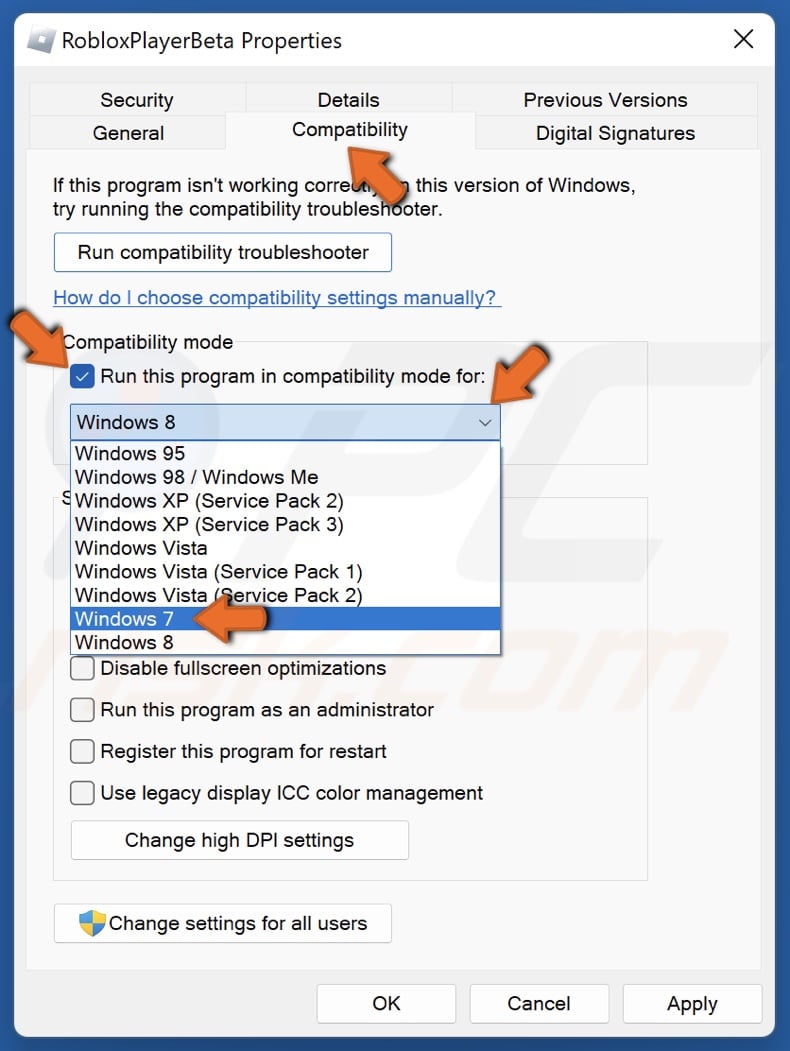
- Right-click the Roblox Player shortcut on your desktop and select Properties.
- Navigate to the Compatibility tab.
- Check the box next to Run this program as an administrator.
- Check the box for Disable fullscreen optimizations.
- Click Apply, then click OK.
Some guides suggest running the client in Windows 8 compatibility mode to fix display adapter failures. However, Byfron anti-cheat runs most reliably under native 64-bit Windows 11 execution. Setting compatibility mode to an older OS version can trigger Byfron to flag your environment as an unsupported virtual wrapper. Use Windows 8 compatibility mode only as a temporary diagnostic test if display driver initialization fails.
A standard uninstallation through Windows Settings leaves leftover configuration files, cache remnants, and orphaned registry keys behind. If a custom launcher like Bloxstrap or Fishstrap was installed, standard removal tools rarely clean up scheduled tasks or registry redirections, causing fresh installations to inherit broken hooks.
A clean reinstallation purges these residual files.
Step-by-Step Clean Reinstallation
- Press
Windows Key + R, type appwiz.cpl, and press Enter. - Locate Roblox Player in the list, right-click it, and select Uninstall.
- Open the Run dialog again, enter
%localappdata%, and delete any remaining Roblox folder. - Open the Run dialog, enter
%userprofile%\AppData\LocalLow, and delete any Roblox or custom launcher folders. - Press
Windows Key + R, type regedit, and press Enter to open the Registry Editor. - Navigate to
HKEY_CURRENT_USER\Software\Roblox and delete the folder. - Navigate to
HKEY_LOCAL_MACHINE\SOFTWARE\Roblox (if present) and delete the folder. - Restart your computer.
- Log into the official website, click Play on any public experience, and download a fresh installer.
A fresh setup gets you back into experiences like Blox Fruits or Pet Simulator 99, where you can use a Roblox digital code to unlock game boosts.
Desktop Win32 Player vs. Microsoft Store UWP App
Windows 11 supports two distinct versions of the client: the standalone Win32 desktop application (downloaded through web browsers) and the Universal Windows Platform (UWP) app available through the Microsoft Store.
Each build uses a different architecture, security sandbox, and execution path.
| Feature / Aspect | Win32 Desktop Player | Microsoft Store UWP App | Mobile App (Android / iOS) |
|---|
| Distribution Source | Official Website / Browser | Microsoft Store App | Google Play / Apple App Store |
| Anti-Cheat Architecture | Byfron Hyperion 64-Bit Engine | Sandboxed Windows App Container | Native Mobile OS Sandbox |
| Susceptibility to Overlay Crashes | High (DirectX/Vulkan hook clash) | Low (Isolated container pipeline) | None (Mobile OS sandboxed) |
| Peripheral Support | Full (Wheels, Gamepads, Custom) | Limited (Standard XInput gamepads) | Touch & Bluetooth Gamepads |
| Common Failure Mode | Silent crash on launch via anti-cheat | Freezing on splash screen / store sync | Memory limit termination |
Comparing platform builds highlights why switching to the Microsoft Store client can bypass stubborn Win32 anti-cheat crashes.
If the Win32 application refuses to launch after clearing caches and repairing runtimes, install the Microsoft Store version. The Store app runs inside an isolated container. It does not load system-wide hooks in the same manner, making it immune to many third-party software conflicts affecting the standalone executable.
The Store app does have trade-offs. While it avoids anti-cheat launch crashes, it can occasionally suffer from UI freezing or frame pacing stutters. Treat the Microsoft Store app as a reliable fallback while troubleshooting your main desktop installation.
Whitelisting Antivirus and Opening Outbound Firewall Ports
Security suites can falsely identify updated client binaries as heuristic threats. Windows Defender, Avast, Norton, and McAfee frequently quarantine or block RobloxPlayerBeta.exe without notifying you. Windows attempts to execute the shortcut, finds the target binary locked by the antivirus filter driver, and closes the launcher instantly.
Network firewalls that restrict outbound dynamic UDP traffic also cause the launcher to hang and abort during its initial connection handshake.
| Security Layer | Target File / Protocol Range | Recommended Configuration Rule |
|---|
| Windows Defender Antivirus | %localappdata%\Roblox\Versions\* | Add the entire Roblox versions directory to the exclusions list. |
| Third-Party Antivirus (Avast/Norton/McAfee) | RobloxPlayerBeta.exe & RobloxPlayerLauncher.exe | Create an active real-time scanning exception for both binaries. |
| Windows Defender Firewall | Outbound Rules for Roblox Player | Set rule action to Allow the connection across Private and Public profiles. |
| Network Router / Hardware Firewall | Outbound UDP Ports: 49152–65535 | Ensure dynamic outbound UDP traffic is unblocked for server handshakes. |
Applying these security rules prevents false-positive file locks and network handshake drops during startup.
To add an exclusion in Windows Defender:
- Open Windows Security from your system tray.
- Click Virus & threat protection.
- Under Virus & threat protection settings, click Manage settings.
- Scroll down to Exclusions and click Add or remove exclusions.
- Click Add an exclusion, choose Folder, and select
%localappdata%\Roblox.
After configuring firewall rules and confirming server connectivity, topping up your account with a Roblox card lets you purchase premium passes and server subscriptions.
Frequently Asked Questions
Why does Roblox crash instantly on launch in Windows 11 without an error code?
Roblox crashes silently when Byfron Hyperion anti-cheat detects conflicting background hooks from overlays like RTSS or Discord. Corrupted local cache files in %localappdata%\Roblox or missing Visual C++ dependencies also cause immediate startup termination. Purging temporary caches and disabling background software usually resolves the crash.
How do I safely clear the Roblox cache on Windows 11?
Press Windows Key + R, type %temp%\Roblox, and delete all files inside the folder. Repeat the process for %localappdata%\Roblox to clear old textures and scripts. Clearing this temporary cache will not erase your account credentials, Robux balance, or in-game progress.
Can background overlays cause Roblox to crash on startup?
Yes, on-screen overlays from MSI Afterburner, RivaTuner Statistics Server (RTSS), and Discord inject code into the graphics pipeline that Byfron flags as an untrusted modification. Closing these applications via Task Manager before launching the client stops the crash.
Does running Roblox as an administrator stop startup crashes?
Yes, granting administrator permissions allows the launcher to bypass local user access restrictions when updating client files and initializing security components. Right-click the Roblox Player shortcut, select Properties, open the Compatibility tab, and check "Run this program as an administrator."
Will switching to the Microsoft Store version bypass desktop client crashes?
Yes, downloading Roblox through the Microsoft Store provides a sandboxed environment that bypasses many standard Win32 hook and anti-cheat conflicts. This serves as an immediate workaround if the standalone browser-launched client fails to open.
Why do USB steering wheels like the Logitech G920 crash Roblox?
Logitech steering wheel drivers interfere with the controller initialization routine when the game executable boots up. Unplugging the USB wheel prior to launching Roblox resolves the startup crash.
How do I fix corrupted system files causing Roblox launch failures?
Open Command Prompt as an administrator and run sfc /scannow to verify core system libraries. Follow this with DISM /Online /Cleanup-Image /RestoreHealth to repair damaged Windows 11 system components required by the game executable.
Actionable Path Forward
Startup crashes on Windows 11 are rarely caused by hardware failures. In most cases, they stem from an aggressive anti-cheat interaction, a corrupted cache folder, or an outdated background hook.
Start by terminating monitoring overlays like RTSS and MSI Afterburner in Task Manager. If the crash persists, clear both %temp%\Roblox and %localappdata%\Roblox, repair your Visual C++ 2015–2022 runtimes, and disconnect specialty peripherals.
If you need an immediate workaround, install the Microsoft Store version to bypass the Win32 launch pipeline entirely while you clean up your primary desktop installation.








Comments