To resolve a Mecha Break account authentication failed error, switch your network IPv4 settings to Google Public DNS (primary 8.8.8.8, secondary 8.8.4.4), verify your game file integrity in Steam, and ensure your client is connecting to the exact regional server cluster where your pilot profile was registered. If central login servers are congested during peak traffic windows, wait 30 minutes to 1 hour before retrying instead of repeatedly sending login requests.
Staring at a failed handshake screen while your squad is already in the hangar is infuriating. Most authentication lockouts in Mecha Break trace back to three specific chokepoints: local security software blocking the login client, DNS routing timeouts during server handshake, or attempting to authenticate against a mismatched regional cluster.
Isolate the culprit, clean up your network routes, and push past the login screen.
Check your regional cluster before troubleshooting local hardware
Mecha Break isolates player accounts across four dedicated regional server clusters: Asia-Pacific, North America, South America, and Europe. Character profiles and authentication sessions are permanently locked to the specific regional server cluster where the account was registered (vgtopup.com).
If you select a different server cluster on the title screen—or attempt to link credentials across regions—the authentication handshake drops because your pilot profile does not exist in that cluster database. If you already have access to the main lobby on another device or previous session, you can verify your active cluster and numerical User ID by clicking your pilot avatar in the upper-left corner to open the Pilot Profile menu (vgtopup.com). When purchasing Mecha Break Corite recharge packs for Striker cosmetics or seasonal Battle Passes, selecting the matching server is mandatory for the exact same reason.
| Cluster Name | Regional Coverage | Compatible Registration | Visual Preview |
|---|
| Asia-Pacific (APAC) | Asian servers | Accounts registered in Asia-Pacific | 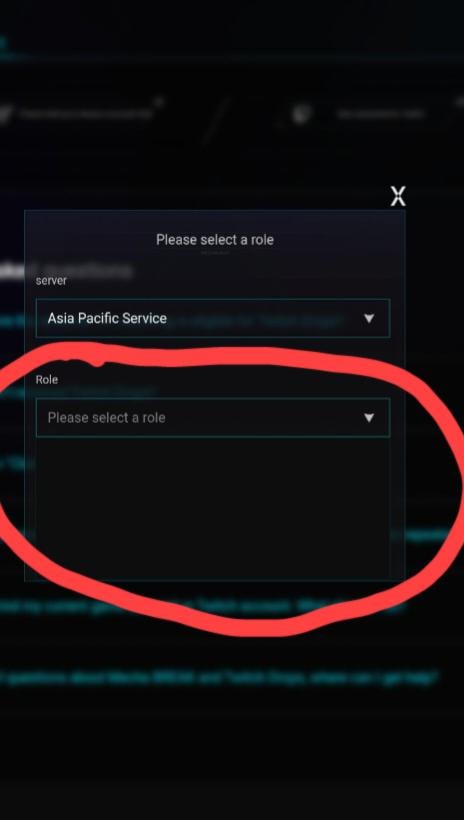 |
| North America (NA) | US and Canada servers | Accounts registered in North America | 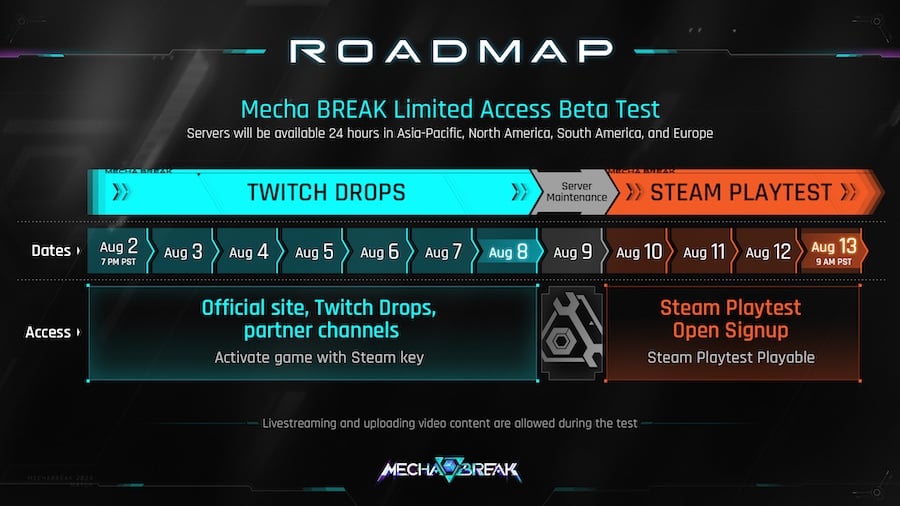 |
| Europe (EU) | European servers | Accounts registered in Europe |  |
| South America (SA) | Latin American servers | Accounts registered in South America |  |
(Regional server cluster requirements documented via vgtopup.com.)
Step-by-step diagnostic sequence to fix Mecha Break login errors
Work through these five steps in order. They start with local credential and file validation, moving outward to network routing.
1. Verify game file integrity on Steam
Client-side binary corruption or interrupted micro-patches will drop authentication handshakes silently. Steam players can repair missing or damaged binaries directly through the launcher (xboxplay.games):
- Open your Steam Library and right-click Mecha BREAK.
- Select Properties from the context menu.
- Click Installed Files in the left sidebar.
- Select Verify integrity of game files.
Steam validates local hashes against the distribution depot and redownloads any damaged executable files. Once complete, relaunch the client.
Whitelist the executable in your firewall and antivirus
Your security software may be silently dropping handshake packets. Windows Defender and third-party antivirus suites frequently flag online multiplayer executables during rapid login attempts (gearupbooster.com).
Locate the main Mecha BREAK executable file (typically the .exe file in your game installation folder) and add it to the whitelist or exclusions list in your security software. This prevents outbound handshake packets from being dropped at the OS level.
Switch to Google Public DNS to clear hostname lookup failures
When default ISP domain name servers choke or throttle endpoint queries, your client simply times out (gearupbooster.com). Swap in Google's static public addresses to clear those resolution hangs:
- Primary DNS:
8.8.8.8 - Secondary DNS:
8.8.4.4
Apply these values to your active network adapter under IPv4 properties, save the configuration, and restart your game client.
Power cycle your router for 30 seconds
If the snag sits at your local gateway, stale routing tables and lingering session states will prevent a clean handshake. Power down your router for 30 seconds, then boot both the networking hardware and your PC or console back up (xboxplay.games). That forced reboot clears cached routing hops and pulls a clean DHCP lease for your connection to the regional cluster.
Handle peak-hour server congestion
Sometimes the bottleneck isn't on your end at all. When central login servers hit peak-hour capacity, spamming the reconnect button only prolongs your lockout (patchcrazy.co.uk). Step away for 30 minutes to 1 hour—letting the regional queues digest the traffic surge gives your session a much cleaner shot at authenticating.
| Issue Type | Primary Cause | Recommended Action | Source Attribution |
|---|
| Handshake Timeout | ISP DNS resolution failure | Configure Google Public DNS (8.8.8.8 / 8.8.4.4) | gearupbooster.com |
| Silent Disconnect | Security suite dropping outbound packets | Whitelist main .exe in firewall/antivirus | gearupbooster.com |
| Corrupted Token | Damaged client binaries or patch failure | Run Steam file integrity verification | xboxplay.games |
| Gateway Stoppage | Stale network session tables | Power off router for 30 seconds | xboxplay.games |
| Traffic Saturation | Central login server capacity limits | Pause attempts for 30 minutes to 1 hour | patchcrazy.co.uk |
Verifying platform maintenance and version availability
Before digging into OS settings, make sure the servers are actually online. Check official announcements on X (Twitter), Discord, or community reports on Downdetector (xboxplay.games). No client-side workaround can bypass a backend patch deployment.
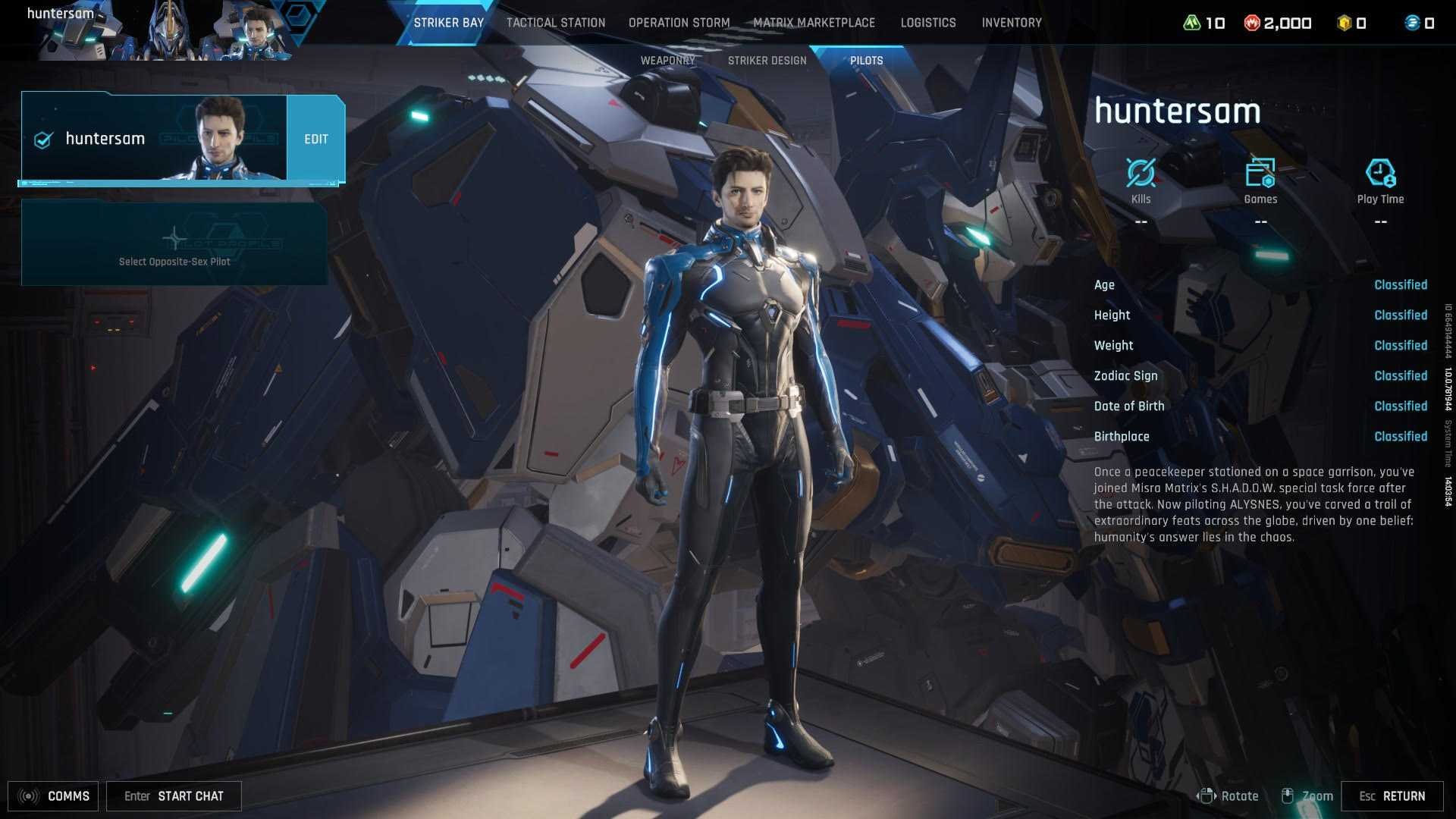
Check your platform store listing directly to ensure your client build matches the active live testing or deployment phase. Expired test clients cannot negotiate handshakes with current production servers.
| Setting / Component | Configured Target Value | Diagnostic Purpose | Source Attribution |
|---|
| Primary IPv4 DNS | 8.8.8.8 | Fixes server hostname resolution drops | gearupbooster.com |
| Secondary IPv4 DNS | 8.8.4.4 | Backup route for authentication endpoints | gearupbooster.com |
| Router Power Cycle | 30 seconds power-off | Clears local gateway connection caches | xboxplay.games |
| Steam Client Check | Verify integrity of game files | Replaces corrupted executable files | xboxplay.games |
| Executable Exclusions | Game .exe file path | Prevents firewall and antivirus blocking | gearupbooster.com |
Editor's last word
Repeatedly hammering the login button during a handshake failure almost always works against you. Fix your DNS route, verify your Steam install files, confirm you are pointing at your account's original server cluster, and let the central login queues breathe for half an hour if launch traffic is peaking.
Follow VGTopup for more Mecha Break news~







Comments