Diamonds in Lords Mobile function as a universal proxy currency designated to purchase standard in-game Mall packs rather than converting directly into kingdom Gems. To spend them, open the in-game Mall, ensure your balance registers (the counter appears inside the Mall interface once your account holds at least 1 Diamond), switch the pack pricing display to Diamonds using the toggle button on the far right, and confirm your pack selection.
Diamonds vs Gems: Why Your Gem Counter Did Not Increase
Many players complete a web top-up, open Lords Mobile, and immediately check the upper resource bar to see if their Gem balance went up. It does not. Diamonds and Gems are two distinct currencies maintained in separate ledgers.
According to currency documentation from VGTopup, Gems are an internal soft currency earned through gameplay, kingdom quests, and guild gifts. Pinned to the top UI bar, they cover kingdom maintenance: activating battle shields, speeding up construction queues, buying VIP points, and earning 30-day interest deposits inside the Treasure Trove.
Diamonds serve a single role: they act as an intermediary voucher credited via your IGG ID to buy standard real-money Mall packs, material chests, and bundle offers without using app store billing (VGTopup). If you purchased Lords Mobile Diamonds, your top-bar Gems will not change until you buy a pack containing Gems.
| Feature | Diamonds | Gems |
|---|
| Primary Purpose | Buying Mall packs, bundles, and chests | Buying shields, speed-ups, VIP points, and instant completions |
| Display Location | Inside the in-game Mall interface | Main upper UI resource bar |
| Mall Pack Purchasing | Yes (converts directly to store packs) | No (cannot buy real-money bundle packs) |
| Treasure Trove Eligibility | No | Yes (generates interest over 30 days) |
Comparison data documented via VGTopup currency documentation.
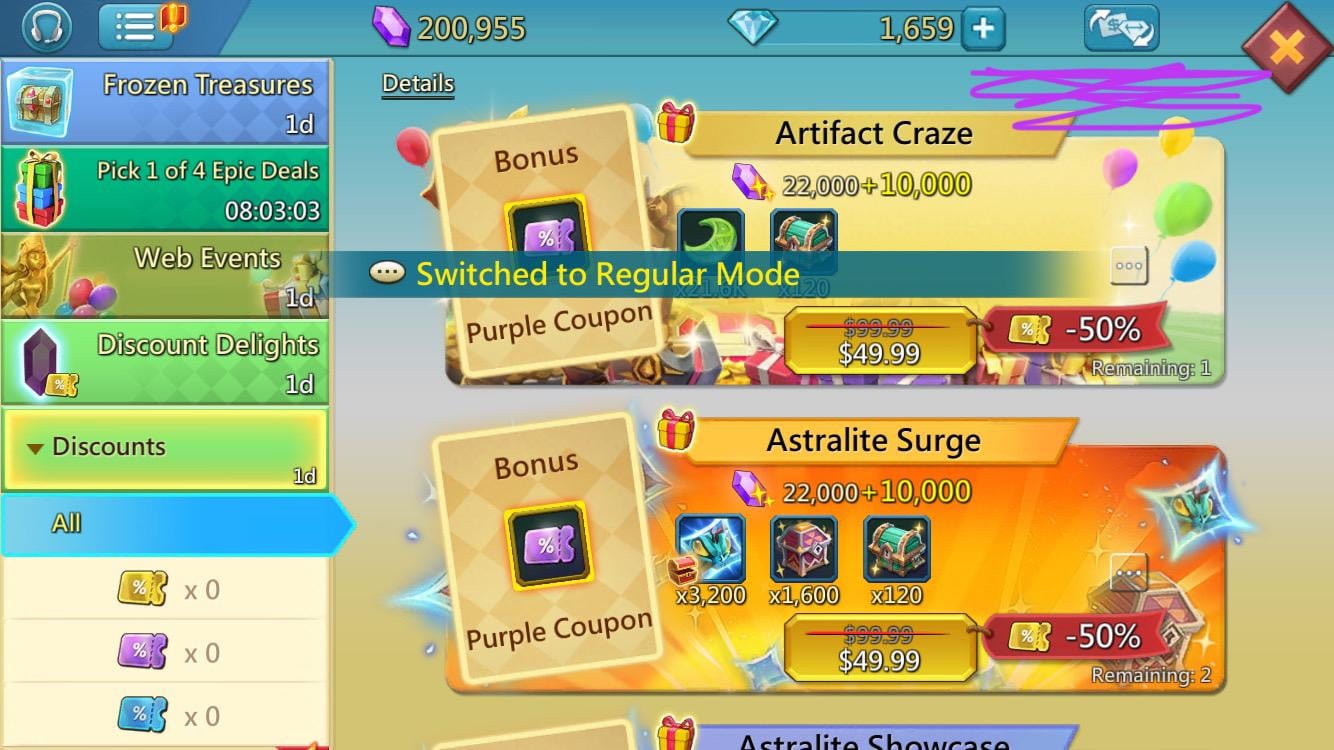
How to Exchange Diamonds for Packs in the Mall
Exchanging your stored Diamond balance for items takes place entirely inside the Mall. Follow these specific steps to process your transaction:
- Launch Lords Mobile and open the Mall. Look for the chest or store icon on your primary kingdom interface.
- Inspect the currency switch. According to the official IGG Diamond Shop instructions, tap the toggle button located on the far right of the Mall interface. This shifts the displayed price tags from cash denominations to Diamond totals.
- Select your pack. Browse the available material bundles, speed-up packs, or gear chests.
- Confirm checkout. Tap the purchase button. The client automatically deducts the required amount from your available Diamond balance.
The Automatic Deduction Hierarchy
Lords Mobile prioritizes your balances automatically at checkout. Per the IGG Diamond Shop guidelines, the transaction engine always checks your Diamond reserve first.
If your account holds enough Diamonds, the pack unlocks immediately without outside payment gateways. If you hold fewer Diamonds than the pack costs, the system consumes your existing Diamonds first and redirects you to your platform's standard payment process to settle the remaining balance (IGG Diamond Shop).
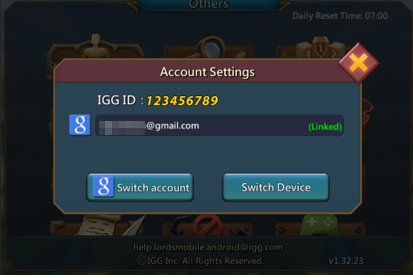
Resolving Missing Diamond Payment Options and Interface Differences
The Diamond interface varies across operating systems and client builds.
Official web instructions from IGG highlight a toggle button on the far right of the Mall (IGG Diamond Shop). However, setup guides from Lords Mobile Pro document an alternative layout on standard or sideloaded Android installations. If the toggle button on the right is missing entirely, use this workflow:
- Access the in-game pack store.
- Tap the settings icon, represented by three horizontal bars on the top left of the store window.
- Locate the Diamond payment setting and select the checkbox next to Diamonds to replace cash prices.
- If your build completely lacks this setting, you may be using an app store build that restricts third-party vouchers. In that scenario, community documentation notes you must download the official Diamond APK build directly provided by IGG to expose the proxy checkout interface (Lords Mobile Pro).
Sales event terms also cause confusion. Official notes from the IGG Diamond Shop state that Monthly and Weekly Passes are excluded from promotional sales events. Even though external third-party platforms like SEAGM, TOPUPlive, 3mkstore, UniPin, MRCODA, Lotkeys, and G2G frequently advertise baseline promotional pricing on pass tiers, client-side discount events may not apply when spending Diamonds on those specific passes in-game.
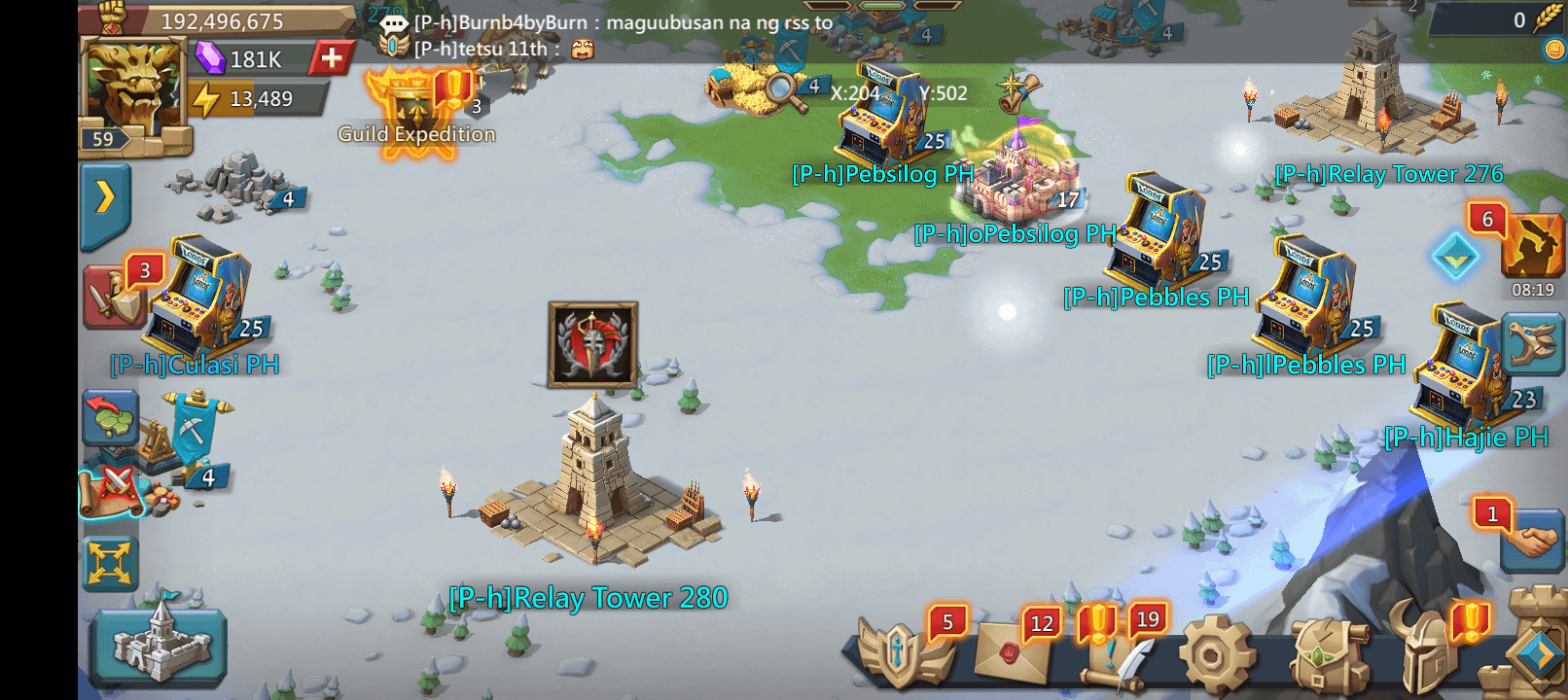
Why Are My Diamonds Not Showing in Lords Mobile?
If your web top-up completed but you cannot find your balance anywhere, two common client behaviors are usually responsible.
The Zero-Balance Display Rule
The in-game Diamond counter only appears in the Mall once an account holds at least 1 Diamond, according to store top-up guides from SEAGM.
If your balance sits at zero, the UI hides the counter entirely. The game displays no placeholder box on your home screen or store screen, so no Diamond icons appear until credited units register.
Server Sync Latency and Cache Refresh
External top-up platforms deliver Diamonds directly to your IGG ID. If the transaction clears while your client is running, the active game session will not always pull updated accounting records automatically.
To resolve a delayed balance display, follow the recovery procedure documented by VGTopup:
- Force-close the app. Swipe Lords Mobile out of your device's active task switcher. Do not simply minimize it.
- Relaunch the client. Allow the game to clear initial load checks and communicate fresh ledger data with the server.
- Open the Mall immediately. Opening the Mall window forces the client to query your Diamond balance sheet and activate the display.
Frequently Asked Questions
Why did my Gem counter not change after buying Lords Mobile Diamonds?
Diamonds do not convert into Gems upon delivery. Diamonds are stored exclusively inside the in-game Mall window to buy bundles, whereas Gems sit on your main top resource bar for shields and speed-ups (VGTopup).
How do I switch the Mall pack prices from cash to Diamonds?
Open the in-game Mall and tap the toggle button located on the far right to convert the price tags to Diamonds, ensuring your account holds a minimum balance of 1 Diamond so the currency option appears (IGG Diamond Shop, SEAGM).
What happens if I try to purchase a pack with fewer Diamonds than required?
The game client deducts your available Diamond balance first and then prompts you to complete the remaining balance using standard platform checkout (IGG Diamond Shop).






Comments