

If your FC Mobile FC Points or Silver have not arrived after a completed transaction, check your in-game mailbox and confirm that payment cleared with your bank, then restart the application. Official EA Help guidelines mandate waiting at least 24 hours from the exact purchase time before support can open an investigation, while direct EA store orders can require up to 72 hours to finalize under their Terms of Sale.
Why Your Balance Has Not Updated
EA SPORTS FC Mobile delivers FC Points and Silver through separate pipelines. FC Points buy player packs, coins, and consumables directly, while Silver is redeemed through the Silver Store for Star Passes and Welcome Bundles. Because purchases originate from different storefronts, delivery delays stem from distinct technical issues.
Third-party sellers like Codashop advertise that top-ups trigger immediately or within seconds. In contrast, official transaction settlement rules give processing networks a wide window. Bank authorization delays, pending app store receipts, regional mismatches, and delivery destination confusion cause almost all missing balance reports.
How Long Do FC Points Take to Arrive?
Delivery windows vary based on the checkout method and store provider. The table below outlines standard processing windows, delivery destinations, and mandatory waiting periods across official and external purchase channels.
| Purchase Channel | Expected Delivery Window | Delivery Location | Minimum Support Wait Time |
|---|---|---|---|
| In-App (Apple App Store / Google Play) | Instant to a few hours | Added to top balance bar | 24 hours (EA Help) |
| Web Store / Direct EA Orders | 24 to 72 hours | In-game mailbox or direct balance | 24 to 72 hours (EA Terms of Sale) |
| External Top-Up Web Shop (UID Entry) | Seconds to 24 hours | In-game mailbox or direct balance | 24 hours (EA Help) |
| Digital Code Redemption Page | A few minutes after success | In-game mailbox | 24 hours (EA Help Code Redemption) |
The Mandatory 24 to 72 Hour Rule
EA customer service operates under strict protocol: support representatives cannot investigate a missing content claim until at least 24 hours have elapsed since the transaction occurred. Even if you contact an agent with proof of payment two hours post-purchase, you will be told to wait.
Orders processed directly by EA can face even longer clearance checks. Under EA's Terms of Sale, while most transactions finish within a day, EA reserves up to 72 hours to accept, authorize, and process purchase offers before fulfillment obligations begin.
FC Mobile Silver Not Showing Up After Purchase
The most frequent reason for "missing" Silver is looking in the wrong place. Unlike FC Points purchased directly inside the mobile app, Silver purchased through external top-up services does not go straight to the currency counter at the top of your screen.
External checkouts deliver Silver directly to your in-game mailbox as documented by Codashop. Until you manually open the inbox and claim the package, your Silver counter remains unchanged, preventing you from unlocking items in the Silver Store.
To verify and claim external Silver deliveries:
- Launch EA SPORTS FC Mobile on your device.
- Look at the top navigation icons on the main home menu.
- Tap the mail envelope icon to open your in-game inbox.
- Open the system messages tab and locate the purchase confirmation notice.
- Tap the claim button to transfer the Silver into your active balance.
Immediate Device Troubleshooting Steps
Before assuming your transaction failed, run these local checks to force the client to fetch updated account state data from EA's servers.
1. Verify Payment Clearance
Check your banking application, Google Play order history, or Apple purchase history. If the transaction status reads "Pending" or "Processing," the store has not yet transferred funds to EA. Currency delivery triggers only after the financial institution confirms authorization.
2. Force-Close and Reopen the App
A backgrounded app often caches outdated balance counts. Swipe up from your device app switcher to close FC Mobile completely. Wait thirty seconds, then relaunch the game to establish a clean handshake with the server.
3. Verify Account UID and Region
A simple typo in your User ID (UID) sends currency to another account. Digital codes bought through external retailers like VGTopUp expire one year from purchase and are strictly region-locked. For instance, Egyptian regional codes function only on accounts registered in Egypt; redeeming a regional code on an account based elsewhere results in an immediate failure to credit the balance.
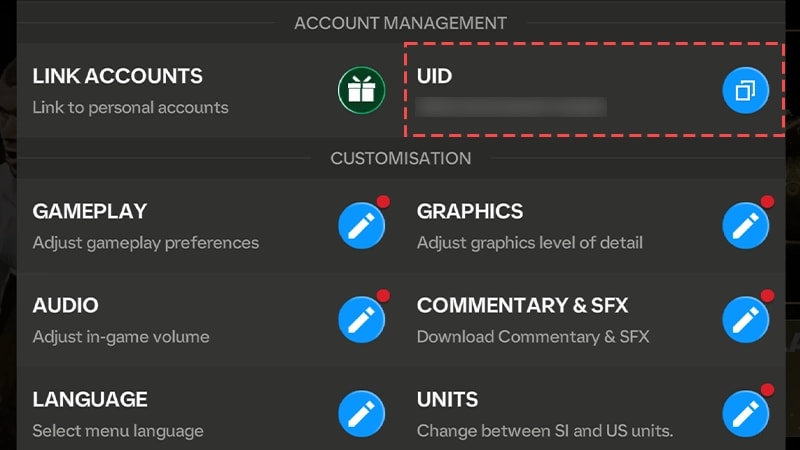
To locate your account UID: 1. Open the game lobby. 2. Tap the gear icon in the top right corner to open Settings. 3. Locate your UID string next to the copy icon as outlined by SEAGM Support. 4. Compare this string against the UID printed on your web store checkout invoice.
4. Check for Web Store Region Lockouts
Players using web storefronts such as store.fcm.ea.com have encountered account blocks stating their account belongs to another country, as documented in player reports. If the web store misidentifies your registration region, the transaction may stall or fail entirely before reaching the game client.
5. Confirm Web Code Redemption Linking
When redeeming digital codes through an official redemption portal, your EA Account must be properly linked to your FC Mobile profile. According to EA Help, rewards appear in your in-game inbox within a few minutes after you see the web confirmation message. If your EA account is disconnected from your mobile app profile, the server cannot route the reward.
Submitting an EA Help Missing Content Ticket
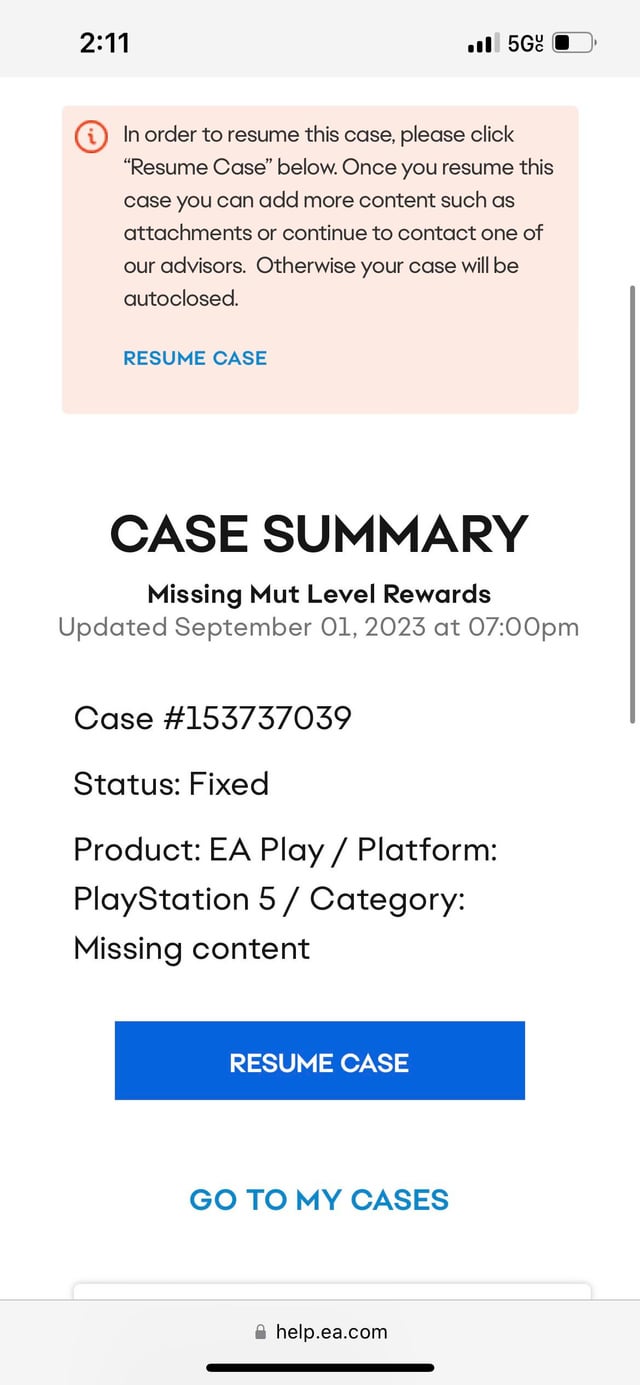
Once 24 hours have passed with settled bank charges and an empty mailbox, open an investigation ticket directly with EA Help.
Required Documentation
EA Support requires specific data points to trace transactions on the server backend. Gathering these details beforehand prevents support staff from bouncing your ticket. Per EA's missing points policy, prepare:
- Account Persona / UID: Your exact in-game User ID from the settings menu or your linked EA ID.
- Platform: EA SPORTS FC Mobile (iOS or Android).
- Purchase Timestamp: The exact date, time, and timezone of the transaction.
- Missing Quantity: The exact number of FC Points or Silver uncredited.
- Code Details: The alphanumeric string and serial details if you redeemed a voucher.
- Valid Proof of Purchase: A clean, uncropped screenshot of the official merchant receipt.
Acceptable Proof of Purchase Receipts
EA does not accept bank notification text messages or partial credit card statements. Your receipt screenshot must clearly show:
- The merchant name (Apple App Store, Google Play Store, or authorized web store).
- The full transaction or order number.
- The item name matching the pack purchased.
- The date and time of the charge.
- The total amount paid.
To file your claim, visit the EA Help portal, select EA SPORTS FC Mobile, choose "Missing content" as the topic, and attach your documentation to the support form.
Requesting Store Refunds for Mobile Purchases
Players who bought currency through Google Play or the Apple App Store and want a refund rather than waiting on an EA Help investigation cannot get their money back through EA. EA's official policy states that refund requests for mobile platform purchases must be submitted directly to the store provider that billed the transaction.
- Google Play: Visit Google's order history page online, select "Report a problem" on the missing transaction, and choose the option stating you did not receive the purchased content.
- Apple App Store: Go to reportaproblem.apple.com, sign in with your Apple ID, select "Request a refund," and indicate that the in-app purchase was not delivered.
Digital codes bought through third-party web storefronts such as VGTopUp are non-returnable once dispatched. If you used a third-party seller, resolve delivery issues through that seller's customer service or via an EA Help ticket using your redemption voucher details.


Comments