To stop Arena Breakout stuttering and overheating on Android, lock your frame rate to an integer divisor of your display's refresh rate using system-level Game Mode on Android 13 or later, which cuts GPU power consumption by up to 50% and overall system power draw by up to 20%. Pair this frame rate limit with low in-game graphics settings to reduce heat generation, switch to an unobstructed 5 GHz or 6 GHz Wi-Fi connection, and assign a static public DNS to prevent mid-raid latency spikes.
Why Your Phone Stutters: Thermal Throttling vs. Network Lag
Many players mistake sudden hitches during combat for poor network quality. Commercial network booster marketing frequently claims that routing issues or packet loss trigger frame rate drops. According to mobile performance engineering and network diagnostics, this diagnosis is inaccurate: network instability creates desynchronization and ping spikes, whereas visual stuttering and frame drops stem from hardware limitations and device overheating.
Extended raids quickly push mobile chipsets to their thermal limits. When safety thresholds are crossed, the operating system aggressively throttles CPU and GPU clock speeds to protect hardware. This sudden drop in processing power causes erratic frame times and visual stuttering right as rendering demands peak in gunfights.
How to Cap Frame Rates with Android Game Mode
Running Arena Breakout with uncapped frame rates keeps the GPU pinned at peak clocks, building up heat fast. On Android 13 and later, the Android Dynamic Performance Framework (ADPF) introduces native FPS throttling. The framework enforces integer divisors of your display's physical refresh rate, stabilizing frame pacing while reducing GPU power draw by up to 50% and total system power usage by up to 20% (Android Developers).
Matching your frame target to a supported divisor eliminates uneven frame delivery:
| Display Refresh Rate | Supported Divisor Frame Targets | Primary Thermal Advantage |
|---|
| 60 Hz Displays | 60 FPS, 30 FPS | Halving to 30 FPS provides maximum thermal headroom on entry-level chipsets (Android Developers). |
| 90 Hz Displays | 90 FPS, 45 FPS, 30 FPS | 45 FPS delivers stable frame pacing while cutting thermal load on mid-range hardware (Android Developers). |
| 120 Hz Displays | 120 FPS, 60 FPS, 40 FPS, 30 FPS | Capping at 60 FPS or 40 FPS prevents thermal throttling during prolonged combat (Android Developers). |
If your phone features a 120 Hz display, setting an in-game target of 60 FPS or utilizing a 40 FPS divisor stabilizes frame delivery without generating the heat caused by running at full 120 FPS.
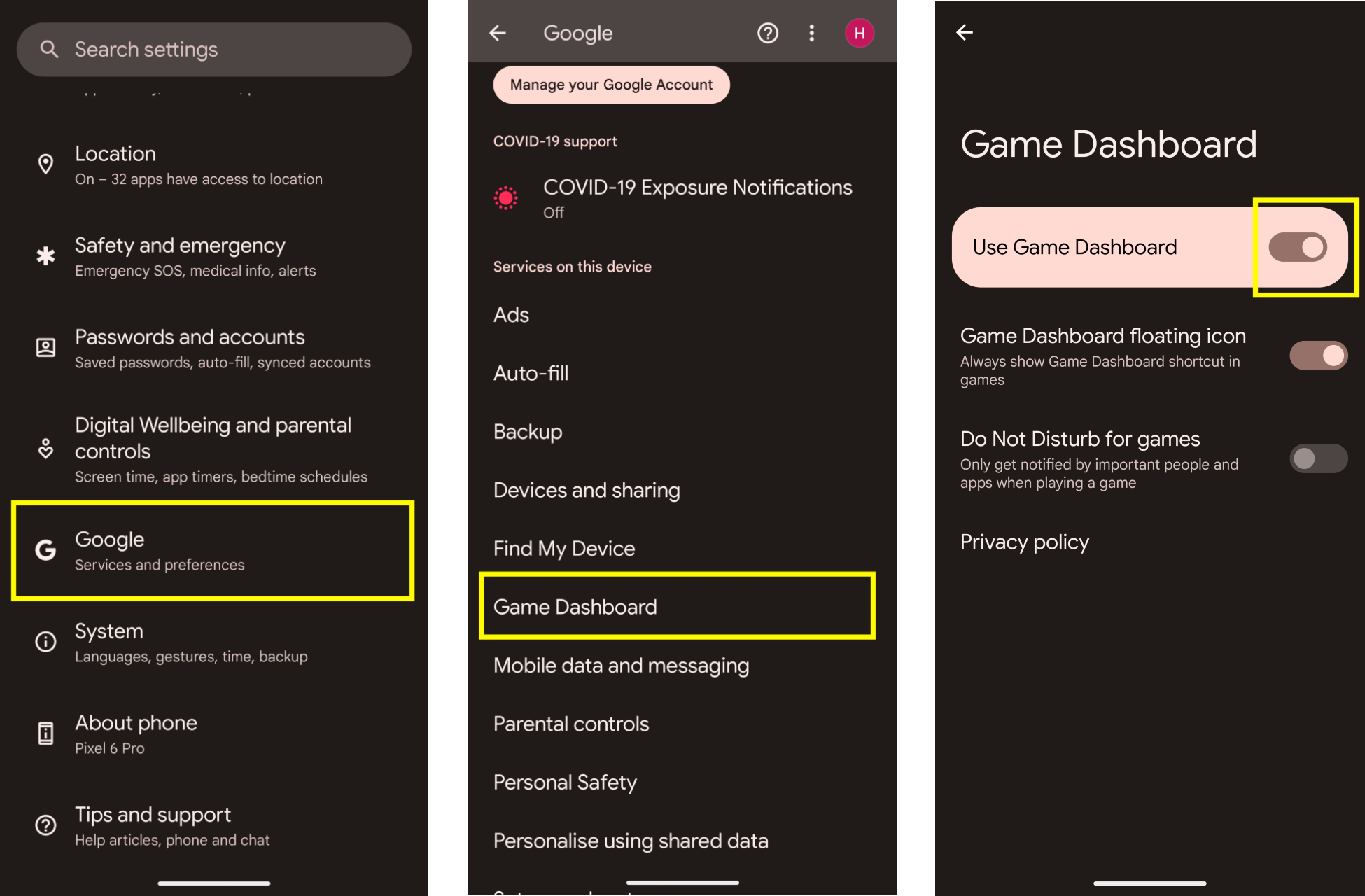
Beginning with Android 12 on Google Pixel and select OEM devices, Android includes the Game Dashboard overlay (Android Developers). This interface lets you monitor real-time hardware behavior while playing Arena Breakout.
- Swipe outward from the edge of the display while in-game to reveal the Game Dashboard icon.
- Tap the shortcut to access the overlay menu.
- Toggle the live FPS counter to track real-time frame pacing during combat.
- Select your preferred Game Mode profile: choose Performance if you need high touch response and maximum system clock rates, or Battery to reduce thermal buildup and preserve power during long sessions.
If the live FPS counter begins fluctuating wildly after 15 to 20 minutes in a raid, your device is throttling. Dropping graphics quality in the game's settings menu from Balanced or HD down to Smooth is the fastest way to relieve stress on the GPU.
Fixing Mid-Fight Ping Spikes and Network Hitching
While thermal throttling triggers visual stuttering, delayed hit registration and rubberbanding stem from network issues. Background sync on Android is a frequent culprit behind sudden latency spikes.
Minimizing an application on Android does not pause its network usage. Background applications continue synchronizing cloud accounts and running automatic updates, which consumes bandwidth during intense encounters (GearUP Booster). Before entering a high-stakes raid, close background apps and pause pending store downloads.
Optimizing Local Wi-Fi Connections
Physical interference between your Android device and the local router causes packet loss. Apply these guidelines for competitive play:
- Connect to the 5 GHz wireless band, or 6 GHz if your router supports Wi-Fi 6E/7, rather than the crowded 2.4 GHz spectrum (GearUP Booster).
- Position yourself close to the router without concrete walls or solid barriers in between.
- Keep the router out of enclosed cabinets or metal shelving, which degrade signal propagation.
- Do not switch between mobile data and Wi-Fi mid-match. Switching networks forces your connection to re-establish routing nodes, frequently assigning an unstable route or disconnecting your raid entirely (GearUP Booster).
Configuring Static Public DNS on Android
If default Internet service provider routing leads to packet drops, assigning a static public DNS directly in your Android network configuration can bypass inefficient DNS resolvers (GearUP Booster):
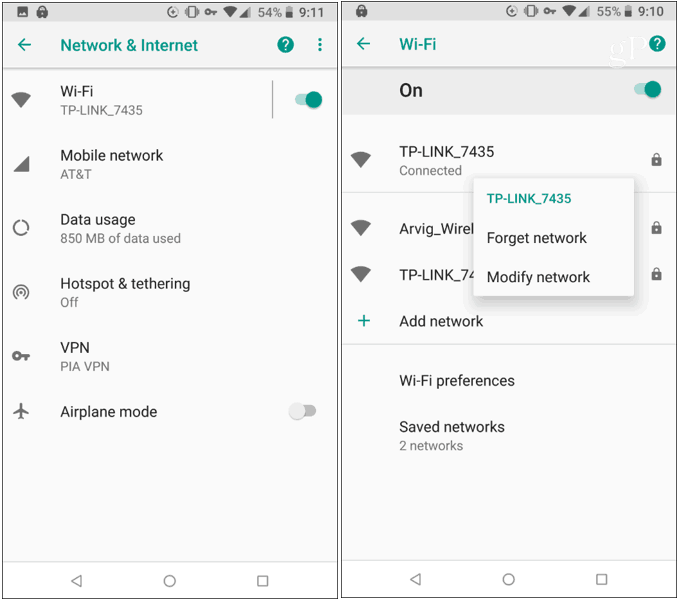
- Open your device Settings.
- Tap Network & Internet (or Connections, depending on your device interface).
- Tap Wi-Fi.
- Long-press your connected network and select Modify network, or tap the gear icon next to the network name.
- Tap Advanced options.
- Change the IP settings toggle from DHCP to Static.
- Scroll down to DNS 1 and enter
8.8.8.8. - Enter
8.8.4.4 in DNS 2 to assign Google's public DNS servers. - Tap Save to apply the configuration.
When troubleshooting performance or managing in-game assets, verify your platform. Arena Breakout on mobile operates on independent servers and distinct account architectures separate from the PC release, Arena Breakout: Infinite (VGTopup).
Because of this separation, in-game assets and currencies do not cross over. If you top up Arena Breakout Bonds to unlock secure containers or seasonal Battle Pass upgrades, those Bonds remain restricted to the mobile client and cannot be transferred to the PC edition.
Frequently Asked Questions
Does higher download speed decrease ping in Arena Breakout Mobile?
No. Raw download and upload bandwidth does not lower latency. In-game ping is determined by physical distance to the game server and the routing efficiency across intermediary network nodes (GearUP Booster).
What ping threshold should players target for competitive raids?
Players should aim to maintain a ping below 60 ms for reliable hit registration and competitive responsiveness, provided they are not physically distant from regional game servers (GearUP Booster).








Comments