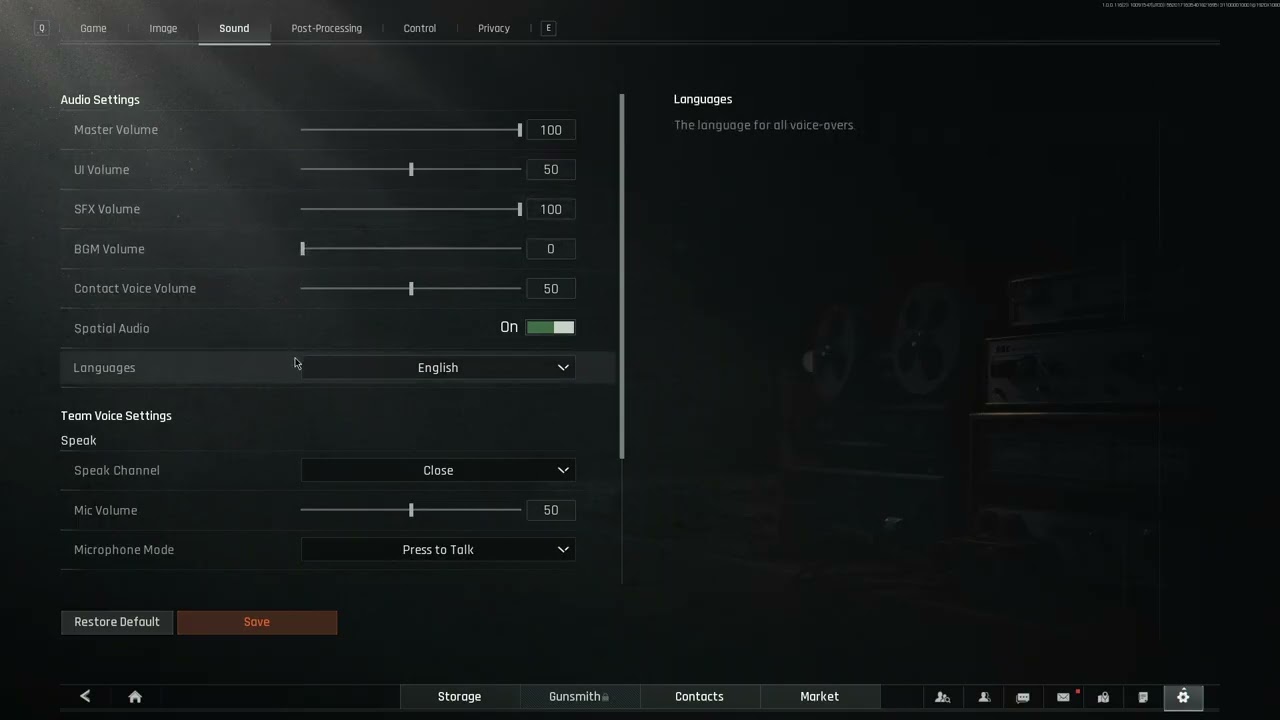
To hear footsteps clearly in Arena Breakout: Infinite, set Audio Output to Headphones, toggle Dynamic Range to Wide, enable native Spatial Audio, and keep Windows spatial sound or third-party virtual surround turned off. Balance your in-game levels by running Master Volume between 80% and 100%, Music Volume at 0% to 20%, and Voice Chat at 50% to 60% so teammate callouts never mask approaching footsteps.
Core In-Game Audio Configuration
Setting up sound inside Arena Breakout: Infinite requires cutting background noise so faint movement cues can register. Gunfire and explosions produce high peak sound pressure. If your volume configuration fails to separate ambient tracks from mechanical cues, subtle sounds disappear entirely.
Follow these base in-game settings reported by BeatsForAthletes:
- Audio Output: Headphones. Routes stereo separation specifically designed for binaural ear placement.
- Dynamic Range: Wide. Preserves detailed spatial information across low-volume movement and distant engagements.
- Master Volume: 80%–100%. Ensures you send a full-resolution signal to your operating system and hardware mixer, as noted by both BeatsForAthletes and MMOEXP.
- Music Volume: 0%–20%. Cuts soundtrack interference during combat scenarios.
- Voice Chat Volume: 50%–60%. Leaves communications audible without letting loud team chatter smother quiet floorboard creaks.
Voice volume recommendations differ across guides. While MMOEXP advises pushing Voice Chat Volume to the maximum, BeatsForAthletes and Dovesonic recommend keeping communications lower so sudden callouts do not mask subtle movement cues.
| Setting Slider | Recommended Value | Mechanical Impact |
|---|
| In-Game Spatial Audio | On | Maintains native positioning cues (Dovesonic) |
| Windows / Headset Surround | Off | Prevents soundstage blurring from stacked algorithms (Dovesonic) |
| Dynamic Range | Wide | Retains full spatial detail during firefights (BeatsForAthletes) |
| Master Volume | 80%–100% | Maximizes dynamic headroom output (BeatsForAthletes) |
| Music Volume | 0%–20% | Minimizes background soundtrack masking (BeatsForAthletes) |
| Voice Chat Volume | 50%–60% | Prevents teammate comms from drowning out footsteps (BeatsForAthletes) |
| Loudness Equalization | 42% | Amplifies faint movement while preserving depth perception (Dovesonic) |
Spatial Audio Setup and the Double-Processing Trap
In-game Spatial Audio establishes the foundation for positional awareness. The game engine renders directional coordinates directly to stereo channels, letting you track vertical movement and horizontal angles.
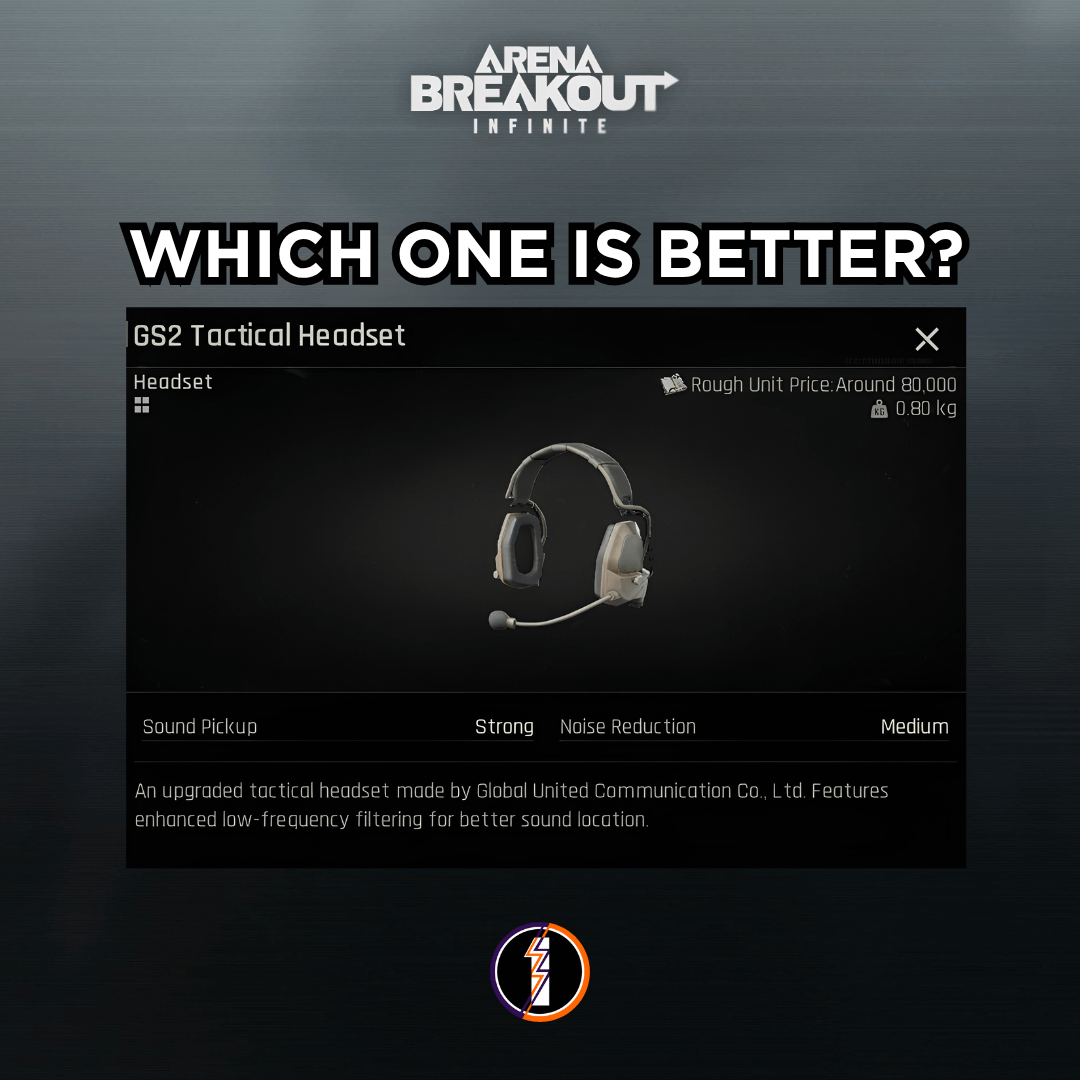
A common mistake among extraction shooter players is stacking spatial software. According to testing by Dovesonic, running Windows Sonic, Dolby Atmos, or your headset manufacturer's virtual 7.1 surround sound alongside the in-game spatial toggle ruins localization. Stacking two spatial processors blends the left and right acoustic pans together. Directional precision turns into a muddy, diffuse blur.
To lock in directional sound:
- Toggle Spatial Audio to On inside the game's audio settings menu.
- Open your Windows sound device properties and disable all spatial formats.
- Open your peripheral software (such as Logitech G Hub, Razer Synapse, or SteelSeries GG) and turn off any virtual surround features.
Movement cues across dirt, concrete, wood, and metal occupy distinct frequency bands. By sculpting your EQ curve, you lower sub-bass rumble from grenades and weapon recoil while pulling footsteps forward.
Parametric EQ Profile
If you use parametric equalization software, Dovesonic recommends configuring these precise filters:
- 70 Hz Low Shelf: -12.0 dB (Q: 0.93) — Cleans out deep environmental rumble and heavy bass masking.
- 250 Hz Peak: +4.5 dB (Q: 1.76) — Strengthens the physical body and low-end weight of footsteps.
- 1050 Hz Peak: +3.0 dB (Q: 3.50) — Accentuates presence and character in floor impacts.
- 1800 Hz Peak: +2.5 dB (Q: 3.00) — Pulls out mid-range movement definition.
- 4000 Hz Peak: +4.5 dB (Q: 1.43) — Highlights sharp surface textures, boots on gravel, and gear rattling.
10-Band Graphic EQ Alternative
If your headset uses a fixed 10-band graphic equalizer, you cannot input exact center frequencies and Q factors. BeatsForAthletes outlines an alternate curve designed to boost movement detection while dampening weapon blast:
- 32 Hz: -5 dB
- 64 Hz: -4 dB
- 125 Hz: -3 dB
- 250 Hz: -1 dB
- 500 Hz: +1 dB
- 1 kHz: +3 dB
- 2 kHz: +5 dB
- 4 kHz: +4 dB
- 8 kHz: +2 dB
- 16 kHz: +1 dB
There is a notable design contradiction between these profiles at 250 Hz. Dovesonic applies a +4.5 dB boost to preserve footstep weight. Conversely, BeatsForAthletes cuts 250 Hz by -1 dB (matching guidance from hardware makers like Turtle Beach, who cut 60 Hz to 250 Hz by -2 to -3 dB) to prevent thick, boomy reverberation from clouding mid-range cues. If your headphones sound hollow, use the +4.5 dB boost; if your headset already produces excessive bass resonance, apply the cut instead.
Calibrating Loudness Equalization
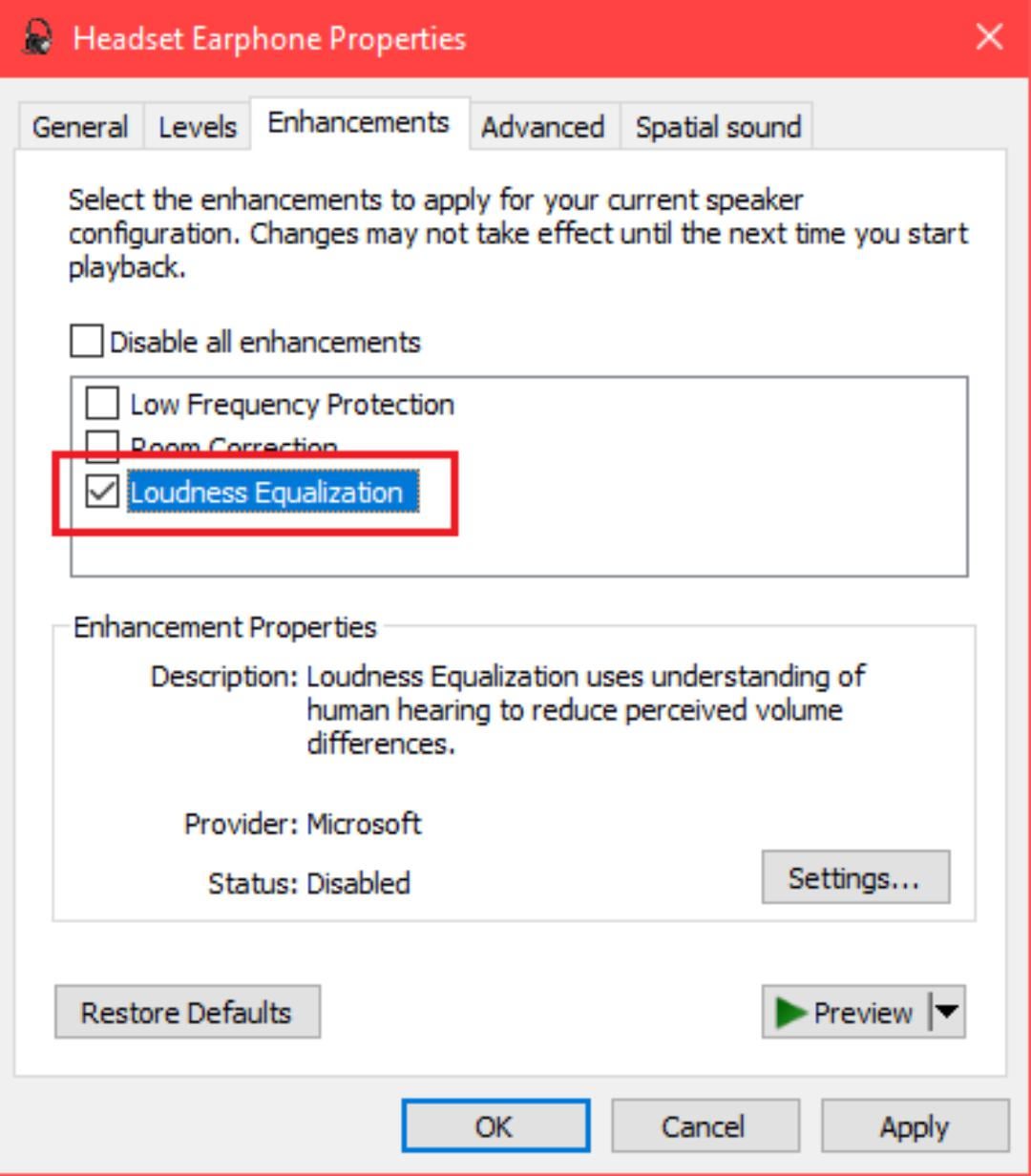
Loudness Equalization is a dynamic compression enhancement that levels audio peaks and troughs. It brings up quiet acoustic cues like distant footsteps while tamping down loud sounds like muzzle cracks.
However, setting compression too aggressively destroys spatial awareness. When faint steps and nearby gunshots play at identical volumes, your brain cannot tell whether an enemy operator is 5 meters away or across the courtyard. Dovesonic reports that 42% Loudness Equalization represents the exact sweet spot for Arena Breakout: Infinite. At 42%, you hear quiet footsteps sooner without sacrificing your ability to judge distance.
In-Game Headset Impact on Tuning
Your external hardware EQ is only half the acoustic chain. In Arena Breakout: Infinite, the tactical headset your character equips inside the raid acts as a second, in-game equalizer filter. Different raid gear modifies the sound profile independently of your client settings.
For example, the in-game Commander headset shifts sound delivery by shaping frequency responses to sharpen specific cues. As Dovesonic notes, external EQ curves should serve as your baseline calibration. Once set, test that baseline while wearing your preferred raid gear, adjusting individual mid-range bands if your in-game headset overemphasizes treble or muddies low steps.
If you need to restock tactical headsets or gear loadouts, you can manage your operational balance through Arena Breakout: Infinite Bonds, the game's core premium currency used for tactical battle passes, secure container rentals, utility upgrades, and cosmetic finishes.
Frequently Asked Questions
Should I enable Windows Sonic or Dolby Atmos alongside in-game Spatial Audio?
No. Keep Windows spatial audio and virtual surround software disabled when in-game Spatial Audio is active. Stacking spatial algorithms blurs directional cues and compromises target localization, as detailed by Dovesonic.
Footstep body resides around 250 Hz, movement presence spans 1.05 kHz to 1.8 kHz, and surface texture cuts through around 4 kHz. Sub-bass below 70 Hz should be cut to reduce gunfire masking, according to Dovesonic.
Do in-game tactical headsets like the Commander affect custom EQ tuning?
Yes. In-game tactical headsets apply their own sound curve modifications to movement and gunfire. Refine your system EQ profile while wearing your preferred raid headset to ensure the two curves complement each other, as advised by Dovesonic.







Comments