Why Guest Saves Vanish on iPhone and iPad
Heartopia runs on XD's proprietary infrastructure, using TapSDK 3.0 to manage accounts. When you choose to play without signing in, the game calls the TDSUser.LoginAnonymously system. This creates a unique guest session token cached in your iOS device's local app storage.
That cached token re-authenticates your session whenever the app opens. You can force-close the game or reboot your iPhone without losing your 12-lot neighborhood progress.
The danger arrives the second you clear space or troubleshoot a crash. Under TapSDK rules, deleting the app instantly wipes the local sandbox. Reinstalling the app from the App Store generates a completely fresh anonymous identifier rather than restoring your old one. If your save was never bound to a global credential like TapTap, that original guest token is gone for good.
Major version updates also jeopardize local data. If a patch alters XD's authentication schema, an unlinked guest session often fails the handshake, causing the game to treat your device as a first-time player and launch a fresh tutorial town.
Heartopia demands consistent storage and hardware headroom to maintain stability during data handshakes. An unlinked guest account is vulnerable if your device runs out of working storage mid-session, which can corrupt the cached authentication token.
Hardware specifications and sync behavior across supported platforms:
| Platform | Minimum System Requirements | Storage Needed | Account Sync Behavior |
|---|
| iOS (iPhone / iPad) | iOS 13.0 or later | ~2GB available | App Store client; binds save via Settings > Account |
| Android | Android 7.0 or later | ~2GB (3GB RAM) | Google Play client; shares cross-save with bound iOS profiles |
| PC (TapTap Client) | Windows 10/11 64-bit | ~10GB available | Native launcher; automatically accesses TapTap cloud saves |
Running Heartopia on an older iOS version below 13.0 can cause unexpected authentication crashes during the OAuth browser redirect.
If you plan to decorate your house on a desktop display, binding your iOS profile to TapTap is mandatory. XD maintains a native PC client distributed through TapTap that pulls character levels, decor, and inventories directly from your shared cloud profile. Once your credentials are bound safely, you can browse Heartopia top-up options on the web without worrying about misattributing purchases to an ephemeral guest ID.
Fixing TapTap Login and Binding Errors on iOS
During the binding handshake on iOS, the TapSDK client executes security checks to prevent session hijacking. If your phone configuration triggers security flags, you will run into cryptic errors that block the bind.
Authentication Exception: state not equal
Chain validation failed
The state not equal and Chain validation failed errors happen almost exclusively because of two system-level issues: clock desynchronization and network routing filters.
Clock Desynchronization
TapTap uses time-stamped OAuth tokens. If your iPhone clock is manually set ahead or behind by even a few minutes, the token validation server rejects the handshake.
To fix this:
1. Open your iPhone Settings.
2. Tap General > Date & Time.
3. Toggle Set Automatically off, wait five seconds, and toggle it back on.
4. Relaunch Heartopia and attempt the bind again.
Network Filtering, Proxies, and VPNs
Connecting through an active VPN, custom DNS profile, or local proxy disrupts TapTap's certificate validation chain. When the app encounters an unexpected SSL certificate middleman, it cuts the authentication pipeline.
Before binding:
* Turn off any active VPN apps.
* Go to Settings > Wi-Fi, tap the information icon next to your network, and ensure HTTP Proxy is set to Off.
* Disable custom Private DNS profiles under Settings > General > VPN & Device Management.
Safe Account Migration vs. Dangerous Login Overwriting
Many players lose their original town because they confuse binding with logging in. Understanding how the client manages account priority prevents accidental data loss.
Safe binding steps compared against actions that cause save desynchronization:
| Action | Where to Execute | Risk Level | Result on Save Data |
|---|
| In-Game Binding | Settings > Account > User Center | Safe | Connects your active guest data to an empty TapTap profile. |
| Empty TapTap Bind | Safari prompt via in-game menu | Safe | Locks current guest character to the TapTap ID permanently. |
| Title Screen Login | Main Start Screen | High | Switches session to the selected account; bypasses guest save. |
| App Reinstallation | iOS Home Screen | Critical | Completely wipes local guest authentication tokens from device. |
| Cache Purge | In-Game Repair Tool | Moderate | Clears temporary assets; preserves login tokens if unbound. |
Always confirm your character is playable in the background before authenticating a new third-party binding service.
Here is a common scenario: a player creates an account on the TapTap website beforehand, launches Heartopia, and immediately taps "Login with TapTap" on the title screen. This does not link your local guest save. Instead, it instructs the server to fetch whatever character exists on that TapTap account. Because the account is new, the server generates a brand-new level 1 character.
Your guest town is now orphaned in local storage. While the data may linger on your device, switching back requires signing out completely. If the client fails to re-read the anonymous profile, your original home is gone.
If you want to spend money on your character, account binding is your safety net. Checking recharge packs for Heartopia is pointless if your guest account vanishes during the next patch cycle. Bind first, verify your cloud save, and then handle your transactions.

Apple users frequently wonder whether they should bind to Apple ID, Game Center, or TapTap. Because Heartopia was built by XD around the TapTap ecosystem, TapTap is the primary credential provider.
Apple Game Center handles local achievements and quick logins, but it does not give you access to the native PC version. If you bind solely to Apple ID or Game Center, you lock your save data inside the iOS ecosystem.
If you share an iPad or iPhone with family members, Apple ID bindings can also get messy. Game Center profiles can be managed independently from your primary iCloud account by adjusting the profile inside iOS Settings > Game Center. However, linking Heartopia directly to a standalone TapTap account bypasses Apple ecosystem entanglements altogether.
When TapTap OAuth completes successfully, the SDK automatically pulls your TapTap profile username and assigns it to your TDSUser nickname profile. If you have a specific username on TapTap, expect that identity to sync across your linked profile data.
Troubleshooting Escalations and Account Recovery Routes
If you run into an account binding error or find yourself locked out of an unbound guest town, do not delete the game. Official support guidelines emphasize that you should never reinstall the client while troubleshooting an unbound account.
Recovery channels categorized by issue type:
| Recovery Route | Location | Primary Purpose | Required Information |
|---|
| In-Game Support Center | Settings > General > Support Center | Unlinking errors, failed binds, stuck OAuth | Character ID, device model, iOS version |
| In-Game Cache Clear | Title Screen > Tools | Asset corruption, UI freezes | None (retains local session tokens) |
| Direct XD Phone Support | International call: +86 21 6122 2400 | Critical account loss, blocked credentials | TapTap User ID, registration email, receipts |
Contacting support through the in-game portal automatically attaches your client crash logs to help agents locate your guest identifier.
When submitting a ticket through the Support Center, explain that your guest session failed to attach to TapTap during the OAuth callback. If you made any in-game purchases while playing on the guest profile, attach your Apple App Store digital receipts. Transaction IDs give XD support the fastest route to manually locating an orphaned local character in their player database.
Before attempting drastic fixes, verify your character status. Once your progress is mapped to your TapTap login, you can safely explore Heartopia shop bundles knowing your town is backed up across XD's servers.
Frequently Asked Questions
Will linking my guest account to TapTap overwrite my existing Heartopia character?
No, as long as you trigger the bind from the in-game Settings menu while playing on your guest account. If you instead log into a TapTap profile from the main title screen, the game will load that TapTap profile's cloud data rather than attaching your local guest progress.
What happens to my Heartopia guest save if I delete the app before linking?
Your local save data will be permanently wiped. TapSDK creates an anonymous guest session token that lives exclusively within your iOS app sandbox, which Apple deletes when the application is removed.
Why do I get a state not equal or chain validation error when authenticating with TapTap?
This error occurs when your iPhone's internal clock does not match network time or when a network filter interferes with the security handshake. Set your iOS Date & Time to automatic and disable any active VPNs, proxies, or custom DNS configurations.
Can I access my iOS Heartopia progress on PC after linking to TapTap?
Yes, Heartopia features full cross-platform progression across iOS, Android, and PC. Logging into the official TapTap PC client using the same TapTap account credentials loads your existing character, housing progress, inventory, and quest status.
Can I use an existing TapTap account to bind my current iOS guest game?
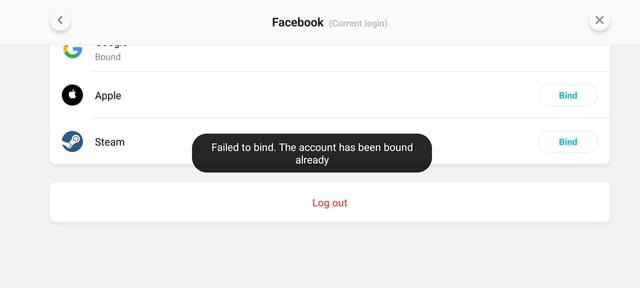
You can, provided that TapTap account has never been used to create a Heartopia character before. If that TapTap profile already contains Heartopia server data, the system will prevent the bind to avoid account collision.
Open the game menu and go to Settings > General > Support Center to submit an in-game ticket directly to XD support. For urgent account restoration issues, you can also reach XD Entertainment by phone at +86 21 6122 2400.
Final Verdict: Lock Down Your Save Before Your Next Session
Playing Heartopia as a guest is a gamble on iOS. All it takes is one iOS storage cleanup cycle, an accidental app deletion, or a botched client update to erase your 12-plot neighborhood build and send you back to character creation.
Register an empty TapTap account on the web first, launch your active iOS guest town, and initiate the link solely through the in-game Settings menu. Direct TapTap binding avoids Apple platform lock-in, unlocks the native PC client, and keeps your town safe from iOS storage sweeps.










Comments