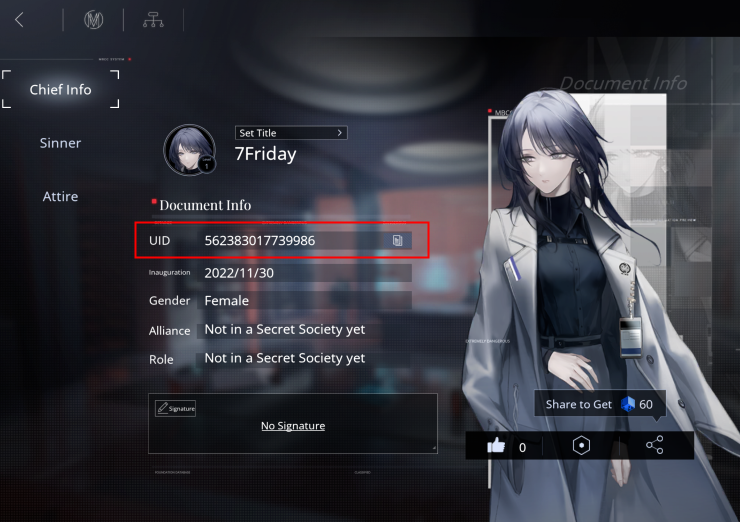
The Chief Info screen serves as your primary profile dashboard, presenting core account metrics in one window.
The following table outlines the primary navigation points located within the lobby and profile screens.
| Interface Element | Screen Location | Primary Function |
|---|
| Chief Profile Card | Top-Left Lobby Avatar | Displays Chief Name, Level, and permanent numeric UID |
| Settings & Account Tab | Bottom-Right Hexagon Icon | Houses code redemption, User Center, and account binding |
| In-Game Mailbox | Main Lobby Envelope Icon | Delivers redeemed gift items, system compensation, and event mail |
Reviewing these three hub locations ensures you can manage identification, account security, and claimed loot efficiently.
The Chief Info overview card includes:
- Chief Name: Your customizable in-game alias.
- Level & EXP Bar: Your current account progression tier.
- Chief UID: The unique numeric sequence assigned upon registration.
- Secretary/Assistant Display: The designated Sinner assigned to your lobby.
- DisCity Bureau Details: Tactical summary statistics and achievement showcases.
This card serves as the central record for your account credentials.
Step-by-Step Guide to Copying Your Chief UID on Android and iOS
Touch targets and profile layouts remain identical across iOS and Android devices, regardless of screen aspect ratio differences.
Follow these steps to copy your UID accurately:
Step 1: Open the Chief Profile Card
From the main lobby, tap the circular avatar badge in the upper-left quadrant. You can also tap directly on your level number or display name.
Step 2: Locate the Numeric ID String
On the Chief Info card, locate the digit sequence labeled as your UID below your display name.
Tap the copy icon directly beside the numbers. A brief system prompt confirms the string is saved to your clipboard.
Step 4: Verify via Text Field or External Tool
Paste the copied data into your destination field, text document, or support ticket to confirm all digits transferred cleanly.
When preparing for a Path to Nowhere top up to replenish Hypercubes or acquire monthly passes, having your UID on your clipboard eliminates manual transcription mistakes entirely.
Why Your Numeric UID Differs From Your Chief Name
Display names and Account UIDs serve entirely different roles in the game's architecture.
Your Chief Name is cosmetic. You can edit it using profile tools, and multiple accounts may share identical or similar text strings across regions. Automated systems cannot use display names to route resources or track support tickets.
Your numeric UID is an immutable identifier assigned upon registration. It remains fixed even if you modify your profile bio, cycle through avatars, or change your display name.
The table below highlights the crucial differences between your public display handle and your static account number.
| Feature | Display Name (Chief Name) | Numeric Chief UID |
|---|
| Mutability | Editable via profile tools | Permanent and unalterable |
| Uniqueness | May have duplicates or special characters | 100% unique per registered account |
| Primary Use | Social identity and friend searches | Technical support, transactions, backend queries |
| Platform Sync | Tied to display preferences | Hardcoded to database profile entity |
Relying on your permanent numeric UID rather than a display name guarantees zero ambiguity when communicating with service teams.
Path to Nowhere displays this standalone numeric identifier directly in the profile card without embedding bracketed server tags.
Locating the Hexagon Settings and Account Tab for Code Redemption
Path to Nowhere processes gift codes directly inside the client rather than through external web portals.
Account redemption features unlock after clearing Chapter 1 of the main story. If you recently started, progress through the early stages to access the redemption menu and mailbox.
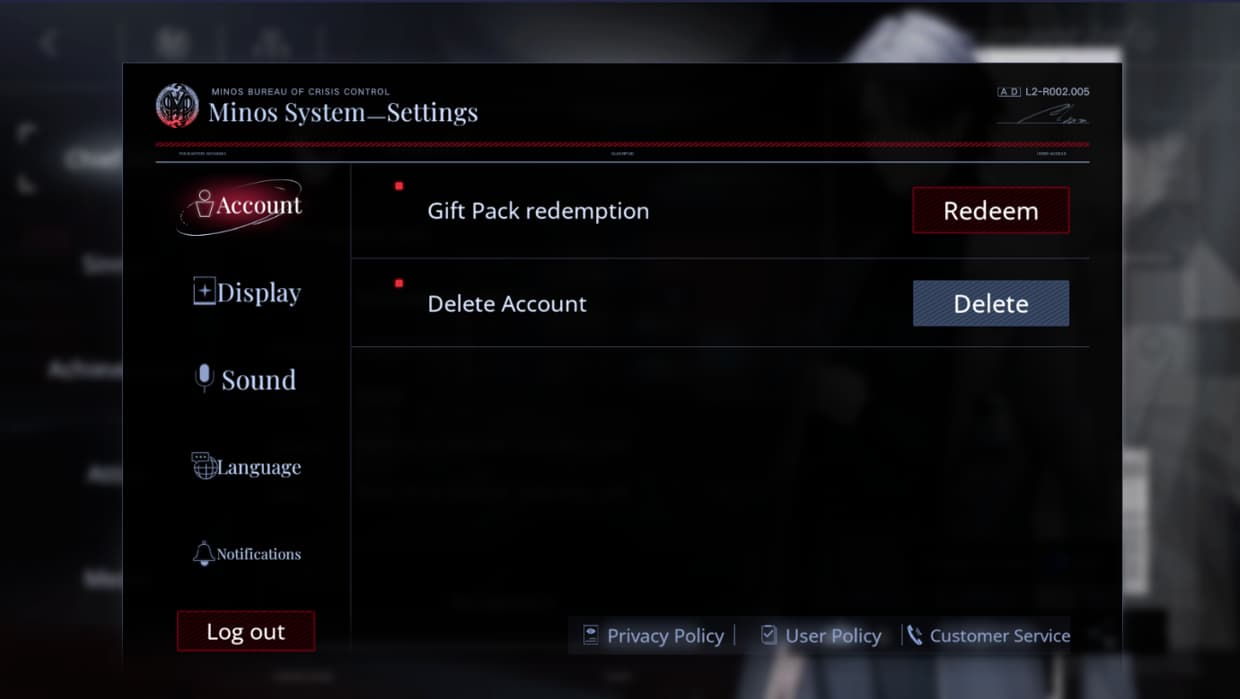
Once Chapter 1 is complete, access the redemption console:
- Open your Chief Profile via the top-left lobby avatar.
- Tap the Hexagon Settings Icon near the bottom-right of the profile card.
- Select the Account tab from the left-hand navigation column.
- Tap the Redeem button.
- Paste your gift code into the text field and submit.
Claim your rewards from the lobby mailbox (envelope icon). Code rewards and routine maintenance compensations (standard: 200 Hypercubes and 60 Stamina) carry a 7-day expiration window. Collect them promptly to prevent forfeiture.
If you want to secure extra pulls for an upcoming banner, exploring a reliable Path to Nowhere recharge service lets you bypass promotional code limits and expand your roster directly.
Preventing Costly Delivery Errors and Account Mismatches
Manual UID entry invites errors. A mistyped digit routes items or queries to another account or an invalid address. Automated server deliveries cannot be reversed or reassigned once finalized.
The Screenshot Verification Method
Capture an uncropped screenshot of your Chief Info card as a secondary record for transactions or support cases.
- Android Devices: Press
Power + Volume Down. - iOS Devices: Press
Side Button + Volume Up (Face ID models) or Side Button + Home (Touch ID models).
An uncropped profile capture provides two safeguards:
1. Direct visual confirmation of your clipboard data before submitting external forms.
2. Timestamped evidence of your Chief level, display name, and account ID if delivery discrepancies occur.
Use the in-game copy button rather than manual typing, and compare it against your saved screenshot before confirming transactions.
Account Binding and Multi-Device Synchronization
Path to Nowhere supports cross-platform progression between Android and iOS once your account is linked. Your numeric UID remains identical across reinstalls, new devices, and operating system migrations.
Switching from an iPhone to an Android tablet preserves your Sinners, DisCoins, Hypercubes, and account ID, provided you sign in with the same linked credentials.
To link your account:
- Tap your profile icon in the top-left corner of the lobby.
- Open the hexagon Settings menu at the bottom-right.
- Select the Account tab.
- Open User Center and bind your profile to an email address or platform login.
Binding with an email address provides universal login access across operating systems.
The table below summarizes standard account mechanics, unlock requirements, and expiration rules you should keep in mind.
| Function / Event | Requirement | Processing / Expiration Rule |
|---|
| Gift Code Redemption | Clear Chapter 1 | Rewards sent directly to mailbox |
| In-Game Mail Claims | Unlock Mailbox (Early Game) | Rewards expire in 7 days if unclaimed |
| Maintenance Compensation | Mailbox Unlocked | Standard grant: 200 Hypercubes & 60 Stamina |
| OS Migration (iOS/Android) | Account Linked via User Center | Numeric UID remains identical across devices |
Tracking these baseline rules prevents lost resources and ensures smooth account migration when upgrading your hardware.
Before purchasing any premium items or Path to Nowhere top up packs, double-check that your game profile is linked properly to avoid losing access during unexpected operating system updates.
FAQ
Where can I find my Path to Nowhere UID in-game?
Tap your Chief avatar or profile name in the top-left corner of the main lobby screen. Your numeric UID is displayed on the Chief Info profile overview card directly beneath your level and name.
Is the Chief UID the same as my in-game username?
No, your Chief UID is a permanent, unique numeric identifier generated by the game server. Your in-game name is a customizable cosmetic handle that can be edited at any time.
How do I redeem gift codes using my account in Path to Nowhere?
Complete Chapter 1 of the story, tap your profile in the top-left corner, tap the hexagon Settings icon, open the Account tab, and select Redeem. Claim your delivered items from the lobby mailbox before they expire.
Does my Path to Nowhere UID change if I switch from Android to iOS?
No, your numeric UID is permanently bound to your account upon registration and does not change across operating systems. Simply log in using your linked email or platform account on your new device.
Is it safe to share my numeric UID for event redemption or customer support?
Yes, your UID is a public account identifier and is completely safe to share for top-ups, community events, and customer support. Never share your account passwords, verification codes, or login credentials with anyone.
Make sure you have cleared Chapter 1 to unlock the in-game mailbox. If the mailbox is empty after entering a valid code, restart your game client to refresh server synchronization.
What happens if I enter an incorrect UID during an external transaction?
Numeric transactions process automatically to the specified account on the server and cannot be reversed or transferred. Always use the in-game copy button to avoid typing errors.
Final Verdict: Managing Your Chief Identification
Your Chief Info screen holds your numeric UID in the top-left lobby menu. Tapping the copy icon copies the string directly to your clipboard for code redemption and support inquiries.
Avoid manual entry. Use the clipboard tool, store a backup screenshot, and bind your profile in the User Center before migrating to a new device. Copying your UID directly ensures third-party credits, event gifts, and support tickets connect to the right account every time.









Comments