Master the best Eggy Party lag fix Android settings to eliminate frame drops, stop phone overheating, and lock in smooth 60 FPS matches every round.
Nothing ruins a final survival showdown in Eggy Party faster than a micro-stutter when fifteen other players collide into you at once. Developed by NetEase Games, the multiplayer elimination title pits customizable egg runners against complex obstacle courses. Behind the cartoon visuals, the physics engine calculates dozens of simultaneous collisions, dynamic trajectories, and custom user-generated geometry. Without proper tuning, Android hardware throttling and network latency quickly destroy match performance.
The following setup details in-game graphics presets, OS-level developer tweaks, and network adjustments to hold a locked 60 FPS frame rate and stable ping.
Frame Pacing Mechanics and the 16ms Threshold
Mobile processors operate under tight thermal constraints. At 60 FPS, your CPU and GPU have exactly 16.6 milliseconds to render each frame. If a collision-heavy obstacle or particle explosion pushes render time to 25ms, output drops to 40 FPS. At 33.3ms, it collapses to 30 FPS.
That jump in delivery time causes visible stutter, delayed roll inputs, and missed jumps.
Target Frame Rates and Frame-Time Windows:
+-------------------------------------------------------------+
| 60 FPS Target  --> 16.6ms per frame (Silky smooth response) |
| 40 FPS Target  --> 25.0ms per frame (Moderate input lag)    |
| 30 FPS Target  --> 33.3ms per frame (Heavy, delayed inputs) |
+-------------------------------------------------------------+
NetEase's hybrid cloud architecture manages over 40 million daily active users across 600+ days of live service, but backend capacity cannot resolve local GPU bottlenecks. Hitting the 16.6ms window requires cutting graphics overhead directly.
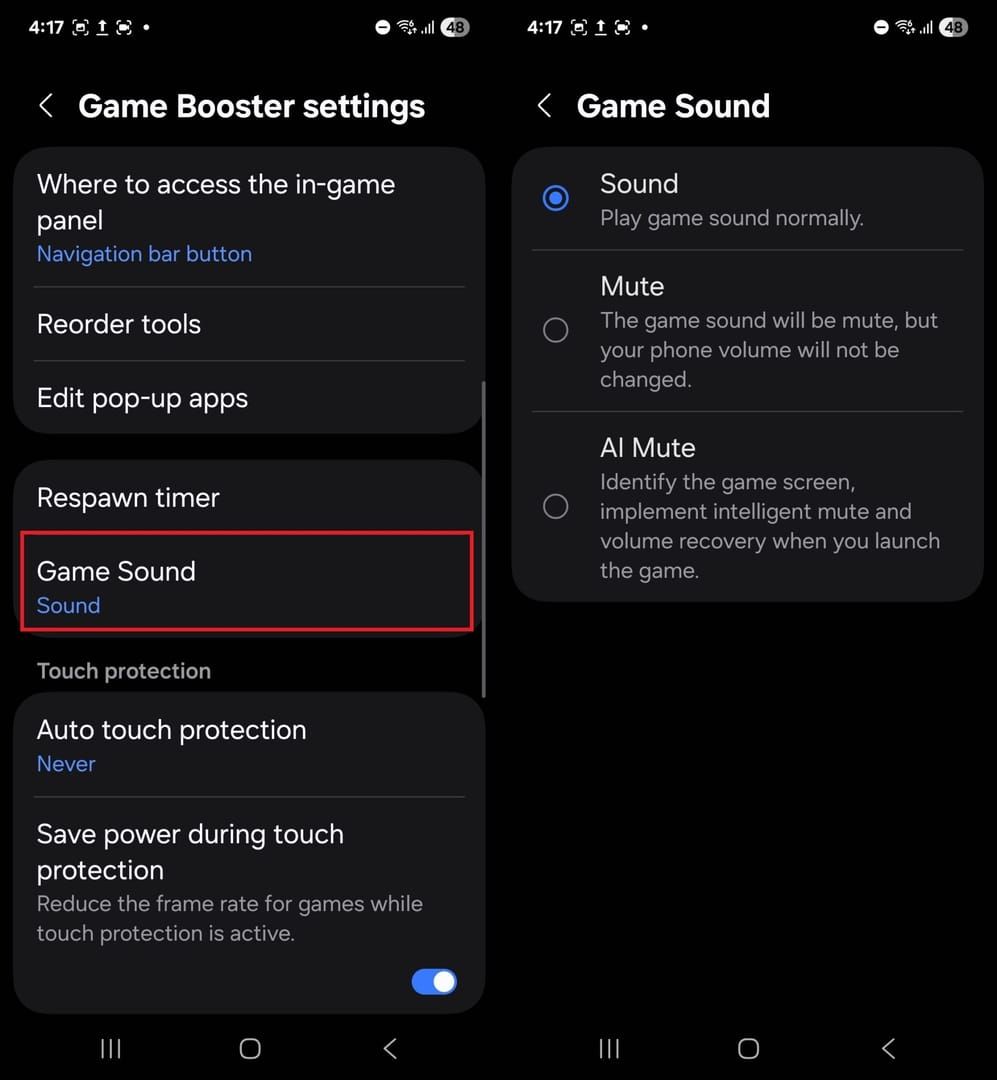
Eggy Party Best Graphics Settings 60 FPS Configuration
Maxing visual settings based on smooth menu navigation is a common mistake. When 16 Eggies crowd around a single moving platform, dynamic shadows and screen-space reflections strain your mobile silicon.
Official NetEase maintenance patches deployed low-detail rendering profiles specifically tuned to stabilize victory animations and heavy UI transitions. Lowering visual presets reduces draw calls and steadies frame delivery.
The following table outlines how each graphics preset impacts internal hardware overhead and frame pacing consistency:
| Graphics Preset | Target Frame Rate | Render Load & Frame Pacing Impact |
|---|
| Low / Very Low | 60 FPS (16.6ms) | Disables post-processing shaders, simplifies shadow maps, and stabilizes frame pacing during 16-player physics collisions. |
| Medium | 45–60 FPS (16.6–22.2ms) | Balances texture resolution with moderate particle effects; recommended for upper mid-range Android chipsets. |
| High / Very High | 30–60 FPS (16.6–33.3ms) | Renders full dynamic lighting and reflections; triggers rapid thermal throttling on mid-range mobile devices. |
Running on Low or Very Low guarantees the fastest frame-time cycle, ensuring your display updates every 16.6ms without dropping inputs.
Step-by-Step In-Game Setup
To apply the most reliable performance profile, launch the game and make these direct adjustments inside the settings panel:
- Open Settings from the main lobby screen.
- Locate the Graphics tab.
- Set Resolution to Medium (or Low if your device is more than three years old).
- Set Graphics Quality to Low or Very Low to activate optimized rendering profiles.
- Set Frame Rate to High or 60 FPS.
- Turn Off dynamic shadows, motion blur, and screen-space reflections.
- Disable high-overhead character outline filters to reduce per-frame pixel shading passes.
When customizing your runner with unique event outfits using discounted Eggy Party Eggy Coins, maintaining this stable frame rate ensures your cosmetics render cleanly without dragging down your performance during frantic multiplayer matches.
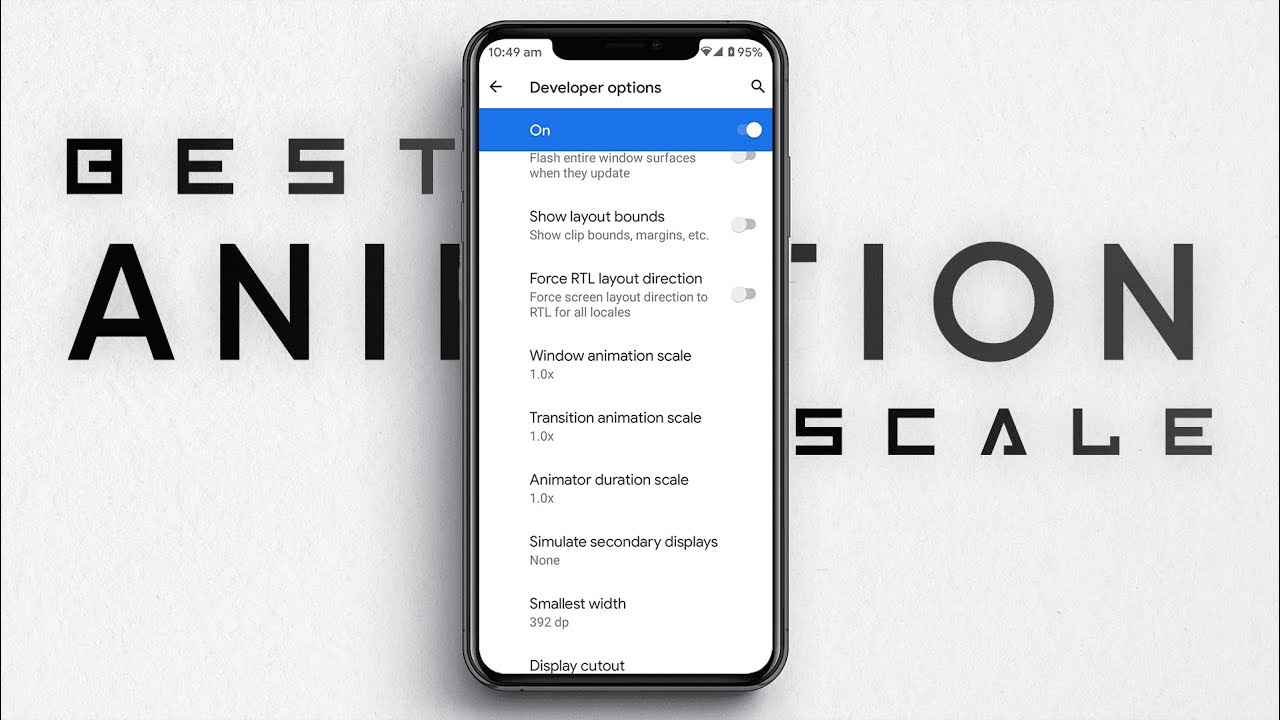
Android Developer Options: What to Enable and What to Avoid
Android provides hardware-level toggles inside its hidden Developer Options menu. When used correctly, these adjustments reduce system overhead. Configured incorrectly, they trigger thermal throttling within minutes of launching a match.
First, enable Developer Options: navigate to Settings > About Phone, locate Build Number, and tap it seven times.
The Force 4x MSAA Trap
Several outdated online guides claim that enabling Force 4x MSAA improves mobile gaming performance. This advice is incorrect.
Force 4x MSAA forces your GPU to run four-sample multi-sample anti-aliasing on all OpenGL ES 2.0 applications. While it smooths polygon edges, it multiplies the computational workload of your GPU. On mobile processors, this causes rapid heat generation, battery drain, and thermal throttling. Keep Force 4x MSAA turned OFF.
Tweaking Animation Scales for Instant Responsiveness
Android uses 1.0x transition and window animation scales by default. Lowering these values cuts window compositor overhead and makes system navigation noticeably snappier:
- Window animation scale: Set to
0.5x - Transition animation scale: Set to
0.5x - Animator duration scale: Set to
0.5x
These adjustments eliminate UI delay when switching between overlays, chatting with friends, or toggling voice channels in a lobby.
Android Game Mode FPS Throttling Interventions
Android operating systems feature Game Mode interventions designed to align rendering pipelines with display refresh rates. Locking frame rates to integer divisors of your screen's maximum refresh rate (such as 30 FPS, 40 FPS, 45 FPS, 60 FPS, 90 FPS, or 120 FPS) can cut overall system power draw by up to 20% and mobile GPU power draw by up to 50%.
If your phone features a 120Hz or 144Hz screen, forcing Eggy Party past its engine limit will not make gameplay smoother. Frame rate overrides only take effect if the engine does not hard-code a target via setFrameRate and if your phone's OEM software permits it. Locking your display refresh rate to 60Hz or 120Hz while setting the in-game limiter to 60 FPS provides the most stable frame pacing.
How to Stop Eggy Party Phone Overheating and Throttling
Thermal throttling is the main cause of sudden frame drops halfway through a match. Your phone's SoC dials down clock speeds to protect internal hardware once temperatures exceed safe operational limits.
Thermal Throttling Cycle:
[High Graphics / Background Tasks]
       │
       ▼
[Heat Accumulates in SoC (>42°C)]
       │
       ▼
[Android OS Reduces CPU/GPU Clock by 30-50%]
       │
       ▼
[Eggy Party Frame Drops: 60 FPS -> 28 FPS]
Managing Wireless Radio Sleep States
Mobile wireless chips generate substantial heat when switching power states. Android wireless radios take between 1.5 and 2.0 seconds to wake up from low-power sleep states. If background applications send unbundled, erratic network requests while you play, your phone's modem remains locked in a high-power tail state for at least 18 seconds after each transmission.
This continuous tail state consumes power and turns the wireless modem into an internal heat source right beside the processor. To prevent this:
- Enable Do Not Disturb to block background notification pings.
- Restrict background mobile data for social media and cloud backup apps.
- Turn off auto-updates in the Google Play Store while gaming.
Device Protection and Case Removal
Thick silicone or leather protective cases act as thermal insulators. They trap heat inside the phone's chassis instead of allowing it to dissipate into surrounding air. Remove your phone case during extended gaming sessions. If you are picking up exclusive season pass cosmetics via Eggy Coins top up packages, keeping your device cool will let you grind through custom UGC maps without performance degradation.
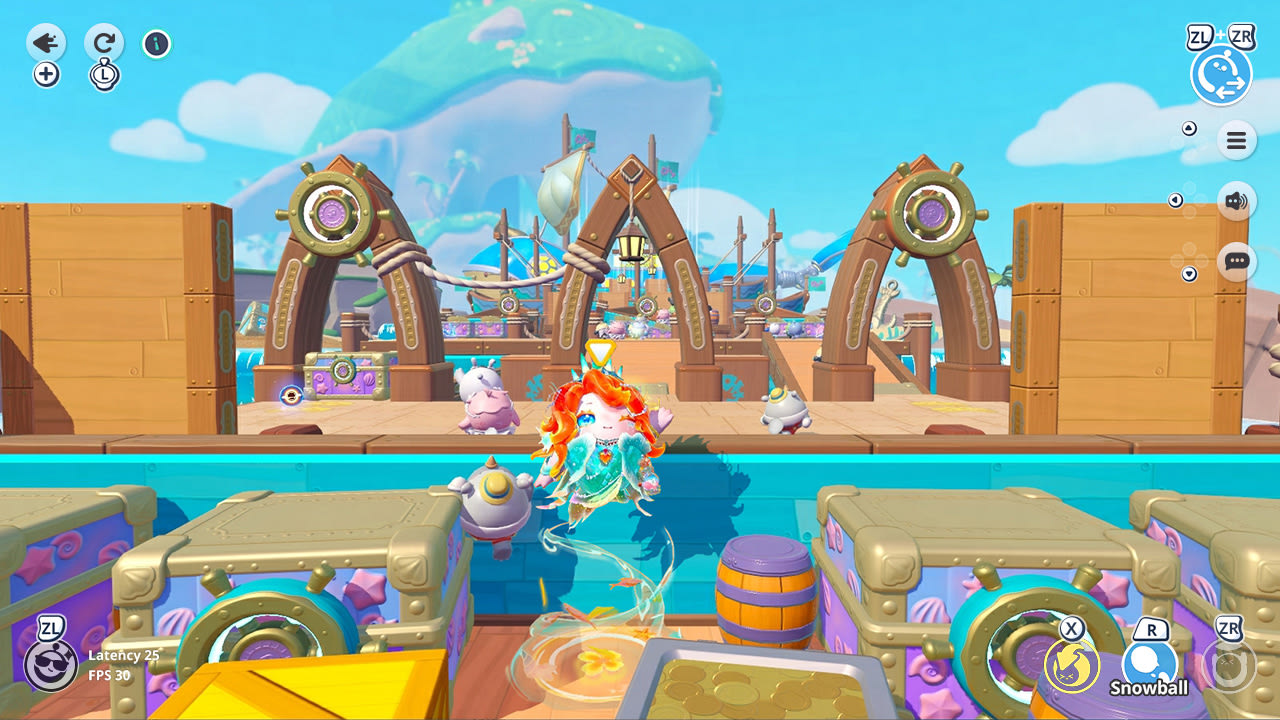
Eggy Party Lower Ping Settings Android and Network Optimization
Network lag feels identical to graphical stutter, but stems from a different issue. Ping represents the round-trip time in milliseconds for input data to travel between your phone and the game server. High latency leads to delayed grabs, phantom obstacle collisions, and desynchronization.
The Impact of Latency and Packet Loss
Multiplayer party games require consistent bi-directional communication. The table below details how latency and packet loss degrade your real-time matches:
| Latency Metric | Connection Quality | In-Game Match Impact |
|---|
| Under 25–50 ms | Ideal / Competitive | Inputs register instantly; obstacle collision boxes line up perfectly with visuals. |
| 50–100 ms | Playable | Minor delay on jump-roll combos; slight desynchronization during crowded items usage. |
| Over 100 ms | Severe Lag | Visible input lag; delayed skill activation; frequent missed catches on rotating platforms. |
| 1% to 2% Packet Loss | Unstable Connection | Severe rubber-banding; egg models teleport across boundaries; sudden mid-air drops. |
Keeping your ping under 50ms and packet loss below 1% is mandatory for competitive survival rounds.
Bandwidth Allocation and Upstream Stability
High download speed does not guarantee low latency. Online multiplayer synchronization depends heavily on steady upload bandwidth. While Eggy Party downloads map assets quickly, it continuously uploads your character's real-time position, velocity vectors, and input states.
If home upload bandwidth drops below 1 to 3 Mbps due to background streaming or large file uploads, your connection will experience jitter and ping spikes up to 150ms. Configure Quality of Service (QoS) rules inside your home router to prioritize mobile gaming traffic over general downloads.
Switching from 2.4 GHz to 5 GHz Wi-Fi
The 2.4 GHz wireless frequency band is heavily congested. Bluetooth devices, household appliances, and neighboring routers share this spectrum, introducing airwave interference that causes ping spikes from 18ms up to 250ms. Switching your phone to a dedicated 5 GHz Wi-Fi band bypasses this crowded spectrum, providing a clean channel with minimal packet loss.
Wi-Fi Frequency Comparison for Eggy Party:
2.4 GHz Band: [=== Crowded (Appliances / Bluetooth) ===] -> Frequent 250ms Spikes
5.0 GHz Band: [======= Clean / High Bandwidth =======] -> Stable 18-35ms Ping
Configuring Fast Public DNS Resolvers
Default Internet Service Provider (ISP) DNS servers frequently suffer from routing delays. Replacing your local DNS resolver with optimized public endpoints helps your phone resolve match connection addresses faster.
To update your DNS in Android:
- Navigate to Settings > Network & Internet > Private DNS.
- Select Private DNS provider hostname.
- Enter
one.one.one.one (Cloudflare) or dns.google (Google).
If configuring manual IPv4 addresses on your Wi-Fi connection:
- Cloudflare DNS: Primary 1.1.1.1 | Secondary 1.0.0.1
- Google DNS: Primary 8.8.8.8 | Secondary 8.8.4.4
Hardware and Architecture Profiles: Mobile vs Dedicated Environments
Eggy Party features complex user-generated maps built in the Eggy Workshop. To keep custom stages playable on mobile hardware, the engine uses automated unit merging. This system combines physical and decorative assets into unified rendering entities, significantly reducing file sizes and GPU draw call counts across 16-player obstacle courses.
However, processing power varies between native mobile chipsets and high-spec emulated environments. The table below illustrates how different hardware profiles manage rendering workloads and system resources:
| Platform / Environment | Recommended Hardware Allocation | Engine Optimization Behavior |
|---|
| Android Mobile SoC | Dynamic 8-Core CPU / Integrated GPU | Uses automatic unit merging to lower vertex counts; relies on OS Game Mode power throttling. |
| Dedicated Multi-Core Profile | 4 CPU Cores / 4 GB to 5 GB RAM | Renders uncompressed particle buffers; maintains steady 60 FPS without passive thermal degradation. |
Mobile chipsets require aggressive background task management to maintain the same 60 FPS stability that multi-core dedicated profiles produce effortlessly.
Step-by-Step Eggy Party Frame Drop Stutter Fix Checklist
Before jumping into a ranked match, run through this quick checklist to ensure your device is fully optimized for peak performance:
- [ ] Close Background Apps: Swipe away all background apps to free up available RAM.
- [ ] Disable Battery Saver: Turn off Android Battery Saver, as it throttles CPU clock speeds below the 16.6ms rendering threshold.
- [ ] Engage OEM Game Booster: Set your device's built-in gaming assistant to Performance Mode.
- [ ] Connect to 5 GHz Wi-Fi: Confirm your phone is linked to a 5 GHz wireless band rather than 2.4 GHz.
- [ ] Verify Graphics Presets: Ensure in-game settings are set to Low/Very Low quality with the Frame Rate toggle set to 60 FPS.
- [ ] Disable Force 4x MSAA: Verify that 4x MSAA remains disabled inside Developer Options.
- [ ] Remove Thick Cases: Strip off heavy protective covers to allow proper passive thermal dissipation.
Preparing your device with these steps lets you perform at your best. Stocking up on Eggy Party Eggy Coins for character upgrades is best done when your game is properly tuned for competitive multiplayer survival.
FAQ
How do I fix severe lag and frame drops in Eggy Party on Android?
Lower your in-game graphics quality to Low or Very Low while keeping the frame rate setting at High or 60 FPS. Close all background applications, enable Android Game Mode, and disable system Battery Saver mode to prevent hardware throttling.
Why does Eggy Party start lagging during 16-player chaotic mini-games?
Intense physics calculations and numerous character models on screen overload the mobile CPU and GPU, causing sudden thermal build-up. Lowering visual effects and shadows reduces draw calls and keeps device temperatures within safe operating limits.
No, Force 4x MSAA dramatically increases GPU workload and accelerates device overheating. Keep Force 4x MSAA disabled in Developer Options to avoid aggressive thermal throttling and stutter.
How can I lower my ping in Eggy Party matches?
Connect your Android device to a 5 GHz Wi-Fi band instead of 2.4 GHz to avoid wireless interference. Ensure no background applications or devices on your network are saturating your upload bandwidth.
Should I keep Battery Saver turned on while playing Eggy Party?
No, Battery Saver must be turned off because it aggressively throttles CPU and GPU clock speeds. Use your phone's dedicated Game Booster or High Performance mode instead to maintain smooth frame delivery.
Why is my character teleporting or rubber-banding during matches?
Rubber-banding is caused by high network jitter or packet loss exceeding 1% to 2% between your phone and the battle servers. Switching to 5 GHz Wi-Fi, configuring router QoS, or setting custom DNS like Cloudflare (1.1.1.1) resolves most packet delivery issues.
Sacrificing high-end visual effects in Eggy Party is an easy trade-off. Dynamic shadows, high-resolution textures, and screen reflections add visual polish in menus, but actively sabotage gameplay during intense 16-player collisions.
Locking graphics to Low or Very Low while pinning your frame target to 60 FPS guarantees the 16.6ms frame pacing needed to nail precision jumps, dodge swinging hazards, and survive final round eliminations. Keep your device cool, stay on a clean 5 GHz Wi-Fi connection, leave 4x MSAA disabled, and your Android phone will run Eggy Party smoothly in every lobby.








Comments