Learn how to fix Racing Master crashing on Android with our step-by-step guide. Stop black screens, launch freezes, and Unreal Engine errors immediately.
Watching a high-fidelity racer freeze, go black, or drop back to the home screen points straight to resource exhaustion. Racing Master is developed by NetEase and Codemasters on Unreal Engine 4. While that engine delivers detailed vehicle geometry and dynamic tire physics, it strains mobile hardware.
When assets fail to compile or RAM fills up, Android terminates the process. Below are the technical root causes behind these failures and sequential steps to restore client stability without losing your account data.
Why Racing Master Keeps Crashing on Android
Unreal Engine 4 relies on continuous asset streaming, real-time shader compilation, and physics calculations. When your phone hits a resource bottleneck, Android's low-memory killer (LMK) or GPU driver halts the application immediately.
Primary failure points include:
- RAM Exhaustion: UE4 mobile builds demand high working memory at startup. Phones with 1GB or 2GB of RAM crash within seconds of the splash screen once physical memory runs out.
- Vulkan Graphics API Failures: Unreal Engine uses Vulkan across Android 7.0+ and 64-bit Android 10+ devices. Unpatched vendor GPU drivers break the graphics pipeline during initialization.
- GPU Execution Timeouts (TDR): Rendering intricate car models or lighting beyond the mobile driver's timeout threshold (typically 2 seconds) triggers a graphics subsystem reset and instant crash.
- Storage Decompression Errors: High-resolution textures unpack into local storage during load sequences. Inadequate free space aborts decompression with an unhandled exception.
- Network Handshake Drops: Live-service telemetry requires active server validation. Sudden packet loss during asset checks drops the client back to the desktop.
The following reference table outlines common crash symptoms alongside their root technical causes.
| Crash Symptom | Primary Root Cause | Recommended Diagnostic Action |
|---|
| Splash screen crash (2-3 seconds) | Insufficient RAM or budget GPU incompatibility | Close background apps and check Snapdragon baseline |
| Black screen on loading screen | Corrupted cache or failed texture decompression | Clear app cache and ensure at least 10GB free space |
| Mid-race freeze or sudden closure | Thermal throttling, VRAM timeout, or packet loss | Lower graphics presets, cap FPS, and switch to stable Wi-Fi |
| Crash immediately after a patch | Corrupted OBB data or OS driver mismatch | Clear cache, update Android OS, or clean reinstall |
Identifying your specific symptom from the table above cuts troubleshooting time in half by targeting the exact bottleneck.
System Requirements and the Android 5.0 vs 7.0 Conflict
Hardware limitations cannot be resolved through software settings. Before troubleshooting, confirm your phone meets baseline requirements.
Third-party hosting sites list Android 5.0 as supported, but official NetEase technical test documentation sets the true baseline at Android 7.0. Running Unreal Engine 4 on Android 5.0 or 6.0 fails because legacy 32-bit environments lack essential Vulkan API extensions.
Review the official hardware baselines below before proceeding.
| Hardware / OS Parameter | Official Minimum Requirement | Recommended Specification |
|---|
| Operating System | Android 7.0 (Nougat) | Android 10.0+ (64-bit architecture) |
| Processor (SoC) | Qualcomm Snapdragon 820 or equivalent | Snapdragon 865 / Dimensity 8100 or superior |
| Memory (RAM) | 3GB - 4GB | 6GB - 8GB+ LPDDR5 |
| Free Internal Storage | >10GB free space | 15GB+ on internal UFS storage |
| Graphics API | Vulkan 1.0 / OpenGL ES 3.2 | Vulkan 1.1+ with current vendor drivers |
Running Racing Master on hardware below the Snapdragon 820 minimum baseline will result in persistent splash screen crashes that software fixes cannot resolve.
Step-by-Step Fixes to Stop Racing Master Crashing
Follow these troubleshooting steps in sequence, starting with basic cache flushes before moving to full reinstallation.
Continuous device uptime fragments physical RAM. Lingering background services consume memory needed by demanding 3D engines.
- Press and hold your phone's Power Button (or Power + Volume Up).
- Select Restart.
- Allow the device to boot completely, waiting 60 seconds for background tasks to settle before opening Racing Master.
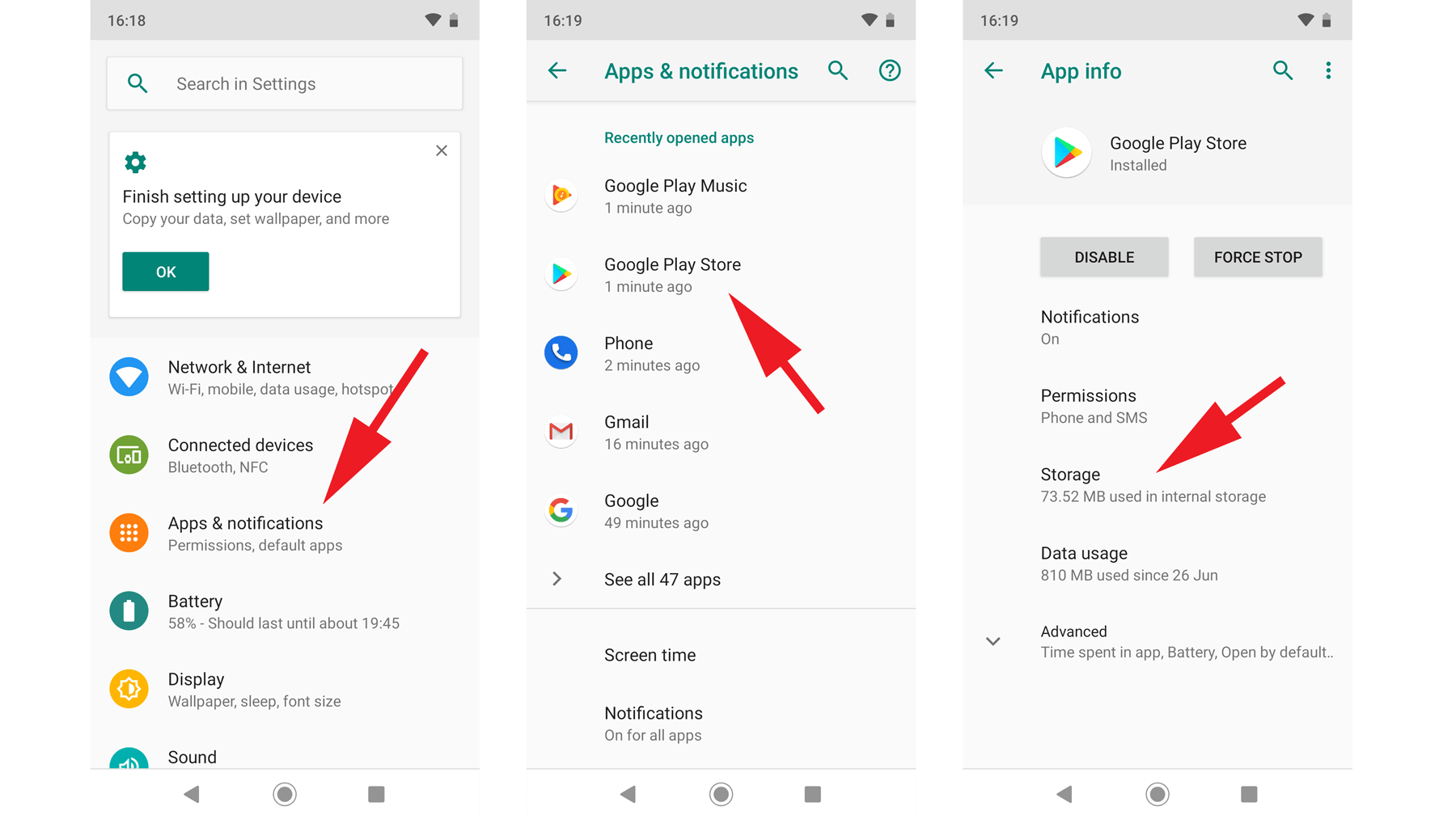
Step 2: Clear Application Cache (Do Not Tap Clear Data)
Corrupted shader caches and broken validation files cause black screens during loading screens. Clearing the cache flushes these temporary files while keeping your login data intact.
- Open Android Settings.
- Navigate to Apps (or App Management).
- Select Racing Master.
- Tap Storage & Cache (or Storage).
- Tap Clear Cache.
Do not tap Clear Storage or Clear Data unless you are prepared to re-download several gigabytes of game assets.
Step 3: Free Up at Least 10GB of Internal Storage
Racing Master unpacks track geometry and vehicle textures dynamically. If available flash storage falls too low during decompression, Android terminates the process to protect file integrity.
- Uninstall unused apps and delete stored media to keep headroom above 10GB.
- Keep the game on internal storage; MicroSD cards have slow read/write speeds that create pipeline bottlenecks in Unreal Engine.
Step 4: Force Stop Memory-Hungry Background Applications
Web browsers, streaming apps, and social platforms hold active background processes in RAM. When total memory usage caps out, Android terminates foreground games.
- Open Settings > Apps.
- Select active background apps.
- Tap Force Stop on heavy applications.
- Alternatively, use the Recent Apps screen to close running applications before starting a session.
Step 5: Check for Android OS and Display Driver Updates
The Vulkan pipeline depends on GPU drivers distributed through manufacturer system updates.
- Go to Settings > System > System Update (or About Phone > Software Update).
- Check for available firmware updates.
- Install pending updates and restart your device.
Interrupted patches can corrupt local OBB archives. A fresh install builds a clean directory structure.
- Confirm your game account is linked to an external login provider.
- Go to Settings > Apps > Racing Master and tap Uninstall.
- Restart your phone to remove orphaned directories.
- Open your app store and download a clean copy of the game package.
Resolving In-Game Freezes and Black Screens During Races
Crashes that occur after launch—during circuit loading or mid-race—usually stem from thermal throttling, GPU execution timeouts, or high VRAM usage.
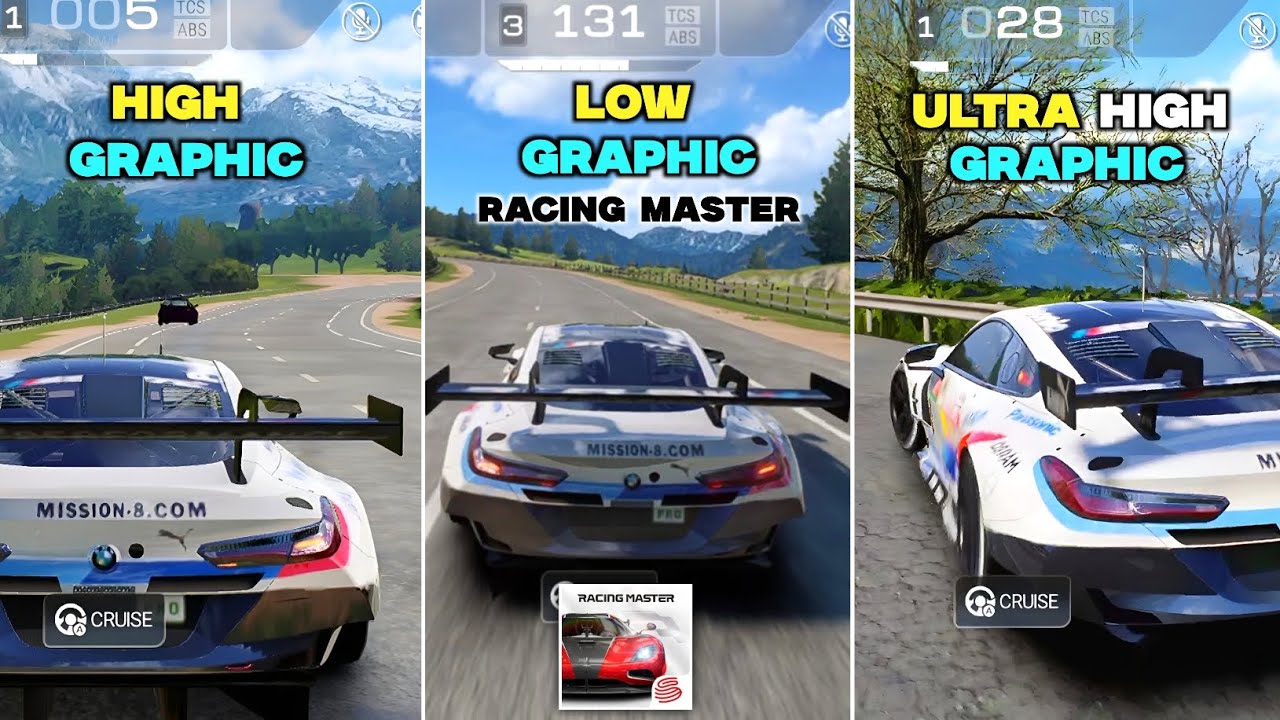
Adjust In-Game Graphic Presets
Maxed graphics push mobile SoCs past their sustained thermal limits. When temperatures spike, the GPU throttles clock speeds and triggers a 2-second timeout (TDR) crash.
From the garage interface:
- Tap the Settings cog in the upper corner.
- Navigate to the Graphics tab.
- Set overall quality to Smooth or Standard.
- Cap frame rates at 30 FPS or 60 FPS instead of unlocked values.
- Disable post-processing effects like dynamic motion blur and high-resolution reflections.
Stable frame rates prevent rendering crashes, ensuring that when you purchase in-game currency for Racing Master, your garage upgrades and customizations load cleanly.
Manage Optional HD Texture Packages
Optional high-definition texture packs add detailed assets for car bodies and track environments, but they spike VRAM consumption. On devices with 4GB of RAM or less, these packs trigger out-of-memory errors during multi-car races. Use standard-resolution assets on budget and midrange hardware.
Prevent Network Handshake Terminations
Racing Master drops to desktop if client-to-server sync drops during active sessions. Avoid public Wi-Fi with high packet jitter. Switch to a 5GHz Wi-Fi band or a direct 5G cellular connection to prevent server timeout disconnections.
Platform architecture changes how client errors present. The table below details crash patterns across operating environments.
| Platform | Crash Frequency | Primary Crash Cause | Recommended Diagnostic Path |
|---|
| Android (Budget / Mid) | Moderate to High | RAM exhaustion & Vulkan driver mismatches | Clear app cache, lower graphics, free 10GB storage |
| Android (Flagship) | Low | Thermal throttling during extended sessions | Cap FPS, remove protective case, lower shadow detail |
| iOS (iPhones / iPads) | Very Low | Background task suspension or thermal drops | Close background apps, disable Low Power Mode |
| PC (Official Emulator) | Low to Moderate | DirectX/Vulkan translation errors & VRAM limits | Update dedicated GPU drivers, allocate 4+ CPU cores |
Android has higher crash variability than iOS or PC due to fragmented chipset architectures and manufacturer-specific GPU driver builds.
Advanced Diagnostics: Capturing Crash Logs with ADB Logcat
Android Debug Bridge (ADB) extracts exact error callstacks when crashes persist. This captures whether the crash traces to missing native libraries, engine exceptions, or an Out-Of-Memory (OOM) signal.
- Enable Developer Options by tapping Build Number seven times in Settings > About Phone.
- Turn on USB Debugging inside Developer Options.
- Connect the phone to a PC with ADB installed.
- Open a terminal and run:
text
adb logcat -d > log.txt - Open
log.txt and filter for Fatal signal, DEBUG, or UnrealEngine to inspect the stack trace.
Submitting Official In-Game Bug Reports
Engine defects can be sent directly to NetEase support:
- Go to Settings > Essential > Support > Bug Report in the game menu.
- Include your device model, Android OS version, and the exact trigger point (e.g., specific track, car showroom, or lap transitions).
Account Protection and Session Stability
Link your account to NetEase or Google Play Games before troubleshooting. Clearing cache preserves account bindings, but storage wipes and clean reinstalls delete guest profiles.
With client stability sorted, tuning builds and acquiring cars through Racing Master gems runs reliably. You can top up with Racing Master top-up packs without worrying about mid-transaction crashes.
Frequently Asked Questions
Why does Racing Master keep crashing on my Android phone?
Racing Master crashes when phones run low on RAM or internal storage, have corrupted temporary cache files, or fall below the Snapdragon 820 minimum. Mid-race crashes usually indicate thermal throttling and GPU driver timeouts under heavy graphics loads.
What are the minimum Android requirements to run Racing Master without crashing?
You need Android 7.0, a Qualcomm Snapdragon 820 (or equivalent), and at least 10GB of free internal storage. Devices with 1GB to 2GB of RAM lack the physical memory needed by Unreal Engine 4.
Does clearing the Racing Master cache delete my account data?
No. Tapping Clear Cache only removes temporary render files and shader assets. Tapping Clear Storage or Clear Data, however, wipes local settings and requires re-downloading asset packages.
How do I lower graphic settings if Racing Master crashes before reaching the main menu?
Restart your phone and force-close background apps to free enough RAM to clear the splash screen. Once in the garage, immediately open Settings to reduce resolution, frame rate, and shadow quality.
Updates can leave orphaned cache files or conflict with existing display drivers. Clear the app cache or reinstall from your app store to make sure all asset archives match the new build.
How can I report a persistent crash bug to the Racing Master developers?
Open Settings > Essential > Support > Bug Report inside the game client. Provide your device model, Android OS version, and error details so the support team can reproduce the crash.
Practical Verdict on Android Client Stability
Maintaining Racing Master stability on Android requires managing hardware limits. Unreal Engine 4 places heavy demands on RAM and GPU pipelines, meaning low-end hardware or cramped storage will drop the process.
Verify your specs meet the Snapdragon 820 and Android 7.0 baseline, keep more than 10GB of internal storage clear, and regularly flush the app cache. Capping frame rates and lowering graphics presets avoids thermal and VRAM crashes during races.










Comments