Windows 11 Tweaks: Stripping Away Latency Overhead
Windows 11 defaults to several virtualization-based security layers that prioritize enterprise defense over low-latency rendering. These background hypervisors intercept core graphics calls, adding frame-time jitter during combat transitions.
Disabling Virtualization-Based Security (VBS) and Memory Integrity removes up to a 25% hypervisor tax on gaming threads, smoothing 1% lows.
To disable Memory Integrity:
1. Open the Start menu, search for Core Isolation, and open the settings page.
2. Find Memory Integrity under Core Isolation.
3. Toggle the switch to Off.
4. Restart your PC to boot the kernel without the hypervisor layer active.
Next, adjust the display pipeline inside Windows 11 24H2. The built-in "Optimizations for windowed games" toggle disrupts borderless client frame delivery. Navigate to System > Display > Graphics, open Default graphics settings, and disable Optimizations for windowed games. This prevents the desktop presentation layer from capturing borderless frame passes.
If the client still drops frames, toggle off Hardware-Accelerated GPU Scheduling (HAGS) in that same window. While modern titles rely on HAGS for frame generation, older mobile-ported engines can suffer latency-induced frame drops when Windows delegates VRAM queue management.
Power management also matters. The default Balanced scheme ramps CPU clocks up and down to conserve energy. During brief lulls between enemy waves, downclocked CPU cores cause hitching once new targets spawn. Open an elevated PowerShell prompt and run:
powercfg /setactive e9a42b02-d5df-448d-aa00-03f14749eb61
This command forces the Ultimate Performance power plan, preventing clock drops during combat.
Fixing Multi-Plane Overlay (MPO) Registry Conflicts
Multi-Plane Overlay (MPO) allows Windows to composite video layers, 2D interfaces, and 3D scenes separately without redrawing the full screen. In practice, MPO often conflicts with Variable Refresh Rate (VRR) monitors, producing hitching, micro-freezes, and black screen flickers.
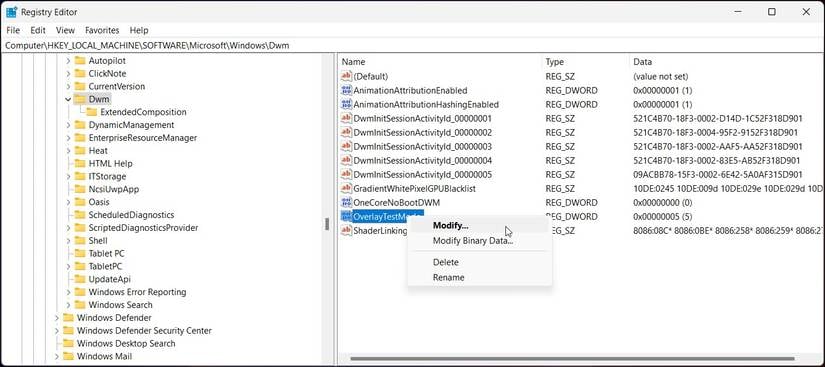
Disabling MPO via the Windows Registry stabilizes the Desktop Window Manager (DWM):
- Press
Win + R, type regedit, and press Enter. - Navigate to
HKEY_LOCAL_MACHINE\SOFTWARE\Microsoft\Windows\Dwm. - Right-click the right pane, select New > DWORD (32-bit) Value, and name it
OverlayTestMode. - Open
OverlayTestMode and set its value data to 5. - On Windows 11 24H2, add another DWORD (32-bit) Value named
OverlayMinFPS and set its value to 0. - Restart your PC.
This forces single-plane rendering, stopping DWM from shifting planes during combat.
GPU Driver Control Panel Settings
Default GPU driver presets flush cache files too aggressively for burst-heavy titles. Configuring the driver profile directly preserves precompiled shaders and tightens the render queue.
Open NVIDIA Control Panel or AMD Software, navigate to Manage 3D Settings > Program Settings, and select nikke.exe. Configure the following profile:
- Shader Cache Size: 10GB (or Unlimited). Expanding this limit stops the driver from clearing compiled Burst skill shaders between sessions.
- Low Latency Mode: Ultra (or On). Aligns frame scheduling to cut render queue latency by up to 15%.
- Power Management Mode: Prefer maximum performance.
- Vertical Sync: Off if using a VRR display; otherwise control it via targeted frame limits.
To eliminate hybrid presentation lag entirely, open the folder containing nikke.exe. Right-click the executable, select Properties, open the Compatibility tab, and check Disable fullscreen optimizations. This bypasses Desktop Window Manager composition and enforces direct presentation.
Frame Rate Caps and Monitor Refresh Rates
Standard V-Sync behaves aggressively when hardware performance dips. If frame output slips from 60 FPS to 58 FPS on a 60Hz panel, standard sync defaults to 30 FPS delivery for that cycle, extending frametimes from 16.6ms to 50ms. Boss encounters with dense bullet patterns trigger this drop immediately.
Pairing Variable Refresh Rate (G-Sync or FreeSync) with an explicit frame cap prevents tearing without causing buffer delay. Set the cap exactly 3 frames below your monitor's native refresh rate to keep the frame delivery inside the adaptive sync window.
Use these targeted caps based on your display's native refresh rate:
| Monitor Native Refresh Rate | Target FPS Cap | Sync Rule and Pacing Rationale |
|---|
| 60Hz Monitor | 57 FPS | Capped 3 frames below refresh rate to stay inside VRR range and eliminate VSync buffer hitching |
| 120Hz Monitor | 117 FPS | Capped 3 frames below refresh rate to preserve G-Sync/FreeSync engagement without queue lag |
| 144Hz Monitor | 141 FPS | Capped 3 frames below refresh rate to prevent transition into fixed refresh tearing or VSync halving |
| 240Hz Monitor | 237 FPS | Capped 3 frames below refresh rate for optimal frame pacing and low-latency rendering |
Applying these targeted caps prevents the display pipeline from alternating between sync methods, locking in consistent frame delivery across every battle.
For fixed-refresh displays without adaptive sync, apply a driver-level 60 FPS cap instead of relying on the unbuffered in-game toggle.
Peripherals and Windows Services Optimization
Peripherals and passive background tasks can undermine frametime stability even on high-spec machines.
Mouse Polling Rate
Mice running at 2000Hz, 4000Hz, or 8000Hz generate dense Deferred Procedure Calls (DPC) and Interrupt Service Routine (ISR) requests. Because Nikke handles mouse reticle positioning on its primary execution thread, aggressive interrupt traffic overwhelms CPU cores, inducing micro-stutters while aiming.
Lower the mouse polling rate to 1000Hz or 500Hz in your peripheral software. Reticle responsiveness remains instant without choking the game's main thread.
Background Services
Several non-essential Windows background services spike disk and CPU usage during matches. Disabling SysMain (Superfetch), Windows Search indexing, Print Spooler, and OneDrive background sync frees 500MB to 1GB of memory while reducing background processor load by 10% to 15%.
Unchecked background processes consume physical memory, forcing Windows to page data onto secondary storage and dragging down 1% low frametimes. Keeping physical RAM free stabilizes combat pacing on 16GB and 32GB systems alike.
To build your squad while fine-tuning your PC, visit the Goddess of Victory Nikke shop to stock up on gems and progression packs.
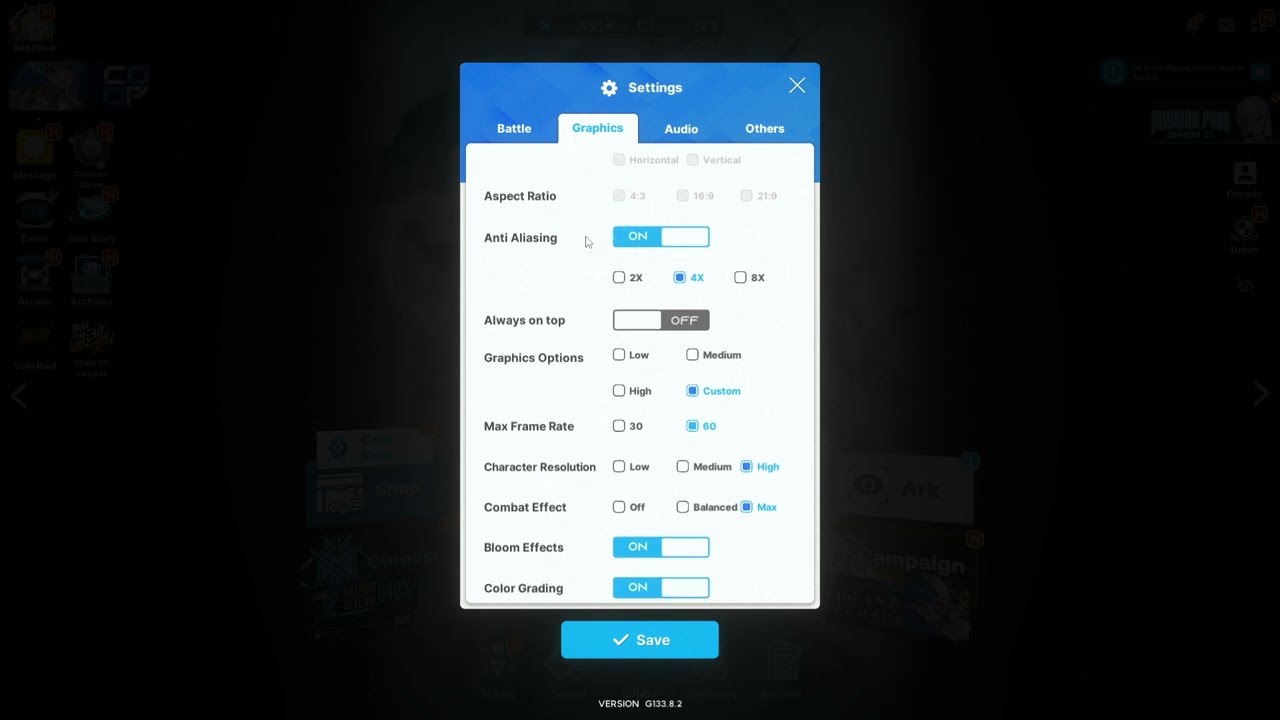
Recommended Nikke PC Settings Profile
Nikke's display options should prioritize stable frame pacing over redundant post-processing. Apply these values in the graphics menu:
- Open the Nikke PC client and select the Settings (Gear Icon) in the top right.
- Set Display Mode to Fullscreen (or Borderless Window if using multi-monitor setups).
- Set Resolution to your monitor's native display resolution.
- Set Frame Rate to 60 FPS.
- Adjust Visual Quality to Medium or High based on available VRAM.
- Set Physics Effects to Normal to prevent CPU thread saturation during Full Burst explosions.
- Set Screen Shake to Off to stabilize crosshair aim and cut rendering overhead.
The profile below outlines the target configuration and specific exceptions:
| Setting Option | Recommended Value | Deviation Condition |
|---|
| Display Mode | Fullscreen | Switch to Borderless if using dual monitors for streaming |
| In-Game FPS Cap | 60 FPS | Use driver-level capping (57 FPS) if pairing with 60Hz VRR |
| Physics Effects | Normal | Drop to Low if your CPU experiences thread bottlenecks |
| Shader Cache | 10GB (Driver) | Switch to Unlimited if you have over 1TB of free SSD storage |
| Windows Game Mode | Enabled | Disable only if running specialized thread-pinning utilities |
| VBS / Memory Integrity | Disabled | Keep Enabled if your machine is used for enterprise security |
This profile eliminates rendering bottlenecks on typical gaming hardware without degrading image quality.
Tuning forums occasionally debate the utility of Windows Game Mode. While some claim it interferes with thread assignment, benchmarks on Windows 11 confirm that Game Mode effectively prioritizes game threads and delays background updates. Keep Game Mode Enabled unless running dedicated third-party affinity software.
PC Native Client vs. Android Emulators
Many players initially started on Android emulators before Shift Up shipped the dedicated Windows build. Emulation introduces virtualization latency that hurts performance regardless of system specifications.
The structural differences break down as follows:
| Feature / Metric | Official Windows PC Client | Android Emulator (Virtualization) |
|---|
| Execution Architecture | Direct x86-64 executable utilizing native DirectX/Vulkan APIs | ARM-to-x86 instruction translation running inside a VM |
| CPU Overhead | Standard game thread load; 10-15% lower baseline utilization | Severe hypervisor overhead with frequent DPC interrupt spikes |
| Mouse Reticle Handling | Native Windows raw input cursor mapping | Simulated touchscreen emulation with pointer acceleration lag |
| Burst Mode Stability | Stable with 10GB Shader Cache and driver-level VRR caps | Frequent 1% low frame dips caused by dynamic VM memory paging |
| Progression Sync | Cross-platform synchronization with Android account saves | Cross-platform synchronization with Android account saves |
The native PC client delivers higher baseline frame rates, accurate raw mouse aiming, and superior frame-time consistency compared to emulation layers.
Nikke's recruitment mechanics feature a 4% drop rate for SSR Nikkes, 43% for SR, and 53% for R units. While mileage tickets and Outpost defense income cushion dry pulls rather than a hard-pity counter, smooth client performance ensures clean shooting while clearing tribe towers and event raids.
When preparing for limited recruit banners, visit vgtopup's Goddess of Victory Nikke page for discounted gem bundles.
FAQ
Why does Nikke PC stutter during Full Burst mode?
Full Burst triggers dense visual effects, character animations, and burst calculations simultaneously. This spikes CPU draw calls and shader cache requests. Expanding your driver shader cache to 10GB and using the Ultimate Performance power plan prevents these spikes.
Should I turn in-game V-Sync on or off for Nikke PC?
Keep in-game V-Sync off when using a G-Sync or FreeSync monitor. Use driver-level sync and cap your framerate 3 FPS below your display's native refresh rate to prevent buffer latency.
How does disabling VBS fix micro-stuttering on Windows 11?
Virtualization-Based Security routes system requests through a hypervisor layer, increasing thread overhead by up to 25%. Turning off Memory Integrity disables this layer and smooths frame pacing.
What causes hitching when panning the reticle with high polling rate mice?
Mice set to 2000Hz-8000Hz generate intense DPC and ISR processor interrupts. Because Nikke processes reticle input on its primary thread, lowering polling rates to 1000Hz or 500Hz prevents CPU stalls.
What registry fix resolves Multi-Plane Overlay (MPO) stutter in 2026?
Create a 32-bit DWORD named OverlayTestMode with a value of 5 under HKEY_LOCAL_MACHINE\SOFTWARE\Microsoft\Windows\Dwm, and add OverlayMinFPS set to 0 on Windows 11 24H2 before restarting.
Why does my framerate halve abruptly while playing?
Traditional V-Sync drops output from 60 FPS to 30 FPS whenever the GPU misses a single refresh window. Turning off standard V-Sync and applying a driver-level cap avoids this drop.
Is the official Nikke PC client better than playing on an emulator?
Yes. The native client executes directly on the CPU and GPU through native APIs, removing the instruction translation and hypervisor overhead of Android emulators.
Final Verdict on Nikke PC Frame Pacing
You do not need flagship graphics hardware to eliminate Nikke's micro-stuttering. The PC client's hitches trace back to software bottlenecks: Windows hypervisor overhead, MPO compositing bugs, and restrictive default shader cache ceilings.
If you have only ten minutes, make three changes: turn off Memory Integrity under Core Isolation, set your driver shader cache to 10GB, and cap frame rates 3 FPS below native refresh. These adjustments resolve shader stalls and sync drops during Full Burst combat. Apply these fixes, reduce mouse polling rates, and run your 2026 campaign without frametime interruptions.











Comments