Resolving DNS Routing Failures on PC and Mobile
Domain Name System (DNS) servers act as the internet's address book. Your Internet Service Provider (ISP) assigns default resolvers automatically. When an ISP's regional tables fall behind, your client requests the IP for NetEase login clusters and receives a timeout. The client misreads that missing lookup as an offline network.
Network administrators sometimes argue that device-level DNS adjustments do nothing if an ISP intercepts traffic at the gateway. In practice, updating DNS on the PC or phone itself resolves lookup stalls nine times out of ten. You only need to touch your router's WAN settings if your provider uses transparent DNS proxying.
To clear bad routing paths on Windows, flush the resolver cache through Command Prompt:
- Press the Windows Key, type
cmd, right-click Command Prompt, and select Run as administrator. - Type
ipconfig /flushdns and press Enter. - Type
netsh winsock reset and press Enter to reset your network socket catalog. - Restart your PC.
Next, swap out your ISP's resolvers for static public options known for consistent game routing.
| DNS Provider | Primary Resolver IP | Secondary Resolver IP | Primary Routing Advantage |
|---|
| Google Public DNS | 8.8.8.8 | 8.8.4.4 | Global standard with minimal routing drops |
| Cloudflare DNS | 1.1.1.1 | 1.0.0.1 | Lowest lookup latency and high privacy |
| AdGuard DNS | 176.99.11.77 | 80.78.247.254 | Bypasses restrictive regional ISP filters |
| Alibaba Cloud DNS | 117.50.11.11 | 117.50.22.22 | Highly stable paths to Asian game clusters |
| Alternate Public DNS | 76.76.21.28 | 76.76.10.128 | Alternate secondary fallback resolver |
| Regional Backup Node | 95.216.232.133 | 1.0.0.1 | Solid European server interconnectivity |
Switching to Google Public DNS or Cloudflare cuts out the ISP lookup stalls that prompt false offline errors.
On Android, adjust this under Settings > Network & Internet > Private DNS. Select Private DNS provider hostname, then enter dns.google or 1dot1dot1dot1.cloudflare-dns.com. On iOS, go to Settings > Wi-Fi, tap the (i) next to your active network, tap Configure DNS, choose Manual, remove current servers, and add 1.1.1.1 and 1.0.0.1.
Fixing Windows Authentication Handshakes and Clock Desync
A drifting motherboard clock is one of the quietest causes of PC login failure. The Blood Strike PC client uses secure HTTPS/TLS handshakes to trade login credentials with NetEase servers, and those security certificates require precise time validation.
If your local clock drifts from the server's atomic clock by even two minutes, the server drops the certificate as invalid. The client will not report a clock error; it simply displays "Login Failed Check Your Network Connection."
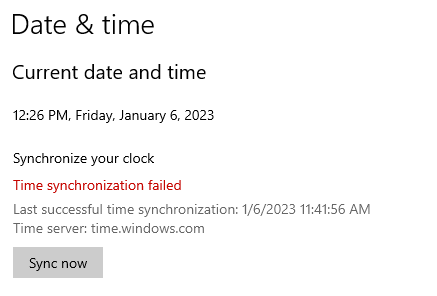
Resync your system clock with Windows time servers:
- Right-click the system clock on the taskbar and choose Adjust date and time.
- Verify that Set time automatically and Set time zone automatically are toggled on.
- Scroll to Additional settings and click Sync now.
- Check for the confirmation checkmark validating synchronization with
time.windows.com.
Stale proxy configurations also redirect PC launcher traffic into dead ends. Work software, school setups, or older uninstalled VPNs often leave active proxy rules in Windows.
Clear these settings through Internet Properties:
- Press
Windows Key + R, enter inetcpl.cpl, and press Enter. - Open the Connections tab and click LAN settings.
- Enable Automatically detect settings.
- Uncheck Use a proxy server for your LAN.
- Click OK, apply the changes, and restart the game.
Mobile Network Isolation: Wi-Fi, Cellular, and Permissions
On Android and iOS, internal permission boundaries and default browser configurations frequently sever the login flow. The mobile game relies on background network threads and system web views to authenticate accounts.
Clearing Application Cache on Android
Corrupted temp files from hotfixes and partial patches leave the mobile client in a loop, triggering the blood strike cannot connect to server android prompt.
- Go to device Settings > Apps.
- Select Blood Strike from the app list.
- Tap Storage & Cache.
- Tap Clear Cache (leave Clear Data alone for now, or you will have to redownload all map assets).
- Force close the app and reopen it.
iOS Network Profiles and Background Refresh
On iPhones and iPads running iOS (including version 15.8.4 and newer), outdated VPN profiles or revoked local permissions freeze the connection thread.
Verify these three items:
- Local Network Permission: Open iOS Settings, select Blood Strike, and verify Local Network is active. Disabling this blocks the game from binding local socket ports.
- Background App Refresh: Confirm Background App Refresh is enabled for Blood Strike.
- Reset Network Settings: If previous security profiles altered your APN routing, go to Settings > General > Transfer or Reset iPhone > Reset > Reset Network Settings to restore factory network profiles.
The Default Browser Authentication Trap
Blood Strike authenticates accounts through external web views and social accounts like Google and Facebook. If your device uses an aggressive privacy browser—such as Firefox Focus or DuckDuckGo—as default, it will block the authorization token from redirecting back into the game. The browser confirms your credentials, but the client never receives the callback token.
Set Chrome or Safari as your default browser while logging in:
- Open Android Settings > Apps > Default Apps > Browser App.
- Choose Chrome (or Safari on iOS).
- Relaunch Blood Strike and tap your login method.
Once the callback token completes its handshake, the lobby loads normally. You can then access matchmaking or check Strike Passes and stashes for operative cosmetics before queueing.
Firewall, Security Suite, and Port Blocking Conflicts
Third-party antivirus tools often flag game client network requests. Programs like Norton, Bitdefender, and Comodo use heuristic firewalls to monitor inbound and outbound traffic. These rules can silently drop UDP and TCP packets across game-specific ports.
Whitelist settings inside antivirus programs can be misleading. Norton and similar suites can continue deep packet inspection on background ports—like UDP blocks near port 32400—even when the game executable is marked as allowed, cutting off authentication while web browsers operate normally.
| Security Layer | Conflict Mechanism | Observable Error Symptom | Corrective Action |
|---|
| Norton / Third-Party Firewall | Deep packet inspection drops UDP authorization packets | Infinite loading loop at 99% followed by network failure | Temporarily disable firewall; create manual inbound/outbound allow rules |
| Windows Defender Firewall | Outdated firewall profile blocking updated executable | Immediate Login Failed Check Your Network Connection pop-up | Delete old rules in Windows Defender and re-authorize the client |
| Port Filtering (UDP/TCP) | Local router or ISP firewall blocks high-range gaming ports | Game connects to patch server but drops at user login | Whitelist game client in router NAT/Port Forwarding rules |
| Antivirus Web Shield | Scans and delays HTTPS SSL verification callbacks | Authentication handshake timeout after 30 seconds | Add game directory to Web Shield scanning exclusion list |
Aggressive filtering rules frequently drop game packets while standard web traffic passes through without interference.
To check your Windows Defender rules:
- Press
Windows Key + S, type Allow an app through Windows Firewall, and hit Enter. - Click Change settings.
- Scroll down to Blood Strike.
- Check both the Private and Public boxes.
- If the game is missing, click Allow another app, browse to the executable in your installation folder, and add it.
Carrier IP Blacklists and Bypassing Regional ISP Peering Drops
Peering issues between your provider and NetEase data centers can occur entirely outside your local network. When an intermediate transit hop fails, standard web browsing routes around it, but traffic pointed at game clusters stalls.
Automated server protections can also trigger localized IP blacklists. If another user on your shared Carrier-Grade NAT (CGNAT) subnet triggers security alarms with repeated bad logins, automated firewalls—such as WatchGuard units running v12.10.4 or v12.11—can blacklist that entire public IP after five failed attempts. Every device on that IP then gets the blood strike server connection error code.
Test for an IP-level block with this quick switch:
- Disconnect your gaming hardware from your home router.
- Turn on your phone's personal hotspot using cellular data.
- Connect your PC or tablet to that hotspot and open Blood Strike.
If the login succeeds over cellular data, your broadband IP is either throttled by peering drops or blocked by automated server rules.
Rerouting Traffic Through a VPN Tunnel
If your home IP is blocked or stuck behind broken peering, an encrypted VPN tunnel provides a clean route to login clusters.
- Open your VPN software on PC or mobile.
- Pick a server location physically close to you to keep latency minimal.
- Connect to the tunnel.
- Open Blood Strike and sign in.
A working connection lets the client verify your profile and inventory. That stability prevents disconnections during matches and while browsing weapon cosmetics and Strike Pass tiers in the shop.
App Cache Corruption and Alternative Steam Client Recovery
Interrupted patches or sudden system shutdowns can leave damaged files in your local game directory. When internal checksums fail during startup, the client aborts authentication and throws the blood strike connection failed retry screen.
If you have already flushed DNS, checked your system clock, and tested alternative networks, clear out the local game assets.
Mobile operating systems rarely clean out damaged asset tables during standard updates. A clean install is faster:
- Uninstall Blood Strike.
- Restart your device to clear residual memory states.
- Reinstall the app from the Google Play Store or Apple App Store.
- Open the game on Wi-Fi and let all asset packages download completely before logging in.
The Steam Support Workaround for Locked Accounts
Occasionally an account session freezes on NetEase servers. Your network works, the servers are up, but your specific account token remains stuck in an unauthenticated state. Because you cannot reach the lobby on mobile, you cannot open an in-game support ticket.
Bypass the lock using the Steam client:
- Install Blood Strike via Steam on PC.
- Sign in with a secondary Steam account.
- Start the game. Steam creates a fresh profile and loads straight into the lobby.
- Click the Settings gear icon in the top right.
- Select Customer Service.
- Submit a support ticket containing your primary account's Player ID, registered email, and a screenshot of the login failure.
NetEase support can reset stuck server-side sessions, releasing your primary mobile account from the loop.
Diagnostic Matrix for Blood Strike Server Connection Error Codes
Match your specific symptom to the verified root cause and fix:
| Diagnostic Scenario | Probable Root Cause | Verification Step | Definitive Solution |
|---|
| Network error pops up after 30-60 second hang | Windows clock drift or SSL handshake timeout | Check taskbar clock against world time | Sync Windows time via time.windows.com in Date & Time settings |
| Instant error prompt on broadband; works on 5G | Corrupted ISP DNS or peering dispute | Switch from Wi-Fi to cellular data | Change adapter DNS to 8.8.8.8 / 1.1.1.1 or use a VPN |
| Endless browser redirect loop on mobile | Third-party default browser blocking tokens | Attempt login via Google or social link | Set Google Chrome as the default system browser in device settings |
| Connection failed prompt appears after 5 rapid login attempts | Automated server IP block triggered | Verify if other devices on the same Wi-Fi fail | Power cycle your home router to draw a fresh dynamic WAN IP |
| Game client freezes at 99% title screen | Corrupted local application cache | Test launching on another device | Clear app cache on Android or perform a clean reinstall |
| Server connection drops for all players in region | Scheduled or emergency NetEase maintenance | Check Discord server (1013736083617493034) | Wait for maintenance window completion (typically 30-60 min) |
Isolating whether the drop is on the backend or in local network settings saves you from needlessly reinstalling healthy installations.
Frequently Asked Questions
Why does Blood Strike show Login Failed Check Your Network Connection if my internet works?
The client is failing its secure authentication handshake with NetEase servers, not losing physical internet. This occurs during maintenance windows, regional routing disputes, or local system clock desynchronization. Standard web browsing continues to work because websites do not use the same game ports or authentication clusters.
How does updating DNS settings fix the Blood Strike network connection error?
Switching to public DNS resolvers like Google (8.8.8.8) or Cloudflare (1.1.1.1) routes past stale ISP tables. These services resolve NetEase authorization nodes directly, letting your client locate login servers without timing out.
Can Windows system clock errors cause Blood Strike login failures on PC?
Yes. An unsynced system clock breaks the SSL/TLS encryption handshake needed to validate credentials. If your local time differs from the server by more than a couple of minutes, the server drops the certificate. Syncing your clock in Windows Date & Time settings resolves the mismatch.
Why is Blood Strike freezing or failing to log in on mobile devices?
Mobile failures usually point to corrupted cache files, disabled Local Network permissions on iOS, or external browsers blocking OAuth tokens. Clearing cache, enabling network permissions, and switching the default browser to Chrome or Safari fixes the handshake.
Will using a VPN fix the Blood Strike login failed error?
A VPN bypasses local ISP routing drops and sidesteps automated carrier IP bans. Connecting through a nearby VPN tunnel assigns you an unflagged IP and routes around damaged peering points.
How can I check if Blood Strike servers are undergoing maintenance?
Check the official Blood Strike Discord server (server ID 1013736083617493034) or their social media pages. NetEase posts maintenance windows and server incident notices there first.
Can an antivirus or firewall trigger the network connection failed error?
Yes. Security suites can block outbound TCP and UDP traffic on game-specific ports. Adding firewall rules for the Blood Strike executable or temporarily disabling deep packet inspection restores normal authentication.
Network Fix Verdict: The Sequence That Actually Works
Do not start troubleshooting by reinstalling the entire game. Redownloading gigabytes of data wastes bandwidth and misses the underlying network conflict.
Work through the layers in order. First, check official channels for server maintenance. Second, connect to a mobile hotspot for thirty seconds to confirm whether the problem is limited to your home ISP.
If the hotspot connects, swap your device DNS to Google or Cloudflare. On PC, sync your system clock and verify LAN proxy settings are disabled. Only wipe the cache or reinstall the client if network and clock checks fail. Following this order gets you back into the lobby with minimal downtime.










Comments