Lock a stable 60 FPS in Ace Racer without burning your fingers. Dial in display, sensitivity, and graphics sliders to eliminate thermal micro-stutters.
Micro-stutters kill podium finishes. Nothing ruins a ranked run faster than entering a high-speed drift, hitting nitro, and watching the frame freeze because your SoC hit its thermal ceiling. Ace Racer taxes mobile GPUs heavily. NetEase loaded the game with instantaneous vehicle transformations, dynamic lighting passes, and detailed geometry across sprints lasting one to three minutes.
Maxing out visual sliders is an easy mistake. Sustained heat triggers operating system throttling that ruins steering response. To keep cornering sharp and framerates flat, calibrate deliberately. A focused configuration lets you climb ranked leaderboards cleanly, and picking up Ace Racer Tokens will ensure your competitive garage stays equipped with the latest upgrades.
The Real Culprit Behind Mid-Race Micro-Stutters
Players usually blame netcode when a race drops frames, but the bottleneck sits directly inside the processor. Under sustained graphical load, the system-on-a-chip reaches temperature thresholds that trigger OS thermal protection. To prevent silicon damage, the operating system forcibly cuts CPU and GPU clock speeds.
Downclocking spikes frame delivery times. Even if an FPS counter reads 58 or 60, individual frame draw times swing unpredictably. In an arcade racer where drift angles and apexes rely on split-second adjustments, erratic frame pacing makes handling feel greasy and disconnected.
Overheating stems from four specific sources: uncapped framerates, multi-sample anti-aliasing, high screen brightness, and playing while tethered to a charger. Cut those heat sources, and your phone maintains performance through back-to-back brackets.
Graphic Presets and the Anti-Aliasing Cost
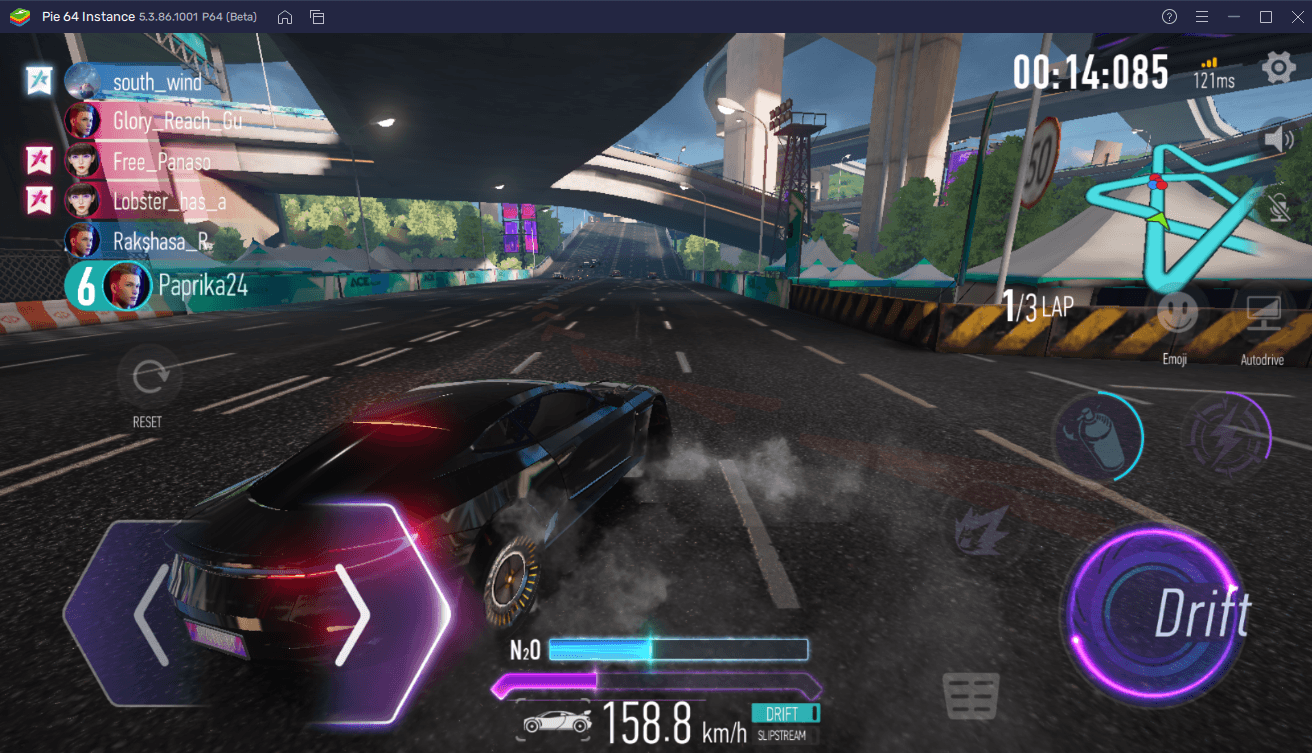
Smoothing vehicle polygons sounds good on paper, but anti-aliasing is the most taxing rendering pass on mobile chipsets. Multi-sampling forces the graphics pipeline to calculate edge geometry repeatedly per frame, generating heat for negligible payoff on a compact display.
The GPU penalty scales with the chosen algorithm:
| Setting | GPU Overhead | Visual & Thermal Impact |
|---|
| Anti-Aliasing: Off | 0% FPS penalty | Eliminates post-process thermal load; keeps track edges razor sharp during drifts. |
| FXAA / Low | <1% FPS penalty | Negligible thermal cost; introduces slight edge softening across dynamic textures. |
| TAA / Standard | 2% to 5% FPS penalty | Smooths edges using velocity buffers; causes trailing ghost artifacts behind fast cars. |
| MSAA 4x / High | 10% to 30% FPS penalty | Cleanest edges; triggers rapid GPU thermal throttling and severe frame drops. |
Takeaway: Turning anti-aliasing completely off or capping it at FXAA keeps GPU utilization low enough to prevent thermal throttling during long play sessions.
Temporal Anti-Aliasing (TAA) creates a direct competitive hazard. Because TAA samples data across successive frames, it produces motion blur and ghost trails behind vehicles at high speed. When you pop nitro or trigger an ultimate skill, TAA smears track edges and apex markers. Turn it off.
The Refresh Rate Trap: 60Hz vs 120Hz
High-refresh screens come standard on modern devices, but leaving a display at 120Hz or 144Hz while running Ace Racer wastes hardware cycles. The game engine caps rendering at 60 FPS. Forcing a screen to refresh at 120Hz while the engine outputs 60 FPS burns battery and vents waste heat without providing any motion clarity.
| Display Refresh Rate | Active Power Penalty | Framerate Match Status |
|---|
| 60Hz | Baseline (0%) | Perfect 1:1 sync with 60 FPS engine cap. Optimal battery life. |
| 90Hz | +5% to 15% power draw | Mismatched frame delivery; causes micro-jitter and unnecessary warmth. |
| 120Hz | +10% to 30% power draw | Duplicate display scans; doubles display driver workload without extra motion clarity. |
| 144Hz | +15% to 30%+ power draw | Severe battery drain; accelerates thermal throttling within minutes of play. |
Takeaway: Running your mobile display at 60Hz locks a smooth 1:1 cadence with in-game frames while cutting device power consumption by up to 30%.
Mismatches between display cycles and engine output cause cadence jitter. Your performance overlay might read 60 FPS, but vehicle motion appears uneven because display refreshes fall out of sync with newly drawn frames. Switch your display refresh rate to 60Hz in your device system settings before opening the app.
Step-by-Step Ace Racer Best Settings Configuration
Apply these settings in the in-game options menu to lock framerates across both mid-range and flagship phones:
- Set Framerate to High (60 FPS): Never select variable or uncapped modes. Capping the target at 60 provides rapid input response without letting the GPU over-render.
- Lower Resolution / Graphics Quality to Smooth or Balanced: Keep rendering resolution at native or medium. Avoid ultra-high textures that saturate mobile video memory.
- Disable Anti-Aliasing: Switch this toggle to Off. If edges look too harsh on a large tablet, use Low (FXAA), but avoid High or MSAA completely.
- Turn Off Motion Blur and Bloom: Post-processing effects obscure braking markers and add visual noise during nitro activation.
- Reduce Special Effects Quality to Medium: Ace Racer features distinct car roles—Speedster, Supporter, Interceptor, and Balancer—each packing flash-heavy ultimate skills. Lowering particle density prevents GPU dips when multiple skills detonate simultaneously on track.
- Disable Shadow Realism: Set shadows to Low or Basic. Dynamic vehicle shadows pull computational cycles that yield zero competitive benefit.
[Graphics Settings Menu]
├─ Frame Rate: 60 FPS (Locked)
├─ Graphics Quality: Balanced (Mid-Tier) / Smooth (Competitive)
├─ Anti-Aliasing: Off
├─ Special Effects: Medium
├─ Shadows: Low
└─ Post-Processing / Motion Blur: Off
If you want to deck out your tuned machines with exclusive liveries without worrying about performance loss, getting Ace Racer Tokens gives you access to the cosmetics supply crates while your graphics profile keeps gameplay stutter-free.
Dialing In Ace Racer Sensitivity Settings and Control Layouts
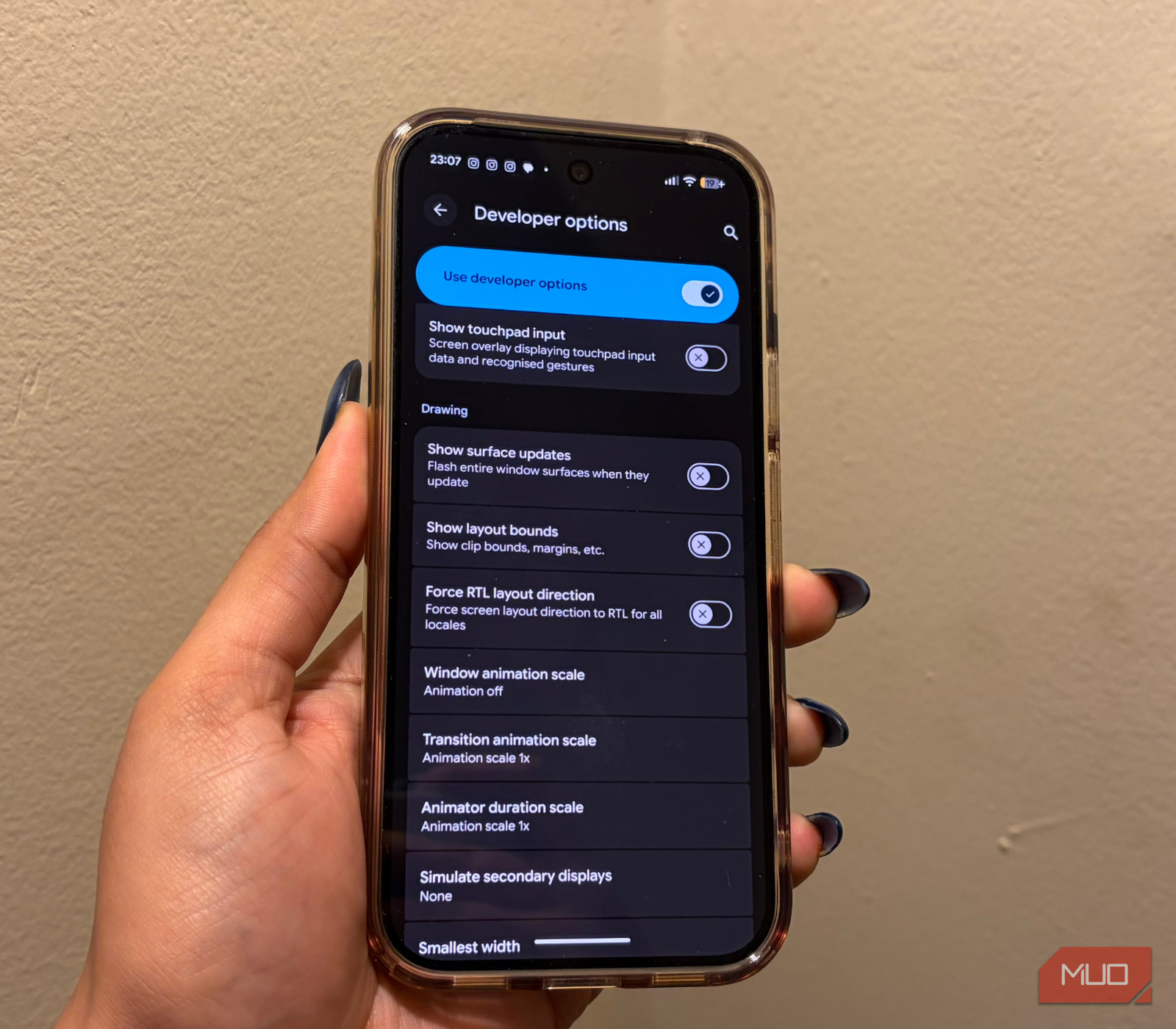
Stable frame delivery means little if your steering inputs lag behind your thumbs. Ace Racer includes automated steering aids alongside a manual control scheme with steering buttons on the left and four action triggers on the right.
Ditch the automated driving assists. Steering automation applies artificial smoothing that stalls drift initiation and compromises counter-steering on corner exit. Select manual controls and customize the button layout.
[Recommended Manual Touch Layout]
Left Thumb:  [ Steer Left ] [ Steer Right ] (Spaced slightly apart to avoid mis-presses)
Right Thumb: [ Drift Button ] (Primary, enlarged)
             [ Nitro Button ] (Positioned directly above drift)
             [ Ultimate Skill ] (Isolated toward the upper edge to prevent accidental triggers)
             [ Brake / Reverse ] (Standard size, lower right)
Touchscreens offer zero physical resistance, making mis-taps common during heated scrambles. Enlarge your drift and nitro buttons to 115%–125% in the custom layout editor. Separating the left and right steering arrows prevents accidental opposite-lock inputs.
Calibrating Steering Sensitivity
Steering sensitivity controls vehicle responsiveness on initial touch. Excessive sensitivity makes the car twitch down straights and scrub speed; insufficient sensitivity delays drift angle acquisition, pushing you wide into barriers.
- Steering Sensitivity: 60% – 70%
- Drift Sensitivity: 65% – 75%
- Input Smoothing: Minimum / Off
- Camera Horizon Tilt: Off
Set input smoothing to minimum or turn it off. While smoothing dampens erratic thumb movements, it inserts software-level input lag. You need direct, unbuffered vehicle response the millisecond your thumb touches the glass.
Device operating systems handle graphical workloads and thread scheduling differently. An engine setup that holds 60 FPS on iOS can hitch on Android if system-level bottlenecks remain unaddressed.
| Platform | Best Graphics API / Mode | Key Performance Tweak | Input Setup |
|---|
| Android | Vulkan API | Lock system display to 60Hz; disable background battery optimizations. | Manual touch with expanded drift zones. |
| iOS | Metal API | Turn off Low Power Mode; disable True Tone and limit ProMotion to 60Hz. | Manual touch with haptics disabled. |
| PC Emulation | High Performance Engine | Allocate minimum 4 CPU cores, 4 GB RAM, and cap engine output at 60 FPS. | Customized keyboard bindings or gamepad. |
Takeaway: Android relies on lower-overhead APIs like Vulkan, while iOS and PC emulation benefit most from aggressive power and resource allocation.
On Android devices, configure Ace Racer to run via Vulkan rather than OpenGL ES where available. Vulkan cuts CPU driver overhead, preserving processing margins for vehicle physics during multi-car pack collisions.
For PC emulators, allocate at least 4 dedicated CPU cores and 4 GB of RAM so translation layers run unhindered. Running on desktop also permits mechanical keyboard or gamepad inputs, bypassing touch friction altogether.
To build a car roster that matches your optimized platform, you can buy Ace Racer Tokens to grab specialty upgrade parts for your high-tier vehicles.
Software optimization cannot overcome physical heat accumulation. Ambient environment and device handling dictate whether your chipset sustains its boost clocks:
- Strip the Phone Case: Bulky rubber and silicone cases trap heat against the phone's back glass. Pop the case off before long sessions so ambient air can dissipate heat.
- Never Play While Fast Charging: Charging pushes current into the lithium cell, creating high baseline temperatures. Adding heavy 3D rendering on top guarantees thermal throttling within two races.
- Lower Display Brightness: Keep screen brightness between 40% and 60%. Pushing a mobile display to maximum nits creates continuous backlight heat that bleeds directly into the processor board.
- Clear Background Apps: Social media apps and video streaming platforms constantly poll background threads. Shut them down to keep CPU cores free for racing physics.
FAQ
What is the best frame rate setting to avoid overheating in Ace Racer?
Lock the in-game frame rate to 60 FPS instead of using unlocked or dynamic settings. This keeps vehicle cornering fluid while preventing the GPU from overworking and entering thermal throttling.
Why does Ace Racer micro-stutter when using nitro or ultimate skills?
Burst abilities spawn dense particle overlays and dynamic lighting that cause instantaneous GPU spikes. Disabling anti-aliasing and dropping special effects to Medium prevents these quick surges from choking the hardware.
Should I keep my screen refresh rate at 120Hz when playing Ace Racer?
No, you should set your operating system refresh rate to 60Hz. Running a 120Hz display refresh for a 60 FPS game engine draws 10% to 30% more power without providing any motion smoothness benefits.
Does anti-aliasing make drifting harder in Ace Racer?
Yes, post-process filters like TAA introduce trailing ghost artifacts and edge blurring at high velocities. Turning anti-aliasing off keeps track boundaries and drift clipping points razor sharp.
Can I play Ace Racer while charging my smartphone?
Avoid gaming while charging. Passthrough charging generates rapid thermal buildup that triggers safety downclocking, forcing severe framerate drops mid-race.
The manual touch control scheme with custom button sizes provides the lowest latency. Automated modes and heavy input smoothing inject artificial delays that hinder fast counter-steering.
Final Verdict: Competitive Clarity Wins Over Fancy Shaders
Chasing maximum graphical fidelity in competitive arcade racers is counterproductive. Heavy post-processing and 4x MSAA look attractive in static screenshots, but they produce thermal liabilities over continuous play. Locking output to 60 FPS, disabling anti-aliasing, and setting display refresh rates to 60Hz eliminates frame pacing hitches while keeping chassis thermals in check. Crisp track geometry and immediate input response will win you far more podiums than cinematic blur ever could.










Comments