Learn how to switch accounts in Ragnarok M Eternal Love safely on mobile or emulator clients, fix login errors, and protect your character data today.
Getting trapped in an endless auto-login cycle inside Ragnarok M: Eternal Love is maddening. You boot up the game, hoping to log into your secondary alt or switch from an old Facebook binding to a cleaner Google setup, only for the client to bypass the title screen entirely and shove you straight into Prontera on the wrong character. Worse, if you poke the wrong log out button while on a guest profile, you risk wiping months of grinding in a single second.
Ragnarok M: Eternal Love is a mobile MMORPG developed by Gravity Interactive, Inc. that brings classic Ragnarok Online classes and adventure mechanics to mobile and cross-platform devices. Because it handles authentication across multiple distinct login systems—including Apple ID, Facebook Login, Google Play Games, and guest tokens—managing your active session requires knowing exactly where Gravity hid the account tools.
Too many players accidentally strand primary characters on orphaned profiles. Bypassing auto-login, switching accounts cleanly, and resolving authentication errors across Android, iOS, and PC emulators comes down to a few device-specific steps.
One of the most confusing elements of Ragnarok M: Eternal Love is that the account configuration layout actually changes depending on which regional client build you run and whether you are already inside the game world.
Client menus vary significantly by regional build. Certain versions hide account binding options entirely once a character loads into the world. If your in-game configuration menu lacks account settings, return to the title screen and tap the small Poring icon in the upper-right corner. From there, open the Security tab to manage bindings for Google, Facebook, or Apple ID.
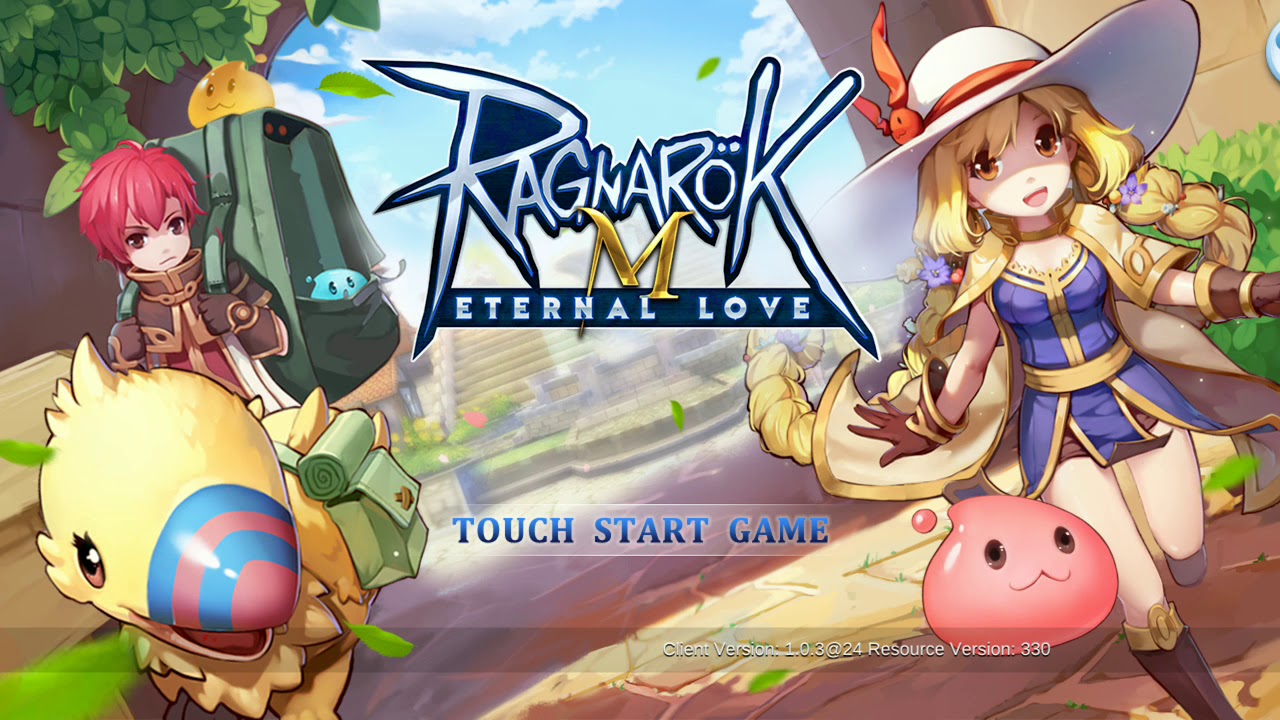
Conversely, other official client distributions provide an in-game floating overlay. On these builds, players see a persistent floating "G" logo pinned to the right edge of their screen. Tapping this floating "G" opens an account panel containing a dedicated red "Switch Account" button alongside direct profile linking tools.
Before you start poking around, check which setup your device displays. If you see the floating "G", you can trigger your swap directly from town. If your screen is clean, you must log out to the title screen and locate that tiny Poring icon.
Safeguarding Your Character: The Guest Account Warning
Do not touch the switch account button if you are currently running on a Guest profile. This is where catastrophic data loss happens.
Unlinked Guest profiles store authentication credentials strictly as temporary local device tokens. The moment you initiate an account swap or attempt to clear client data, the local token gets purged. Once overwritten, the game client cannot retrieve that guest session, and your character progress vanishes permanently.
If you are on a guest account, secure it immediately before touching anything else:
- Open your active game session.
- Tap the floating "G" logo on the right side of the screen.
- Tap the Account icon.
- Look for the status displaying "Not Linked".
- Select your preferred authentication provider (Google, Facebook, or Apple ID).
- Complete the authorization using an external account that has never been linked to Ragnarok M before.
Be deliberate about the credentials you select. Official Gravity support policies state plainly that once an account is bound to a specific email address or login provider, that bound email cannot be cancelled, unlinked, or replaced. You get one shot at binding your profile cleanly. Do not use a school email or a temporary social profile you might delete next month.
If you plan on purchasing items or recharging your monthly premium cards, linking your account to a permanent identity is step zero. You can securely browse packages via Ragnarok M Eternal Love global recharge options to inspect character-bound packs, but only after your profile is permanently tied to an authenticated email.
How to Switch Accounts on Android Step by Step
Android gives you the greatest flexibility for jumping between accounts, especially if you juggle multiple farming alts running on different Google profiles. You do not always need to clear your game cache to swap.
Use this sequence to disconnect your active session and swap profiles:
- Trigger the in-game account disconnect: If your interface features the floating "G" logo, tap it, select Account, and hit the red "Switch Account" prompt. This forces the client to disconnect your current session and drops you back to the provider selection screen.
- Use the title screen Poring: If the floating "G" is absent, tap your in-game Settings menu, select log out to return to the title screen, and tap the small Poring icon in the upper-right corner. Open the Security tab to review your bound channels.
- Switch your Google Play Games profile: If your game automatically pulls the same Google account every time you boot, minimize the game. On your Android home screen, long-press the Ragnarok M app icon and tap "Choose profile". This lets you select an alternate registered Google account before the executable initializes.
- Override system defaults: If long-pressing does not prompt a profile list, open your phone's native Settings app. Navigate to
Google > All services > Settings for Google apps > Play Games > Sign in account. Locate Ragnarok M: Eternal Love on the list and switch the setting to "Ask every time" instead of using a designated default profile. - Launch and authenticate: Reopen the game. When the login options load, select Google, pick your secondary account from the system modal, and load into your character select screen.
[Game Home Screen] -> Long-Press App Icon -> Select "Choose Profile"
         |
         v
[Android Settings] -> Google -> Play Games -> Set "Ask Every Time"
         |
         v
[Ragnarok M Client] -> Tap "Google" -> Select Target Account -> Success
Managing Accounts on iOS Devices
iOS is more rigid due to Apple's sandboxing, but the workflow is reliable once you understand Apple ID limitations.
Apple ID login only functions on Apple hardware. It is not supported outside the Apple ecosystem. If you ever want to run your iOS-created character on a PC client or Android emulator for automated farming, you must bind that iOS profile to an external service like Facebook or Google.
To swap profiles on an iPhone or iPad:
- Return to the title screen.
- Tap the Poring icon in the top-right corner to open the Gravity Account Management menu.
- If your account is only tied to an Apple ID, select the Security tab and immediately bind a Facebook or Google account as a secondary bridge.
- Tap the switch account button inside the menu to clear the active iOS authentication token.
- Select your target login method on the freshly loaded splash screen.
Be mindful of system hardware demands. Ragnarok M: Eternal Love requires a minimum of iOS 10.0 and at least 2GB of RAM to boot (an iPhone 6s represents the absolute floor). Gravity recommends an iPhone XS with 4GB of RAM for stable performance during guild battles and crowded towns. If your older iOS device crashes during the account-switching handshake, insufficient system memory is almost always the cause.
Choosing the wrong account provider can isolate your characters onto a single device. If you plan to alternate between your phone during commutes and a desktop emulator at home, examine your account type carefully.
Review platform support and restrictions before committing to a login method:
| Authentication Provider | Supported Platforms | Practical Limitations & Requirements |
|---|
| Google Account | Android, PC Clients & Emulators | Cross-platform; switchable externally via Google Play Games profile manager. |
| Facebook Account | iOS, Android, PC Clients & Emulators | Cross-platform; requires "Off-Facebook Activity" enabled in FB settings. |
| Apple ID | iOS Devices Only | Incompatible with emulators or PC unless bound to Facebook/Google via Gravity Security. |
Takeaway: If you want absolute freedom to play on any hardware, bind your profile to a dedicated Google or Facebook account; relying purely on Apple ID will lock you out of PC emulation entirely.
Troubleshooting the Facebook "Can't Load URL" Login Error
Switching to a Facebook-authenticated account frequently triggers a jarring roadblock: the Facebook Login SDK crashes with a white screen displaying a "Can't Load URL" domain error.
This bug is not caused by the Ragnarok M game servers. It is caused by an external privacy toggle inside your personal Facebook account. Specifically, disabling "Off-Facebook Activity" within Facebook's privacy settings blocks the game from communicating with the Facebook Login SDK. Because the token handshake is severed, the authentication redirect fails.
Fixing it takes under two minutes:
- Open your Facebook app or log into Facebook via a mobile browser.
- Navigate to
Settings & Privacy > Settings. - Scroll down to the "Your Information" section and tap Off-Facebook activity.
- Check your disconnected apps list. If Ragnarok M: Eternal Love was blocked or turned off, re-enable permissions for the game.
- Clear your mobile browser cache to wipe out the stale redirect token.
- Return to Ragnarok M, tap the Facebook login button, and authorize the connection.
Once the SDK gets permission to process your token, the URL domain error disappears immediately, returning you to the character selection screen.
Server Swapping vs Account Swapping
Switching accounts is not the same as changing servers or picking a different character slot. Conflating them often leads players to abandon functioning profiles needlessly.
A single bound game account supports up to three individual characters. If your goal is simply to play a different job class or start fresh with a new build, you do not need to log out of your Gravity account or manage secondary login credentials. You can rotate through three distinct characters under the exact same login identity.
| Operation | What It Changes | When to Use It |
|---|
| Account Switch | Replaces active login credentials (Google, FB, Apple) | Accessing completely separate player profiles or alternate farming accounts. |
| Character Switch | Changes active avatar within the same account (up to 3) | Playing different classes/builds under the same linked email credentials. |
| Server Switch | Changes regional game world/gateway | Relocating to play with friends on a different regional server cluster. |
Takeaway: Check your character select screen before going through the hassle of an account switch; you might already have an open slot among your 3 allowed characters.
Character Deletion Rules
If your three character slots are completely full and you want to clean house instead of creating an entirely new login account, tread carefully. Deleting a character is intentionally punishing to prevent account theft vandalism.
First, deleting a character requires entering a security confirmation code. Once submitted, the character enters a mandatory 7-day countdown period before permanent, irreversible removal. During this 7-day window, you can cancel the deletion request if you change your mind.
Second, once a character has been permanently removed after that 7-day cooldown, the system locks that specific character name. You cannot recycle or reuse that name on any newly created character on the same server. If you hold a rare or sentimental character name, deleting that character destroys the name forever.
How to Locate Your Character UID Before Switching
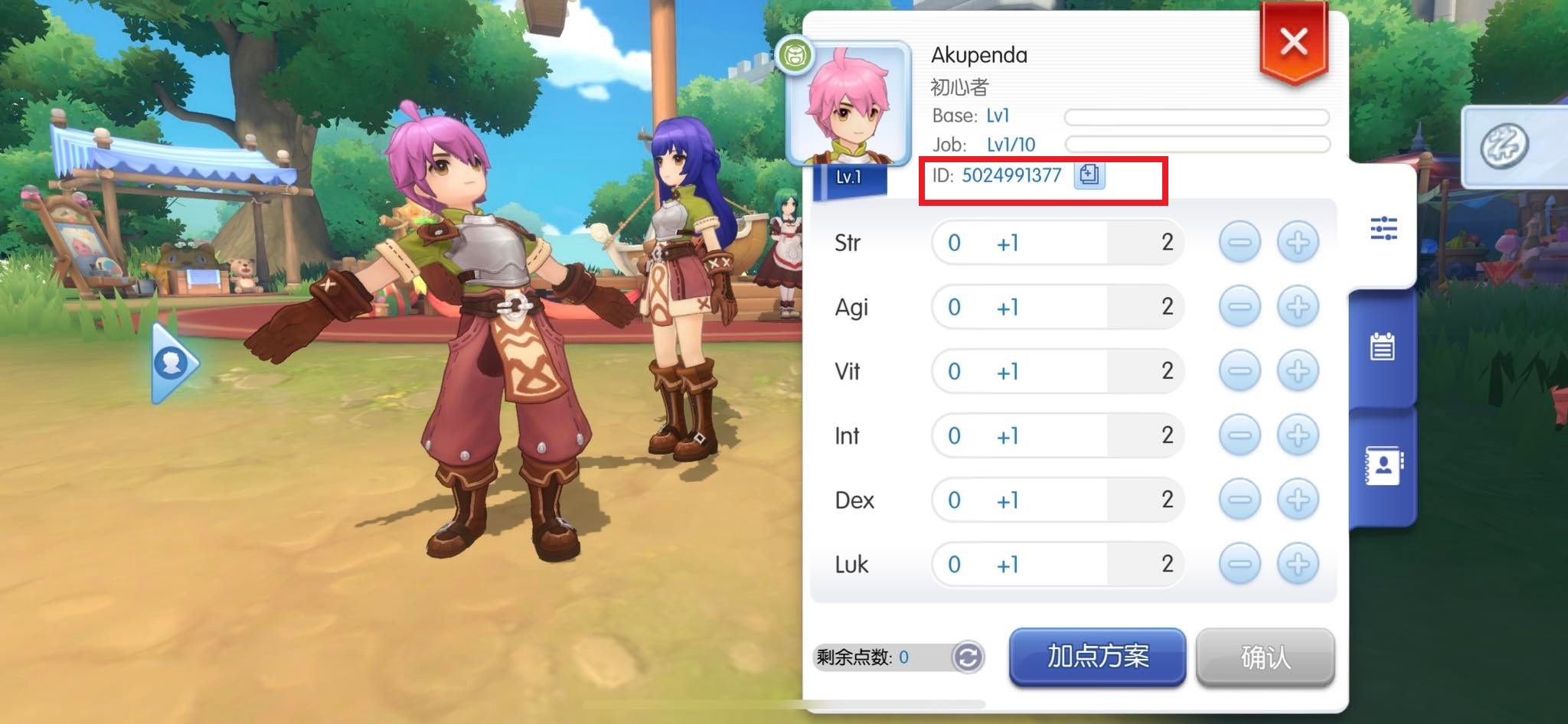
Whenever you switch accounts, disconnect sessions, or clear system caches, keep your Character UID recorded in a safe place. If a credential sync fails or an authentication token breaks, official customer support cannot locate your missing progress without that identifier.
Depending on your client version, your UID appears in one of two places:
- In-game Settings: Open the main menu, select Settings, and check the character information panel. Your unique Character UID is listed directly inside the configuration summary.
- Player Avatar Profile: Tap your character portrait avatar located in the upper-left corner of the display. Your Character ID is printed directly above the Base Level and Job Level gauges.
Take a screenshot of this number and store it off your phone. If you ever run into account recovery problems or make purchases through top-up packs for Ragnarok M Eternal Love, having that exact ID prevents delivery discrepancies and gives customer service the tracking anchor they need.
Interface layouts differ across Android, iOS, and PC emulators like MuMu Player or LDPlayer. Match your setup to the fastest switching route:
| Platform | Fastest Switching Method | Common Pitfall |
|---|
| Android | Long-press game icon -> "Choose profile" before boot. | Play Games auto-logs into default profile if not set to "Ask every time". |
| iOS | Tap title screen Poring icon -> Security tab -> Log out. | Cannot transfer Apple ID logins to PC emulators without secondary binding. |
| PC Emulator | Tap floating "G" logo -> Account -> Switch Account. | Clearing emulator cache can delete unlinked guest profiles instantly. |
Takeaway: Emulator and PC players should exclusively use the floating "G" menu or title screen Poring with Google/Facebook logins, completely avoiding Apple ID bindings.
Step-by-Step: Clearing Login Cache to Break Auto-Login Loops
When tapping log out still shoves you straight into the game world, the client is clinging to a cached session token. Purge that token without wiping out gigabytes of game patches:
On Android:
- Force close the Ragnarok M app.
- Open device Settings > Apps > Ragnarok M: Eternal Love.
- Tap Storage & Cache.
- Tap Clear Cache (Do NOT tap "Clear Storage" or "Clear Data" unless you want to re-download gigabytes of patch assets).
- Reopen the game. The auto-login handshake will fail, presenting the manual login provider screen.
On iOS:
- Open your device Settings.
- Scroll down to your installed app list and select Ragnarok M.
- Toggle on any available "Reset credentials on next launch" option if visible, or cycle your Safari browser cache under
Settings > Safari > Clear History and Website Data to wipe out cached Facebook and Google web authentication tokens. - Boot the client and immediately tap the upper-right corner of the title screen during the initial loading splash to interrupt the handshake.
With the cache cleared, you can safely log into your alternate profile. If you are leveling up a fresh character on that secondary account, checking out Ragnarok M Eternal Love balance top-ups can help accelerate early-game momentum—just ensure you double-check that your active login is pointing to the right Character UID before finalizing anything.
FAQ
How do I switch accounts if the game automatically logs me in?
Tap the floating "G" icon on your screen or the Poring icon on the title screen to trigger the "Switch Account" command. This breaks the active session cache and returns you to the login provider selection screen. If the client continues to auto-load, clear your device's app cache in system settings.
Will switching accounts erase my Guest account progress?
Yes, switching accounts while using an unlinked Guest profile carries an extreme risk of permanent data loss. Always link your Guest profile to Google, Facebook, or Apple ID before initiating a switch. Unlinked guest tokens are frequently erased the moment an alternate credential is introduced.
How do I fix the Facebook "Can't Load URL" login error?
Re-enable "Off-Facebook activity" in your Facebook security and privacy settings. Ragnarok M relies on this permission to authenticate session tokens through the Facebook Login SDK. Restoring this access clears the domain redirect fault immediately.
How can I switch between multiple Google accounts on an Android phone?
Long-press the Ragnarok M app icon on your home screen and choose "Choose profile" to select an alternate Google account before opening the game. You can also configure your device to prompt you on every launch by adjusting settings under Google > Settings for Google apps > Play Games > Sign in account.
Can I play my iOS-created account on a PC emulator?
Yes, but you must first bind that iOS profile to Facebook or Google from the login screen's Poring icon. PC emulators cannot process native Apple ID logins, making an external third-party bridge mandatory for cross-platform access.
Can I unbind or swap the email address attached to my Ragnarok account?
No, official game support policies state that once an account is bound to an email address or third-party identity, that linkage cannot be unlinked or replaced. Ensure you tie your progress to a secure, permanent email account that you control.
Where can I find my Character UID if my account data goes missing?
Open your in-game Settings window to locate your Character UID inside the character information panel, or tap your character portrait in the upper-left corner to find the ID printed directly above your Base and Job level meters. Keep this number stored off-device for recovery requests.
The Final Verdict on Account Management
Managing multiple accounts in Ragnarok M: Eternal Love does not have to feel like playing Russian roulette with your character data. The system is undeniably clunky—splitting critical settings between an in-game floating "G" and a title screen Poring icon is classic Gravity interface design—but it operates under rigid rules.
If you take away nothing else, remember these two rules: never log out while on an unlinked Guest account, and bind your account to Google or Facebook if you ever plan to leave iOS hardware. Treat your Character UID like your social security number, set Android's Play Games prompt to "Ask every time," and you will never find yourself locked out of your characters again.










Comments