Scenario 1: when the App Store says "cannot complete purchase"
Most players land here first, and almost everyone over-treats it. The reflex move is to reinstall the app. It does basically nothing for this, and it's downright risky if you've got progress that hasn't synced yet. The break sits inside Apple's billing layer, not the game itself, so wiping and reloading the app heals nothing while you roll the dice on your save.
Read the message before you do anything, because the wording tells you the cure:
| Error you see |
Most likely cause |
Fastest fix |
| "Cannot complete purchase" / "Your purchase could not be completed" |
Lapsed or region-mismatched Apple ID card |
Re-add a valid payment method, confirm billing country matches the card |
| "Payment declined" |
Bank/card rejection, insufficient balance, expired card |
Update card or switch to Apple balance / gift card |
| "Purchase pending" (stuck) |
Apple awaiting bank authorization |
Wait — do not re-tap (see Scenario 3) |
| "Verification required" |
Apple ID needs re-auth or Screen Time gate |
Re-sign Apple ID; check Content & Privacy |
| "Charged, no Star Gems" |
Server delivery queue delay |
Wait ~15 min, then check purchase history |
The official Haikyu flow agrees. When a payment fails, the Help with Payments article tells you to look at your payment method, then your network, then whether the servers are down for maintenance, and only then to message support with the transaction details (per the Zendesk help center, Aug 2025). Notice what's missing from that list? Reinstalling. Nobody official tells you to do it.
Now the part that surprised me. The most-missed culprit isn't a dead card at all. It's Screen Time. Flip on "Content & Privacy Restrictions" once, forget about it, and it'll quietly choke every in-app purchase you try while your card sits there perfectly fine, the store coughs up some fuzzy error, and you curse the game. Set up Screen Time at some point and never thought about it again? That's where you look first, before you so much as glance at your card.
Scenario 2: the Apple ID layer is where the fault usually hides
Trace enough of these and they converge on one thing: an Apple ID whose card has lapsed, or whose billing country drifted away from the card's home country. So the fix that pays off most isn't inside the game, it's inside your account. In order:
- Check the payment method. Settings → your name → Payment & Shipping. An expired card, or a billing address that's wandered out of step with the issuing country, is the classic trigger.
- Re-sign your Apple ID. Sign out, sign back in, and you force a fresh authorization token. That alone clears the "verification required" loop and never touches your save.
- Look at Screen Time. Settings → Screen Time → Content & Privacy Restrictions → iTunes & App Store Purchases → In-app Purchases on Allow.
- Update iOS and the game, but only after the three above. An old build rarely causes a flat-out decline, though it can drag out a delivery delay.
New buyers fall into the same trap every time. They assume a failed payment means the game's broken. Usually it just means Apple couldn't clear the card. The repair lives in Settings, not in the app.
Mid-spenders hit something different, and it's worth flagging on its own. Recurring billing is a separate animal: a monthly pass that ran fine last cycle and now refuses. Players have posted exactly this on r/HaikyuuFlyHigh, a monthly subscription that died after a string of clean prior charges (2025). When the renewal flops but one-off buys still go through, blame the card saved on the subscription, not the store at large.
Scenario 3: "pending" isn't a failure, and panicking over it costs you cash
A pending charge is the system doing its job, not choking. The community reads pending as a dead transaction and starts mashing the buy button. That mashing is the exact thing that births the duplicate charge they're terrified of.
What's actually going on underneath: a pending Apple authorization that never finalizes voids itself within 24 to 48 hours. You don't lift a finger. Cancel it by hand, or pound "buy" again, and you've now got a second live charge sitting beside the first one that was quietly sorting itself out. General iOS in-app-purchase wisdom floating through community payment threads says the identical thing: spamming purchase during a pending state is a known way to get billed twice (per r/HaikyuuFlyHigh discussion, 2025).
So the correct response to a stuck pending is almost embarrassingly low-effort: sit tight. Peek back in 15 minutes for your gems, and if it hasn't budged after a couple of days, the charge expires on its own anyway. Wait it out, and you dodge both the panic and the double bill.
Scenario 4: charged but no Star Gems, getting your money back without nuking the account
This is the panic one. The charge is right there, the Star Gems aren't, and your thumb's already hovering over a chargeback or an instant Apple refund. Hold off. This is precisely where players hand themselves the worst possible ending.
The truth of it: a charge with nothing delivered is, in the vast bulk of cases, just a server queue running slow. Your money isn't gone, the gems are mid-flight. Give it about 15 minutes, then make sure the order actually shows up in your Apple purchase history before you do anything you can't undo.
If the gems truly never land, you've got two roads, and they are not the same road:
| Path |
Best for |
Speed |
Ban risk |
| In-game support ticket |
Delivery issues (charged, no gems) |
Faster for missing-item cases |
Low — it's the sanctioned channel |
| Apple refund (reportaproblem.apple.com) |
Actual refunds / unwanted charges |
24–48h to update status |
Low if you contact support first; disputing blind is the risk |
The rule I'd live by: for "charged but no gems," open the in-game ticket first. It's the approved route for delivery snags and usually clears missing items quicker than Apple's refund machinery grinds. For a genuine refund, Apple holds all the keys. The game's own Account Login & Binding FAQ spells it out: refunds run through the platform (Apple/Google), and the game itself guarantees nothing (2025).
When you do file with Apple, brace yourself on timing. A refund request updates its status inside 24–48 hours, per Apple Support, and once approved on a credit or debit card it can take up to 30 days to surface on your statement (per Apple Support documentation, 2026). So a bank statement that still looks off a week out is the normal cadence, not a fresh failure.
And the single biggest landmine here: firing a bank chargeback before you talk to support is the number-one way players ban themselves. A chargeback yanks money back against the developer's will, and the zero-tolerance billing logic on the other end couldn't care less that you were fed up. Walk it as support, then refund request, then dispute only as a last resort. Never dispute-first.
Scenario 5: the "Star Gems mod / mod6oblz" route dies the second it meets reality
Every "free Star Gems generator," every "mod6oblz" link, every "unlimited gems hack" got tested against one question: can a tool on your phone actually mint premium currency? It can't, and the reason is baked into how the game's built.
Star Gems get checked server-side. That number on your screen is just the display of whatever the servers say you hold. A "mod" can only nudge the local figure, and the instant the app syncs, the server lines its real ledger against your puffed-up client number, snaps it back down, and flags you. So the tool either does nothing you can see, or it gets you caught. There's no secret third door where the free currency sticks around.
And the punishment isn't a wrist-slap. The Fair Play Policy doesn't mince words: permanent bans for cheating, with no appeals (per official policy, 2025). Running mods or hacks "risks permanent ban" under a flat zero-tolerance line. Once that hammer falls, there's no path back.
That's the kind reading, mind you, the one where the "mod" is just dead weight. The honest reading is uglier. Most "Star Gems generator" pages are credential-phishing storefronts wearing a costume. They ask you to "verify" your Apple ID or sign in to "sync rewards," and what you've truly done is gift your billing-linked account to some stranger. A free-gems search isn't a shortcut. It's a player parked one click away from a phished Apple ID.
For free-to-play folks especially, the crowd these sites prey on hardest, there's a real version of "free gems" they're betting you'll overlook. Community guides keep pointing at daily logins, events, and redemption codes as the actual free pipeline (per F2P guides on YouTube, 2026). Slower than some fantasy generator, sure. But it's the only road that doesn't dead-end in a locked account.
Scenario 6: three top-up routes, ranked by what they really cost you
Once you've made peace with spending, the real question is where. I stacked the routes against the only things that matter: safety, delivery, ban risk, and whether the price is honest.
| Route |
Safety |
Delivery |
Ban risk |
Price transparency |
| Official App Store IAP |
Highest |
Instant–15 min |
None |
Apple-set, fixed |
| Verified third-party top-up |
High (if reputable) |
Usually fast |
None for legit operators |
Often cheaper per-gem; check before buying |
| "Mod" / generator |
None — scam/malware |
Never delivers |
Permanent ban |
Fake |
The pricing is where things get interesting. On the App Store listing, 980 Star Gems runs USD 14.99 (2026), your baseline, somewhere near 1.5 cents a gem. The official Garena top-up center stocks the whole ladder of 60, 300, 980, 1,980 and 3,280 bundles for anyone whose store route is misbehaving (per Garena's USA top-up center, 2026), and that's the same channel the game's social team has steered US/EU players toward when App Store or Google Play top-up acts up (per the official HQflyhigh Facebook post, Apr 2026).
Third-party snapshots can come in cheaper per gem. One community price capture pegged 300 Star Gems around $4.23 on a third-party top-up page (per a Lootbar/SEAGM snapshot, June 2026), a clip below Apple's per-gem rate. That gap between a discounted reseller and the official sticker is what caught my eye in the first place. The trade-off: going non-Apple means you're trusting the operator to actually deliver, so the pre-buy checklist isn't optional. Make sure it only ever asks for your player ID (never your Apple password), make sure the price is shown before you pay, and make sure it's a real storefront rather than a dressed-up "generator." If wrestling Apple billing sounds like more trouble than it's worth, a transparent option like a Haikyu!! Fly High top up lets you weigh region-aware rates before you commit. This guide comes from VGTopup, so factor that in as you read.
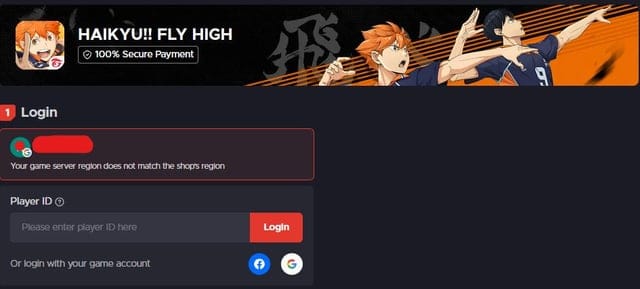
On regional pricing: Apple fixes IAP prices per storefront, so US, EU, JP and SEA players each see their own local numbers, with that USD 14.99 baseline as the one anchor that holds across the lot. And reaching for a VPN to grab a cheaper region's pricing backfires harder than people expect. Your Apple ID's billing country has to match your card's issuing country, so the VPN never actually unlocks the foreign price. It just manufactures a region mismatch that makes the whole transaction fail. That mismatch is one of the quietest payment-killers out there, and chasing regional arbitrage this way wrecks more purchases than it ever saves.
The fix order that wastes the least of your time
Run it in this exact sequence and most failures clear before a support ticket ever crosses your mind:
- Screen Time / Content & Privacy. The silent blocker, checked first because it's free and instant.
- Apple ID payment method + billing country. The most common true root cause.
- Kill any VPN. Undo the region mismatch.
- Pending charge: wait. Don't re-tap; it voids in 24–48h on its own.
- Charged-but-no-gems: wait ~15 min, check purchase history, then in-game ticket.
- Genuine refund: reportaproblem.apple.com, and never chargeback-first.
Reinstalling sits nowhere on that list, on purpose. It's the reflex half the internet jumps to, and it's the one move that gambles your unsynced progress while repairing nothing in the billing layer where the trouble actually lives.
Frequently Asked Questions
My payment shows "pending" for hours — should I cancel it and try again?
Don't, just leave it alone. A pending Apple authorization that never clears voids itself inside 24–48 hours (per Apple Support documentation). Cancelling by hand or re-tapping "buy" is what spawns the duplicate charge everyone dreads. No gems after 15 minutes? Wait the charge out instead of touching it.
I used a VPN for a cheaper region and now nothing works — am I about to get banned?
The urgent problem is the region mismatch, not a ban. Your Apple ID's billing country has to match your card's issuing country, so the VPN never unlocks foreign pricing; it just breaks the transaction. Switch the VPN off, let your real region settle back in, then retry. And don't make a habit of routing buys through mismatched regions.
The Star Gems arrived late once — is there a "normal" delay I should expect before panicking?
Short queue delays of a few minutes are routine, which is why the rule of thumb is to give it roughly 15 minutes and confirm the order in your Apple purchase history before filing anything. The official help flow also wants you to rule out server maintenance first (per the Zendesk help center); a live maintenance window can hold up delivery without it being a real failure.
Can the game itself refund me, or is it always Apple?
Always Apple for an actual refund. The game's Account Login FAQ states plainly that refunds run through the platform and aren't guaranteed (2025). The in-game ticket handles missing items (charged but no gems) and tends to clear those faster, but your money only ever comes back through reportaproblem.apple.com.
Is there any safe non-Apple way to buy Star Gems, or is everything off-Apple a scam?
There's a clear line between the two. Verified third-party top-ups and the official Garena store are legit and sometimes cheaper per gem; that 300-gem snapshot ran about $4.23 (per a Lootbar/SEAGM capture, 2026). "Mod" and "generator" sites are a different species entirely: they can't mint server-validated currency and exist to phish your login. The test couldn't be simpler. If a site asks for your Apple password, walk away.









Comments