Struggling with quiet audio or bad echo in voice rooms? Learn how to change mic sensitivity in Yalla Live across Android, iOS, and PC for clean sound.
Nothing ruins a voice room faster than a host whose microphone sounds like an open wind tunnel. You join a chat, start a board game, or fire up karaoke, only for the stage to mute you because your input clips or whispers.
Yalla connects users across 50+ countries for social voice rooms, board games, and karaoke broadcasting over cellular data and Wi-Fi. Look for an input sensitivity slider inside the app, however, and you hit a wall: Yalla Live delegates raw hardware input volume directly to your device operating system.
Fixing your signal requires adjusting system-level audio parameters, choosing the right noise suppression modes, and clearing your physical microphone port.
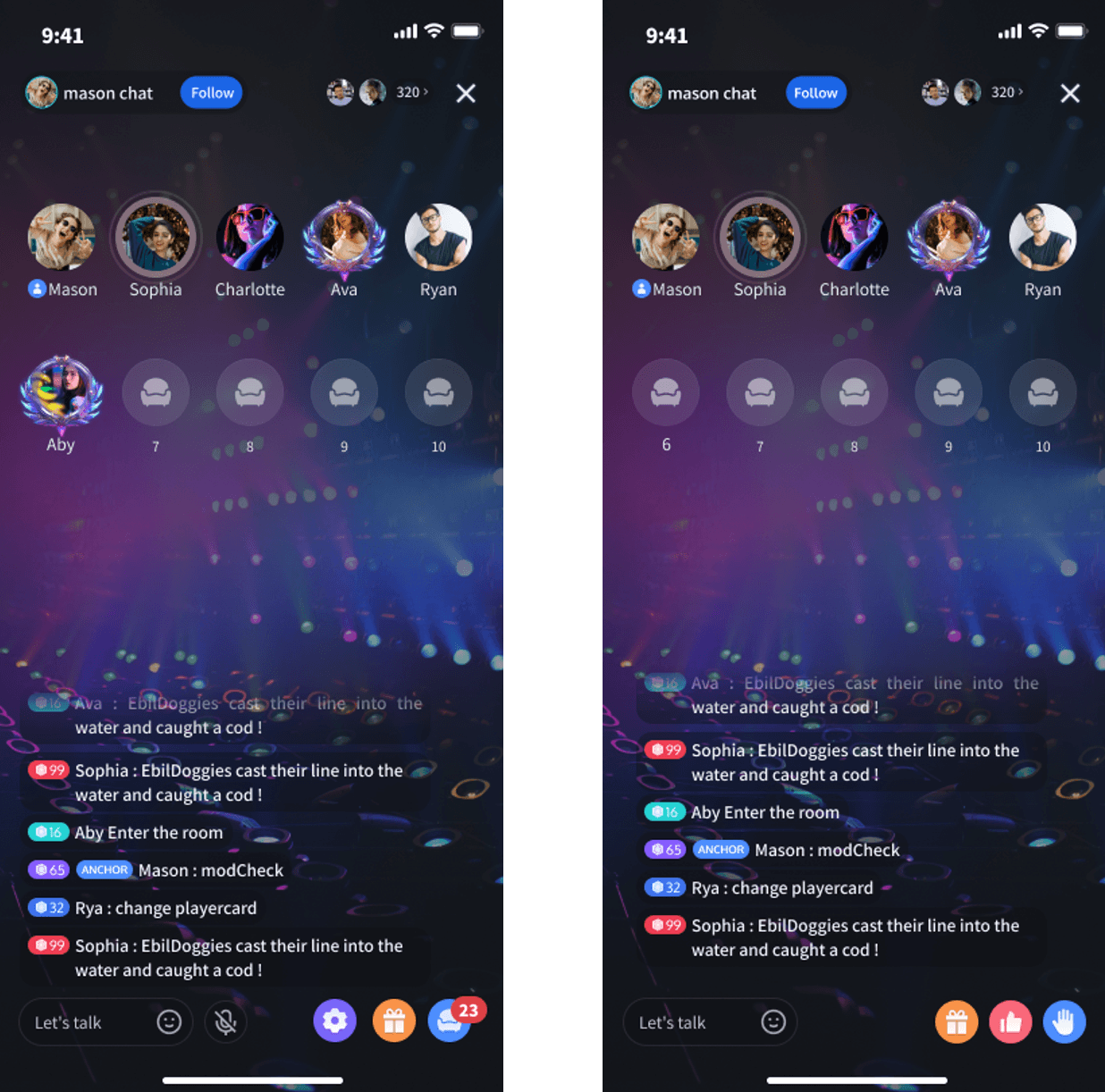
The Truth About In-App Mic Controls in Yalla Live
Open Yalla Live, enter any room, and tap through the interface. You will find room volume meters, seat mute toggles, sound effect panels, and gift animations. You will not find an input gain slider or an internal microphone sensitivity dial.
Yalla does not process raw microphone gain independently. The app takes whatever audio feed your phone's operating system hands over. If your phone sets your input too low, Yalla transmits a whisper. If your hardware gain pushes past digital ceiling limits, Yalla broadcasts digital clipping.
Many users mistake the room's master output volume slider for microphone gain. Lowering that slider only changes how loud other speakers sound in your ears; it does nothing to modify the signal your phone transmits across the room. Controlling your sensitivity means configuring your device's audio settings.
If you host event stages where you send gifts with Yalla Live Gold during karaoke battles, vocal delivery matters. A quiet or distorted host clears out a room quickly.
Dialing In Your Signal: The Target Decibel Window
Microphone sensitivity centers on gain staging: the volume of your raw voice before your device applies software compression, noise gates, or spatial filters.
Push gain too high, and your voice hits 0 dBFS (decibels relative to full scale), creating harsh digital clipping that sounds like tearing paper. Drop gain too low, and listeners must crank their speakers, raising the ambient noise floor and introducing background hiss.
The target range for human speech in live social audio sits between -18 dB and -6 dB at your loudest spoken peaks.
Input Level (dBFS)  Status       Acoustic Result in Voice Room
 0 dB and above     Clipping     Severe crackle, broken words, distorted speech
-6 dB to -18 dB     Optimal      Clean, warm vocal presence with ample headroom
-19 dB to -30 dB    Low Signal   Faint voice; listener must max out room volume
Below -30 dB        Buried       Software noise reduction mutes voice entirely
Physical distance governs gain just as much as digital sliders. Keep your microphone 6 to 12 inches away from your mouth (about the span of an outstretched hand). This range retains speech clarity while preventing heavy plosive pops on "P" and "B" sounds.
Check your hardware before adjusting software. Pocket lint, makeup, and dust settle inside the microphone pinhole near your charging port. A blocked pinhole drops physical sound transmission sharply, tempting users to shout. Clear it gently using a dry, soft-bristled brush or an antistatic wooden pick. Never use metal needles or blow compressed air directly into the port, which can rupture the internal diaphragm.
| Hardware Component | Baseline Setting | Primary Failure Mode |
|---|
| Physical Distance | 6 to 12 inches from mouth | Proximity rumble under 6 in; thin signal over 12 in |
| Mic Pinhole Port | Clear of lint and pocket dust | Muffled volume mistaken for low software gain |
| Headset Cable | Straight, unkinked connection | Static crackle and intermittent room disconnects |
| Output Monitoring | Dedicated earbuds or headphones | Acoustic room bleed and listener echo loops |
Reviewing your physical baseline first ensures software utilities amplify actual speech rather than mechanical noise.
Android Setup: Bypassing the Lack of Native Gain Sliders
Android lacks a system-wide manual microphone gain slider in its standard menus. Instead, phone firmware runs automatic gain control (AGC), which frequently miscalculates during quiet speech or group singing in Yalla rooms.
You have two system-level workarounds.
Toggle System Call Noise Reduction
Certain Android builds include a legacy noise reduction toggle inside call settings. Open your native Phone app, tap the three dots in the corner, open Settings, and look for Call Settings or Sound. If your model features a switch labeled Noise Reduction, turn it off.
Manufacturer noise reduction routines frequently mistake quiet vocal tones for background chatter. Turning this off stops the system from attenuating your opening syllables when speaking in a Yalla room.
Deploy a Dedicated Mic Utility
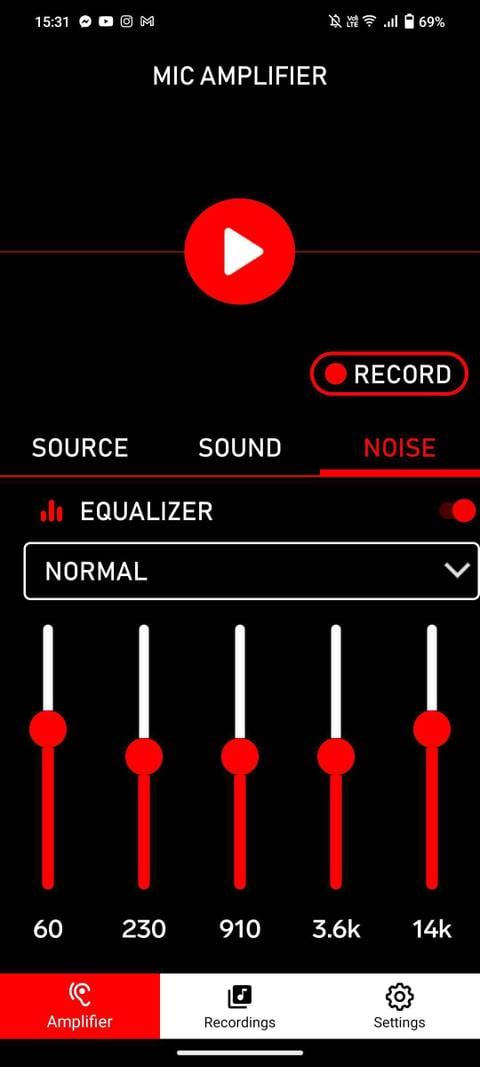
If your microphone remains quiet, install an audio utility like Microphone Amplifier from Google Play. It provides hardware-level access to input boost curves that Android hides by default.
- Open Microphone Amplifier and grant audio permissions.
- In input settings, manually select your active input source (built-in bottom microphone or connected headset).
- Raise the gain boost slider gradually while testing your voice in an empty room.
- Open the multi-band frequency equalizer. Drop the 60Hz slider slightly to eliminate electrical hum and desk rumble.
- Adjust the 3.6k and 14k sliders to clear up sibilance without introducing high-pitched screeching.
The utility charges roughly $1.99 for advanced features, but core amplification functions are free to test.
Samsung Routing Advantages
Samsung Galaxy devices running Pro Video mode include hardware routing options that let you direct audio capture from six distinct microphone routing sources: Omni, Front, Rear, USB, BT, and BT Mix.
When hosting a room using a Bluetooth headset, choosing BT Mix or Front prevents the system from pulling ambient noise through the rear camera mic while your phone rests flat on a desk.
iOS Mic Modes: Calibrating Voice Isolation on iPhone and iPad
Apple takes a different route. While iOS Settings has no decibel gain slider, iOS integrates machine-learning audio filters into the system control stack.
These options surface dynamically whenever an active app accesses your microphone.
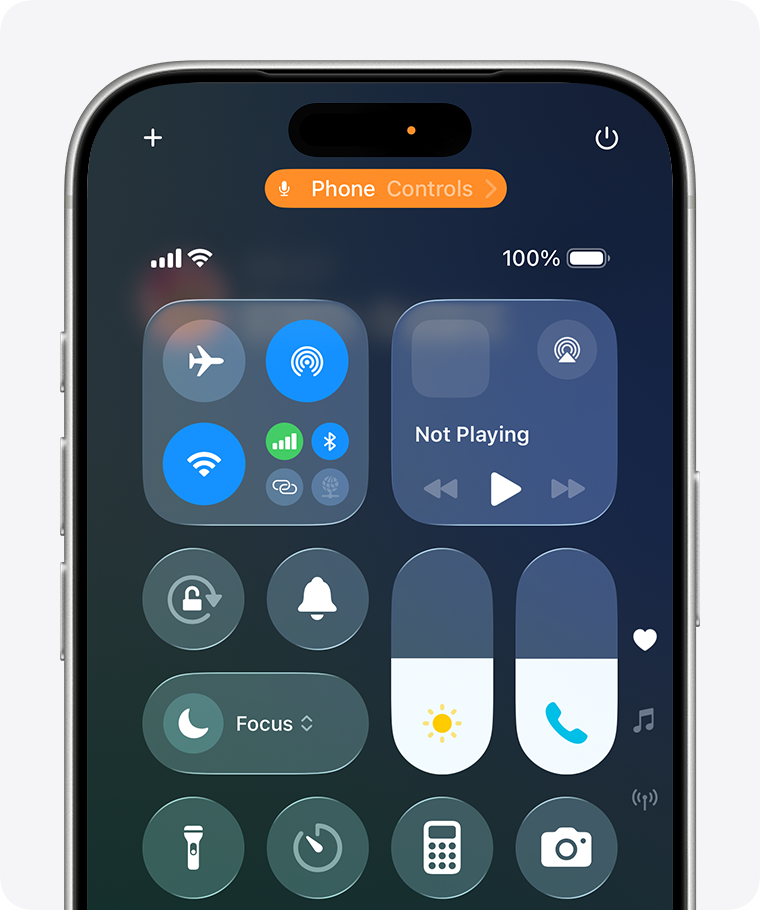
Adjusting Mic Mode in Control Center
- Open Yalla Live and take an open mic seat in any room.
- Once your microphone icon lights up, swipe down from the top-right corner to open the iOS Control Center.
- Tap the Mic Mode tile at the top of the screen.
- Select your profile:
* Standard: Disables extra processing. Best for streaming an acoustic instrument or playing background music.
* Voice Isolation: Recommended for chat rooms. Uses machine learning to isolate speech frequencies while cutting barking dogs, desk fans, and keyboard clatter.
* Wide Spectrum: Opens mic pickup to capture ambient audio across the entire room.
For most Yalla Live participants, leaving an iPhone on Voice Isolation produces clean vocal delivery without third-party tools.
Locking AirPods Microphone Channels
When using AirPods, iOS swaps the active microphone between earbuds based on battery levels and ear placement. That automatic handoff causes abrupt volume dips if one earbud sits loosely.
Lock your input channel manually:
1. Open Settings on iOS and tap your AirPods.
2. Scroll down and tap Microphone.
3. Switch Automatically Switch AirPods to either Always Left or Always Right.
Pick the ear facing away from room fans or hair movement. Locking the channel maintains steady vocal levels as you prepare to buy Yalla Live Gold online to level up your room's prestige and host uninterrupted discussions.
Windows and Emulator Configuration for Desktop Hosts
Hosts running 24/7 social rooms or background music often run Yalla through Android emulators on Windows. Desktop systems offer precise gain staging, but misconfigurations will distort your outgoing sound.
Windows Dual-Stage Sound Properties
Windows separates input calibration into a digital volume percentage and an analog hardware boost:
- Press
Win + R, type mmsys.cpl, and hit Enter to open the classic Sound Control Panel. - Click the Recording tab, right-click your microphone, and select Properties.
- Select the Levels tab.
- Set the primary microphone slider between 80% and 100%.
- If available, set the Microphone Boost slider to +10 dB or +20 dB for low-output mics. Avoid +30 dB, which introduces audible analog hiss.
Windows Sound Panel Configuration:
[Primary Recording Level: 85%  ]  <-- Clean digital ceiling
[Microphone Boost:        +10 dB]  <-- Solid analog gain stage
Defeating Exclusive Mode Overrides
Microphone volume changing on its own in Windows usually traces back to Exclusive Mode, which allows applications to hijack hardware levels.
- In your microphone's Properties window, open the Advanced tab.
- Find Exclusive Mode.
- Uncheck "Allow applications to take exclusive control of this device".
- Uncheck "Give exclusive mode applications priority".
- Click Apply.
This stops background programs from altering your microphone levels mid-sentence.
For advanced setups, free tools like Equalizer APO or VoiceMeeter let you insert real-time compressors, limiters, and gain filters before routing audio into an Android emulator.
Operating systems process Yalla's audio feed through distinct hardware and software layers:
| Feature / Setting | Android Devices | iOS Devices | Windows (Emulated) |
|---|
| Native Mic Gain Slider | No (Hardware / AGC only) | No (OS-managed) | Yes (0–100% volume slider) |
| Hardware Decibel Boost | Third-party apps only | No (Automatic) | Yes (+10 dB, +20 dB stages) |
| Background Suppression | Call noise reduction switch | Voice Isolation mode | Software plugins / filters |
| Source Channel Lock | Supported on select devices | AirPods Left/Right select | Dedicated port selection |
| Real-Time Equalizer | Via third-party tools | No native EQ | Equalizer APO / VoiceMeeter |
Windows provides direct decibel control, while iOS focuses on automated algorithmic voice isolation.
Troubleshooting Voice Room Echo and Audio Bleed
Echo in voice rooms happens when another speaker hears their own voice returned with a slight delay whenever you unmute.
The Feedback Loop Explained
Echo is acoustic bleed, not an in-app bug. When another user speaks, their audio plays from your phone's loudspeaker. That sound wave enters your active microphone pinhole fractions of a second later.
Because mobile networks introduce transmission latency, that captured audio bounces back to the room server as a delayed echo. If multiple hosts run open mics on speakerphone, the loop repeats until feedback builds.
The Fixes
- Wear Headphones: Plugging in wired earbuds or pairing Bluetooth headphones isolates output sound from your microphone port completely.
- Lower Speaker Output Below 50%: If you must use speakerphone, turn down media volume. Microphones struggle to separate speech from chassis vibration above 70% volume.
- Avoid Hard Desks: Laying a phone on glass or wood reflects speaker output straight into the bottom microphone. Prop the phone up or place it on a fabric mat.
The Noise Reduction Dilemma: Why Your Voice Keeps Cutting Out
Consumer guides suggest turning on every noise reduction toggle available. In contrast, audio engineers caution that aggressive software filters frequently degrade voice clarity.
Both perspectives reflect how noise suppression works. The algorithm sets a volume floor and filters out sounds outside typical vocal contours.
When configured too aggressively, three problems show up:
1. First-Syllable Clipping: Starting a phrase with soft consonants ("th", "s", "f") causes the filter to treat the sound as background noise, cutting the first syllable.
2. Vocal Thinning: Overfiltering removes lower vocal frequencies, producing a nasal, metallic tone.
3. Whisper Dropouts: Quieter speech during late-night rooms drops below the filter threshold, muting the voice entirely.
Frequency Band   Acoustic Element   Equalizer Action for Voice Rooms
 60 Hz           Mains Hum / Rumble Cut (-3 dB to -6 dB) to remove desk vibrations
 300 Hz          Body & Warmth      Keep flat; cutting here makes voice sound thin
 3.6 kHz         Speech Intelligibility Keep balanced; boosting too high causes screeching
 14 kHz          Air & Sibilance    Trim slightly to prevent harsh 'S' sounds
If room members say you sound muffled or drop out, reduce suppression levels or switch iOS Mic Mode back to Standard to check your clean vocal baseline.
Step-by-Step Diagnostic Routine for Distorted Audio
When audio degrades, follow this sequence from physical hardware up to software settings:
- Inspect and Clear Physical Ports: Remove compacted lint from your microphone pinholes using a dry nylon brush.
- Put on a Headset: Stop using open speakerphone. Use wired earbuds or headphones to prevent playback bleed.
- Set Mic Distance: Maintain a 6-to-12-inch gap between the mic and your mouth to eliminate breath pops.
- Reset App Permissions: Open your phone's Application Manager, locate Yalla Live, clear cache, and re-toggle microphone access.
- Apply System-Level Controls:
* On iOS: Open Control Center while speaking and select Voice Isolation.
* On Android: Use an equalizer utility to boost input gain, or disable Call Noise Reduction if syllables get clipped.
* On Windows: Set Levels to 85%, Boost to +10 dB, and uncheck Exclusive Mode.
- Run a Two-Person Mic Check: Open a private room with one listener to confirm loud speech does not clip and whispers stay audible.
Before you top up Yalla Live Gold balance for a broadcast event, completing this mic check confirms that your audience hears your voice cleanly.
Frequently Asked Questions
Can I adjust microphone sensitivity directly inside the Yalla Live app?
No, Yalla Live does not feature an input gain or sensitivity slider in its settings menus. You must adjust microphone levels and suppression profiles through your device's operating system or third-party audio apps.
How do I make my mic louder in Yalla on an Android phone?
Because Android lacks a native microphone gain slider, install a utility such as Microphone Amplifier to raise your hardware input curve. Also, verify that your phone's microphone pinhole near the charging port is clear of pocket dust.
How do I cut out background noise when speaking on Yalla using an iPhone?
Swipe down from the top right of your screen while your mic is active in Yalla to open Control Center. Tap the Mic Mode tile and select Voice Isolation to filter background sound.
Why do other users in the Yalla voice room hear an echo of themselves when I unmute?
Your device speaker volume is high enough that incoming room audio leaks back into your live microphone. Lower your playback volume or wear headphones to separate incoming sound from your mic.
Why is my voice muffled or cutting in and out during room chats?
Aggressive noise suppression algorithms often misidentify soft speech as room noise and clip syllables. Turn off built-in call noise reduction in Android settings or speak within 6 to 12 inches of the mic.
Aim for peak vocal levels between -18 dB and -6 dB. Signals crossing 0 dBFS cause digital clipping and crackle, while signals below -30 dB force software gates to mute your input.
The Verdict on Yalla Live Audio Quality
Clear audio in Yalla Live comes down to your operating system and hardware settings, not missing in-app sliders.
For mobile hosts, wearing wired earbuds or setting iOS to Voice Isolation resolves most audio complaints immediately. On Android, avoid stacking multiple booster apps; one lightweight utility combined with a clean microphone port provides ample signal headroom. Keep your phone 6 to 12 inches away, clean out the mic pinhole, and use headphones to keep room audio distortion-free.










Comments