Master the arena breakout best settings to hit a steady 120 FPS, spot camouflaged enemies in dark corners, and hear clean directional footsteps in every raid.
Raid survival in Arena Breakout hinges on fractions of a second. A stutter during a room breach or a sniper lost in distant brush means losing your entire kit. High frame rates and clear sightlines are not about pushing hardware to its limit; they come from stripping away visual clutter so enemy silhouettes stand out immediately.
Every dynamic shadow and post-processing filter burns GPU cycles while masking targets. Cut the overhead, tune your audio frequencies, and establish a clean visual baseline.
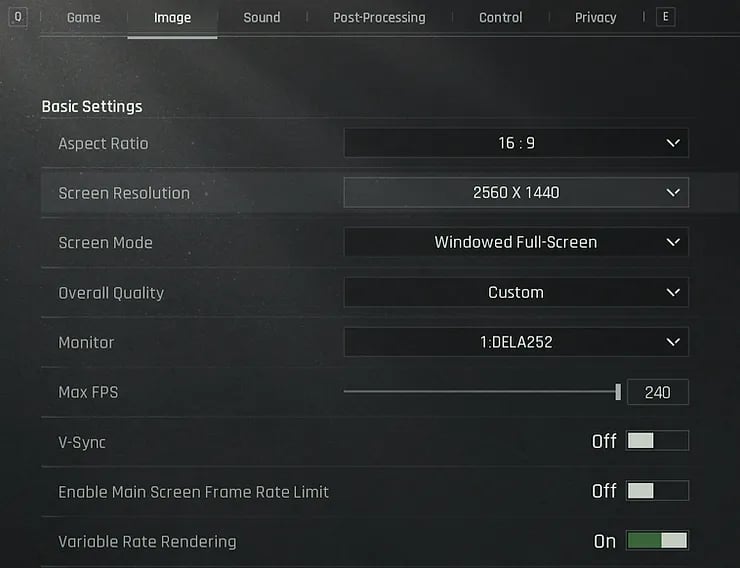
Graphics Settings for Visual Advantage and Frame Rates
Default visual presets prioritize cinematic atmosphere over competitive utility. Motion blur and dense grass look great in trailers, but they get you eliminated in high-tier lockdown zones. Tuning your visuals for extraction combat requires aggressive cuts to non-essential rendering while keeping target-acquisition options pinned at maximum.
Shadow quality drains performance faster than any other setting. Dynamic shadows force real-time light calculations across map geometry. Dropping shadows to Low or Off yields an immediate 20% to 30% boost in frame rates and removes dark pockets in corridors where campers hide.
Foliage is another tactical hazard. When foliage is set to high, the game draws thick grass across distant hills. Lowering foliage quality reduces grass draw distance significantly. While an opponent assumes they are concealed in a field, they sit fully exposed against flat terrain on your screen.
View distance requires the opposite approach. General hardware guides often advise budget players to drop every slider to minimum. Doing this with view distance is lethal. Lowering view distance cuts player model rendering ranges, allowing snipers to spot you before their character models draw on your display. Set view distance to High or Ultra. It costs 5 to 8 FPS, but guarantees you spot long-range threats first.
Anti-aliasing requires careful handling. Temporal Anti-Aliasing (TAA) smooths jagged edges on buildings, but introduces motion smearing during quick camera snaps. Disable AA completely or switch to Fast Approximate Anti-Aliasing (FXAA) to keep flick adjustments sharp and ghost-free.
| Graphic Setting | Recommended Value | Competitive Impact |
|---|
| Shadow Quality | Low / Off | Delivers a 20-30% frame rate increase and eliminates dark corner camouflage. |
| View Distance | High / Ultra | Preserves player model rendering at long range at an expense of 5-8 FPS. |
| Foliage Quality | Low | Cuts grass draw distance to expose prone and crouching targets in fields. |
| Post-Processing | Off | Removes motion blur, bloom, and lens flares that obstruct target acquisition. |
| Anti-Aliasing | Off / FXAA | Prevents TAA motion smearing and ghosting during rapid flick adjustments. |
| Ambient Occlusion | Off | Saves 10-20 FPS and stops artificial contact shadows from darkening models. |
Locking these settings establishes clean player model outlines and frees up processing bandwidth for high-refresh targets.
Display Geometry, FOV, and Lighting Optimization
Field of View (FOV) balances peripheral awareness against center-screen target scale. Cranking FOV to the maximum widens your panoramic view, but creates a fish-eye warp that shrinks center targets by up to 15%. That makes distant heads difficult to hit with iron sights or low-magnification optics. An FOV between 90 and 100 serves as the competitive baseline: broad peripheral vision without sacrificing the target pixel density needed for precision fire.
Indoor maps like Armory and TV Station demand specific lighting corrections. Basements and unlit corridors hide crouching opponents in heavy contrast. Setting in-game brightness between 1.3 and 1.5 with display gamma at 1.10 to 1.15 brightens shadowed interiors without blowing out highlights in outdoor daylight.
Disable ambient occlusion completely. It adds soft contact shadows where walls meet floors, costing 10 to 20 FPS and generating dark halos around player models. Turning it off keeps contrast flat, clean, and readable.
Before dropping into high-risk raids with your tuned profile, ensure your loadout is funded by picking up Arena Breakout bonds and passes to keep your armor and ammunition stockpiled.
High frame rates mean very little if your display suffers from input lag. Micro-adjustments with a mouse or touch screen must register instantly.
Two engine features introduce input delay: V-Sync and frame interpolation. V-Sync locks rendering to your display refresh rate to stop screen tearing, but buffers frames in a queue that adds 10 to 30ms of latency. Frame interpolation introduces cursor drift and visual artifacts. Disable both to maintain direct, unbuffered touch response.
Hardware low-latency modes like NVIDIA Reflex and Radeon Anti-Lag synchronize CPU and GPU workloads under heavy utilization. Enabling these modes prevents render queue congestion during firefights, cutting system latency by 20% to 30% (and up to 50% in GPU-bound scenarios).
On entry-level hardware, lowering render resolution to 1600x900 or 1080p delivers a stable 55 to 65 FPS baseline. Pairing resolution scaling with low shadows keeps frame timing consistent when smoke grenades and airstrikes detonate nearby.
Step-by-Step Competitive Graphics Configuration
Apply these exact adjustments in your game client to configure your system for competitive play:
- Launch the settings menu and open the Graphics tab.
- Set your Frame Rate limit to the maximum supported value (120 FPS or Max) to reduce input lag.
- Change Graphics Quality to Smooth or Custom to unlock individual visual sliders.
- Drop Shadow Quality to Low or Off to gain a 20% to 30% performance boost.
- Adjust Foliage Quality to Low to eliminate distant grass rendering.
- Push View Distance to High or Ultra so distant player models draw reliably.
- Switch Anti-Aliasing to Off or FXAA to prevent temporal motion blur.
- Disable Post-Processing, Motion Blur, and Ambient Occlusion.
- Adjust Field of View to 90 for optimal target scaling.
- Set Brightness between 1.3 and 1.5, and configure Display Gamma between 1.10 and 1.15.
If you play on an older mobile chipset that experiences thermal throttling after twenty minutes of raiding, deviate from this setup by dropping View Distance to Medium and locking your frame rate to 60 FPS. A steady 60 FPS is far better than a thermal drop down to 25 FPS mid-fight.
Audio cues in extraction shooters give away enemy positions long before visual contact occurs. Hearing a slow-crouch approach across wood or the faint click of a grenade pin gives you time to pre-aim the doorway. Standard audio profiles are muddy because heavy bass from explosions, ambient wind, and gunshots overpower subtle movement cues.
Acoustic actions occupy distinct frequency ranges:
* Footstep weight and player body movements resonate in the low-mids between 150 Hz and 450 Hz.
* Surface textures—such as crunching gravel, metal stair steps, and wood creaks—reside in the midrange between 1 kHz and 3.5 kHz.
* Metallic weapon clicks, magazine checks, and reload sounds sit higher, between 4 kHz and 5 kHz.
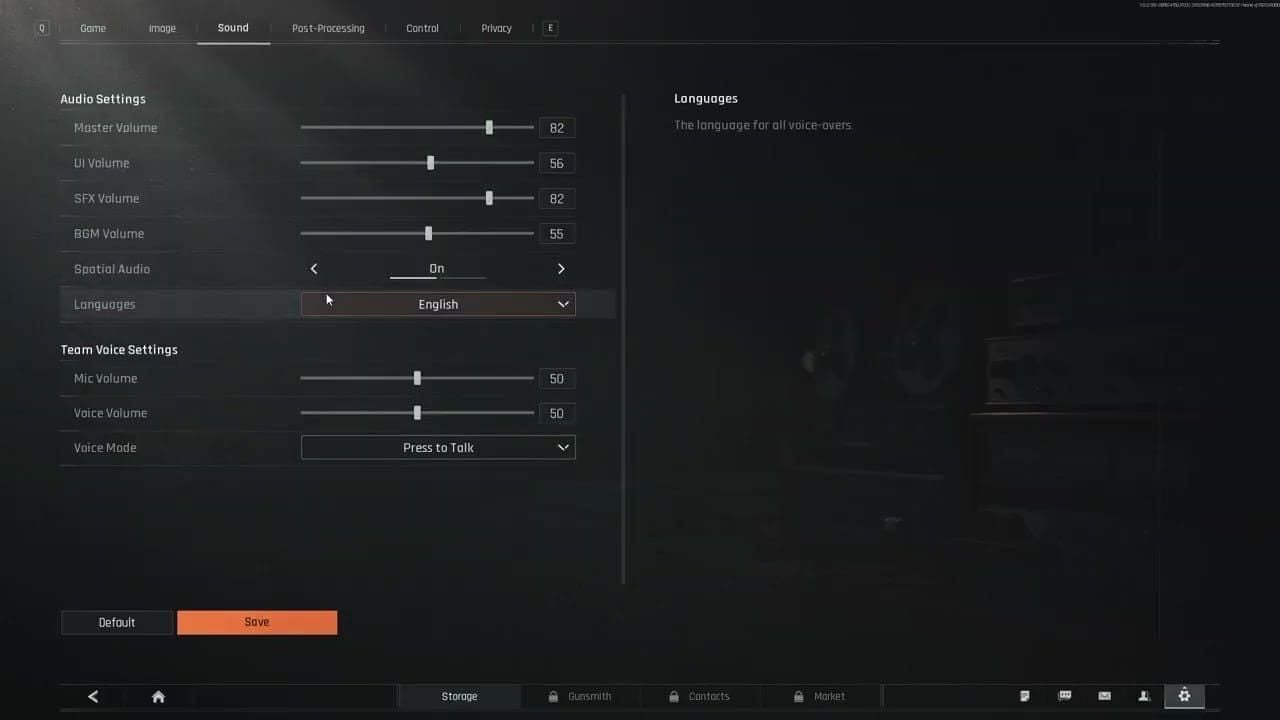
Avoid stacking external spatial audio on top of the in-game engine. Enabling OS-level virtual surround sound (such as Windows Sonic or Dolby Atmos) while native Head-Related Transfer Function (HRTF) is active causes phase distortion. This double-processing flattens your acoustic soundstage, making it difficult to tell if a sound came from above, below, or behind you. Disable all external spatial processing and let the game's binaural audio handle positioning.
Using a 10-band equalizer allows you to suppress rumbling explosions and bring quiet movement cues to the forefront.
| Frequency Band | Target Adjustment | Acoustic Purpose |
|---|
| 31 Hz | -6 dB | Cuts sub-bass rumble from distant environmental effects. |
| 62 Hz | -4 dB | Reduces heavy grenade detonation resonance. |
| 125 Hz | -2 dB | Clears out ambient engine noise and wind rumble. |
| 250 Hz | +2 dB | Enhances the physical body and weight of footstep thuds. |
| 500 Hz | +4 dB | Amplifies indoor movement on concrete and linoleum. |
| 1 kHz | +6 dB | Accentuates footsteps on hard surfaces like metal walkways. |
| 2 kHz | +6 dB | Brings out gravel crunches, grass rustling, and gear shifting. |
| 4 kHz | +4 dB | Highlights reload sounds, pin pulls, and weapon handling. |
| 8 kHz | +2 dB | Clarifies high-frequency environmental audio cues. |
| 16 kHz | 0 dB | Leaves high-end air neutral to prevent ear fatigue. |
Applying this frequency profile suppresses masking bass rumble while exaggerating crucial tactical sound cues across all raid maps.
Fine-tuning your audio profile ensures you hear enemies pushing your position, giving you the upper hand when defending valuable loot acquired through Arena Breakout top-ups during scheduled operations.
Sensitivity Curves for Recoil Management and Tracking
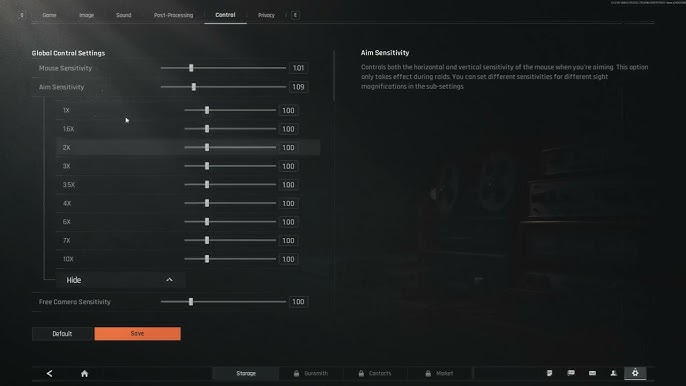
A dialed-in sensitivity profile ensures your crosshair snaps to targets instantly while preserving the stability needed for recoil control. High base sensitivity allows you to clear 90-degree room corners and check angles without picking up your thumb multiple times. Scoped sensitivities must remain lower to facilitate smooth tracking at mid to long ranges.
Pro configurations split sensitivity into distinct brackets based on optical magnification:
- Standard Camera / Hipfire Sensitivity (0.65 - 0.75): Provides rapid rotational speed for sweeping rooms, checking doorways, and sliding into cover.
- 1x Optics / Red Dot Sensitivity (0.70 - 0.80): Keeps tracking swift during close-quarters automatic spray trades.
- Medium Optics (2x to 4x Scope) Sensitivity (0.55 - 0.65): Balances steady recoil pull-down against moving vehicle and infantry tracking.
- High Optics (6x+ Sniper) Sensitivity (0.40 - 0.50): Minimizes pixel jumping for long-range headshots where a millimeter of thumb drift ruins the shot.
Never adjust your sensitivity by large margins all at once. Tweak your values by 0.05 increments, run through the shooting range with varied weapons, and jump into low-stakes raids to build muscle memory.
Mobile Optimization: Standard Client vs Arena Breakout Lite
Mobile hardware faces a severe thermal challenge during long gaming sessions. When a device runs at full capacity to output high graphics, internal temperatures soar. Once thermal thresholds are breached, the device automatically throttles clock speeds, causing micro-stutters and frame drops during gunfights.
Players on mid-range or aging devices should consider the Arena Breakout Lite client. The Lite version features an initial download package of roughly 800 MB and runs on devices starting from Android 6.0. It strips unneeded high-resolution textures and simplifies lighting shaders, cutting operational RAM usage down to ~2.0 GB (compared to ~4.5 GB on the standard client) to maintain stable frame delivery on modest hardware.
The table below details how performance, storage, and visual configurations scale across mobile client platforms.
| Platform / Client | Target Frame Rate | Memory Usage | Storage Size | Visual Profile |
|---|
| Android Flagship | 120 FPS | ~4.5 GB RAM | 8.0+ GB | Custom Smooth, Max Draw Distance, FXAA |
| iOS Flagship | 120 FPS | ~4.0 GB RAM | 8.0+ GB | Custom Smooth, High Draw Distance, FXAA |
| Android Mid-Range | 60 - 90 FPS | ~3.0 GB RAM | 6.5 GB | Smooth, Medium Shadows, High View Distance |
| Arena Breakout Lite | 60 FPS (Stable) | ~2.0 GB RAM | ~800 MB Initial | Low Assets, Optimized Shaders, Fixed Foliage |
Choosing the right client for your hardware prevents device overheating and preserves consistent frame pacing during extended raids.
Upgrading your character with secure containers, keycards, and passes is essential across all versions; you can secure bonds for Arena Breakout to keep your account geared up regardless of which mobile client you play on.
Frequently Asked Questions
What are the best graphics settings for maximizing FPS in Arena Breakout?
Set shadow quality and post-processing to low or off while disabling motion blur and ambient occlusion. These adjustments eliminate rendering bottlenecks and provide a 20% to 30% performance boost across all devices.
Why should foliage quality be kept on low for competitive raids?
Low foliage quality reduces grass draw distance so enemies lying prone in fields remain visible. Players relying on dense grass for cover will stand out against flat terrain on your screen.
Boost frequencies between 150-450 Hz for footstep body and 1-3.5 kHz for surface textures like wood, metal, or gravel. Cut frequencies below 125 Hz to stop heavy explosions from masking subtle movement cues.
No, view distance should remain at High or Ultra because it determines how far away enemy character models render. Sacrificing 5 to 8 FPS is necessary to spot snipers across open fields before they eliminate you.
How does FOV affect enemy visibility in long-range firefights?
Higher FOV broadens peripheral vision but makes center-screen targets appear up to 15% smaller. Setting FOV between 90 and 100 strikes the ideal compromise for environmental awareness and target acquisition.
Should external spatial surround sound like Windows Sonic or Dolby Atmos be enabled?
No, spatial surround sound should be turned off in OS settings when using the game's built-in 3D audio. Stacking virtual surround algorithms causes phase distortion and degrades directional sound positioning.
The Tactical Edge in Raids
Optimizing your settings in Arena Breakout is not about making the game look pretty; it is about building a clean, responsive combat platform. Turning off heavy post-processing, dropping shadow clutter, and holding view distance at maximum ensures that no opponent can use lighting glitches or dense grass to ambush you.
Pair those visual adjustments with an unbuffered 120 FPS frame rate, calibrated sensitivity curves, and an audio equalizer tuned for footsteps. These settings remove hardware bottlenecks, leaving your survival down to raw positioning, trigger discipline, and tactical execution.










Comments