Launch-era crediting: instant when it worked, a black box when it didn't
Through most of Yaahlan's run as a MENA voice-chat and mini-games app, gem delivery has lived on the server. You pay. The processor confirms. The server hands you the balance. Your client then pulls that fresh number on its next sync. That last beat is the entire reason people freak out. Money's already off your card, gems are already parked on your account, and your screen still shows yesterday's total because it hasn't refreshed yet.
Community guides have said the same thing from day one about how this breaks. The number-one reason a code redeems but the gems evaporate isn't a glitch, it's a wrong UID, per the same guide. Region mismatch comes next. Old app builds that can't read a freshly issued code land third. And look at what's missing from that list: actual lost money. The early gripes were almost all routing and sync, not the game swallowing a payment whole.
Speed itself was hardly ever the villain. On the third-party side, Enjoygm clocks 98% of orders crediting within seconds of payment, per the Enjoygm Yaahlan Top Up FAQ. When something dragged past that, the cure was nearly always a forced client refresh. The gems were already granted, the app just hadn't woken up to it. That same diagnosis fed straight into how the app grew up.
When 2.3.6 finally let you check your own order
The big shift wasn't some shiny feature. It was the day the app let you look at your own top-up orders. Version 2.3.6, dropped in January 2026, came with a flat, genuinely useful changelog note: "You can now check diamond top-up orders, and known issues have been fixed," per the Apple App Store Yaahlan page.
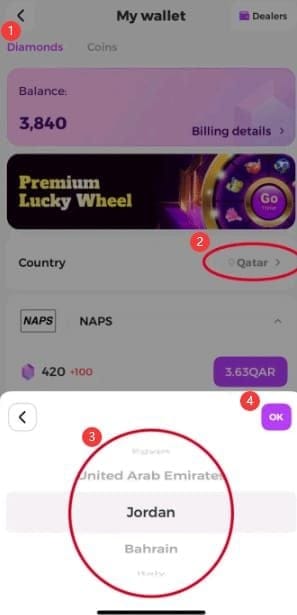
Small line, big consequence. Before it, somebody who paid and saw nothing had no way inside the app to confirm the order even registered. "Restart and pray" was the whole toolkit. After it, you can pull the order's status from the client, which flips a fuzzy "my diamonds are missing" into a sharp "my order says X but my balance says Y." Tickets close a whole lot quicker when you can point at that exact gap.
Across the 2.4.x runs, the advice held steady: stay current. The build to be on in early 2026 was 2.4.0, and stale versions were a documented cause of code-recognition flubs that had zero to do with the code, again per BitTopup. Ignoring those update nags accounts for a real slice of the "valid code, no gems" pile. The next big build aimed at something nastier.
The 2.5.0 patch and those peak-hour payment chokes
Late in the 2.4.x stretch, the ache moved off sync lag and onto the payment-and-gifting flow itself. Players ran into gift-send failures during peak hours, and the fix was almost insultingly easy. Wait about 60 seconds, retry, per the BitTopup Yaahlan 2.5.0 Patch Notes. This is about as close to a real server-load problem as the whole troubleshooting story gets. Pile on enough concurrent traffic and a transaction could fail to land cleanly, then a panic-retry just rams into the same jam.
That same patch summary tags mini-game desync, Ludo and Dominoes wandering out of step at high latency, as its own separate pre-2.5.0 headache. Not a recharge thing, sure, but it tells you the mood of the era: the back end was sweating under peak crowds, and that strain spilled into both gameplay and money flow. Both got the same medicine, server-side stabilization plus client retries.
Here's how the headline numbers and pain points shifted build to build:
| Build / era |
Normal crediting time |
Top-up order visibility |
Dominant failure mode |
| Pre-2.3.6 |
30–60 sec, then relaunch |
None in-app |
Wrong UID / region; sync lag |
| 2.3.6 (Jan 2026) |
30–60 sec |
Order-check added |
Same routing errors, now traceable |
| 2.4.0 (early 2026) |
30–60 sec |
Order-check |
Outdated-app code failures |
| 2.5.0 (May 2026) |
30–60 sec |
Order-check |
Peak-hour gift/payment fails (retry after ~60s) |
Source: BitTopup Yaahlan Gift Cards Guide (2026), BitTopup 2.5.0 Patch Notes (2026), Apple App Store Yaahlan (2026).
The thread running through all of it: the expected delivery window never budged. Same 30–60 seconds the entire time. What got better is your power to see what actually happened, plus the back end holding up under load. So what do you actually do when the balance flat-out refuses to move?
The fix order that actually clears it

Restart the app. That alone resolves more missing-gem cases than every other trick stacked together, so it always goes first. The reasoning's mechanical, not mystical. Diamonds get credited server-side, and the client needs a sync (a restart or relaunch) to show them, per BitTopup and 94LIVES. You're not "trying stuff." You're forcing the exact refresh the whole setup leans on.
The documented recovery run, pulled from the 94LIVES Yaahlan FAQ and backed up by TopUpLive, goes in this order:
- Check your network. A dropped sync can't grab a balance it can't even reach.
- Log out, log back in. Forces a fresh server handshake, heavier than a restart, lighter than a reinstall.
- Look at your balance again. Plenty of times the gems are just sitting there now.
- Only then ping support, with your Order number, your ID, and proof of payment in hand.
One thing I'll fight on: the forum reflex to reinstall early. Reinstalling almost never helps a sync hiccup, and if your account isn't linked right, you risk losing the door to the very profile holding your purchase. Relog first. A reinstall is near-last-resort territory, not step two.
Two boxes to tick before you escalate. First, the account you're actually standing in. Gems credit to the account ID that was live at the second of purchase, so hopping to a second or guest profile mid-session can leave you glaring at a totally different balance. A surprising chunk of "my diamonds disappeared" reports are really credits resting safe on a profile you simply aren't logged into. Second, region, because a mismatch there is a top-shelf redemption failure all on its own.
Bought through the in-app flow and slammed into a wall at peak hours? Give it the 60-second breather and retry, the way the 2.5.0 notes spell out, before assuming you've been robbed. That advice exists for real server crush, not for itchy fingers.
Proving the money moved before you blame the game
Check the store receipt first, then talk to support. Not the reverse. The "contact support immediately" gut reaction runs the steps backward, and a ticket with no proof of a settled charge just punts you back to the start.
The thing fueling most false alarms is the pending authorization. A store can drop a temporary hold that looks dead identical to a real charge on your statement, same amount, same merchant, while not a cent has actually settled. Nothing settles, nothing credits, and you're sitting there sure you paid for gems that never showed. The cure isn't a support ticket. It's waiting for that hold to either firm up into a true charge (gems follow) or fall off (no money gone). People routinely overrate game-side bugs and underrate this processor limbo.
Use the in-app order checker, the bit added in 2.3.6, to see whether Yaahlan logged an order at all. Then line that up against your receipt or email. Three ways it shakes out:
- Receipt settled + order shows credited + balance wrong → pure sync; a relog clears it.
- Receipt settled + no in-app order → real claim; this is literally why support exists.
- Receipt "pending" only → ride it out; don't file yet.
Dropping yourself into the right bucket here is the gap between a five-minute fix and a wasted ticket.
Filing a claim that lands instead of bouncing
Biggest single reason tickets die quietly: a missing transaction ID. Proof beats begging. Support can't reconcile a payment they can't trace, so a claim with no identifiers is one they're structurally unable to touch.
Attach all three, every single time. No exceptions:
| Proof item |
Where to find it |
Why it decides the outcome |
| Order number |
In-app top-up order checker (2.3.6+) |
Links the claim to a specific Yaahlan transaction |
| Yaahlan UID |
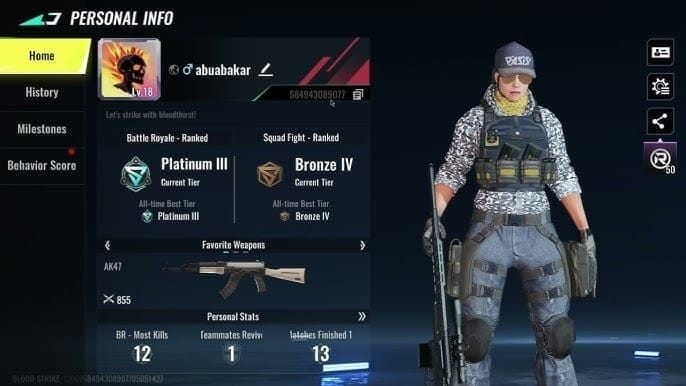
Tap the Me profile icon, bottom-right; UID is on the page |
Confirms the intended crediting target |
| Payment proof |
Store receipt / email confirmation |
Proves money actually settled, not just authorized |
Source: 94LIVES Yaahlan FAQ (2026), Enjoygm Yaahlan Top Up (2026), TopUpLive Yaahlan MENA (2026).
To snag your UID fast, tap the Me icon in the bottom-right and read it off your profile page, per Enjoygm and other top-up sites. Screenshot it before you ever hit submit. Same with the order number, grab it the moment a purchase finishes, not later when something's gone sideways and you're scrambling.
On refunds, level with yourself about the route. Where a recharge error traces back to the platform, a return's possible after verification, per the 94LIVES FAQ. That's the clean path. The path to avoid like the plague: firing off a bank chargeback for what's really just a delayed credit. A chargeback can get your account banned, which means swapping a temporary sync stumble for permanently losing everything. Don't. Work the ticket instead.
And don't let it rot. Sitting past 24 hours is a genuine blunder, since store refund windows run on a clock. Dawdle and you can age out of the cleanest fix before you've even filed.
Double charges and gems sent to the wrong UID
A wrong-account credit is nearly always preventable user error, not a game fault. And that framing matters, because it tells you where the fix lives. Buy while logged into the wrong account or UID and the gems go to that wrong target, per a stack of top-up site warnings. They aren't destroyed. They're parked on a profile you never meant to fund. Getting them back means proving, through your order details and the right UID, where they should have gone, which is exactly why nailing the correct UID before you buy isn't optional.
For an apparent double charge, pull the two charges apart before you swing. One might just be a pending authorization that'll fall off on its own, with a single real settlement behind it. Confirm both against your receipt before you cry duplicate. If two real settlements exist for one order, that's a clean platform-side claim, file it with both transaction references stapled on.
The honest read on third-party versus official routes: the official store and the reputable top-up channels both deliver fast, see those within-seconds figures up top, but the confusion that spawns tickets almost always traces to UID and account slip-ups on the buyer's end, not the channel falling over. The gems go where you send them. Send them to the right place. Next up, how you guarantee that.
Stop a recharge from going missing in the first place
A 30-second check before you pay wipes out the lion's share of these messes, because the heavy hitters (wrong UID, region mismatch, stale app) are all things you control before money leaves:
- Confirm your UID on the Me page and cross-check it against the purchase screen.
- Verify you're in the right account, not a guest or some secondary profile.
- Update to the newest build to dodge code-recognition failures that have nothing to do with your code.
- Match your region to the offer.
- Screenshot the order number and UID the instant the purchase wraps.
That last habit's the cheapest insurance going. A claim with proof attached gets resolved, one without it just stalls.
On where to buy: the variable that matters isn't speed, since every credible channel lands gems inside seconds to a minute. It's whether you can produce a clean order record afterward. A channel that hands you a clear, retrievable order ID turns a possible dispute into a 60-second check. Weighing options for your next Yaahlan top up? That record-keeping is the feature worth ranking over a few cents of price difference, because the cost of an unverifiable missing-gem claim dwarfs whatever you saved.
What's coming for this corner of the game looks incremental. The 2.5.0 work on peak-hour payment reliability says the devs are still tightening the flow rather than ripping it out, so figure crediting stays in that 30–60-second band and this whole playbook holds through the next few builds.
Frequently Asked Questions
How long should I actually wait before I assume my diamonds are gone?
Give it that 30–60 second window plus a relaunch first, per BitTopup, since that covers both the normal delivery and the sync refresh. If you bought in-app at peak hours and caught a gift or payment error, hold about 60 seconds and retry once before escalating. Past a few hours with a settled receipt and no in-app order, treat it as a real claim and file the same day, because store refund windows run on a clock.
Why does Restore Purchases sometimes do nothing for missing diamonds?
Restore Purchases only re-grants non-consumable items. Diamond packs are consumables. Once they're granted, you're meant to spend them, so the store won't "restore" them. If a consumable diamond buy didn't credit, the move is a support claim with your order and transaction proof, not a restore. Running Restore and watching nothing happen isn't a bug, it's the system doing precisely what it's built to do.
My card was charged but the app shows no order. What's going on?
That combo usually means a pending authorization, not a settled charge. The hold looks identical to a real payment on your statement, but no funds have moved, so nothing credits. Wait for it to either firm into a true charge (gems follow) or drop off (no loss). If your receipt shows a settled charge and there's still no in-app order, that's the case worth a ticket.
Does it matter whether I'm on iOS or Android?
The crediting mechanism is the same server-side grant on both, and the expected window's identical. The real difference is purely where your proof lives. Your receipt and order history sit in the Apple App Store or Google Play, and each runs its own refund-window clock. Pull your transaction record from the right store before filing, and don't let one platform's deadline slip while you wait.
Can I just request a chargeback from my bank to be safe?
No, and this is the priciest mistake on the whole list. A chargeback for what's really a delayed or pending credit can get your Yaahlan account banned, flipping a recoverable hiccup into permanent loss of your balance and progress. Where the failure is genuinely platform-side, a return's possible after verification per the 94LIVES FAQ. Work the support ticket with proof. Never route around it through your bank.









Comments