PSN Region Mapping and Server Restrictions
Server selection on console does not work the way it does on desktop or mobile. On PC and mobile devices, you can tap the server dropdown menu on the main title screen and switch between America, Europe, or Asia at will. On PlayStation 5, that manual switch is disabled.
PS5 server access is strictly determined by the player's PSN account region. When you launch the game, the console inspects your PlayStation Network account's registered country and automatically assigns your server. A US-based PSN account routes directly to the America server, a UK-based PSN account connects to the Europe server, and a Japanese or Singaporean PSN account connects to the Asia server.
Game servers in Zenless Zone Zero are mutually independent and cannot share save data. Even when using identical HoYoverse account credentials, progress created on one regional server (like Europe) cannot be transferred, merged, or accessed on another regional server (such as America). If your primary PC or mobile save lives on the Europe server, but your primary PSN account is registered in North America, logging in on console will drop you onto the America server with zero save data.
Console infrastructure also carries regional limitations that mobile and PC do not share. PlayStation 5 only supports America, Europe, and Asia servers for Zenless Zone Zero (3 console servers in total). Characters originally created on the Taiwan, Hong Kong, or Macau (TW/HK/MO) server cannot be accessed on PS5 because matching server infrastructure is unavailable on console.
The following table outlines how your PlayStation Network account region maps to Zenless Zone Zero game servers on console.
| PSN Account Region | Assigned ZZZ Server | Compatibility Status | Cross-Progression Behavior |
|---|
| Americas (US, CA, BR, Latin America) | America Server | Fully Supported | Syncs exclusively with existing mobile/PC characters created on America server. |
| Europe & Middle East (UK, EU, etc.) | Europe Server | Fully Supported | Syncs exclusively with existing mobile/PC characters created on Europe server. |
| Asia (JP, KR, SG, etc.) | Asia Server | Fully Supported | Syncs exclusively with existing mobile/PC characters created on Asia server. |
| TW / HK / MO (Taiwan, Hong Kong, Macau) | Not Available on PS5 | Unsupported on Console | Characters on TW/HK/MO server cannot be accessed or synced on PS5. |
Your PSN region acts as an unchangeable hard lock for your console server, so matching your mobile or PC server requires an identically zoned PlayStation Network profile.
If you find yourself with a regional mismatch, create a secondary PSN user on your console set to the region matching your original PC or mobile server. As long as the secondary PSN account matches your original game server, your existing HoYoverse save will load with all agents, currencies, and story chapters intact.
Step-by-Step Guide: Link Existing ZZZ Account to PlayStation Network
Following a clean, disciplined process prevents duplicate profile generation. Before touching your console controller, double-check that you know your exact HoYoverse login credentials and the regional server where your main character resides.
Step 1: Verify Your Current Account Details
Open Zenless Zone Zero on your phone or PC. Check the server name displayed on the title screen (America, Europe, or Asia). Write down your registered email address and verify that you can log into account.hoyoverse.com via a web browser without issues.
Step 2: Confirm Your PSN Region
Check your PlayStation Network profile settings. Ensure the country registered to your PSN account matches the server region of your existing save file. If your ZZZ save is on the Europe server, your PSN account must be registered in a European territory.
Step 3: Launch the Game on PS5
Download and boot Zenless Zone Zero from the PlayStation Store. When the opening screen loads, stop at the first pop-up window. Do not press buttons rapidly to skip dialog boxes.
Step 4: Select Existing Account Login
Select "Login with existing HoYoverse ID" on the first-time prompt. Enter your registered email address and account password. Complete any on-screen visual captcha or security prompts that appear.
Step 5: Verify Save Synchronization
Once the game reaches the title screen, look at the bottom of the display to verify that your unique UID matches your PC/mobile profile. Load into New Eridu and check your agent roster, master level, and polychrome balance. If you need additional resources after syncing, you can safely browse Zenless Zone Zero Monochrome top-ups to prepare your squads for upcoming commission banners.
Fixing the ZZZ HoYoverse Account Already Linked Error
If you skipped the initial prompt or launched the game before checking your login credentials, you will encounter the "account already linked" error or get stuck on a fresh level-one profile. This happens because the console generated a dummy HoYoverse account and permanently bound it to your PSN profile.
To resolve a zzz hoyoverse account already linked error and complete a zenless zone zero switch hoyoverse account ps5 procedure, you must unlink the dummy profile from your PSN account. Follow these troubleshooting steps in exact sequence.
1. Open the In-Game User Center on PS5
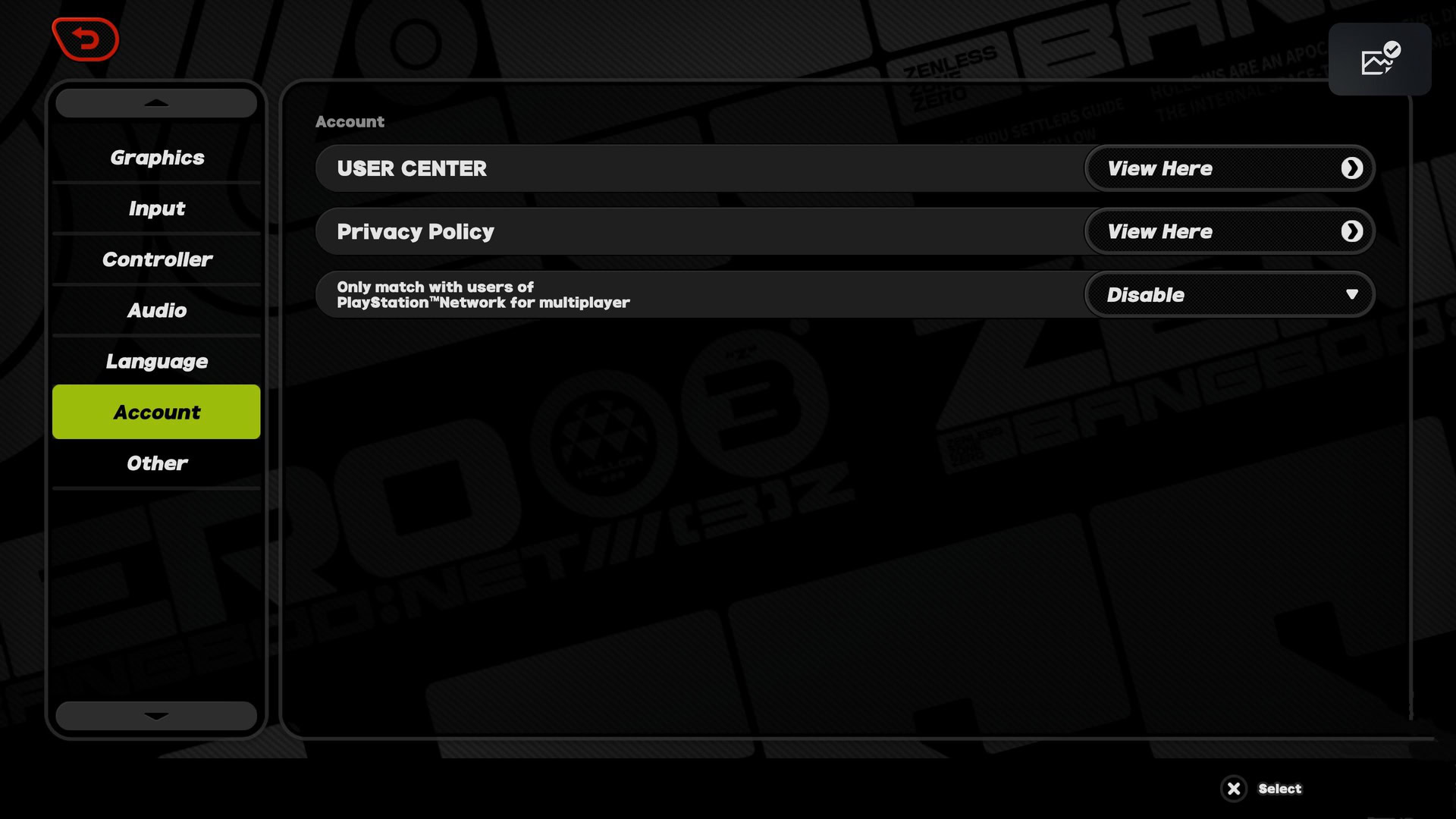
Boot Zenless Zone Zero on your console using the profile stuck with the blank save. Open the main game menu by pressing the Options button on your DualSense controller. Go to Options > Account > User Center.
2. Bind a Disposable Email to the Blank Profile
Linked account credentials can be verified in-game via the User Center. If the blank account was auto-generated by PSN, it does not yet have an email address tied to it. Select "Link Account" inside the User Center and attach a secondary, disposable email address with a new password. HoYoverse security requires every account to have a valid email before an unlinking request can process.
3. Access Account Management via Web Browser
Open a web browser on your PC or smartphone and go to account.hoyoverse.com. Sign in using the disposable email and password you just linked to the blank console save.
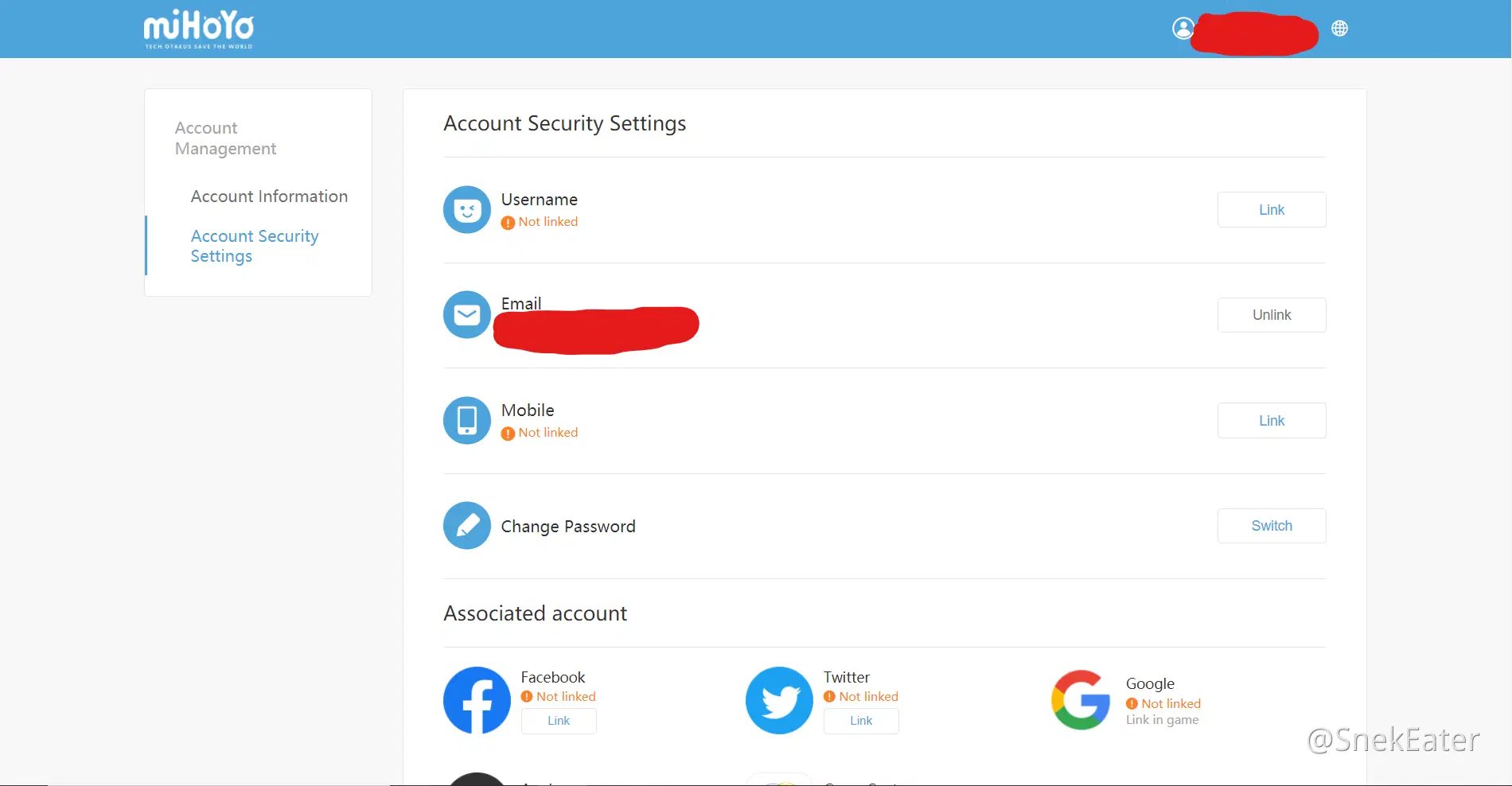
Open Account Security Settings. Scroll down to the "Associated Accounts" section where third-party links are listed. Find PlayStation Network (PSN) in the list and click "Unlink" next to it. Confirm the security prompt.
5. Relaunch Zenless Zone Zero on Console
Return to your PlayStation 5 and launch Zenless Zone Zero again. Because the blank profile is no longer bound to your PSN account, the game will present the original first-launch prompt once more. Select "Login with existing HoYoverse ID" and enter the credentials of your true primary save file.
Exporting PS5-Created Progress to PC and Mobile
Not every player starts their journey on PC or smartphone. If you began playing Zenless Zone Zero directly on PlayStation 5, your save data is currently trapped inside your PSN ecosystem. Attempting to download the mobile or PC client and typing your PSN email into the login screen will result in an "Account does not exist" error.
Transferring PS5-created saves to PC or mobile requires binding an email and password first. If a player started playing on PS5, they must open the in-game User Center, link a valid email address, and establish a login password before attempting to sign in on mobile or PC.
Here is how to set up your mobile/PC access from console:
- Launch Zenless Zone Zero on your PS5 and enter the game world.
- Open the pause menu and select Options > Account.
- Choose "View Here" next to User Center to open the integrated browser portal.
- Select "Link Account" next to the Email field.
- Enter an active email address that has never been registered to any HoYoverse title before.
- Enter the verification code sent to that email and choose a secure password.
- Download the game client on PC, iOS, or Android.
- Open the game, manually select the server matching your PSN region (America, Europe, or Asia), and log in with your newly registered email and password.
Once linked, any purchases, character level-ups, or quest progression made on desktop or mobile sync immediately back to your console session. If you manage multiple accounts across platforms, utilizing secure Zenless Zone Zero account funding keeps your resources aligned regardless of where you log in.
Cross-Progression Mechanics vs. Cross-Play Multiplayer
Many players confuse cross-progression with cross-play, but they serve two distinct technical functions in Zenless Zone Zero.
Cross-play operates independently from cross-progression. Cross-play enables players across PC, PlayStation, and mobile to match together in multiplayer activities, whereas cross-progression handles the synchronization of personal save data across devices.
Cross-play functionality is enabled by default in Zenless Zone Zero. Multiplayer matching does not require manual configuration or separate toggle settings in the game menus. You can team up with friends exploring Hollows regardless of whether they play on an iPhone, an Android tablet, a desktop PC, or a PS5 console.
Adding cross-platform friends requires using the in-game friend system and HoYoverse UID. Players can send co-op invites and friend requests to users on other platforms by searching for their unique in-game HoYoverse ID. As long as both players are registered on the same regional server (such as both playing on the America server), cross-platform multiplayer matches without extra setup.
The following table clarifies how game data and multiplayer features behave across cross-progression and cross-play systems.
| Game Feature / Asset | Cross-Progression (Same Server) | Cross-Progression (Different Server) | Cross-Play (Multiplayer Co-op) |
|---|
| Unlocked Agents & W-Engines | Synchronizes across PC, mobile, PS5 | Will not sync (Independent save) | Usable in co-op sessions |
| In-Game Currency & Inventory | Fully shared across platforms | Will not sync (Independent save) | N/A (Inventory remains personal) |
| Story & Inter-Knot Level Progress | Synchronizes across PC, mobile, PS5 | Will not sync (Independent save) | N/A (Solo quest tracking) |
| Friend Lists & Chat | Synchronizes across PC, mobile, PS5 | Will not sync (Server-locked) | Works across PC, mobile, PS5 via UID |
| Matchmaking Queues | N/A (Save state system) | N/A (Save state system) | Enabled by default across all devices |
Save progression and currencies synchronize across devices on the exact same regional server, while multiplayer co-op functions automatically across platforms within the same server ecosystem.
Zenless Zone Zero is available across PC, PlayStation 5, iOS, and Android. The core gameplay and live service events remain identical across every build, but account management, server selection, and third-party bindings differ depending on your operating platform.
Some gaming sites claimed Zenless Zone Zero launched with Xbox support. That information is false. HoYoverse officially released the title across PC, PlayStation 5, iOS, and Android only. Console support is exclusive to PS5.
The table below outlines the structural differences in how each platform handles server selection, account creation, and third-party authorizations.
| Platform | Server Selection Method | Initial Login Options | External Account Link Management |
|---|
| Windows PC | Manual toggle on title screen | Email, HoYoverse ID, Google, Apple | Web portal and in-game User Center |
| iOS / Android | Manual toggle on title screen | Email, HoYoverse ID, Apple ID, Google Play | In-game User Center and web portal |
| PlayStation 5 | Automatic (Locked to PSN Region) | One-time prompt (Existing ID or Blank Auto-Save) | In-game User Center linked to web portal |
While mobile and PC allow manual server toggling at any time on the login screen, PlayStation 5 permanently determines your server based on your PSN account's registered country.
Understanding these architectural differences prevents user errors. If you travel internationally with a laptop or mobile phone, you can still switch back to your home server on the login screen. On PS5, your physical location does not matter; only the origin country of your PSN profile controls where the game connects.
Managing HoYoverse Account Security and Email Verification
Keeping your HoYoverse profile secure is essential when linking multiple external platforms like PSN, Apple, or Google Play. The HoYoverse account settings portal allows managing third-party account linkages from a single security dashboard.
Account security settings can be launched directly from within the game client. Opening Options > Account and selecting "View Here" in the User Center option will open an integrated web browser to access the HoYoverse account portal directly.
If you ever need to update the contact email tied to your Zenless Zone Zero profile, the process is handled inside this portal. Zenless Zone Zero account email can be modified via the HoYoverse Account Security settings. Players can update their registered email address by visiting account.hoyoverse.com, selecting Account Security Settings, and choosing Modify Link next to the Email field.
HoYoverse enforces strict two-factor authentication during this procedure. Email modification requires completing a 6-digit verification code check on the existing address. Before entering a new email address, HoYoverse requires entering a six-digit verification code sent to the currently registered email address to pass security verification.
If you no longer have access to your old email address, you will not be able to complete the automated modification process. In that scenario, you must submit an account recovery form to HoYoverse customer service. For active players planning to pull for limited-edition characters across console and mobile, verifying your security settings and utilizing Zenless Zone Zero top up services ensures your account remains safe and well-supplied throughout every seasonal update.
Frequently Asked Questions
How do I link my existing Zenless Zone Zero PC/mobile account to PS5?
Launch Zenless Zone Zero on your PS5 for the first time and select "Login with existing HoYoverse ID" when the prompt appears. Enter the exact email and credentials associated with your existing game progress. Ensure your PSN region matches your original server before opening the game.
Why did my Zenless Zone Zero progress start over from the beginning on PS5?
Your progress likely started over because your PSN account region routes to a different server than where your character was created, or you skipped the initial linking screen. Ensure your PSN region matches your original server and that you are logged into the correct HoYoverse ID. Check your UID on the main screen to verify which profile loaded.
Can I change my Zenless Zone Zero server on PS5?
No, you cannot change the server manually within the PS5 game client. The game automatically connects to the server determined by your PlayStation Network account's registered region. To access a different server, you must create and log into a secondary PSN account registered in that specific region.
What should I do if I skipped the PS5 account linking prompt by mistake?
If you skipped the prompt, a new HoYoverse account was automatically linked to your PSN. You must log into the User Center or HoYoverse account portal to unlink the blank account before linking your primary ID. Follow the unlinking steps by attaching a temporary email and releasing the PSN link.
Can I play on PS5 with a character created on the TW/HK/MO server?
No, the PS5 version only supports the America, Europe, and Asia servers. Progress on the Taiwan, Hong Kong, and Macau server cannot currently be synced to PlayStation 5 due to console server limitations. Players on that server must continue playing on PC or mobile devices.
How do I play my PS5-created Zenless Zone Zero save on PC or mobile?
Go to Options > Account > User Center inside the PS5 game and link an email address with a new password. Use those new email credentials to log in on your PC or mobile device on the matching server. Your console progress will load immediately upon login.
Final Verification Checklist for Console Players
Getting your cross-progression setup right takes less than five minutes if you avoid rushing past the opening prompts. Before you settle into your couch to explore New Eridu on PS5, verify three critical details: confirm your original server region, ensure your PSN account shares that exact regional territory, and type your HoYoverse credentials into the first-launch binding window.
If you skipped the prompt and generated a blank save, do not panic. Your original mobile or PC progress is completely safe on HoYoverse's cloud servers. Follow the unbind sequence via the in-game User Center, disconnect the empty profile at account.hoyoverse.com, and log in with your primary ID. Once bound correctly, your agents, W-Engines, and master levels will follow you across every screen you own.








Comments