Comparing Finger Grips: Thumbs vs Claw HUD Configurations
Grip style dictates where buttons belong on your screen. While a two-finger thumb grip feels intuitive, it caps input speed because two contact points cannot handle movement, aiming, and firing at the same time.
The table below outlines the mechanical differences between common grip configurations.
| Control Scheme | Touch Points | Primary Action Allocation | Operational Bottleneck |
|---|
| Two-Finger (Thumbs) | 2 screen points | Left thumb moves; right thumb aims, shoots, jumps, and crouches | Cannot move, aim, and fire simultaneously without gyroscope |
| Three-Finger Claw | 3 screen points | Left index fires; left thumb moves; right thumb aims and peeks | Moderate finger crowding on the upper-left bezel |
| Four-Finger Claw | 4 screen points | Left index fires; right index aims/ADS/peeks; thumbs handle movement | Requires 7 to 14 days of dedicated muscle memory training |
| Five/Six-Finger Claw | 5-6 screen points | Dedicated index/middle fingers for jump, crouch, lean, and shoot | High physical fatigue on phones; best suited for large tablets |
A four-finger layout offers the most balanced mobility-to-comfort ratio for modern mobile battle royale matches.
With thumbs, you must stop aiming the moment you tap jump or crouch. Shifting the primary fire trigger to the top-left for your index finger creates a three-finger setup that solves this conflict. Stepping up to a four-finger claw delegates combat triggers entirely to both index fingers while your thumbs steer movement and crosshair tracking.
Step-by-Step Fix for PUBG Mobile Reset Control Layout Glitches
Patches, cache corruption, or cloud sync drops can reset custom layouts unexpectedly. When buttons revert to default, work through these steps before rebuilding from scratch:
- Restore from Cloud: Open Settings > Controls > Customize, tap Layout Management, and select Cloud Layout. Tap Apply to pull down your saved coordinates.
- Verify 19-Digit Code Validity: If importing a shared setup, confirm the 19-digit share code remains active. Public codes expire whenever the creator updates their cloud slot.
- Switch Between Layout Slots: PUBG Mobile provides multiple scheme slots (Layout 1, Layout 2, and Large Button Layout). Toggle between Scheme 1 and Scheme 2; resets often affect only the active slot.
- Check TPP/FPP Mode Sync: If buttons appear misplaced in a match, check your perspective. Custom TPP layouts do not automatically apply to FPP without using the in-menu copy tool.
- Perform a Cloud Backup Immediately: After confirming button positions, tap Upload to Cloud to create a fresh recovery point.
Saving your configuration to the cloud takes seconds and prevents lost progress during game updates. While fine-tuning your combat HUD in training, you can stock up on PUBG Mobile UC to pick up the latest Royale Pass or custom firearm finishes without losing your in-game interface setup.
Placing buttons haphazardly creates dead zones and misclicks. A dependable HUD relies on dedicated ergonomic zones.
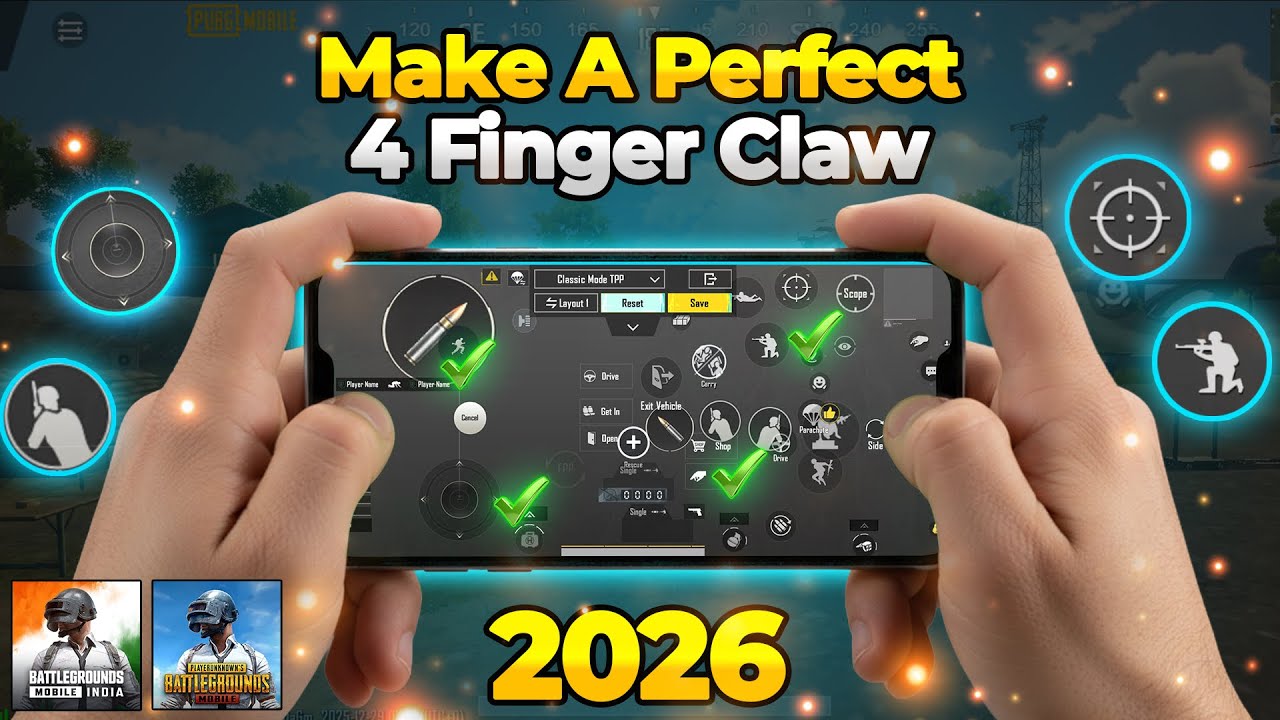
Left Upper Screen: The Firing Zone
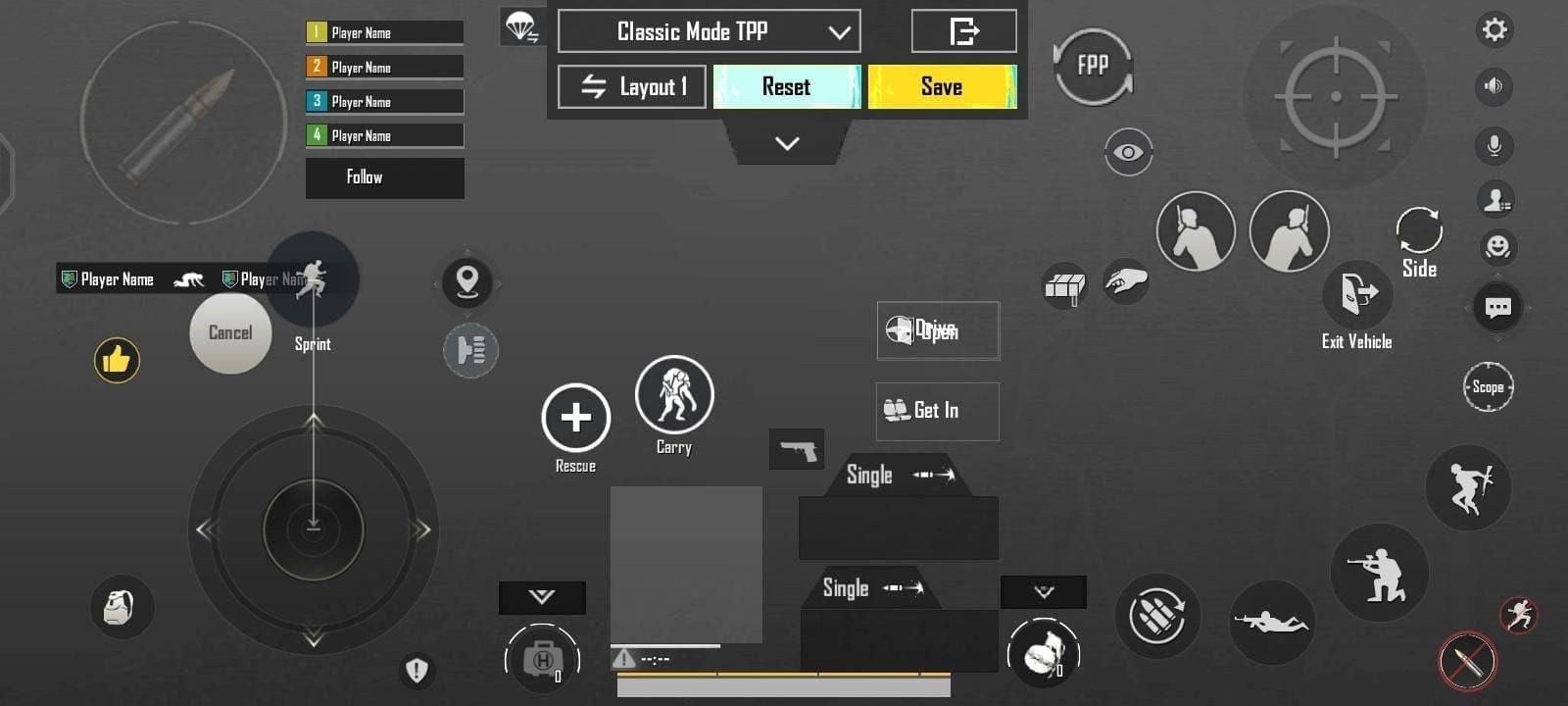
Enable the Left Fire Button in basic settings and position it in the upper-left corner. Increase its size to 150%–180%. Set this button to Fixed rather than Floating. A floating fire trigger drifts toward initial screen contact, disrupting muscle memory during fast reactions. A fixed button guarantees reliable placement.
Left Lower Screen: Movement
Keep the movement joystick zone clear. Scale the joystick size upward by 10% to 15% beyond default. This expansion gives your left thumb a wider travel margin to prevent accidental sprint cancellations during strafing. Clear the area around the joystick of prone or backpack icons to avoid unwanted stops.
Right Upper Screen: Aiming and Scope Triggers
Place the Aim Down Sights (ADS) button, peek keys, and jump triggers in the upper-right quadrant, directly under your right index finger in a four-finger grip.
Evaluate the Peek & Open Scope setting based on your finger count:
- Enabled: Opens your optic automatically upon tapping a lean key. This speeds up corner peeking by merging two inputs into one tap.
- Disabled: Requires separate taps for leaning and scoping. This slower method allows hip-fire peeking around cover without optic zoom.
Three-finger setups benefit from enabling Peek & Open Scope to conserve actions. Four-finger setups typically leave them separate for precise manual control.
Also check Rotate Camera while Aiming / ADS. Leaving this on allows your right thumb to control recoil while holding scope buttons. If accidental thumb twitches throw off your aim during taps, disable this setting and rely on dedicated thumb dragging or gyroscope tilting.
Display Refresh Rates and Hardware Calibration
Hardware performance directly affects input response. A layout that feels responsive on a 120Hz display can feel sluggish on a standard 60Hz screen.
The table below details HUD and sensitivity adjustments across different hardware profiles.
| Hardware Profile | Display Rate | Layout Adjustment | Sensitivity Calibration |
|---|
| Standard Smartphone | 60Hz | Tighter button clustering; lower opacity on center icons | Lower camera sensitivity by 5 to 10 points to prevent frame skip overshoots |
| High-Refresh Flagship | 90Hz - 120Hz | Spread button spacing across upper corners | Increase camera and ADS values by 5 to 10 points for rapid micro-adjustments |
| Gaming Tablet | 60Hz - 120Hz | Shift all combat clusters inward from outer bezels | Lower overall sensitivity; utilize 5-finger or 6-finger spatial distribution |
High refresh displays allow quicker swipe tracking, while larger tablet screens require moving buttons toward the center to avoid hand strain.
On 60Hz panels, rapid camera swipes can cause frame skips, making high camera sensitivity feel erratic. Lowering camera values by 5 to 10 points stabilizes tracking. On 120Hz screens, the higher touch polling and frame rates track rapid inputs cleanly, supporting higher sensitivity without sacrificing control.
When players upgrade their devices or recharge PUBG Mobile UC to inspect new character sets, adjusting HUD ergonomics to match screen size prevents hand cramping during long sessions.
Scope and Gyroscope Sensitivity Synergy with Custom Controls
Button placement dictates input access, while sensitivity governs crosshair velocity. Optical magnification requires inverse scaling: higher magnification needs lower sensitivity values to keep long-range tracking stable.
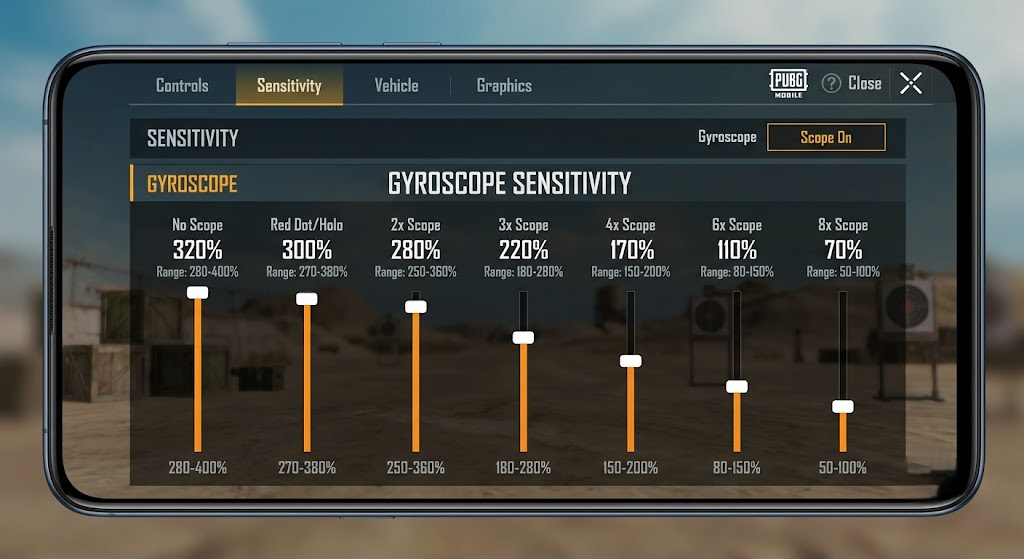
The table below outlines baseline sensitivity configurations for physical touch and gyroscope inputs.
| Optic Type | ADS Touch Sensitivity | Gyroscope Sensitivity | Engagement Purpose |
|---|
| No Scope (TPP/FPP) | 100% | 300% - 400% | Close-quarters hip-fire and rapid target switching |
| Red Dot / Holographic | 50% | 250% - 350% | Short-to-mid range tracking and spray control |
| 4x Scope | 20% | 150% - 220% | Mid-to-long range DMR tapping and controlled bursts |
| 8x Scope | 12% | 50% - 80% | Extreme-range precision bolt-action sniping |
Sensitivity should drop sharply as optic zoom increases to eliminate jitter during precision aiming.
Pairing claw controls with Gyroscope (Always On) maximizes precision. Fingers handle primary actions—firing, jumping, reloading, and crouching—while physical device tilts compensate for vertical and horizontal recoil.
Touch-only players often use higher Red Dot touch sensitivity (90% to 120%) for thumb dragging. Gyro-focused players drop touch sensitivity to 45%–55% and let tilting handle tracking. Moderate touch sensitivity paired with high gyroscope values (250%–350% on Red Dot) provides balanced recoil control.
Importing and Managing 19-Digit Control Codes Without Errors
PUBG Mobile uses a 19-digit share code system to export and import button layouts. A control code stores exact coordinate positions, scaling percentages, and transparency values for every HUD element.
How Control Codes Differ from Sensitivity Codes
A control code and a sensitivity code are separate systems. Importing a 19-digit layout code only changes button positions; it will not alter camera, ADS, or gyroscope values. Sensitivity adjustments require their own 19-digit code inside the Sensitivity menu.
Why Layout Codes Expire
Shared codes capture a single cloud snapshot. The moment the creator adjusts a button and uploads a new layout, the previous 19-digit cipher becomes invalid.
If the prompt reads "Failed to retrieve layout share data," the code expired or contains a typo. Rather than hunting down new codes, spend ten minutes positioning buttons to fit your hand size.
Before testing any imported layout, open Layout Management and select Upload to Cloud. This safeguards your current setup so you can revert instantly if the new layout proves uncomfortable.
Tactical HUD Ergonomics: Transparency and Mobility Keys
Cluttered screens obscure target acquisition. High-opacity buttons create blind spots where opponents vanish during rotations.
Opacity Calibration
Adjust the Transparency slider in the Customize Buttons menu:
- Set Revive, Cancel Grenade, Drive, and Backpack buttons to 20%–30% opacity.
- Keep primary triggers (Fire, Scope, Jump, Crouch) at 40%–60% opacity during initial practice, then reduce them to 20%–30%.
- Leave the center screen clear. Never place health gauges, minimaps, or chat boxes over your crosshair path.
Ergonomics for Special Mobility Actions
Mobility abilities like Ninja Run and Chakra dashes should sit directly next to your right thumb's resting area.
Do not overlap the sprint-lock icon with special movement buttons. Stacking them triggers accidental sprint locks during tight indoor maneuvers.
Adapting to a new claw layout requires patience, with misclicks and fatigue common over the first 7 to 14 days. Practice in Training Grounds drills and unranked matches before queuing for ranked games. If you need new weapon finishes to test your clean layout, you can buy PUBG Mobile UC safely to unlock crates and Royale Pass rewards directly to your account.
Frequently Asked Questions
Tap the arrow icon at the bottom right of the main lobby screen, select Settings, and navigate to the Controls tab. From there, tap Customize to open the on-screen HUD button editor for Classic or Arena modes.
What is the difference between a control code and a sensitivity code?
A control code saves your on-screen button positions, sizes, and transparency in a 19-digit string. A sensitivity code is a separate string that manages camera rotation, ADS tracking, and gyroscope speed without affecting button placement.
Why does the game show "failed to retrieve layout share data" when entering a code?
This error occurs when the 19-digit code has expired because the author updated their cloud layout slot, or if the code was entered incorrectly. Verify the digits carefully, check your network connection, or manually position the buttons in the editor.
A fixed fire button is strongly recommended for claw setups because it anchors the trigger to an exact screen location. Floating buttons shift based on your initial touch, which disrupts muscle memory during rapid target acquisition.
How can I prevent my custom control layout from getting lost or overwritten?
Open the layout editor, navigate to Layout Management, and tap Upload to Cloud. This stores your current setup on the game servers, allowing you to restore your configuration if an update or imported code alters your buttons.
Can two-finger thumb players compete effectively against claw players?
Two-finger players can stay competitive by enabling Gyroscope (Always On) to handle crosshair tracking while their thumbs manage movement and firing. However, advanced movement-shooting combinations remain mechanically faster on four-finger claw setups.
Final Setup Verdict
Avoid copying pro layouts without adjusting for hand size and screen dimensions. Use a 4-finger claw setup if you want maximum mobility, expand your movement joystick by 10% to 15%, and lock your fire buttons to fixed coordinates. Back up your layout to the cloud, allow 7 to 14 days for muscle memory to set in, and your gunfight consistency will improve.








Comments