If you play State of Survival on an iPhone, the in-game Gift Redemption button is missing from your settings menu because of iOS client interface updates. To redeem your gift codes, locate your numeric User ID from your Chief Profile and submit the code through the official FunPlus web redemption portal, which delivers all claimed items directly to your in-game mailbox.
Many general guides instruct players to open their Chief avatar, enter Settings, and tap a "Gift Redemption" button. On Apple devices, that option is simply not there.
According to the State of Survival Handbook, interface shifts and client version requirements on iOS routinely hide or remove the native redemption menu. Because the mobile application lacks the dialog box, FunPlus maintains an official external web redemption page specifically to serve accounts affected by these client limitations.
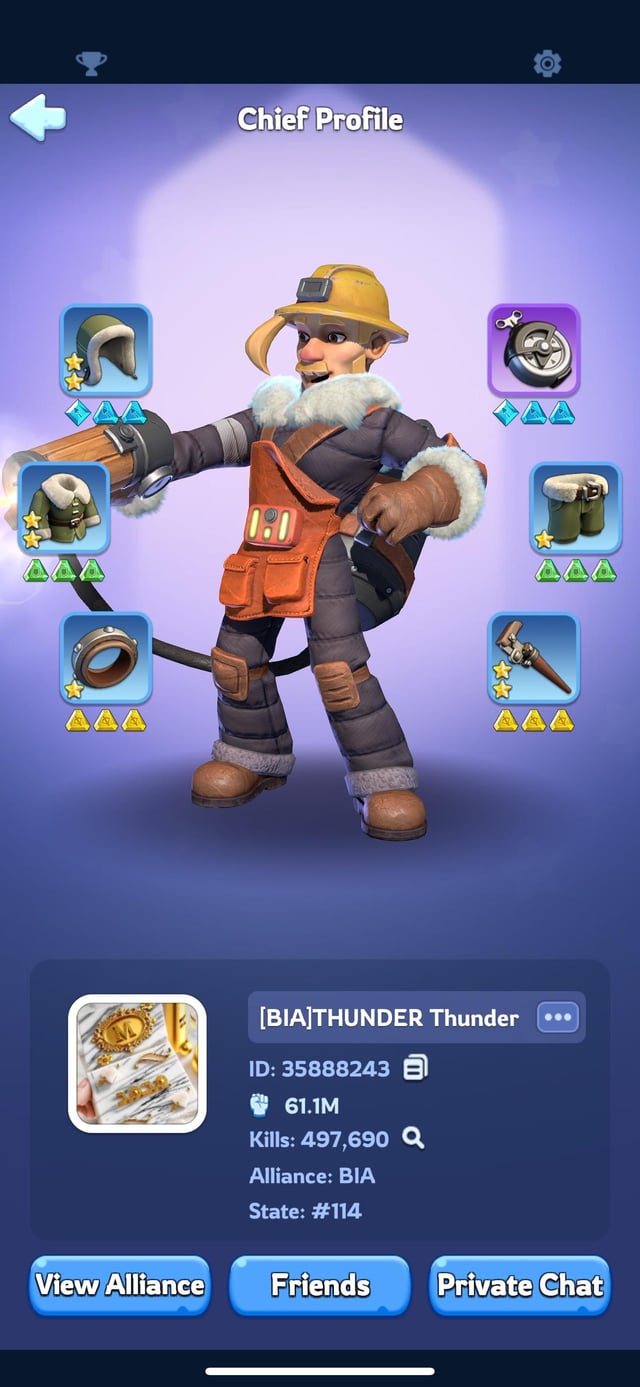
Locating and Copying Your Chief ID
Before opening the redemption site, you need your unique account identifier. The redemption portal identifies your settlement exclusively through this number, not your email address or Game Center login.
As detailed by VGTopup's account guide:
- Launch State of Survival on your iPhone.
- Tap your Chief Avatar located in the top-left corner of the main settlement view.
- Look directly beneath your Chief name in the profile window to see your numeric User ID.
- Tap the copy icon beside the number to save your ID to the clipboard.
| Platform / Method | Where to Enter Codes | Account Identifier Required | Image | Notes and Sourcing |
|---|
| iPhone (iOS App) | Official FunPlus Web Redemption Portal | Numeric Chief User ID | 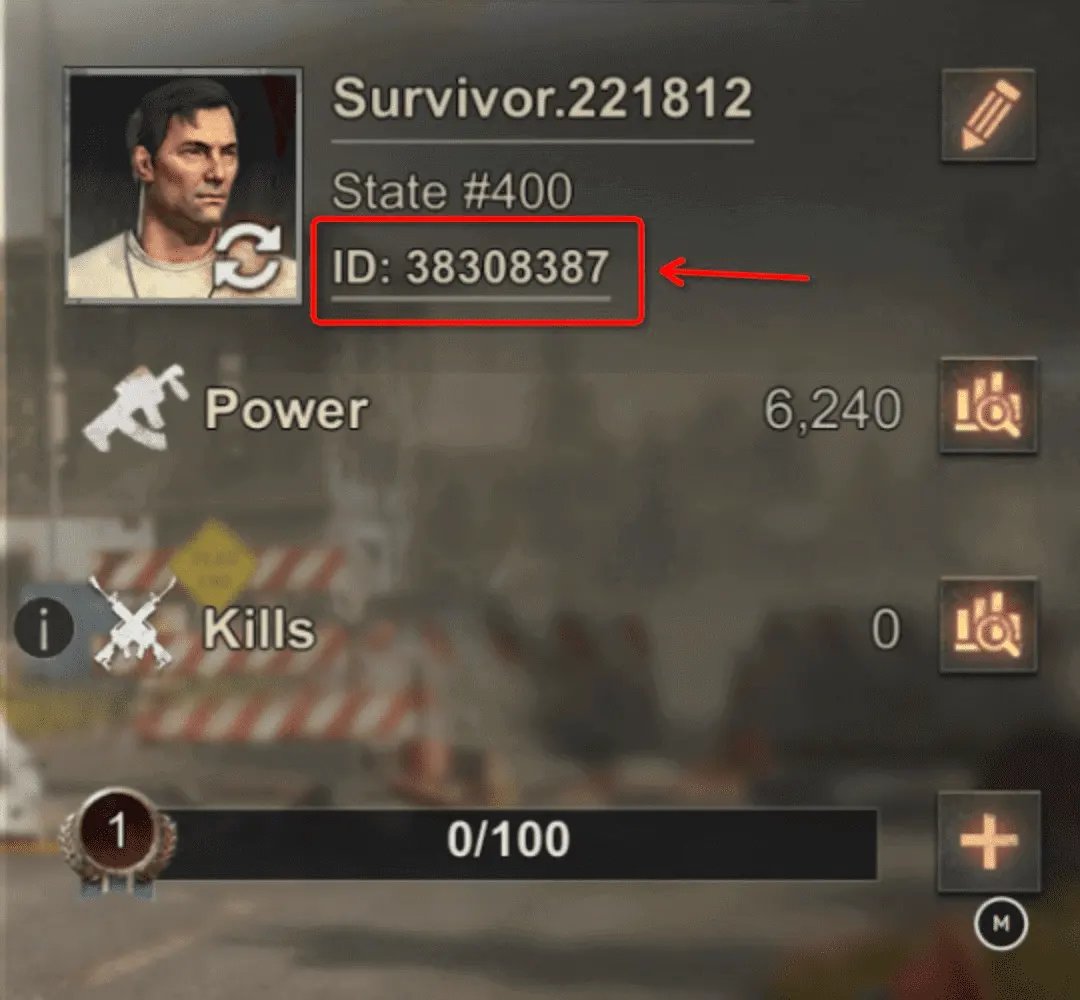 | In-game button missing on iOS client versions; documented by the State of Survival Handbook. |
| Android App | In-Game Settings -> Gift Redemption | None (logged in directly) | 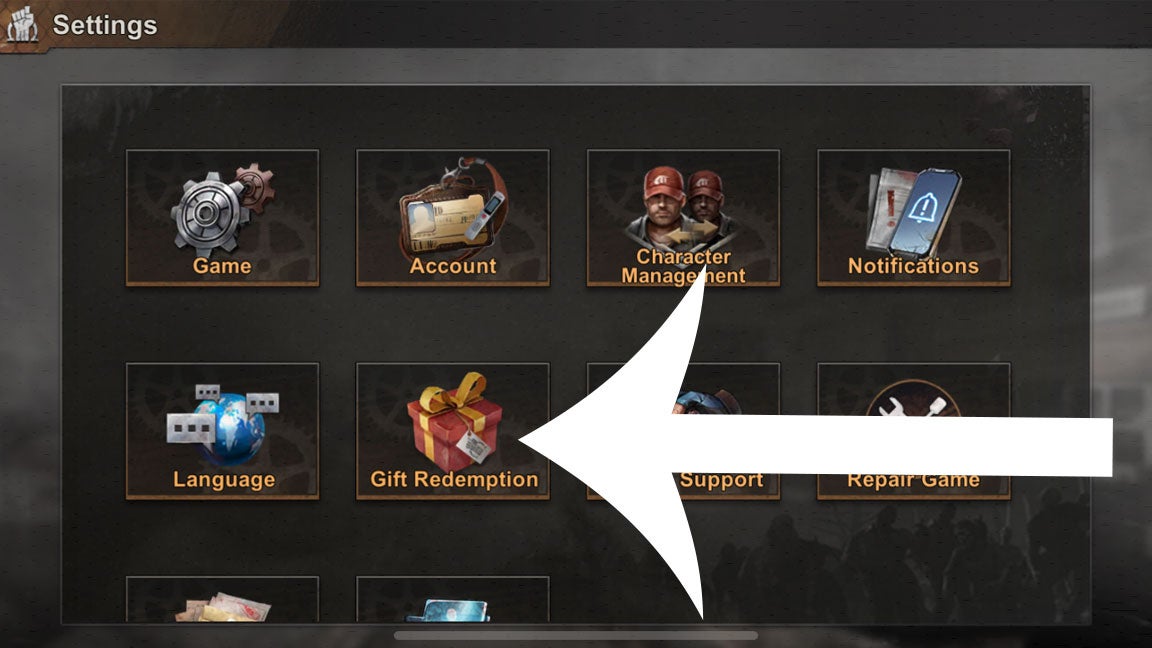 | Standard client menu reported by BlueStacks; absent on many iOS versions. |
| PC Client | Native In-Game Redemption Window | Active PC Client Session | 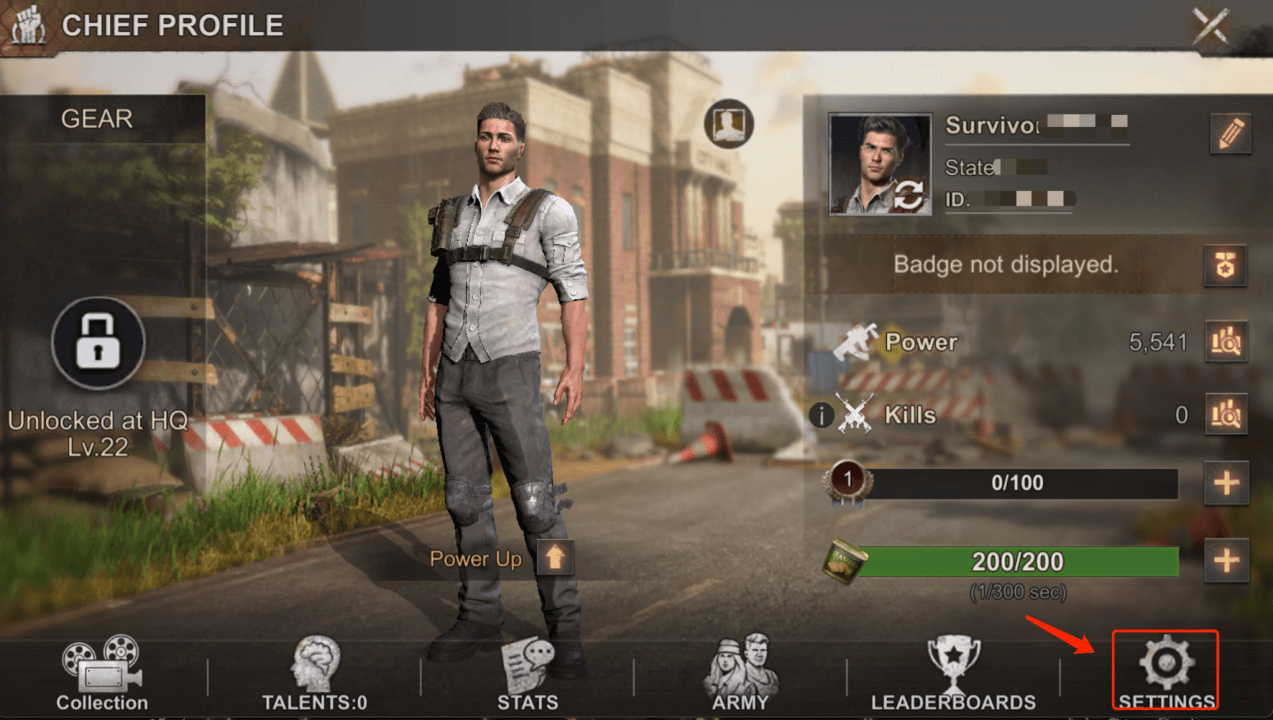 | Certain platform codes like PLAYSOSONPC only work here per BoostBot. |
Step-by-Step: Redeeming Codes via the External Web Portal
With your Chief ID copied to your clipboard, switch to Safari or any mobile browser to submit your codes.
- Open your browser and navigate to the official web redemption page.
- Paste your numeric User ID into the designated login or account field.
- Enter the active promo code into the redemption text box.
- Complete any required verification prompts and tap the confirmation button.
Using the browser portal also prevents client freezes. The State of Survival Handbook notes that the mobile client dialog can lock up during rapid repeat entries, whereas the web interface processes consecutive codes without stalling.

Where Do Redeemed Rewards Go?
A common issue occurs when players redeem a code, open their settlement, and find an empty inventory bag. The code did not fail.
All items claimed through the external portal bypass your standard inventory bag and land directly inside your in-game mailbox (State of Survival Handbook). Open the envelope icon in your settlement, check the system tab, and tap the claim button on the delivery mail to transfer the resources to your bag.
Troubleshooting Code Errors on iPhone
Web portal error messages generally stem from formatting discrepancies, expiration caps, or platform restrictions.
| Redemption Issue | Primary Cause | Immediate Fix | Source Evidence |
|---|
| "Invalid Code" | Capitalization mismatch or manual typing error | Copy and paste the code directly to match exact character casing. | BlueStacks Redemption Guide |
| "Code Expired / Limit Reached" | Time limit elapsed or server redemption cap reached | Check newer promo code releases; expired codes cannot be restored. | BlueStacks Redemption Guide |
| Client Rejection | Code is restricted to the desktop version (e.g., PLAYSOSONPC) | Log into the PC client directly; mobile apps refuse PC-only codes. | BoostBot Guide |
| Missing Delivery | Checking inventory bag instead of mail | Open in-game mail tab and claim system messages. | State of Survival Handbook |
Sources disagree regarding whether State of Survival codes enforce strict case sensitivity. BlueStacks notes that capitalization must match perfectly, while the State of Survival Handbook suggests many codes are case-insensitive with occasional exceptions. To eliminate guesswork, copy and paste the text exactly as provided.
Account Safety and Direct UID Balance Recharges
Your numeric Chief ID is an account identifier, not an authentication credential. It is safe to paste into FunPlus's official redemption portal.
Never share your Player ID with unauthorized third-party services or strangers promising to claim free rewards on your behalf. As the State of Survival Handbook points out, offering to redeem codes on another player's behalf is a standard account-theft approach.

The same numeric User ID serves as the delivery address when purchasing State of Survival Diamonds. In-game, Diamonds are the primary currency used to bypass timers and purchase supply packs. Third-party top-up sites like VGTopup credit balances via direct UID entry, requiring no login passwords.
| Diamond Tier | Listed Price (USD) | Checkout Conditions and Notes |
|---|
| 100 Diamonds | $0.68 | Direct UID entry; taxes, payment fees, and coupons calculated at checkout (VGTopup). |
| 500 Diamonds | $3.42 | Direct UID entry; taxes, payment fees, and coupons calculated at checkout (VGTopup). |
| 1,000 Diamonds | $6.80 | Direct UID entry; taxes, payment fees, and coupons calculated at checkout (VGTopup). |
| 2,000 Diamonds | $13.61 | Direct UID entry; taxes, payment fees, and coupons calculated at checkout (VGTopup). |
| 5,000 Diamonds | $34.00 | Direct UID entry; taxes, payment fees, and coupons calculated at checkout (VGTopup). |
| 10,000 Diamonds | $69.16 | Direct UID entry; taxes, payment fees, and coupons calculated at checkout (VGTopup). |
| 20,000 Diamonds | $136.00 | Direct UID entry; taxes, payment fees, and coupons calculated at checkout (VGTopup). |
| 50,000 Diamonds | $339.98 | Direct UID entry; taxes, payment fees, and coupons calculated at checkout (VGTopup). |
| 100,000 Diamonds | $691.49 | Direct UID entry; taxes, payment fees, and coupons calculated at checkout (VGTopup). |







Comments