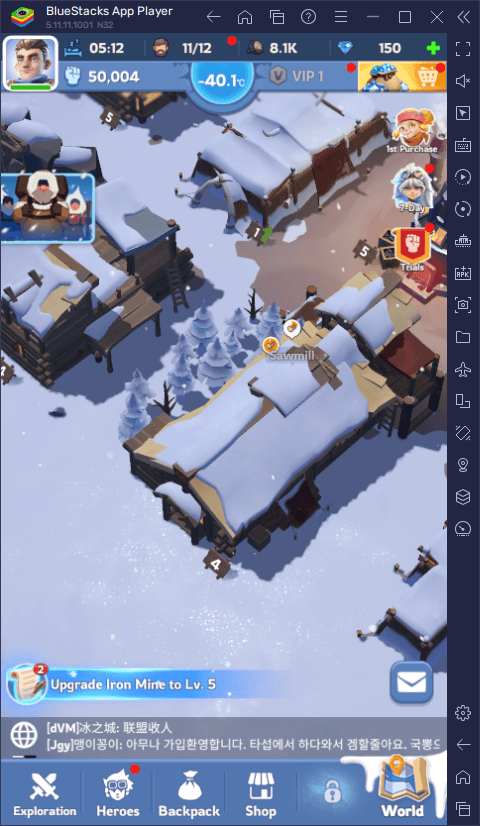
Playing Whiteout Survival on a PC client swaps cramped touch gestures for a mouse and keyboard, but running your city or joining rapid alliance rallies quickly falls apart if you rely solely on manual cursor clicks. Emulators such as BlueStacks let you replace standard screen taps with assigned keystrokes for menu hopping and rally actions, while environments like Google Play Games on PC provide dedicated system-level shortcuts, such as pressing F11 or Alt + Enter to snap into full screen mode immediately.
System Shortcuts in Google Play Games on PC
If you run the game through Google Play Games on PC rather than a standard third-party emulator, the platform uses hardcoded global shortcuts to handle window management and overlay tools. You do not need to configure an emulator overlay for these core commands.
As documented in Google Play Games on PC support, the system includes native key combinations that bypass in-game taps entirely:
| Command Action | Default Hotkey | Interface Target | Visual Guide |
|---|
| Toggle Full Screen | F11 or Alt + Enter | Direct Window View | 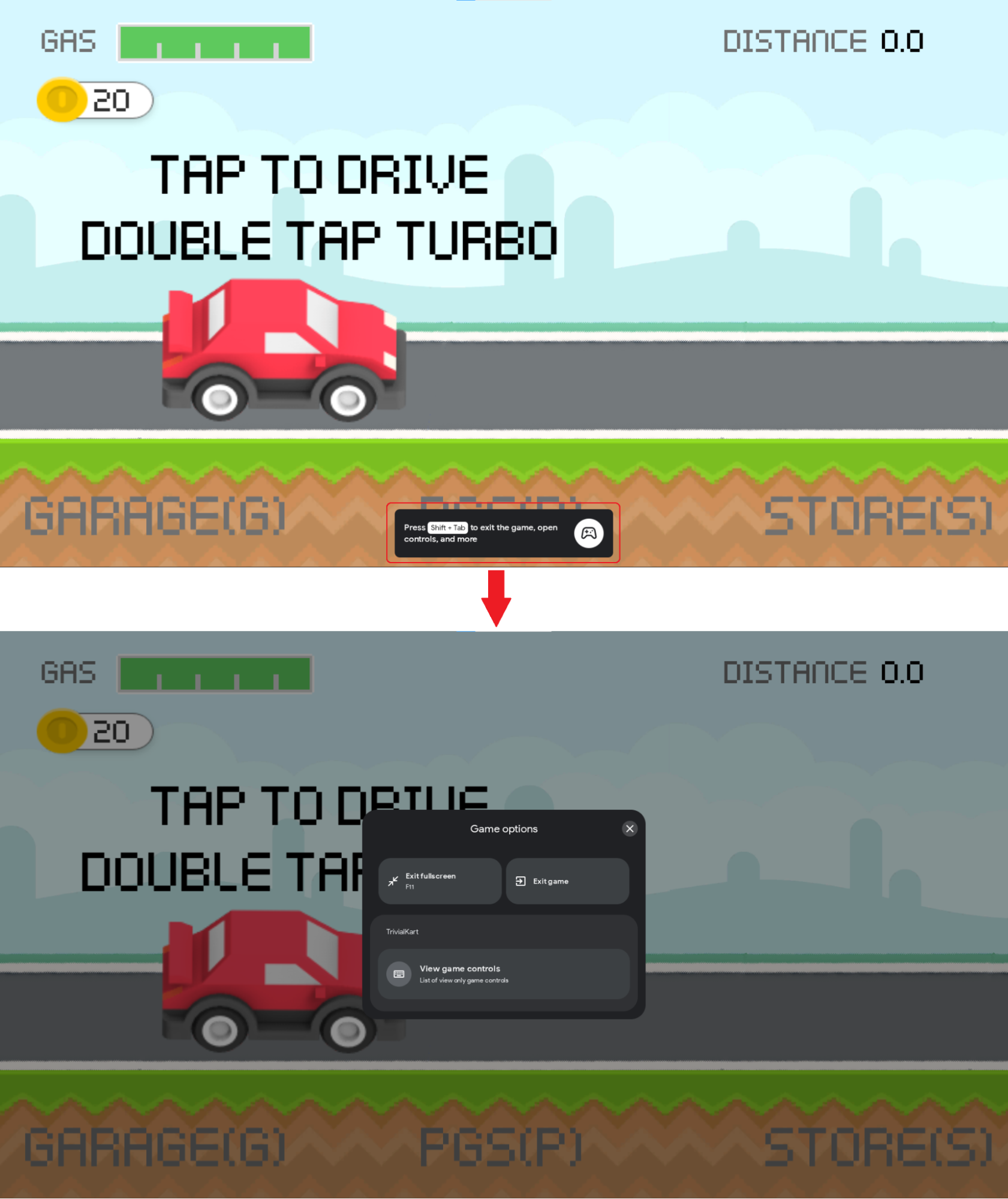 |
| Open Game Options Overlay | Shift + Tab | System Overlay | 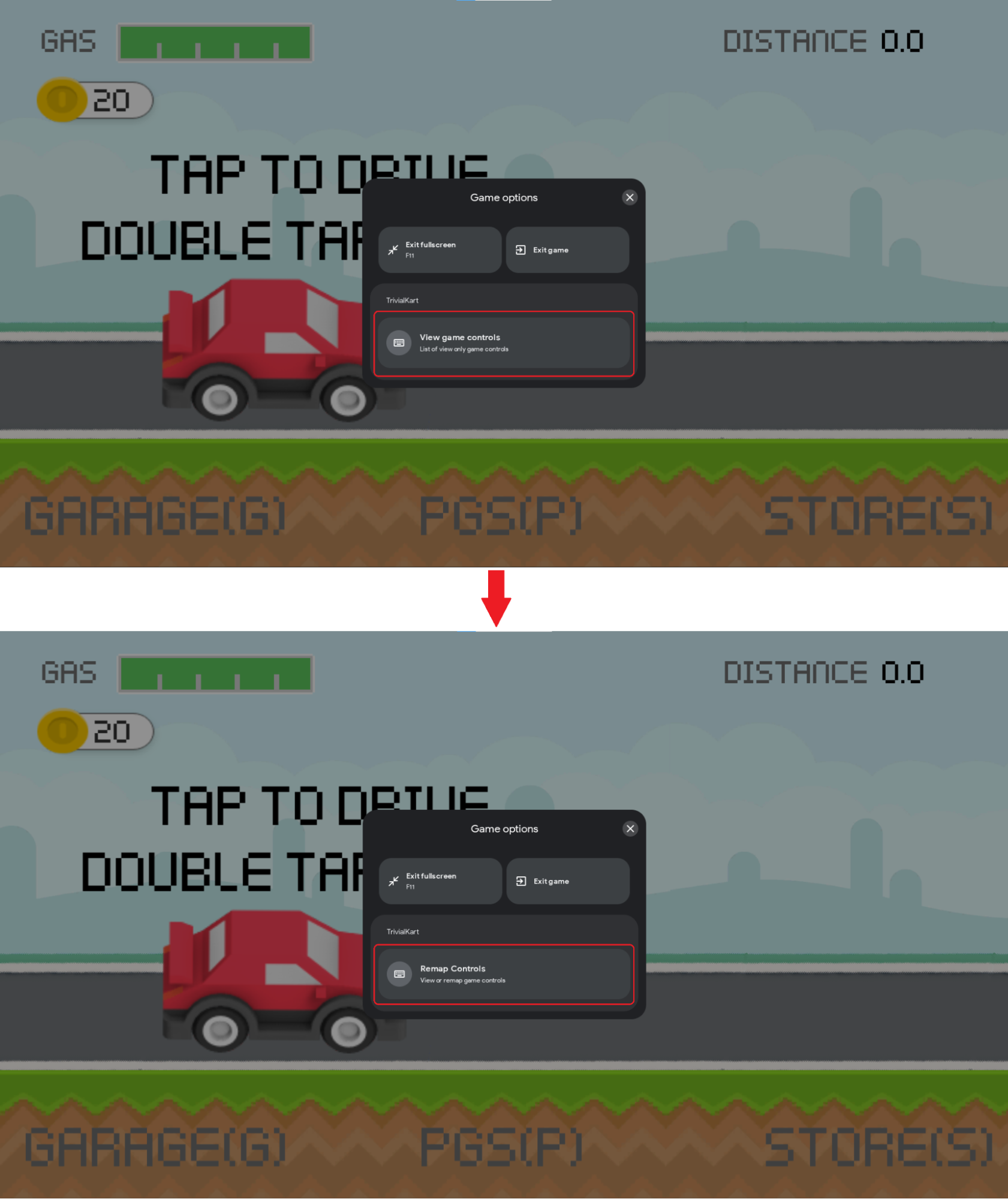 |
| Exit Game Client | Shift + Tab -> Exit game | Options Menu | 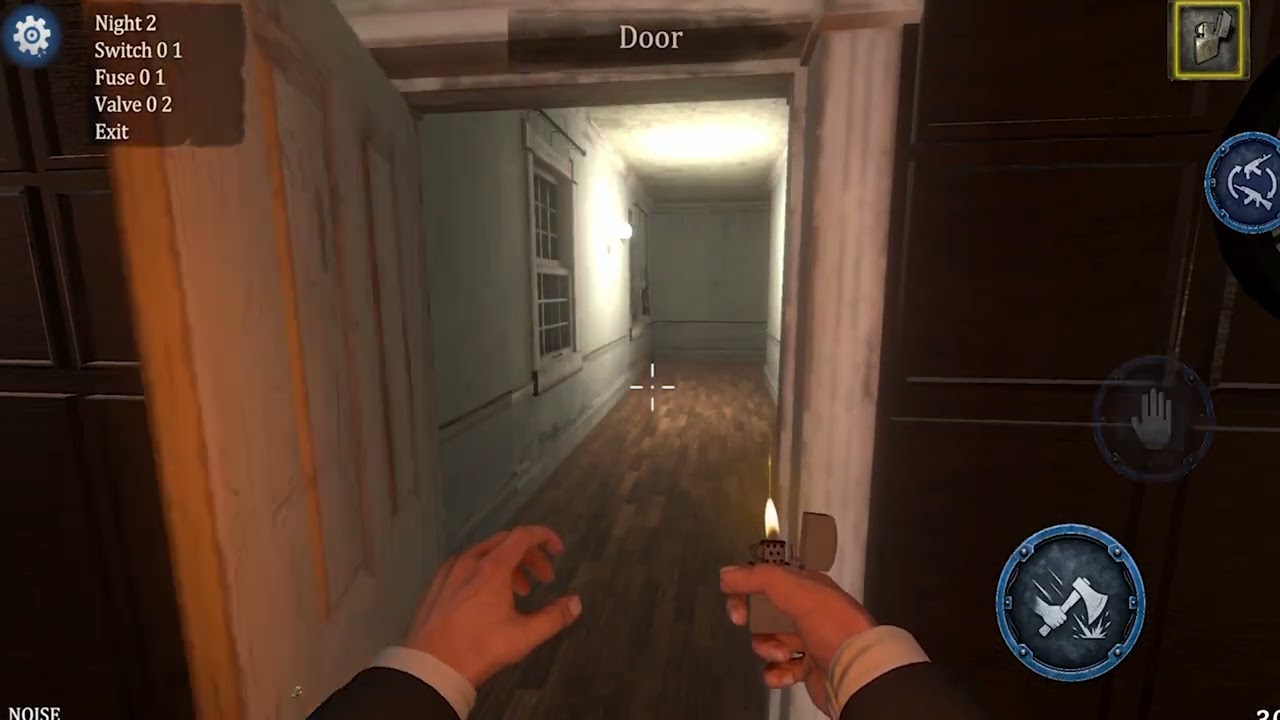 |
| Switch Input Language | Shift + Tab -> Input Language | Options Menu |  |
Here is the catch: while Google Play Games handles system-level window toggling smoothly, it locks deeper in-game tactical key mapping compared to traditional virtualization engines. If you want custom single-key hotkeys for deploying troops or jumping across city menus, you must understand your platform limits.
Setting Custom Keybinds on Emulators
When you run Whiteout Survival on desktop or laptop setups through tools like BlueStacks, you replace clumsy touch gestures with keyboard and mouse inputs to open menus and command rallies (BlueStacks Whiteout Survival Rally Guide). Customizing these controls transforms slow drag-and-click settlement management into instant keystrokes.
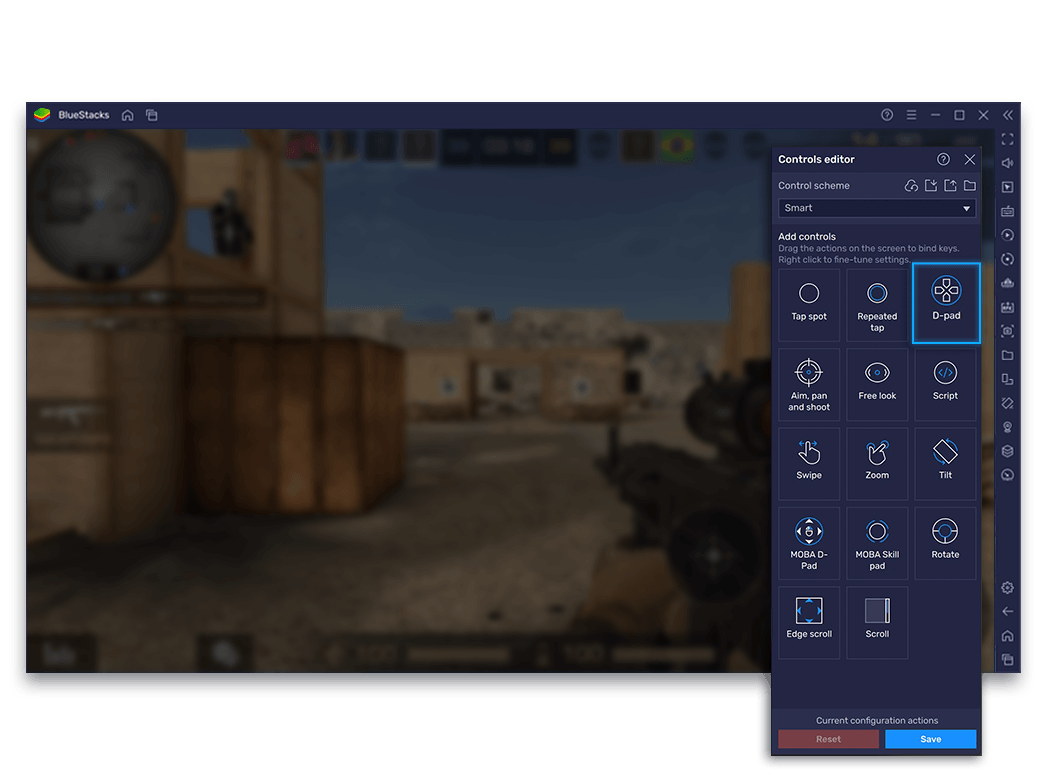
If your default controls feel clunky or unmapped, follow these sequential steps to customize your profile:
- Launch Whiteout Survival on your emulator and wait for your city view to load completely.
- Open the emulator sidebar and locate the Game Controls icon (usually represented as a keyboard symbol).
- Select the Controls Editor or Keymapping tool to reveal the on-screen configuration overlay.
- Click anywhere on the gameplay canvas—such as alliance tabs, map toggles, or rally confirmation positions—to create a new tap spot.
- Press your desired physical keyboard key to bind that screen coordinate.
- Adjust sensitivity or tap-spot size, then click Save to apply the custom control profile.
Binding physical keys to static UI coordinates allows you to trigger recurring actions—such as opening the alliance war room or confirming march loadouts—without moving your cursor across the entire screen.
| Control Objective | Input Mechanism | Emulator Function | Practical Use Case |
|---|
| City & Map Navigation | Keyboard + Mouse | Tap Spot / Click Mapping | Opening production queues, alliance menus, and wilderness views (BlueStacks) |
| Rally Management | Assigned Hotkeys | Quick-tap Coordinate | Instant reaction to alliance rallies without manual cursor tracking (BlueStacks) |
| Full Screen View | F11 or Alt + Enter | Native Client Toggle | Maximizing viewing area without accessing menu screens (Google Play Games Support) |
| System & Language Setup | Shift + Tab | Native Client Overlay | Exiting client or swapping keyboard language quickly (Google Play Games Support) |
macOS Controls on BlueStacks Air
On a Mac, your setup looks completely different. Running Whiteout Survival through BlueStacks Air bypasses coordinate mapping entirely by loading pre-configured profiles out of the box (BlueStacks).
Per BlueStacks, BlueStacks Air ships profiles tailored for Mac keyboards and trackpads. That spares you from building tap-spot layouts from scratch before managing your furnace or training troops. If you migrate from a Windows setup, you will not have to spend time dragging buttons across the screen just to get basic hotkey responsiveness.
| Platform Environment | Control Configuration | Manual Mapping Required? | Sourced Documentation |
|---|
| BlueStacks (Windows PC) | Custom Keyboard & Mouse Overlays | Yes, for custom shortcuts | BlueStacks Rally Guide |
| BlueStacks Air (macOS) | Pre-configured Mac Keyboard & Trackpad | No, optimized out-of-the-box | BlueStacks Official |
| Google Play Games on PC | Built-in Hotkeys (Shift + Tab, F11, Alt + Enter) | No manual in-game remapping | Google Support |
Account Syncing and In-Game Purchases on PC
Whether you fine-tune custom hotkeys on Windows or stick to Mac defaults, your account progress and assets sync across every machine. If you split time between PC and mobile, Whiteout Survival Frost Stars carry over uniformly without platform lock-in.
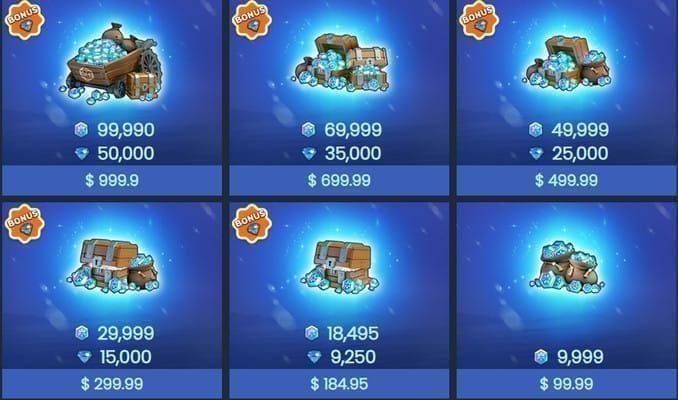
Frost Stars act as a direct 1:1 cash voucher currency across mobile and PC emulator builds. Once credited via your player UID, your balance updates immediately regardless of device. For example, 500 Frost Stars buy a standard $4.99 event bundle without routing individual transaction approvals through PC store popups (VGTopup). Alternative storefronts in mobile gaming include TOPUPlive and Mistplay, but confirming your voucher balance displays properly inside the PC client prevents payment hiccups right in the middle of a war event.
Troubleshooting Unresponsive PC Keybinds
When assigned hotkeys stop responding during Whiteout Survival sessions, the issue usually stems from layer conflicts or client scaling. Try these fixes in order:
- Check for Active Overlay Windows: If you pressed Shift + Tab on Google Play Games on PC, background hotkeys freeze until the Game options menu is closed (Google Support). Return focus to the main window.
- Verify Screen Resolution Scaling: Changing window size or toggling full screen via F11 or Alt + Enter can misalign custom emulator tap spots if your layout uses fixed pixel coordinates rather than dynamic UI anchoring.
- Toggle On-Screen Controls Visibility: In your emulator's Game Controls menu, ensure control schemes are toggled on and the opacity slider allows you to confirm that the tap spots sit directly over the active buttons.
- Check Input Language Settings: Hotkeys bound to standard Latin characters may fail if the active typing profile changes. Use Shift + Tab -> Input Language on Google Play Games to verify your layout (Google Support).
Editor's tip: Map your most critical emulator tap spot directly over the alliance rally join button. Clicking across three sub-menus with a mouse will always lose out to a single tap on a mapped spacebar when competitive rallies fill in seconds.
Follow VGTopup for more Whiteout Survival Frost Stars news~




Comments