Exact Steps: How to Change Note Speed in Colorful Stage
You can adjust scroll speed directly in the pre-song lobby or apply it permanently across all modes via global options.
Follow these steps to adjust your scroll velocity before any live performance:
- Tap Live on the main menu and pick your song.
- Choose your difficulty tier (Easy, Normal, Hard, Expert, or Master).
- Tap the Live Settings icon (gear and sliders) on the right side of the deck preparation screen.
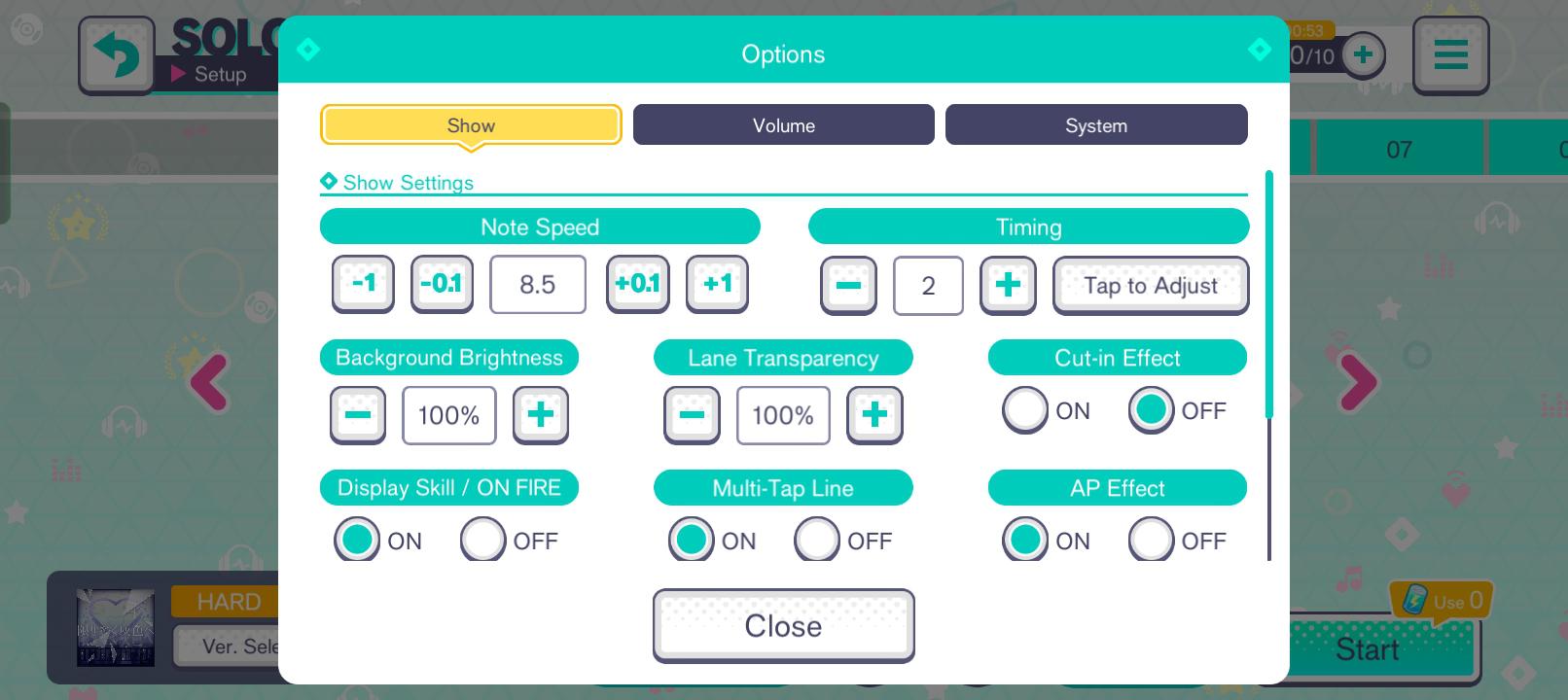
- Locate Note Speed near the top of the menu.
- Drag the slider or use the plus/minus buttons to set a value between 1.0 and 12.0.
- Tap Confirm to lock in the setting, then launch your show.
To set your speed globally, open the hamburger menu in the top-right corner of the home screen, select Options, tap Live Settings, and set your default slider. This preference carries across Solo, Co-op, and Challenge shows.
Recommended Note Speeds for Every Player Tier
No single velocity suits every player, but specific speed brackets correlate directly with readability at each difficulty level.
| Speed Range | Target Difficulty Tier | Visual Spacing Effect | Practical Application |
|---|
| 1.0 – 6.0 | Easy / Normal | Heavy note clustering; low lane transit velocity | Beginner visual tracking; dangerous on dense charts |
| 4.0 or below | Any Difficulty (Practice) | Extreme pattern compression; long visual lead time | Memorizing complex lane positions and track choreography |
| 7.0 – 8.9 | Hard / Entry Expert | Moderate vertical lane separation | Transitioning away from beginner speeds; building flick stability |
| 9.0 – 10.5 | Expert / Master | Wide visual lane spacing; rapid transit speed | The competitive standard for Full Combos and consistent Perfects |
| 10.6 – 12.0 | High-level Master | Maximum vertical separation; near-instant lane transit | High-density burst reading; requires extreme physical reaction time |
Setting your speed between 9.0 and 10.5 provides the ideal balance between readable vertical spacing and manageable reaction time for competitive play.
Increasing note speed does not alter judgment windows or score values. The timing thresholds for Perfect, Great, Good, Bad, and Miss remain identical whether your slider is set to 1.0 or 12.0. Higher speeds also award no point multipliers; your final score depends solely on tap accuracy and card talent stats.
When stuck on an intricate Expert or Master pattern, drop your speed to 4.0 or lower in solo practice. The sluggish scroll compresses the notes but buys time to study crossing hold paths and complex lane shifts. Once your muscle memory maps the sequence, push your speed back to 9.5 or 10.0 for actual execution.
Faster note speeds eliminate visual clutter, but they expose hardware latency. When taps visibly connect with the judgment bar yet register as Great or Good, your audio and visual outputs are out of sync.
Resolve physical hardware bottlenecks before adjusting software sliders:
- Bluetooth Audio Delay: Wireless earbuds introduce 40ms to 200ms of lag, pulling strikes off-beat. Use wired headphones or built-in device speakers.
- Display Post-Processing: Monitors or TVs running motion smoothing (MEMC) or noise reduction introduce frame buffering. Switch displays to Game Mode to eliminate processing latency.
Once your hardware is set up, calibrate your in-game offset:
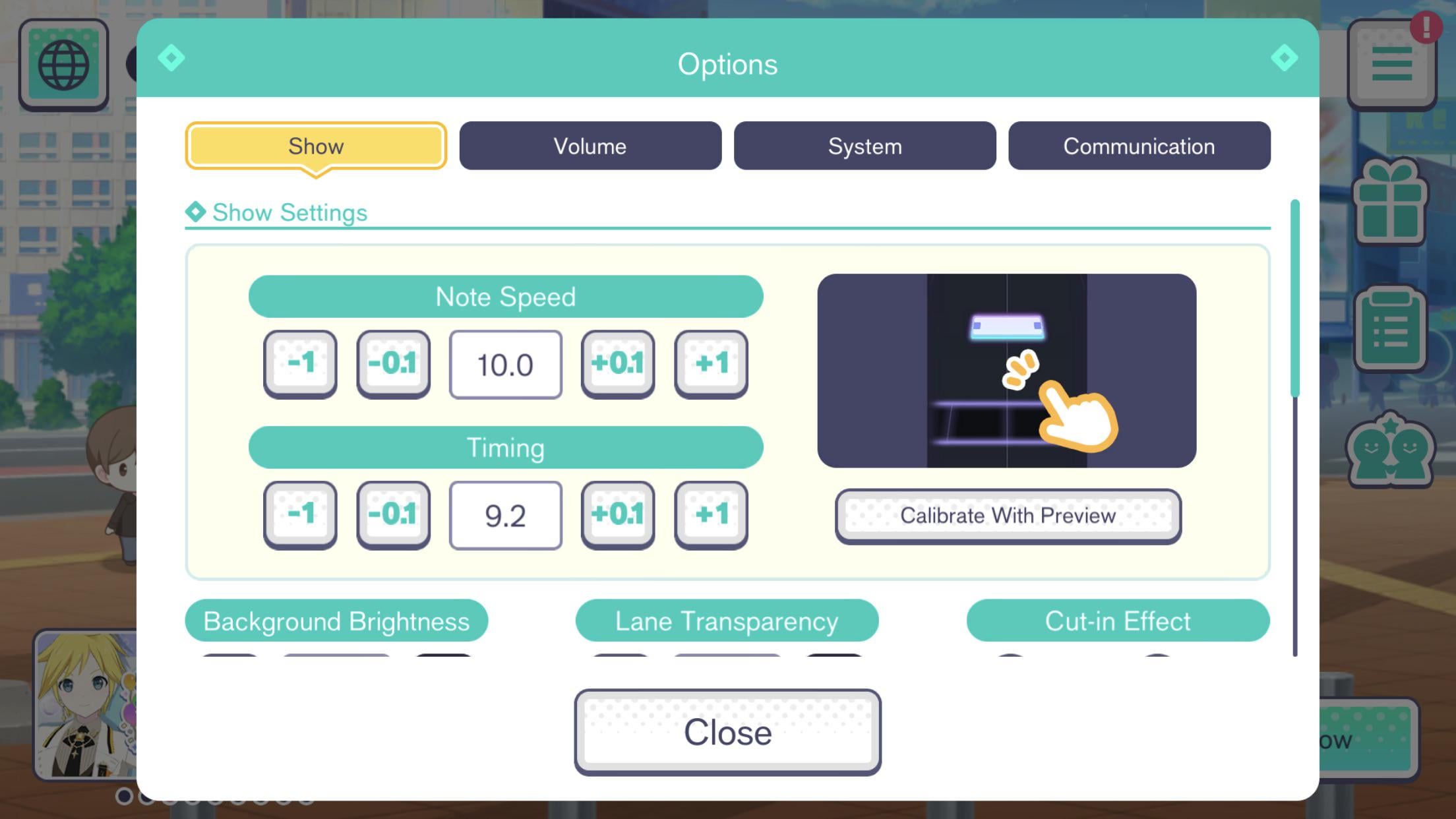
- Open the top-right menu and tap Options.
- Select Live Settings and scroll to Timing Adjustment.
- Tap Calibrate to launch the synchronization tool.
- Tap the screen to the metronome beat with your eyes closed to prevent visual bias.
- Inspect the calculated offset. Consistent "Late" strikes shift the offset positive (+); "Early" strikes shift it negative (-).
- Save the value, load a song on Hard, and verify that clean strikes register as Perfect without forcing unnatural timing adjustments.
Adjusting Visuals and Flick Sensitivity for Responsive Hits
Visual clutter and misread gestures break combos just as quickly as bad timing. Two settings directly stabilize your run: visual playback modes and flick sensitivity.
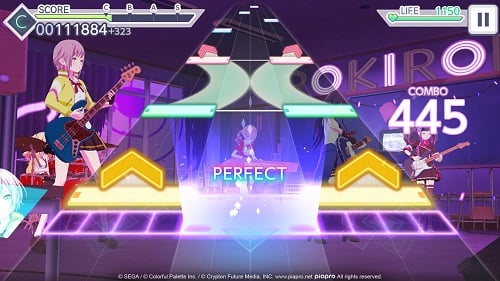
Songs default to 3D Music Videos (3D MVs) with dynamic lighting and character choreography behind the lanes. On phones prone to thermal throttling or mid-range hardware, 3D rendering induces frame drops. At 10.0 speed, a single dropped frame causes inputs to bypass the judgment line entirely. In Live Settings, switch visual playback to Lite Mode. This swaps 3D rendering for a static 2D image, maintaining a stable 60 FPS baseline.
Pink flick arrows drop combos if your touch digitizer fails to register swipe velocity. In Live Settings, adjust the Flick Sensitivity slider. If rapid flick sequences register as Misses, increase sensitivity by +1 or +2. If ordinary taps register as accidental flicks, decrease it.
Running out of health terminates a live show instantly. When aiming to clear difficult Master runs without forfeiting event rewards, you can refill your account with Hatsune Miku: Colorful Stage! Crystals to continue through failed song sections.
Touch polling rates, gesture overlays, and hardware scaling differ substantially across platforms. Configure your device environment to match how the game registers inputs.
| Platform | Input Architecture | Latency Bottlenecks | Recommended Configuration |
|---|
| iOS (iPhone / iPad) | Native capacitive multi-touch | Gesture bar interference; pre-5.4.0 Game Mode bugs | Enable Guided Access; ensure client is updated past Ver 5.4.0 |
| Android (Phones / Tablets) | Vendor-specific touch digitizers | Variable touch polling rates; OS audio buffer lag | Enable device Game Booster; disable battery savers; use Lite Mode |
| PC (Android Emulators) | Keyboard remapping / Mouse click | 6-lane keybinding mapping; display frame pacing | Map 6 distinct key zones; lock monitor refresh rate to 60/120Hz |
Matching your client configuration to your specific platform hardware eliminates hardware-level input drops before you step onto the stage.
On iOS, an operating system bug historically disrupted touch sampling by blocking Game Mode engagement. That issue was resolved in the Version 5.4.0 update (June 2026). Keep your game updated to Version 5.4.0 or later, and turn on Guided Access to prevent three-finger system gestures from pulling you out of live shows.
On PC emulators, play shifts to keyboard controls. Map your bindings across the six lanes—typically S-D-F for left lanes and J-K-L for right lanes—with secondary keys mapped to flicks. Because desktop monitors sit farther from your eyes than phone screens, notes appear to move slower. PC emulator players typically compensate by raising scroll speed to 10.2–11.0.
Resolving Conflicting Combo Rules and Master Unlocks
Community discussions frequently repeat outdated information regarding combo scoring and song difficulty unlocks.
The Combo Break Rule: Great vs. Good
Outdated posts claim Great ratings drop your combo. This is incorrect. The scoring structure breaks down strictly:
- Perfect: Continues combo; gives maximum score.
- Great: Continues combo; gives reduced score.
- Good: Breaks combo instantly; resets counter to 0.
- Bad: Breaks combo; resets counter to 0; drains life gauge.
- Miss: Breaks combo; resets counter to 0; heavily depletes life gauge.
A Full Combo (FC) permits any combination of Great and Perfect hits, while an All Perfect (AP) demands 100% Perfect marks. Setting scroll speed to 9.5–10.2 prevents visual clustering, helping you avoid early Good hits on crowded notes.
Master Difficulty Access Rules
Guides prior to 2026 stated Master charts require clearing Expert with 7 or fewer combined Good, Bad, and Miss ratings. The Version 5.4.0 update (June 2026) abolished this requirement. Master difficulty is now unlocked universally across all songs without prerequisites.
To build teams capable of surviving high-tier Master charts, players can pick up Crystals for Hatsune Miku: Colorful Stage! to scout 4-star cards featuring healing skills and score multipliers.
Systematic Troubleshooting Checklist for Missed Notes
When your combo breaks unexpectedly, isolate the technical cause before adjusting your speed or offset.
| Symptom | Root Cause | Immediate Diagnostic Fix |
|---|
| Notes overlap in an unreadable clump | Note speed slider set too low (below 7.0) | Increase note speed by +0.2 increments until lanes space out |
| Taps register consistently as "Late" | Bluetooth audio latency or visual frame lag | Switch to wired audio; bypass post-processing with Game Mode |
| Taps register consistently as "Early" | Overcompensating for slow visual travel | Increase scroll speed to shorten travel time; recalibrate offset |
| Pink flick arrows drop combo on hit | Flick sensitivity threshold too high or swipe angle off | Increase flick sensitivity in Live Settings; flick sharply upward |
| Micro-freezes during intense note sequences | 3D MV rendering overloading hardware | Switch visual mode to Lite Mode in show preparation lobby |
| Life gauge drains to 0 before song ends | Consecutive Misses on complex lane streams | Drop speed to 4.0 in practice to memorize note choreographies |
Applying targeted calibration fixes prevents erratic slider adjustments that ruin your established muscle memory.
Execute these diagnostic checks in sequence:
- Eliminate Audio Delay: Disconnect Bluetooth devices and use wired headphones or native speakers. Turn off OS battery-saver modes.
- Adjust Speed Incrementally: If charts look overcrowded, increase note speed by +0.2 every two songs until you reach 9.0–10.0.
- Recalibrate Offset: Use the tap calibration tool in Live Settings. Nudge the offset slider by single increments (+1 or -1).
- Switch to Lite Mode: Disable 3D MVs to stop framerate drops from eating your inputs.
- Tune Flick Sensitivity: Raise flick sensitivity by +1 if upward swipes drop combo, and ensure your finger moves straight up rather than sideways.
If a complex ending pattern drains your life gauge during a live show, having Hatsune Miku: Colorful Stage! Crystals ready on hand lets you revive immediately to complete the stage.
Frequently Asked Questions
Where do I change note speed in Hatsune Miku: Colorful Stage?
You can adjust note speed directly on the show preparation lobby screen by tapping the Live Settings icon (the slider and gear symbol) on the right side. Alternatively, access the global Options menu from the top-right title screen menu and select the Live Settings tab to configure your baseline speed slider from 1.0 to 12.0.
Does increasing note speed make the song play faster?
No, changing note speed does not alter song tempo, music playback speed, or audio pitch. Increasing the slider only accelerates the visual travel speed of the falling notes down the lane, spreading them out vertically across the track.
Why does higher note speed make getting a Full Combo easier?
Higher note speeds separate incoming notes vertically, preventing complex patterns from clustering into unreadable visual clumps. This visual breathing room lets your eyes distinguish individual tap, hold, and flick requirements well before they cross the judgment bar.
Does playing at higher note speeds give higher scores?
No, note scroll speed has no effect on score multipliers or point allocations. Scores depend entirely on hit accuracy ratings (Perfect vs. Great) and your team cards' overall talent values.
Which tap judgments break a combo in Colorful Stage?
Only Good, Bad, and Miss ratings reset your combo counter to zero. Notes that land with a Perfect or Great rating preserve your combo streak toward a Full Combo clear.
Why do my taps feel delayed even after changing note speed?
Input lag is almost always caused by Bluetooth audio latency, display post-processing effects, or an uncalibrated in-game timing offset. Switch to wired headphones, enable Game Mode on your display device, and calibrate the timing offset inside the Live Settings menu.
How do I unlock Master difficulty charts in Colorful Stage?
Master difficulty is unlocked universally for all players across all tracks without clearance prerequisites. The legacy restriction requiring an Expert clear with 7 or fewer Good/Bad/Miss taps was removed in Version 5.4.0 in June 2026.
Rhythm Calibration Verdict: Find Your Personal Sweet Spot
Default settings in Colorful Stage hold your mechanics back. Playing below 7.0 makes Expert and Master charts nearly impossible to read due to note clustering.
Avoid jumping straight from 6.0 to 11.0. Move up in +0.2 increments every few songs until you settle into the 9.2–10.2 range. Combine higher speed with Lite Mode and wired audio to give your eyes clear lane spacing and your fingers uninterrupted rhythm timing.










Comments