Step-by-Step Graphical Baseline
Clear the introductory tutorial match to unlock the main lobby and settings menu. Tap the gear icon in the top-left corner—this panel controls both your render pipeline and gift code redemptions.
Apply these adjustments in order before modifying OS-level settings:
- Tap the gear icon in the top-left corner of the lobby.
- Select the Graphics tab on the left rail.
- Set Frame Rate to High (60 FPS).
- Drop Graphics Quality to Medium to protect thermal headroom.
- Set Special Effects and Shadows to Low or Off.
- Keep Display Resolution (Render Scale) at Standard (100%).
- Exit and restart the client to purge temporary render buffers.
This baseline profile balances clarity against thermal stability:
| Setting Option | Recommended Target | Performance Impact | Gameplay Benefit |
|---|
| Frame Rate Target | 60 FPS (High) | High CPU/GPU load | Cuts input delay to 16.67 ms for reliable spikes |
| Graphics Quality | Medium | Moderate GPU load | Preserves cell-shading without thermal throttling |
| Internal Resolution | Standard (100%) | High GPU fill rate | Keeps court markings crisp without burning power |
| Special Effects | Low | Moderate GPU spikes | Eliminates frame drops during multi-player blocks |
| Shadows & Reflections | Off / Low | Low GPU overhead | Prevents frame hitching during camera angle cuts |
This profile guarantees smooth court geometry and player models without burning cycles on dynamic lighting.
Hardware Tier Breakdown: Budget, Mid-Range, and Flagship Configs
Haikyu!! Fly High lists Android 9.0 and 2.67 GB of free storage as its floor, but those minimums only get you past the title screen. Sustaining 60 FPS across extended rally chains depends entirely on your chip's thermal and fill-rate limits.
Budget Tier Devices
Budget SoCs choke on shader passes and particle rendering. If you are running an entry-level chipset or 3–4GB of RAM, drop Graphics Quality to Low and switch Special Effects Off.
Lower the internal resolution next. Render scaling cuts native pixel counts before stretching the frame to your screen, easing GPU strain while keeping HUD numbers crisp. You will notice softer character edges around Hinata and Kageyama, but your input window stays locked.
Mid-Range Tier Devices
Mid-range processors (such as Snapdragon 7-series or equivalent MediaTek Dimensity chips) sit right in the engine's sweet spot. Run the Medium graphics preset at 60 FPS with Standard (100%) Resolution. Character Outlines and Textures can stay on High, but leave dynamic shadows on Low.
High dynamic shadows force the GPU to compute real-time lighting across twelve moving models at once. During jump serves and multi-man blocks, that calculation triggers instant frame drops.
Flagship Devices
Flagship hardware can run Ultra presets easily—for about five minutes.
Thin aluminum frames and glass backs cannot dissipate sustained heat indefinitely. Once the SoC hits its thermal ceiling, the OS cuts clock speeds aggressively, dropping frame rates into the low 40s during a tight third set. Cap Graphics Quality at High, turn off motion blur, and leave dynamic shadows on Low to maintain sustained stability over hour-long sessions.
Conquering the 20-Minute Thermal Wall and Battery Drain
Every phone hits a thermal wall under continuous 3D load. Battery discharge and sustained GPU calculations generate heat faster than passive mobile chassis can shed it. Between the 20- and 40-minute mark, your SoC hits internal safety thresholds and throttles clock speeds to prevent hardware damage.
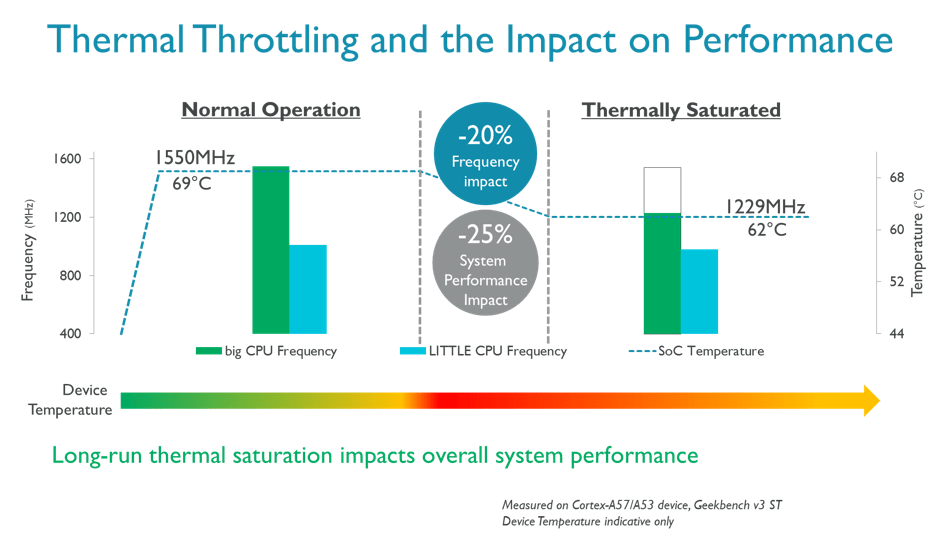
That throttle causes an instant drop from 60 FPS to 35–45 FPS. Milliseconds vanish from your reaction windows, touch inputs register late, and an easy block falls flat.
Mitigating thermal collapse requires hardware habits outside the settings screen:
- Lower display brightness to 50–60%. Backlights pump substantial heat directly into the motherboard.
- Strip off thick silicone or leather cases during tournament grinds so the chassis can radiate heat.
- Mute in-game sound effects or background apps during auto-farm sessions to trim CPU load.
- Never game on a fast charger; battery charging heat cuts thermal headroom in half within ten minutes.
iOS Low Power Mode is an active handicap here. While it conserves battery, it under-clocks CPU performance cores and limits background pipeline tasks. When an explosive spike animation triggers on court, throttled cores cannot push frame data fast enough, resulting in visual stutters. Leave Low Power Mode disabled.
Roster progression requires heavy stage grinding. If you want to build a competitive squad without cooking your phone across hours of repetitive farming, grabbing Diamonds and Recruit Tickets on vgtopup lets you target key banners directly and save your battery for ranked matches.
The Refresh Rate Cadence Trap: 120Hz vs 144Hz Displays
High display numbers do not guarantee smooth animations. Modern phones push 90Hz, 120Hz, and 144Hz panels, but pairing an uneven refresh rate with a fixed 60 FPS render target introduces severe micro-stutter.
It comes down to frame cadence math. On a 120Hz panel, each 60 FPS frame displays for exactly two refresh cycles (120 / 60 = 2). The cadence is clean, integer-matched, and judder-free. Lateral camera tracking remains completely smooth.
On a 144Hz display, the math breaks. Dividing 144 by 60 yields 2.4 refresh cycles per frame. Because a monitor cannot refresh a partial frame, it alternates unevenly: frame one sits on screen for two cycles, frame two for three cycles, and frame three for two. Even if your FPS counter reads a flat 60, your eyes perceive micro-stutters during fast ball tracking.
Lock your display to 60Hz or 120Hz in system settings before launching Haikyu!! Fly High. Avoid 144Hz or erratic variable refresh modes unless your device features active display sync.
PC Emulation: BlueStacks vs MuMuPlayer Setup
Running the client on an emulator solves thermal throttling and battery wear at a stroke. It also allows you to bind QTE spikes and blocks to mechanical keyboard switches, giving you tactile actuation instead of capacitive glass taps.
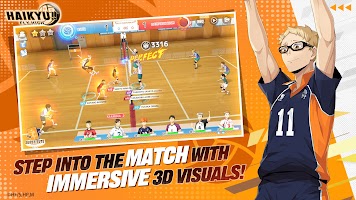
BlueStacks and MuMuPlayer are the primary options, but each handles resources differently. BlueStacks runs reliably on Windows 7 or higher with 4GB RAM and 5GB disk space. MuMuPlayer favors graphics backend customization, letting you dedicate 4 CPU cores and 4GB RAM directly under Vulkan or DirectX rendering.
Ignore marketing guides that claim you should run Haikyu!! Fly High at 120 FPS or 240 FPS on MuMuPlayer. The underlying game logic is hard-coded around a 60 FPS tick rate. Forcing high frame rates via emulator interpolation causes asset desyncs during cutscenes and skews QTE meter speeds. Lock the emulator client to a clean 60 FPS.
| Feature / Specification | Native Mobile Client | BlueStacks Setup | MuMuPlayer Setup |
|---|
| Recommended API | Native Vulkan / Metal | OpenGL / DirectX | Vulkan / DirectX |
| CPU Core Allocation | Automatic (OS managed) | 4 Cores | 4 Cores |
| RAM Allocation | 4GB Physical Minimum | 4GB Virtual Minimum | 4GB Virtual Minimum |
| Frame Rate Ceiling | 60 FPS (Native) | 60 FPS Locked | 60 FPS (Up to 120/240 Forced) |
| Primary Bottleneck | Thermal throttling past 20m | Storage disk speed / I/O | Background driver conflicts |
| Input Method | Capacitive Touch Screen | Mapped Keyboard / Mouse | Mapped Keyboard / Mouse |
Watch out for driver-level frame caps on gaming laptops. NVIDIA Battery Boost, for instance, frequently forces emulators to a choppy 30 FPS while injecting more than 18 ms of frame buffer latency. Turn off Battery Boost in GeForce Experience and disable Windows Game Mode to keep frame delivery uniform.
Dominating club tournaments still requires a properly geared lineup. Picking up Haikyu!! Fly High top ups supplies the Recruit Tickets and Diamonds needed to secure premier spikers, leaving your PC setup free to execute on court without stutter.
Cache Hygiene and Eliminating QTE Latency
Sudden mid-rally hitches do not always stem from GPU limits. Unchecked cache build-up is just as destructive. As you clear campaign stages, unlock characters, and trigger spike cinematics, the app continuously dumps uncompressed texture assets into temporary storage.
When storage fragments, calling up a unique spike animation forces a read delay, producing an immediate micro-stutter right before the QTE trigger.
Clear mobile cache with these steps:
1. Open device Settings.
2. Go to Applications and select Haikyu!! Fly High.
3. Open Storage and tap Clear Cache (never tap Clear Data, which wipes downloaded game patches).
4. Reboot your phone to flush memory allocation tables.
Emulator users should run the built-in disk cleanup tool every two weeks. Dynamic virtual disks fragment over time, adding read latency to cutscene transitions.
Combine clean storage with manual controls. Auto-play assistance handles positioning, but it consistently misses perfect green-sector QTE timing. Manual play paired with a clear cache ensures the game registers your taps the instant you see the prompt.
Hardware Profiles and Frametime Benchmark Targets
Frame rate averages can be deceiving. A client averaging 58 FPS can still feel unplayable if erratic frame-time spikes disrupt your spike timing. Aim for a flat 16.67 ms line rather than an inflated peak number.
| Hardware Profile | Resolution Target | Graphics Setting | Target Frame Time | Expected Throttle Point |
|---|
| Entry Mobile (3-4GB RAM) | Standard (720p/100%) | Low | 16.67 ms (with dips) | 15–20 minutes |
| Modern Mid-Range Mobile | Standard (1080p/100%) | Medium | 16.67 ms (Locked) | 35–45 minutes |
| Flagship Mobile | Standard (1080p/100%) | High | 16.67 ms (Locked) | 40+ minutes |
| PC Emulator (Vulkan/DX) | Native Desktop Grid | Medium / High | 16.67 ms (Flawless) | No throttling |
Every profile targets that 16.67 ms mark. Once frame times spike past 25 ms, your QTE reaction window shrinks beyond recovery. Dropping fancy visual effects to protect frame consistency is always the correct tactical trade-off.
Mechanical precision wins rallies, but squad depth wins tournaments. Stocking up on Haikyu Fly High Diamonds ensures you have the pulls ready for top-tier liberos and blockers when new banners rotate in.
Frequently Asked Questions
What are the best in-game settings for stable 60 FPS in Haikyu!! Fly High?
Set Frame Rate to High (60 FPS), lower Graphics Quality to Medium, and drop Special Effects and Shadows to Low or Off. This maintains clean court geometry while stripping out the shader load that causes match stutter.
Why does Haikyu!! Fly High lag or drop frames after 20 minutes of play?
Internal heat builds up in the SoC, triggering hardware thermal throttling that slashes clock speeds. Drop screen brightness to 50%, strip off heavy cases, and turn dynamic shadows off to keep device thermals under control.
Should I use iOS Low Power Mode while playing Haikyu!! Fly High?
No. Low Power Mode throttles CPU performance cores and limits background processing. When the game loads burst cutscenes for spikes, throttled cores stall, introducing heavy frame hitching.
Can I uncap the frame rate beyond 60 FPS?
The game engine is hard-coded for a 60 FPS tick rate. While emulators like MuMuPlayer allow forced overrides up to 120 or 240 FPS, running past 60 FPS desyncs spike cutscenes and alters QTE timing meters. Keep it locked at 60 FPS.
Lock the game to 60 FPS for a consistent 16.67 ms window. Set dynamic shadows to Low or Off, switch from auto-assist to manual controls, and purge your app cache every few weeks to prevent asset-loading stutter.
What are the minimum system requirements to run Haikyu!! Fly High on Android?
The game requires Android 9.0 or higher and roughly 2.67 GB of storage. Sustaining 60 FPS without crashes requires an octa-core processor alongside at least 4GB of physical RAM.
Final Court Verdict
Chasing ultra-high visual presets in a timing-dependent volleyball game is a losing strategy. Medium settings preserve the sharp cell-shaded art style, whereas Ultra settings yield negligible visual gains while overheating your device.
Set your frame target to 60 FPS, drop graphics to Medium, disable dynamic shadows, and match your screen to an even 60Hz or 120Hz cadence. Eliminating frame-time spikes gives your blockers and spikers the reliable 16.67 ms response window required to control every rally from serve to match point.










Comments