Tired of mobile frame drops and burning hands? Use this Heartopia Android stutter fix guide to lock steady 60 FPS and cut heat during long play sessions.
Heartopia presents a gentle life simulator on the surface, but underneath runs a demanding 3D engine. XD Games built a persistent shared world where players cultivate crops, construct detailed estates, and gather in real-time hubs. That dynamic environment strains mobile silicon.
Unoptimized settings quickly turn modern handsets into furnaces. When top-tier processors face heavy multiplayer rendering, performance collapses. Establishing a consistent 60 FPS requires three coordinated steps: dialing in graphic presets, synchronizing Android frame pacing, and managing physical device thermals.
Why Heartopia Stutters and Overheats on Android
Two distinct bottlenecks cause performance drops in Heartopia: multi-asset network rendering and aggressive thermal throttling.
Heartopia instances up to 12 player home lots simultaneously within each town map. Strolling through a neighborhood forces your phone to stream custom architectures, dynamic crop states, player models, and unique cosmetics over the network while rendering them in real time. This workflow triggers sudden CPU draw call spikes and saturates available memory bandwidth.
Heat buildup compounds the issue. Flagship chips like the Snapdragon 8 Elite deliver 60 FPS on Ultra settings initially, but generate rapid thermal accumulation. When internal temperatures exceed hardware safety limits, the operating system aggressively slashes processor frequencies. This sudden throttling causes immediate micro-stutters and sharp frame drops.
Mid-tier processors face an even steeper challenge. Chips like the Snapdragon 7s Gen 4 lack the raw rasterization throughput to maintain high presets. Pushing visual quality beyond hardware limits produces erratic frame pacing within minutes.
Best In-Game Graphics Settings for Android
Target frame stability over visual fidelity. Locking a flat 60 FPS requires selecting presets that leave the GPU with sufficient operational headroom.
The baseline targets below match common hardware profiles to sustainable graphics workloads.
| Device Hardware Class | Target Frame Rate | Recommended Graphics Preset | Thermal Profile |
|---|
| Snapdragon 8 Elite / Flagship SoCs | 60 FPS Target | Medium to High Preset | Moderate heat; sustained 60 FPS |
| Snapdragon 7s Gen 4 / Mid-Tier SoCs | 60 FPS Target | Medium Preset | Low-to-moderate heat; eliminates frame dips |
| General Android (120 Hz Displays) | 60 FPS Lock | Custom (Medium Shadows, Low Bloom) | Cuts GPU power draw up to 50% |
Selecting the correct preset establishes stable frame pacing before the system encounters dense town rendering loads.
Configure these parameters inside Heartopia to establish a stable baseline:
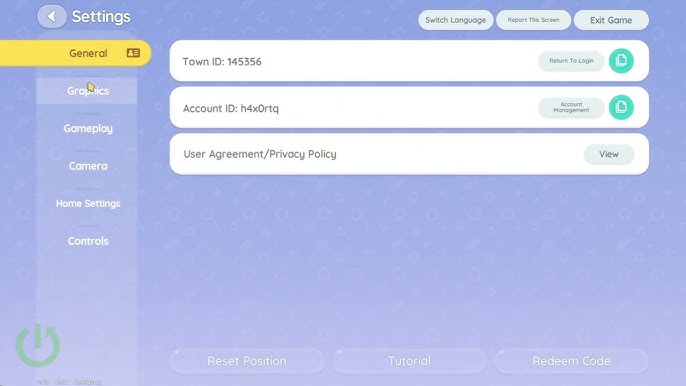
- Open the main menu, tap the gear icon to access Settings, and select the Graphics tab.
- Set the Frame Rate Cap strictly to 60 FPS. Avoid leaving this uncapped.
- Switch the overall Graphics Quality preset to Medium.
- Set Shadow Quality to Low or Medium to cut CPU draw calls during multiplayer lot streaming.
- Disable screen-space reflections and heavy post-processing effects such as motion blur.
- Set player model display limits to standard levels so crowded hubs do not stall the GPU.
If you plan to gather materials and design estates without the phone burning up, you can top up your Heartopia account directly to secure building currencies and items.
Taming Town Square Frame Drops and Multiplayer Load
Town squares and neighborhood clusters are severe performance bottlenecks. A solid 60 FPS in open wilderness areas can plummet toward 25 FPS upon entering densely built residential maps.
Each town instance loads up to 12 player properties simultaneously. Every lot contains distinct structures, customized furniture, active crop fields, and visiting player models. Stacking dozens of user-placed decorative assets pushes mobile memory limits to capacity.
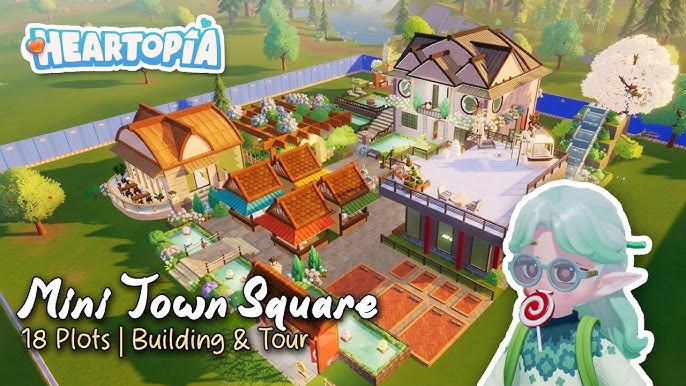
XD Games addressed costume rendering overhead in the March 4, 2026 patch, issuing 8,000 Gold and 10x Wishing Stars as maintenance compensation. While this update improved avatar outfit rendering, multi-lot asset density still stresses mobile hardware.
Mitigate town square performance drops with these practical adjustments:
- Lower character display density so the engine stops rendering high-polygon meshes for distant players.
- Avoid sprinting across multiple player properties back-to-back when your phone feels warm.
- Lower environmental draw distance if that slider appears in your client build.
Curbing multiplayer asset density frees critical memory bandwidth and keeps GPU frame times consistent.
Android System Tweaks: Battery Saver and Frame Pacing
Built-in "Gaming Modes" frequently degrade sustained performance. These OEM modes force CPU and GPU clusters to run at maximum clock speeds from launch.
Peak clocks generate rapid heat accumulation within ten minutes of play, triggering severe system-level thermal throttling. A standard Balanced power profile maintains moderate core temperatures, allowing sustainable clock speeds over long sessions.
Display frame pacing is just as important. A 60 FPS target operates on a 16.67ms frame time window, whereas 120Hz panels demand an 8.33ms delivery window. Forcing Heartopia onto an unpaced 120Hz display doubles the rasterization burden on the GPU.
Android 13 and newer platforms offer frame rate throttling interventions that reduce GPU power draw by up to 50% and overall system power by 20%. To eliminate visual judder, align your in-game frame rate cap with an integer divisor of your screen refresh rate:
- 120 Hz Screen: Lock Heartopia to 60 FPS (120 ÷ 2 = 60) or 30 FPS (120 ÷ 4 = 30).
- 90 Hz Screen: Lock to 45 FPS (90 ÷ 2 = 45) if available, or set Android Display Settings to 60 Hz and select 60 FPS.
- 60 Hz Screen: Lock strictly to 60 FPS (60 ÷ 1 = 60).
Uneven refresh rates—such as running 45 FPS on a 60 Hz panel—produce irregular frame delivery that registers as micro-stutter even at acceptable average frame rates.
Thermal Management to Stop Overheating
Excess heat causes sustained frame drops on mobile hardware. When lithium-ion batteries and system chips warm up, Android throttles processor frequencies to protect internal components.
Active thermal management helps your hardware hold its 16.67ms frame budget continuously.
| Thermal Factor | Impact on Hardware | Corrective Action |
|---|
| Gaming While Charging | Compounds battery and SoC heat | Disconnect charger during gameplay sessions |
| Thick Protective Cases | Traps chassis heat and impedes dissipation | Remove protective cases during gaming |
| Battery Charge Level | Extreme states (<20% or >80%) increase cell resistance | Play between 20% and 80% charge |
| Background Radios | GPS and Bluetooth trigger background polling | Disable location and Bluetooth while on Wi-Fi |
Addressing external and internal heat sources stops the phone from reaching thermal throttling thresholds.
Charging while playing is the most destructive thermal scenario. Simultaneous power transfer and graphics rendering generate extreme heat that forces throttling within minutes. Always unplug the device before launching the game.
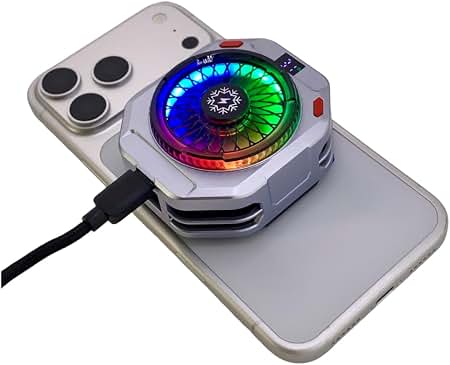
Operating within a 20% to 80% battery charge range minimizes internal resistance. Stripping away heavy silicone or leather phone cases lets heat radiate off the backplate efficiently.
Keeping temperatures low ensures uninterrupted play whether you are decorating properties or getting Wishing Stars for Heartopia to collect rare seasonal sets.
Network Optimization to Eliminate Latency Spikes
Network packet jitter frequently masquerades as hardware micro-stutter. Because Heartopia operates as a synchronized life-sim MMO, unstable network routing interrupts real-time game state updates.
When data packets drop or round-trip ping spikes, harvesting crops, fishing, and character movement freeze momentarily before snapping forward. This hitching mirrors a GPU frame drop.
Optimize your network environment with these adjustments:
- Disable VPNs and Proxies: Third-party routing tunnels introduce unnecessary network hops and cause packet pacing desync with Heartopia servers.
- Disable Custom Private DNS: Strict secure DNS configurations can disrupt server handshakes during real-time inventory synchronization.
- Clear Android App Cache: Stale shader cache and corrupted temporary assets create UI stalls. Navigate to Android Settings > Apps > Heartopia > Storage and tap Clear Cache.
- Restrict Background Data: Social and streaming apps running in the background wake CPU cores and consume bandwidth. Limit background data access for non-critical applications.
A direct, clean network path eliminates synchronization pauses during real-time multiplayer activities.
Hardware Comparison: Flagship vs Mid-Range Android
Silicon capabilities dictate your visual ceiling. Identifying your chipset tier prevents unrealistic graphics configurations.
| Hardware Tier | Representative Chipsets | Target Performance | Recommended Profile |
|---|
| Flagship Tier | Snapdragon 8 Elite, 8 Elite Gen 5 | 60 FPS Locked | Medium-High Graphics, 60 FPS Cap, Balanced Mode |
| Mid-Range Tier | Snapdragon 7s Gen 4, Dimensity 8000 series | 60 FPS Target | Medium Preset, Low Shadows, 60 Hz Panel Sync |
| Entry / Legacy Tier | Older Octa-Core Chipsets | 30 FPS Stable | Low Preset, Low Density, Android 13 Frame Pacing |
Matching your settings to your hardware tier guarantees consistent frame pacing without triggering thermal safety limits.
Flagship owners frequently push maximum presets because the SoC easily sustains 60 FPS initially. After twenty minutes of play, thermal soak forces heavy throttling. Selecting the Medium preset keeps chassis thermals stable and maintains locked 60 FPS throughout extended sessions.
For players focusing on building supplies and character progression, reviewing Heartopia resources on vgtopup helps streamline your in-game goals.
Frequently Asked Questions
How do I fix micro-stuttering in Heartopia on Android?
Lower your in-game graphics preset to Medium and lock your frame rate to 60 FPS. You should also clear the app cache in Android settings and close resource-heavy background apps before playing.
Why does my Android phone overheat when playing Heartopia?
Heartopia renders high-fidelity 3D assets and constantly syncs 12-player neighborhood instances, pushing mobile processors hard. Running the game on Ultra settings or playing while charging accelerates heat buildup and forces your phone to thermally throttle.
Should I run Heartopia at 120 Hz or 60 Hz?
Target 60 Hz or 60 FPS for the most stable experience. Rendering at 60 FPS uses a 16.67ms frame time budget that cuts GPU power draw by up to 50% compared to unpaced high refresh rates.
Does clearing the Heartopia app cache delete my save data?
No, clearing the cache only removes temporary files and will not delete your bound game account. Be sure to select 'Clear Cache' rather than 'Clear Data' or 'Clear Storage' in your Android settings.
Why do frame rates drop when visiting the town square or neighbors?
Town instances dynamically load up to 12 player home lots, custom furniture, and visiting player models, creating CPU and memory bottlenecks. Lowering shadow quality and player model density relieves this rendering pressure.
Can playing Heartopia while charging cause stutter?
Yes, pass-through charging generates substantial heat from the battery that forces the operating system to throttle CPU and GPU clocks. Always unplug your device during gameplay to prevent thermal stutter.
Does Heartopia support 45 FPS on 90 Hz displays?
If your device has a 90 Hz display, setting your frame rate to a direct divisor like 45 FPS prevents visual judder. If Heartopia does not offer a 45 FPS toggle on your build, set your Android screen refresh rate to 60 Hz and select the 60 FPS cap.
Final Verdict on Smooth Mobile Play
Stable mobile play requires strict thermal management and synced frame pacing. Attempting to brute-force Ultra settings on mobile chips leads directly to thermal throttling and unstable frame delivery.
Cap Heartopia at 60 FPS on Medium settings, match your panel refresh rate divisors, remove your phone case, and never play while connected to a charger. These adjustments keep hardware temperatures in check and deliver stable performance across every neighborhood you explore.









Comments