Tired of dropped strings and late dodges? Master the bleach soul resonance best controls 2026 layout to lock down counter windows and chain combos on PC and mobile.
Default control schemes ruin precision. Bleach: Soul Resonance is an officially authorized 3D action role-playing gacha game where players build three-character teams, clash Zanpakuto blades, and spend Spiritual Jade to summon characters and weapon stamps. Dropping a single input during a boss encounter resets your cadence and blows your damage cycle. When running 2026 banners like Dual Zangetsu Ichigo or Bambietta, muscle memory fails if your buttons cluster together or your camera lags behind a flashing boss strike.
Auto Battle clears routine daily farming, but high-tier bosses and competitive PvP will punish auto-play immediately. High-end combat demands manual control over spacing, parry timings, and instant squad swaps.
Every character in Bleach: Soul Resonance operates around five active actions: basic attack, dodge, technique skill, ultimate, and counter. The default mobile UI clusters these five functions in a tight arc across the bottom-right quadrant of your screen. When fighting fast-moving Hollows, your right thumb darts between small touch zones, triggering accidental techniques when you meant to tap counter.
The table below outlines each primary action, how it functions mechanically, and why default placements cause execution failures.
| Combat Action | Mechanical Function | Default HUD Failure Point |
|---|
| Basic Attack | Delivers standard blade strikes; rapid hits refill the charge meter. | Crowded next to technique keys, causing mistaps during frenzy strings. |
| Dodge | Repositions character; triggers slow-motion on boss attack cues. | Placed too low on phone screens, causing thumb cramps and missed timings. |
| Technique Skill | Executes character-specific special abilities tied to cooldowns. | Inadvertently triggered while attempting to hit the normal attack button. |
| Counter | Parries strikes on impact, shatters enemy poise, and induces paralysis. | Requires instant millisecond reaction; hidden in tight radial button groups. |
| Ultimate | Spends stored energy to unleash cinematic high-damage Bankai strikes. | Easy to tap by accident, blowing your burst window before enemy poise breaks. |
Mastering the five-action baseline requires separating immediate reaction buttons like counter and dodge from resource-consuming techniques.
Weaving basic attacks between active techniques refills character energy faster than spamming cooldowns. Landing consecutive normal strikes also charges an energy gauge positioned right next to your character's health bar. Once that meter fills completely, holding down the basic attack button unleashes an amplified charge strike that breaks enemy guards. If your thumb slips across overlapping touch zones, holding that input cleanly becomes impossible.
Recommended HUD Layout for Mobile Touchscreens
A proper mobile layout stops thumb collision. The stock touch profile puts counter and dodge too close to the screen edge, so you must carve out clear operational zones for critical reaction triggers.
Enter your settings menu and select custom UI editing. Apply these coordinates and size scalings:
- Expand the Basic Attack Button: Increase the primary strike button to 125% scale. Keep it anchored in the lower right, but shift it slightly inward toward the center.
- Isolate the Counter Input: Move the counter button directly above the basic attack cluster and bump its scale to 115%. Parrying requires an immediate reflex tap when an enemy flashes red. It cannot share border space with another icon.
- Raise the Dodge Icon: Shift the dodge icon higher up on the right margin, setting its scale to 120%. This keeps your thumb hovering near the screen edge, ready to flick without bending downward.
- Group Techniques and Ultimates: Position your technique skill to the left of the basic attack button at 100% scale. Place the ultimate icon slightly above it at 95% scale to prevent accidental activations.
- Squad Swap Placement: Bleach: Soul Resonance allows three-character squad lineups with zero-cooldown instant switching. Move your two off-field character portraits to the top-right corner of the left-hand screen area, just above the analog movement stick. This lets your left thumb swap team members mid-attack while your right thumb continues striking.
This setup isolates high-frequency attacks from defensive reaction triggers, eliminating misclicks when a boss winds up an unblockable swing.
Dialing in Camera Sensitivity Settings
Fast target tracking in full 3D arenas exposes poor camera configurations. Default camera sensitivity is notoriously sluggish, forcing you to swipe across your screen repeatedly just to re-center a boss.
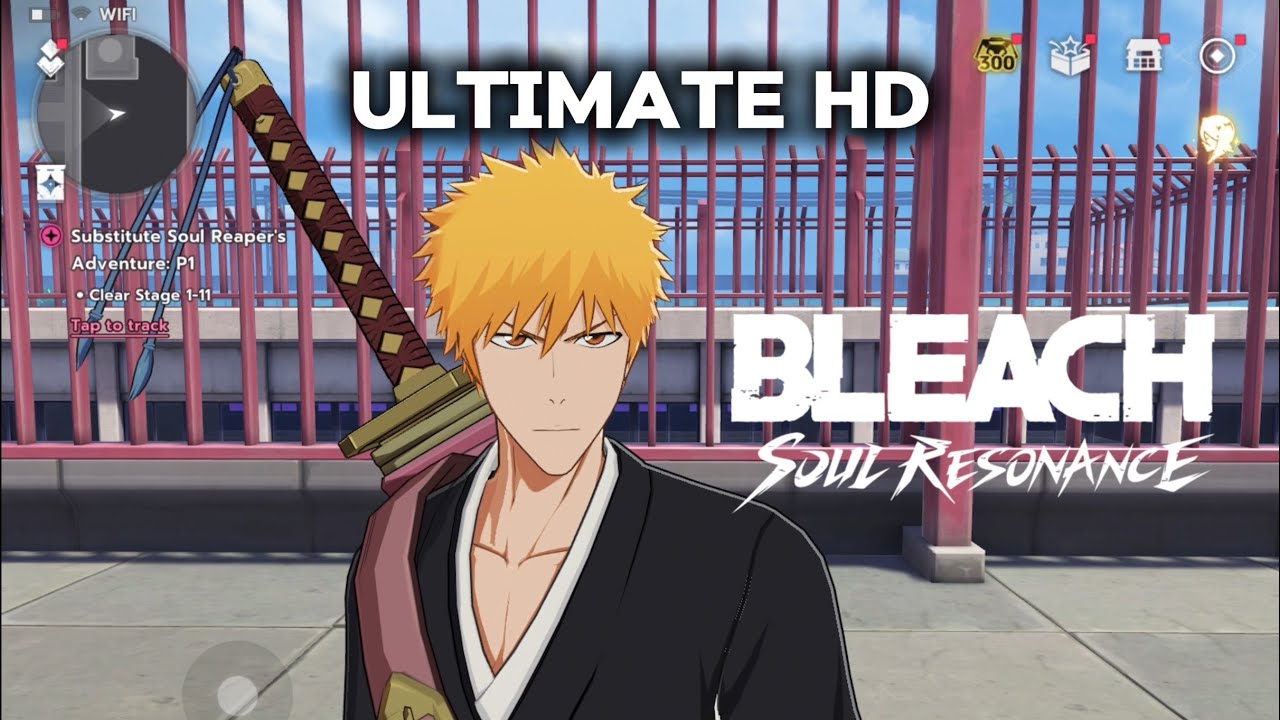
Use these slider adjustments as your competitive baseline:
- Open the In-Game Settings menu and navigate to the Camera / Control tab.
- Set Horizontal Sensitivity to 68%. Default 50% sensitivity forces multiple swipes to track sweeping boss leaps, while 68% covers a full 180-degree sweep in one stroke.
- Lower Vertical Sensitivity to 42%. High vertical sensitivity tilts your perspective toward the sky or floor during close combat. Setting it below horizontal sensitivity stabilizes your horizon line.
- Turn Combat Auto-Lock Tracking to Standard. Aggressive auto-lock snaps your camera onto secondary adds instead of the boss. Standard lock focuses on your active target without yanking control away.
- Set Visual Assist / Telegraph Brightness to Maximum. Boss animations broadcast visible strike indicators. Dodging on these cues triggers slow-motion frames and counter windows to unleash high burst damage.
When to deviate: On an iPad or large Android tablet, dial horizontal sensitivity down to 55%. The wider glass surface extends your physical finger travel, which over-rotates the camera at phone-level values.
Controller vs Touch Controls: What Delivers Real Precision?
Touch controls offer portability, but physical gamepads deliver physical feedback that touch glass cannot replicate. Remapping inputs to tactile switches tightens combo cadence across the board.
Connecting an Xbox, PlayStation, or third-party gamepad fundamentally shifts your timing. Using gamepad mapper software to set analog trigger actuation points converts deep trigger pulls into immediate digital actuations, cutting the physical latency needed to dodge boss telegraphs. Analog thumbstick deadzones also need attention: reducing inner deadzones removes the delay before camera tracking registers, while calibrated response curves balance micro-adjustments with fast camera sweeps.
| Feature / Metric | Touch Screen (Custom HUD) | Gamepad Controller (Tuned) | Keyboard & Mouse (PC Mapping) |
|---|
| Input Actuation Speed | High (direct tap) | Instant (hair-trigger tuning) | Highest (mechanical switches) |
| Accidental Keypress Rate | Moderate (sweat / mistaps) | Very Low (tactile physical separation) | Zero (discrete key assignments) |
| Camera Sweeping Speed | Variable (finger friction) | Predictable (analog curve profile) | Instant (raw mouse sensor tracking) |
| Three-Unit Swapping Flow | Good (left-thumb reach) | Exceptional (mapped to D-pad / Bumpers) | Exceptional (mapped to 1-2-3 keys) |
| Combo Continuity | Vulnerable to thumb drift | Consistent physical feedback | Flawless keycadence retention |
Physical inputs eliminate tactile guesswork, allowing exact skill-weaving and instant parries without blocking your display.
If you want to bolster your squad to tackle high-tier boss ranks, you can top up Bleach Soul Resonance spiritual jade to pull high-impact fighters and acquire vital weapon stamps. Maintaining physical key controls ensures that every summon you bring onto the field executes combos at maximum damage potential.
Optimal Keybind Setup for Gamepads and Keyboard
Stock controller profiles often map dodge to face buttons, pulling your right thumb off the right analog stick and killing camera tracking during evasions. Moving vital actions to shoulder buttons solves this.
The Recommended Controller Layout
- Normal Strike: X (Xbox) / Square (PlayStation). Fast, repeatable thumb tapping.
- Charge Attack: Hold X / Square. Landing hits charges the energy gauge next to your health bar; holding your normal attack button releases the strike cleanly.
- Dodge / Dash: Right Bumper (RB / R1). Keeps your thumb firmly anchored on the right thumbstick for continuous camera panning while executing evasive maneuvers.
- Counter Action: Left Bumper (LB / L1). Perfect counter timing parries incoming blows, shatters enemy poise meters, and temporarily paralyzes them to open massive burst damage windows. Having counter on your left index finger gives you instantaneous reaction speed.
- Technique Skill: Right Trigger (RT / R2). Set this trigger actuation point to 10% in your controller software for hair-trigger casting.
- Ultimate (Bankai): Y (Xbox) / Triangle (PlayStation). Placed apart from primary attacks so it is never triggered prematurely.
- Character Swaps: D-Pad Up / D-Pad Down (or Left Trigger). Bleach: Soul Resonance allows three squad members to switch instantly without cooldown delays. Slapping the D-Pad or Left Trigger brings in your secondary fighter mid-swing to chain technique skills.
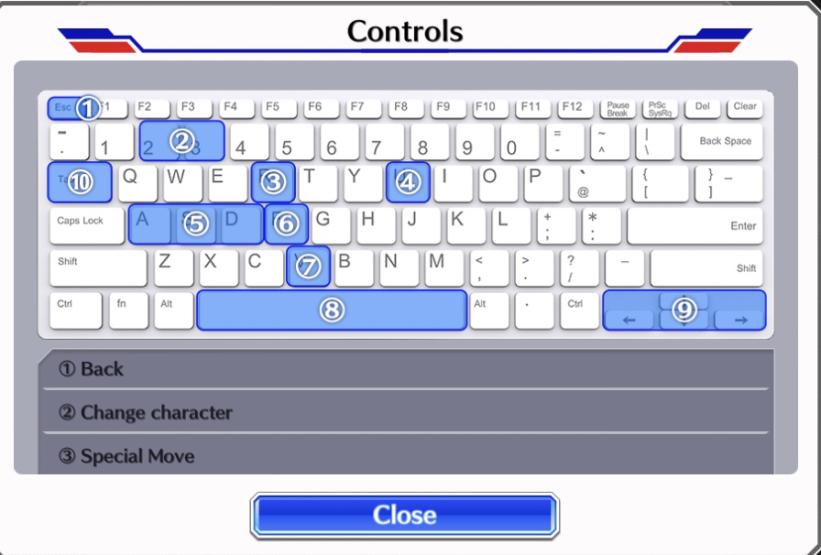
The PC Keyboard and Mouse Layout
- Movement: W, A, S, D.
- Normal Attack / Charge Strike: Left Mouse Button (LMB).
- Camera Tracking: Mouse Movement (Raw Input).
- Dodge: Right Mouse Button (RMB) or Left Shift.
- Counter: Spacebar (broad surface allows immediate thumb response to visual indicators).
- Technique Skill: E key.
- Ultimate Action: Q key.
- Squad Unit 2 Swap: 1 or Mouse Thumb Button 1.
- Squad Unit 3 Swap: 2 or Mouse Thumb Button 2.
This setup cleanly divides combat responsibilities between your left and right hands, stabilizing execution.
Emulator Optimization: Eliminating Lag and Combo Drops
A split-second display stutter causes missed counter windows. Running the game on PC through an emulator like MuMuPlayer or BlueStacks provides access to high refresh rates, but running default settings introduces frame-pacing lag.
First, enter your PC BIOS and verify that Hardware Virtualization Technology (VT) is enabled. Without VT active, emulators experience micro-freezes and dropped inputs during complex visual animations.
Configure your emulator settings according to this baseline:
- Graphics Rendering Engine: Switch to Vulkan mode. Vulkan reduces CPU rendering overhead and minimizes input latency compared to older DirectX or OpenGL modes.
- Frame Rate Target: Raise the FPS limit up to 240 FPS. Uncapping frame rates provides crisp visual responsiveness, preventing frame drops when heavy Bankai animations pop off.
- Resource Allocation: Allocate a baseline minimum of 2 CPU cores and 2GB of RAM. If your machine has headroom, assigning 4 cores and 4GB RAM ensures smooth stability without overheating.
For screen-mirroring apps like OSLink, bypass Wi-Fi entirely. Connecting your phone to your PC via a high-speed wired USB 3.0 cable avoids the packet drops and input lag common to wireless links or basic charging cables.
Tactical Combat Mechanics: Attribute Priorities and Team Switches
Fine-tuned controls yield real results once you apply them to core mechanics. Combat effectiveness in Bleach: Soul Resonance centers on a four-way rock-paper-scissors attribute system:
- Slash counters Thrust
- Thrust counters Spirit
- Spirit counters Slash
- Strike sits outside the circle and features no counter relationships.
Deploying a character with an attribute advantage deals amplified damage and tears through poise bars. You can also build squads around Tactical-type characters. Deploying a Tactical unit activates a specialized Battlefield Skill, granting passive teamwide buffs when specific composition or attribute requirements are met.
Because switches carry zero cooldown between your three squad members, you can execute a normal string with a Slash fighter, instantly swap to your Spirit character for a technique skill, and swap back to basic attacks without breaking momentum. Weaving basic strikes between skills refills character energy rapidly, sustaining offensive pressure.
To build and level these multi-character rosters, you need substantial resource pools. Maximize your 400 daily activity points cap to collect steady account EXP, and farm Insight items to level your units. Running out of resources stalls team growth, making it smart to buy Bleach Soul Resonance spiritual jade packs when you want to secure extra stamina refreshes or summon copies of top-tier units on 2026 banners.
The table below details the consumable Insight items required to push unit levels, their raw EXP yields, and where they sit in character progression.
| Insight Item | EXP Value | Primary Role in Unit Progression |
|---|
| Member's Insight | +500 EXP | Basic tier consumable obtained from story stages and early patrols. |
| Seat Officer's Insight | +3,000 EXP | Mid-tier consumable used for early-game roster leveling. |
| Captain's Insight | +10,000 EXP | High-tier consumable for pushing core team units into higher ranks. |
| Head Captain's Insight | +20,000 EXP | Maximum tier consumable essential for late-game character level pushes. |
Accumulating Head Captain's Insights ensures your secondary and tertiary squad units have the raw stats needed to survive instant switches in endgame content.
How does control responsiveness compare across environments? Depending on whether you play on mobile hardware, an emulator, or via screen mirroring, you will experience differences in combat pacing and latency.
| Platform Environment | Input Latency Baseline | Camera Control Precision | Keybinding Flexibility |
|---|
| Native Mobile (Touch) | Lowest display lag (~10ms) | Low to Moderate (thumb friction) | Limited to screen overlay adjustments |
| Native Mobile (Gamepad) | Low (~15-25ms Bluetooth) | High (physical analog sticks) | Moderate (software mapping profiles) |
| PC Emulator (Vulkan/VT) | Extremely Low (~5-12ms direct) | Highest (mouse sensor or calibrated stick) | Total freedom (full keyboard/mouse/gamepad bindings) |
| Screen Mirroring (USB 3.0) | Low (~20-30ms wired) | High (mapped mouse or controller) | High (configured through PC client) |
| Screen Mirroring (Wi-Fi) | Unstable (~60-150ms spikes) | Low (jittery response drops inputs) | Moderate (frequent timing de-syncs) |
PC emulators with Vulkan and VT active yield the tightest response times, whereas wireless mirroring is unsuitable for high-level counter mechanics.
If you want to maintain a competitive squad, staying ahead on character upgrades is essential. You can grab discount Bleach Soul Resonance spiritual jade to keep your summons topped off for the newest characters, giving your optimized controls the raw team power they deserve.
Frequently Asked Questions
What control layout is best for executing fluid combos in Bleach: Soul Resonance?
Mapping primary attacks, skills, and character swaps to distinct physical keys or gamepad buttons eliminates input dropping caused by overlapping touch areas. This lets you alternate basic attacks with technique skills smoothly without breaking cadence. If playing on mobile, separating your counter and dodge keys from normal attack clusters provides the cleanest execution.
How do you trigger slow-motion counter windows reliably?
Watch enemy attack animations for glowing visual telegraphs and trigger your dodge input right before impact. Perfect timing creates a slow-motion vulnerability window where you can unleash uninterrupted combo strings. Setting visual assist brightness to maximum ensures you spot these telegraphs early.
How does the combat counter mechanic work?
Activating the counter action right as an incoming attack strikes parries the enemy blow. This drastically depletes the target's poise gauge and temporarily paralyzes them, creating an open window for high burst damage. Missing the timing leaves you fully exposed to the enemy's strike.
How do you release a Charge Attack in battle?
Charge attacks require filling the energy meter located beside your character's health bar by landing consecutive basic strikes. Once that meter is full, press and hold the normal attack input to execute an amplified charge strike that breaks enemy guards. Letting go prematurely cancels the charge without executing the enhanced strike.
Can you switch characters mid-combo without delay?
Bleach: Soul Resonance features instantaneous character switching with zero cooldown between your three squad members. Swapping mid-attack lets you rotate active skills and extend combos continuously across multiple attribute types. Mapping team swaps to mouse thumb buttons or gamepad bumpers keeps these transitions instantaneous.
Select Vulkan graphics mode, set High FPS up to 240 FPS, and allocate at least 2 CPU cores and 2GB of RAM. Enabling Hardware Virtualization (VT) in your PC BIOS is also essential to prevent combat stutter during intense animations. These tweaks minimize micro-stutters and input latency.
Why should you use wired USB over wireless mirroring for PC controls?
Connecting via a wired USB 3.0 cable provides direct data transmission with minimal latency. Wi-Fi mirroring and charging-only cables introduce input delay and jitter that frequently cause missed dodges and dropped combos. Wired data cables guarantee steady frame flow and instant button registration.
The Final Verdict on Control Configurations
Stock control profiles cost you matches against high-tier bosses and competitive combat in Bleach: Soul Resonance. Touch screens force finger crowding, while default controller mappings lock your thumb away from essential camera adjustments.
If you stay on mobile, immediately isolate your counter and dodge buttons to the outer edge of your HUD, raise your horizontal camera sensitivity to 68%, and pull your basic attack inward. If you play on PC, allocate 4 cores on Vulkan, map dodge and counter to your bumpers, and rely on instant character swaps to dominate the field. Clean inputs make the difference between a broken combo and a shattered enemy poise meter.










Comments