Discover the best Tango Live video settings to fix lag, stop frame drops, and prevent phone overheating while broadcasting or watching streams in 2026.
Nothing ruins a live broadcast faster than dropped frames, robotic audio, or an overheating phone that dims its screen midway through a gift train. Tango is a live streaming and interactive video chat application where viewers send virtual gifts that broadcasters convert into real-money diamond earnings. Because interaction happens in real time, visual stutter directly cuts into viewer retention and your bottom line.
Finding the balance between sharp resolution and steady stream stability on mobile hardware requires dialed-in encoder figures. Here is the technical setup to configure your broadcast pipeline, manage device heat, and ensure smooth playback.
Target Bitrate and Resolution Profiles
Mobile broadcasters often make the mistake of cranking every setting to maximum. If your phone tries to push an uncompressed 1080p stream over a fluctuating cellular connection, the app drops frames aggressively to catch up. Match your output bitrate to your target frame rate and available network headroom instead.
Lock your output based on what you actually broadcast. A casual conversational stream does not need 60 frames per second; high framerates demand heavy hardware encoding that drains battery reserves fast. Conversely, dance streams or high-motion acts fall apart into pixelated macroblocks if you choke the bitrate too low.
Use the following baseline encoding profiles when configuring external streaming tools or selecting in-app broadcast targets.
| Resolution & Framerate | Recommended Video Bitrate | Ideal Broadcasting Use Case |
|---|
| 1080p @ 30 FPS | 3,500 – 4,500 kbps | Standard recommended profile for clear, stable mobile video feeds |
| 1080p @ 60 FPS | 4,500 – 9,000 kbps | Higher bandwidth profile ideal for fast-motion, dance, or gaming broadcasts |
| 720p @ 30 FPS | 2,000 – 3,000 kbps | Low-bandwidth profile suitable for Tango Lite and constrained connections |
Locking your stream to 1080p at 30 FPS with a 4,000 kbps bitrate gives the sharpest visual output while preventing thermal throttling on modern mobile chipsets.
If you stream in a studio space with stable fiber internet, pushing 4,500 kbps at 1080p 30fps yields pristine image quality without introducing encoding bottlenecks. However, if you are streaming over mobile data or shared household Wi-Fi, dropping down to 720p at 3,000 kbps prevents sudden visual freezes during peak network usage.
Camera Shutter Speed and Frame Rate Configuration
Video stutter is not always a network issue; it is frequently caused by mismatched optical settings. When you point your mobile camera under artificial indoor studio lighting, automatic camera algorithms attempt to compensate for exposure by shifting shutter speeds on the fly. This produces severe motion judder that looks identical to frame dropping.
To keep your movement looking natural, manual camera shutter speed must follow the 180-degree shutter rule: set your shutter speed to exactly double your target frame rate. If you broadcast at 30 fps, your shutter speed should sit locked at 1/60s. If you push a 60 fps feed, lock your shutter to 1/120s. This creates cinematic motion blur that masks minor frame-time pacing discrepancies.
Keyframe intervals are equally critical for real-time streaming servers. Always set your keyframe interval to exactly 2 seconds. A 2-second interval ensures that the receiving server receives a full reference frame consistently, preventing visual artifacting when viewers join your room or send animated screen overlays.
| Video Metric | 30 FPS Broadcast Target | 60 FPS Broadcast Target | Technical Purpose |
|---|
| Optical Shutter Speed | 1/60 second | 1/120 second | Eliminates unnatural motion judder under artificial lighting |
| Keyframe Interval | 2 seconds | 2 seconds | Maintains universal RTMP stream sync and rapid stream loading |
| Required Uplink Floor | 10 Mbps | 15 Mbps | Prevents bufferbloat and network-induced frame drops |
Aligning shutter timing with a strict 2-second keyframe cadence prevents stutter before the video feed ever hits the encoder.
Broadcasting architecture differs significantly across operating systems. Android users can run the native client directly, while iOS streamers must use an external streaming pipeline due to App Store distribution rules.
Old forum posts often claim you can simply re-download Tango from your iOS purchase history. In 2026, Tango is completely removed from the Apple App Store in most territories outside the EU. Broadcasters on iPhone rely on an external streaming application called BoarCast paired with Tango Web.
| Streaming Setup | Minimum OS Requirement | Camera Orientation | Dedicated Hardware Usage |
|---|
| Tango Native App (Android) | Android 10 or higher | Portrait & Landscape | Single-device processing for video, gifts, and chat |
| Tango Lite (Android) | Android 8.0 or higher | Portrait | Lightweight client optimized for low-spec processors |
| BoarCast + Web (iOS) | iOS 15 or higher | Portrait Only | Offloads chat and gift rendering to secondary browser |
| Tango Web Studio (Desktop) | Modern Browser | Portrait & Landscape | Full GPU/CPU hardware rendering for multi-source inputs |
Selecting the correct client version for your operating system eliminates software-level compatibility lag.
On Android, ensure your device runs Android 10 or higher. Running the full feature-rich application on outdated Android versions causes background memory crashes. If your phone runs Android 8.0 through Android 9, switch over to Tango Lite. The Lite build strips out heavy UI animations and background asset preloading, keeping the video feed fluid on low-resource chips.
For iPhone users, BoarCast acts as a dedicated video and audio capture pipeline. It connects to your Tango account using an external streaming link generated on tango.me. BoarCast is strictly locked to portrait mode orientation for Tango. Do not try to force landscape rendering through third-party rotation locks, as this corrupts the canvas aspect ratio and stretches your video on viewer screens.
Network Setup and VPN Routing for Stable Uplinks
Video bitrate is useless without a reliable transmission channel. Live broadcasting requires a continuous, unthrottled upload pipe. Tango streams require a minimum upload speed of 10 Mbps for stable live broadcasting. If your home speed test shows 100 Mbps download but only 5 Mbps upload, your stream will freeze constantly.
Connect to a 5 GHz Wi-Fi frequency band rather than a 2.4 GHz band. The 2.4 GHz band suffers from extreme signal congestion caused by Bluetooth devices, microwaves, and neighboring routers. If you stream from a fixed studio desk, use a USB-C or Lightning to Ethernet adapter to eliminate wireless packet jitter entirely.
If you experience regional routing bottlenecks when streaming to international audiences, an optimized VPN can help. Using split-tunneling VPN connections can optimize latency to distant streaming servers, reducing ping by 8% to 20% on certain long-distance routing paths. Configure the VPN split-tunneling rule to route only your broadcasting traffic through the server node while letting background system processes bypass the tunnel entirely.
Step-by-Step Fix Guide for Video Lag and Thermal Stutter
When your stream starts dropping frames or your phone chassis feels scorching hot, follow this sequence of fixes to isolate and solve the issue.
- Run a dedicated uplink speed test: Confirm your connection delivers at least 10 Mbps upload speed. If your upload is below 10 Mbps, drop your stream resolution to 720p at 30 fps immediately.
- Switch your Wi-Fi band: Move your phone from the 2.4 GHz network to a clean 5 GHz Wi-Fi channel, or plug in a direct Ethernet cable adapter.
- Isolate processing duties with a dual-device setup: If you stream from an iPhone, launch BoarCast strictly for camera capture. Open Tango Web on a laptop, tablet, or secondary device to monitor comments and gift alerts. Dual-device setups offload web chat and gift processing to reduce mobile thermal throttling.
- Close all non-essential background tasks: Shut down background social apps, location services, and cloud backup synchronizations before going live.
- Lower in-app video filters: Heavy real-time AR beauty masks force the mobile GPU to render graphical elements over every frame, spiking temperatures. Switch to basic color correction or natural lighting.
- Remove device cases and manage charging: Thick phone cases trap heat against the battery pack. Strip off your phone case and mount a small magnetic cooling fan to the back of the device.
Managing Multi-Guest Feeds and Monetized Calls
Hosting multi-guest panels introduces significant computational overhead. Multi-guest live broadcasts on Tango support up to nine simultaneous participants on a single interactive screen. When all nine slots are filled, your phone must decode eight incoming video feeds while simultaneously encoding your own outgoing camera feed.
If you plan to run large panel rooms, lock your outgoing broadcast quality to 720p 30fps. Forcing a 1080p stream while decoding multiple guest inputs will cause mid-range mobile processors to drop frame rendering rates down into the single digits.
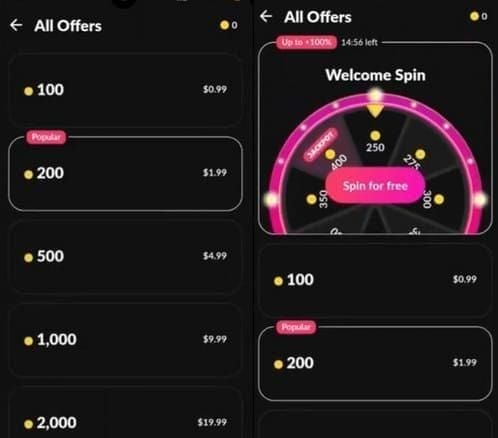
Streamers also transition between public panels and private 1-on-1 video calls. Private 1-on-1 video call pricing on Tango typically ranges between 500 and 3000 coins per minute. Because private calls demand pristine face-to-face visual clarity, ensure your camera has optimal light exposure before answering. Regular viewers who jump into these private sessions should ensure they top up Tango coins online in advance so private chats do not disconnect unexpectedly when the per-minute timer rolls over.
During high-energy shows, animated visual gifts flood the screen. Active gifters who want to boost their presence can buy cheap Tango Live coin bundles to support their favorite creators. If incoming gift animations cause visual stutter on older devices, toggle off full-screen animation rendering in your client display preferences.
Battery Protection and Mobile Hardware Optimization
Broadcasting places an enormous strain on lithium-ion batteries. Simultaneous video encoding, screen illumination, and radio data transmission generate internal heat that degrades battery health over time. Once your battery hits critical temperature thresholds, the operating system triggers aggressive thermal throttling, slashing CPU clock speeds and causing severe stream lag.
Maintaining mobile battery charge between 20% and 80% prevents extreme thermal degradation during streaming. Never start a multi-hour broadcast with your battery sitting at 5%. Charging your phone rapidly from near-empty while running an intensive stream generates massive thermal spikes.
Charge your phone to roughly 70% before going live. Plug into a slow, standard 5W or 10W power supply rather than a fast-charging brick while broadcasting. Slow charging supplies enough power to offset battery drain without generating the excessive heat associated with rapid power delivery protocols.
Troubleshooting Browser Black Screens and Web Broadcasts
Broadcasters managing shows through desktop web browsers occasionally encounter black screen errors where the camera canvas refuses to display. This problem almost always stems from internal GPU decoding handshake conflicts.
Disabling browser hardware acceleration resolves stream black screen errors. If your Tango Web Studio monitor or external capture monitor shows a blank screen, open browser settings, search for "Hardware Acceleration," toggle it off, and restart the browser. This forces the browser to handle canvas rendering via the CPU, bypassing conflicting graphics drivers.
When fans show their appreciation, viewers can easily grab Tango Live Coins for interactive gifts without stalling the broadcast feed, keeping chat and gift alerts fluid for everyone in the room.
FAQ
What upload speed do I need for smooth Tango Live streaming?
You need a stable internet connection with at least 10 Mbps upload speed. This provides enough network headroom to prevent dropped frames and visual buffering during high-motion scenes.
How do I stream on Tango using an iPhone?
Download BoarCast from the App Store and log into tango.me in your mobile browser. Initiate the broadcast from Tango Web using the External Stream option to link your video directly into BoarCast.
Can I stream in landscape mode on Tango with BoarCast?
No, BoarCast currently only supports portrait orientation for Tango live streams. The platform layout is designed around vertical mobile viewing and chat overlay alignment.
Why is my mobile device overheating while broadcasting on Tango?
Overheating occurs when your device encodes high-resolution video while processing screen rendering, network transmission, and fast charging heat simultaneously. Switching to a dual-device workflow and keeping your battery charge between 20% and 80% prevents excessive thermal build-up.
What is the best shutter speed for live streaming video?
Your shutter speed should always be double your stream frame rate. Use 1/60s for 30fps broadcasts and 1/120s for 60fps streams to maintain smooth, natural motion blur under artificial lighting.
What should I do if my browser shows a black screen during web streaming?
Open your browser settings, disable hardware acceleration, and relaunch the application. This eliminates GPU driver rendering conflicts that prevent web stream monitors from displaying properly.
Final Verdict: My Streamer Setup
If you want the cleanest balance between image clarity and rock-solid stability, I recommend running a locked 1080p feed at 30 frames per second with a 4,000 kbps bitrate. Chasing 60 fps on a single mobile device generates too much heat for long broadcasts without offering real value for conversational streaming.
For iOS users, adopting a dual-device workflow—broadcasting camera video through BoarCast while running chat and monetization on Tango Web via a secondary screen—is the single best upgrade you can make. Keep your phone cooled, stay on a dedicated 5 GHz Wi-Fi channel, and lock your shutter speed to 1/60s for a dependable, professional broadcast.









Comments