Solution 1: Run Launcher Integrity Repair and Purge Cache
Corrupted pak container files cause the majority of instant desktop crashes. The engine stores textures, audio, and configuration data inside compressed pak archives. If an interrupted patch, power loss, or drive write error damages an archive header, the client terminates the moment it reads the file.
The desktop launcher includes an automated verification tool that calculates local file hashes, checks them against server originals, and replaces only damaged blocks.
To run an asset verification:
- Exit the desktop client and confirm no background game processes remain in Task Manager.
- Right-click the desktop launcher shortcut and select Run as administrator.
- Click the gear icon in the corner of the client interface to open settings.
- Select Repair or Game File Verification to begin scanning.
- Allow the client to scan hashes and download replacement files.
If file validation stalls at 0%, the client has encountered damaged temporary cache files or cannot obtain a local directory write lock. Clear the download cache in launcher settings, restart the client as administrator, and re-run verification.
Solution 2: Repair and Reinstall Microsoft Visual C++ Redistributables
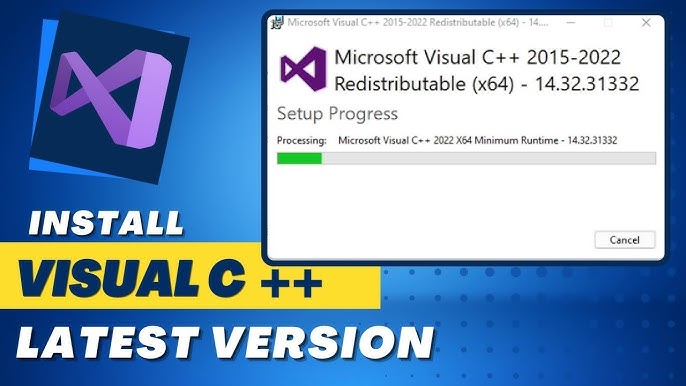
Missing or damaged Visual C++ runtime libraries cause crashes that occur before any graphics frame renders. The client depends on these Microsoft libraries to execute core engine functions; without valid references in Windows system directories, the process throws a fatal runtime exception.
Common Windows installer error codes indicate why runtime setup fails:
- Error Code 1603: Generic installation failure caused by file permission restrictions or corrupted existing installs.
- Error Code 5: Access denied due to missing administrative write permissions for system folders.
- Error Code 32: Target runtime files are locked by an active background process.
- Error Code 1620 & 1714: The local installation package cache is corrupt, requiring an explicit repair or reinstall.
Download the latest official x64 Microsoft Visual C++ Redistributable installer directly from Microsoft. Right-click the installer and select Run as administrator to prevent permission errors. If prompted by an existing installation, choose Repair to restore missing DLL registrations, then reboot your PC before launching the game.
With your client launching properly and your team assembled, you can explore AFK Journey top up options to secure summon letters and progression resources.
Solution 3: Resolve DirectX Feature Levels and System DLL Conflicts
Black screens on startup typically point to graphics API initialization failures. When the executable launches, it queries DirectX to build a rendering pipeline with your GPU. If required DirectX runtime libraries are missing or your hardware lacks feature support, the client stalls and exits.
DirectX runtime files sit as discrete DLLs across C:\Windows\System32 and C:\Windows\SysWOW64. Because modern games call specific runtime versions directly rather than relying solely on OS-level DirectX 12 integration, a single corrupted DLL in System32 will crash the graphics engine.
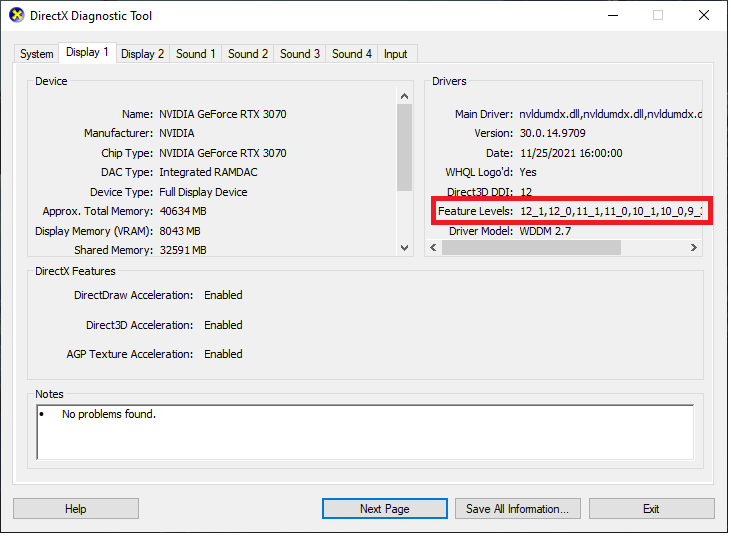
Checking the System tab in dxdiag only shows operating system capability, not physical GPU feature level support. To verify hardware compatibility, press Win + R, type dxdiag, hit Enter, and open the Display tab. Check the Feature Levels list to confirm your GPU supports Direct3D 11_0 or higher.
The table below details critical system diagnostic checks and the technical utilities used to verify DirectX and OS integrity.
| Diagnostic Check | System Utility / Location | Expected Healthy Value | Failure Indicator |
|---|
| Hardware API Support | dxdiag -> Display Tab -> Feature Levels | Feature Levels 11_0, 11_1, or 12_0 | Missing modern feature levels; driver fallback |
| System Library Integrity | Elevated Command Prompt -> sfc /scannow | "Windows Resource Protection did not find any integrity violations." | Corrupted system dependencies detected and repaired |
| Runtime File Presence | C:\Windows\System32 & SysWOW64 | Complete set of discrete DirectX runtime DLLs | Silent crash on initialization with black window |
| GPU Driver Direct Link | Device Manager -> Display Adapters | Dedicated GPU active with clean status code | Error Code 43 or generic Microsoft Basic Display Adapter |
Verifying operating system dependencies and GPU feature levels prevents silent graphics API crashes during launch initialization.
To repair damaged Windows system files and DirectX DLL references, run the System File Checker. Search for "cmd" in the Windows Start menu, right-click Command Prompt, and select Run as administrator. Enter sfc /scannow. The utility scans protected OS files and replaces corrupted dependencies from local cached backups.
Third-party software conflicts cause crashes by hooking into the game process before the render pipeline completes initialization. Capture software, Discord overlays, and hardware monitoring utilities frequently trigger memory exceptions during this startup window.
Launcher hardware acceleration also causes early crashes on certain GPU driver configurations. When the launcher uses GPU acceleration to render its own interface, driver conflicts can crash the launcher process before it passes launch parameters to the main game executable. Disabling GPU hardware acceleration in the launcher settings menu prevents this failure.
To isolate background program conflicts using a clean boot:
- Press Win + R, type
msconfig, and press Enter to open System Configuration. - Navigate to the Services tab.
- Check Hide all Microsoft services to protect core Windows operations.
- Click Disable all to stop non-essential third-party services.
- Go to the Startup tab, click Open Task Manager, and disable third-party overlays, recording tools, and RGB utilities.
- Close Task Manager, click OK in System Configuration, and restart your PC.
Avoid setting Windows 7 or Windows 8 compatibility mode on the game executable. Forcing legacy compatibility modes interferes with modern multi-threading and DirectX API calls, which causes additional launch failures.
Solution 5: Reset Unstable RAM Overclocks (XMP and EXPO) to Baseline
Aggressive memory timings and unstable RAM overclocks trigger silent crashes during startup decompression. When the game loads, it rapidly decompresses asset archives and compiles shaders across system memory.
Intel XMP and AMD EXPO profiles run memory above baseline JEDEC specifications. While stable in desktop applications, minor timing margins can produce bit flips during heavy decompression bursts. If a pak archive unpacks into corrupted memory addresses, the engine throws an unhandled exception.
To test memory stability:
- Reboot your PC and enter the BIOS/UEFI setup menu.
- Locate the memory profile settings and disable XMP or EXPO.
- Set your RAM to baseline JEDEC speeds (such as 2133–2400 MHz for DDR4 or 4800 MHz for DDR5).
- Save settings, reboot into Windows, and test the launcher.
Memory errors can also leave damaged configuration files behind in the user directory, causing error 0xc00000ff. Press Win + R, type %localappdata%, locate the game folder, and delete the temporary cache and config folders. The client will rebuild clean configuration files on next launch.
Once your hardware is stable and you are in the game, visit the AFK Journey top up store to stock up on summoning resources and progression materials.
Desktop PC crashes differ fundamentally from mobile app terminations. Desktop environments introduce driver variations, API dependencies, and software hooking conflicts. Mobile operating systems sandbox apps strictly, meaning mobile crashes usually stem from thermal throttling or out-of-memory (OOM) limits rather than missing system DLLs.
The comparison table below outlines how crash triggers, diagnostic utilities, and solutions differ across desktop and mobile platforms.
| Platform | Primary Crash Triggers | Diagnostic Utility | Primary Resolution Method |
|---|
| Windows PC Desktop | Missing Visual C++ DLLs, pak corruption, overlay hooks, XMP instability | Event Viewer, dxdiag, sfc /scannow, msconfig | File integrity verification, runtime reinstallation, clean boot |
| Android Mobile | Out of memory (OOM) exceptions, corrupted storage cache, OS permission blocks | Android Developer Options -> Error Log / Bug Report | Clear App Cache & Data in System Settings, free storage space |
| iOS Mobile | Aggressive OS memory management, low device storage, background task timeout | iOS Analytics Data in Privacy & Security Settings | Restart device, offload unused apps, ensure clean OS update |
Comparing platform architectures highlights why PC crashes require targeted system library and permission troubleshooting rather than simple app resets.
Because account progress is linked to server-side profiles, cross-platform play remains straightforward. If you need account resources, you can purchase AFK Journey bundles directly via browser, and the items will sync to your in-game mailbox across PC and mobile.
Frequently Asked Questions
Instant launch crashes are typically caused by corrupted pak asset files, missing Visual C++ Redistributable packages, or permission restrictions. Running the desktop client as an administrator and initiating an asset integrity repair resolves the vast majority of these initialization failures.
How do I fix Visual C++ runtime errors when launching the game?
Download the latest x64 Microsoft Visual C++ Redistributable installer directly from Microsoft and execute it as an administrator. If you encounter error codes like 1603 or 1714, choose the repair option or remove corrupted installation cache entries before rebooting your PC.
Will verifying game files delete my account progress?
No. Verifying game files only inspects local client binaries and asset containers against remote server file hashes. Player progression, hero rosters, and inventories are stored on remote game servers and remain untouched.
How does a clean boot help fix game launch crashes?
A clean boot disables non-essential third-party background services and startup applications via Windows msconfig. This stops third-party overlays, recording software, and monitoring utilities from hooking into the game process during initialization.
Can unstable RAM or XMP profiles cause launch crashes?
Yes. Aggressive XMP or EXPO memory overclocking profiles can cause memory corruption during heavy asset decompression and shader compilation at startup. Reverting RAM to baseline JEDEC speeds in BIOS eliminates these unhandled memory exceptions.
What should I do if the launcher file verification gets stuck at 0%?
A verification stall at 0% indicates that the launcher cannot obtain a write lock due to corrupted download cache files or background permission blocks. Clear the download cache in launcher settings and relaunch the client as an administrator.
Does running the PC client in Windows compatibility mode fix crashes?
Running modern DirectX 11 or 12 games in Windows 7 or 8 compatibility mode rarely works and often introduces threading errors. Repairing Visual C++ runtimes and verifying DirectX feature levels in dxdiag is much more effective.
The Final Verdict on Launch Stability
Fixing startup crashes on the AFK Journey PC client requires a systematic diagnostic approach. Start with the launcher file repair to validate pak container hashes before attempting full reinstalls. If silent crashes persist, install the official x64 Visual C++ Redistributables and run sfc /scannow to repair system DLLs.
When crashes survive software repairs, focus on your runtime environment: disable launcher GPU acceleration, isolate background overlays with a clean boot, and revert unstable XMP or EXPO memory profiles to JEDEC defaults. Applying these steps resolves initialization errors and restores stable access to Esperia.











Comments