Vegetation Quality and Client Restarts
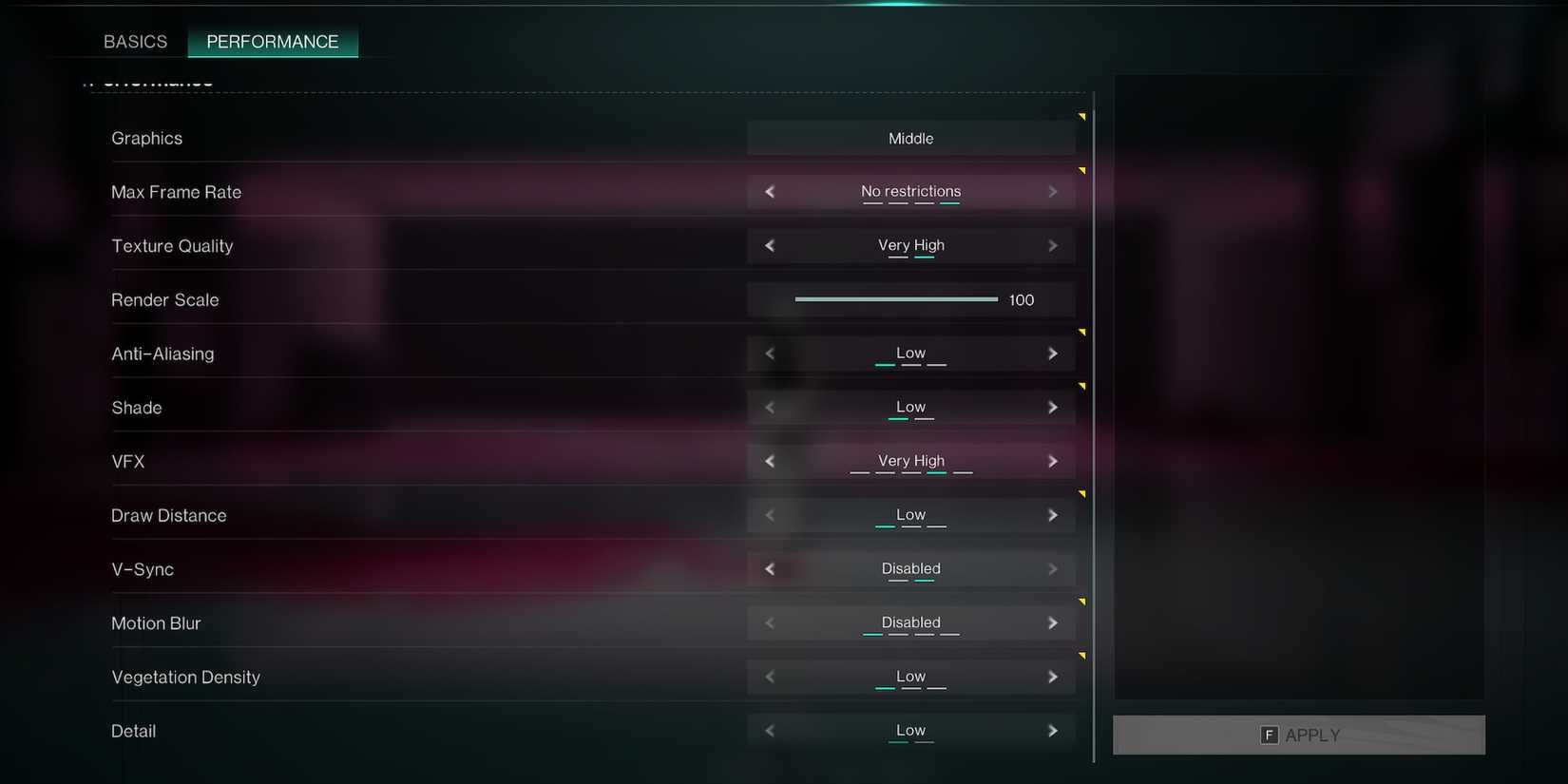
Vegetation Quality governs both the density and rendering distance of grass and environmental foliage across the map. PCOptimizedSettings benchmarks show this single setting decreases framerates by 5% to 10% on average when pushed to higher presets.
Vegetation Quality is the only slider in the graphics menu requiring a client restart to take effect. Lowering it mid-session leaves the previous foliage density active until the game relaunches.
Beyond raw framerate, high vegetation settings obscure crawling enemies and ground-level loot in thick brush. Dropping it to Low or Mid maintains enough greenery to preserve environmental art while exposing low-profile targets.
Resolving Edge Shimmering and Upscaler Choices
Once Human implements Temporal Anti-Aliasing (TAA) to smooth geometric edges, wire fences, and thin tree branches. Disabling anti-aliasing entirely claws back roughly 10% in raw framerate, but the visual cost is steep. At 1080p and 1440p resolutions, turned-off anti-aliasing produces intense visual crawling and shimmering on thin objects, making distant enemy spotting difficult.
Keep Anti-Aliasing on Low if you run at native resolution, or disable the internal TAA pass only when activating an external upscaler like Nvidia DLSS or AMD FSR.
Never lower the in-game Render Scale slider below 100 to gain frames. Sub-100 scaling applies a spatial blur across the entire interface and 3D environment, destroying distant readability. Upscalers reconstruct frames more cleanly than the raw render scaler.
API selection interacts directly with upscaling features, presenting a trade-off:
- DirectX 12: Enables DLSS 3 Frame Generation for compatible hardware, which delivers sizable framerate boosts according to PCOptimizedSettings. However, community testing indicates the DirectX 12 renderer remains experimental on certain system setups, occasionally introducing frame pacing inconsistencies.
- DirectX 11: Provides more consistent baseline frame times across older graphics card architectures, but locks out newer frame generation modules.
Relieving 1080p CPU Bottlenecks
Graphics card load scales heavily at higher resolutions—testing reveals an 80% performance delta between 4K and 1440p, indicating pure GPU saturation at high pixel counts (PCOptimizedSettings). At 1080p, the bottleneck flips to the processor.
Benchmarking at 1080p reveals CPU busy deviations reaching 29% and higher. When the CPU struggles to issue draw calls fast enough, lowering texture quality or shader detail will not fix your frame drops.
To free up processing headroom when CPU-bound:
- Set Draw Distance to Middle. High and Very High force the engine to track distant geometry and active entities that your crosshairs cannot effectively engage.
- Keep Vegetation Quality at Low or Mid to reduce the entity count sent to the CPU.
- Keep Visual Effects on Medium. Lowering effects prevents particle calculation pileups when multiple players trigger elemental reactions during Stardust boss fights.
Camera Controls for Frame Stability and Spotting
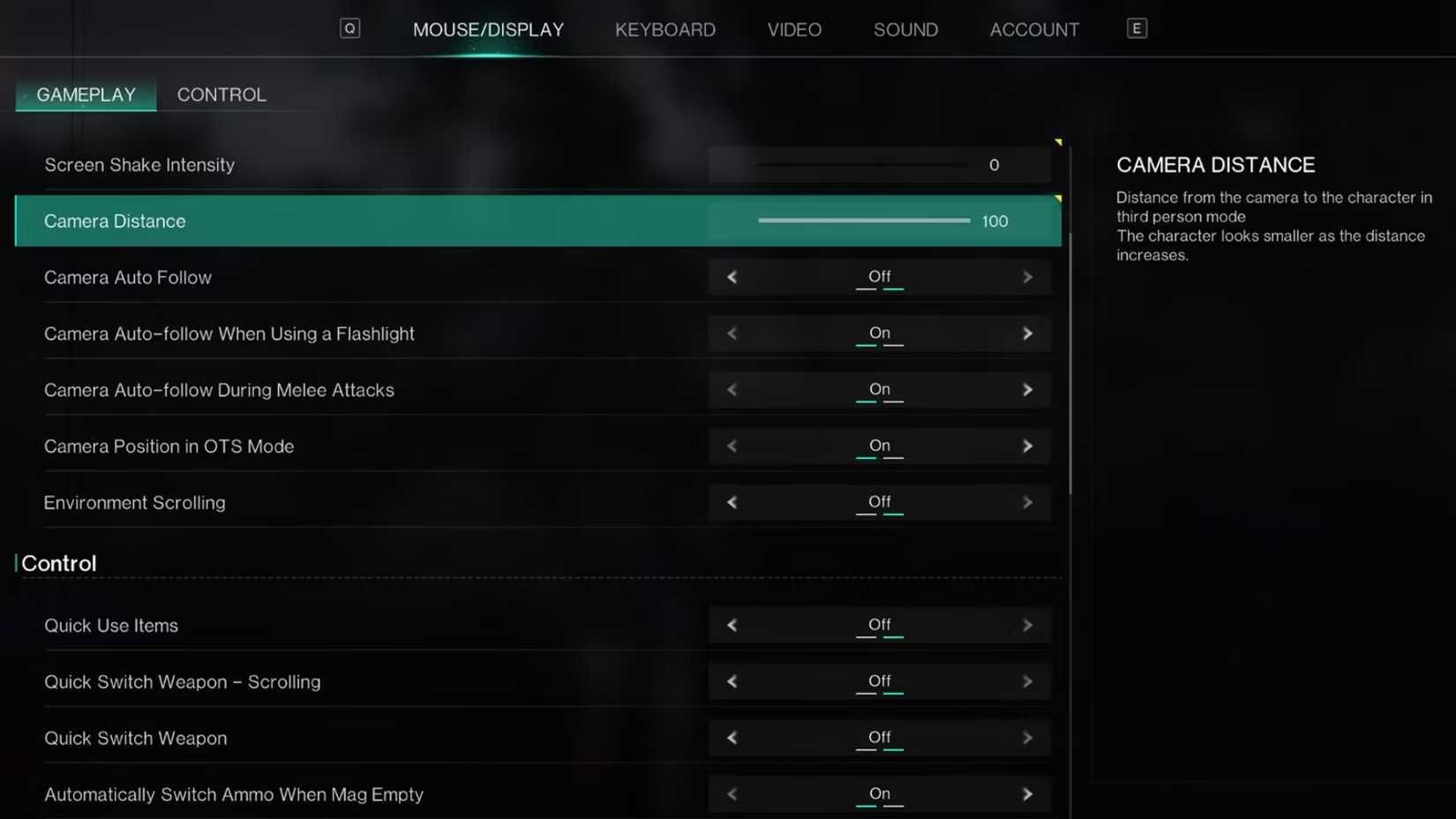
Two critical gameplay settings reside outside the core graphics tab under the Mouse/Display Camera Control sub-menu.
Set Camera Distance between 12 and 15 (Game Rant). Pulling the camera too far back widens your effective field of view. While a wider view aids peripheral vision, pushing beyond 15 forces the engine to render additional objects, shadows, and base structures on the screen edges, resulting in sudden frame drops inside populated territories.
Change Screen Shake Density to 0. Explosions and mutated Deviant encounters violently shake the viewport under default profiles, making it harder to track critical weak spots while firing automatic weapons.
While battle pass and cosmetic purchases rely on Crystgin, maintaining stable frame pacing and subdued screen motion has a direct operational payoff when tracking Deviant weak points in combat.
Eliminating Settlement Stutter and Memory Crashes
Sudden stuttering when driving across zone boundaries or stepping into player-built settlements rarely stems from GPU horsepower. It points to asset streaming bottlenecks and memory configuration.
SSD Storage Requirements
Once Human streams textures, structural models, and territory props dynamically as you move. Installing the client on a mechanical hard drive (HDD) leads to hitching and visible asset pop-in during transit. The official technical guidance strongly advises running the game on a solid-state drive (SSD) (Jeu.Video).
Documented storage requirements vary across distribution portals: Steam and System Requirements Lab cite 55 GB of available storage, whereas other publisher listings state 50 GB. Maintain at least 55 GB of unfragmented SSD space to facilitate background patching.
Windows Virtual Memory Allocation
If your client exits to desktop without an error code, system virtual memory may be exhausted. The development team documented that improper paging file sizing or placing paging files on congested secondary drives causes client crashes and degraded performance (Once Human Official Update).
To verify your paging file:
- Type
View advanced system settings in the Windows search bar and press Enter. - Under the Advanced tab, click Settings in the Performance box.
- Select the Advanced tab inside Performance Options, then click Change under Virtual Memory.
- Ensure the paging file is assigned to a fast SSD with ample free capacity, either set to "System managed size" or configured with a custom allocation that accommodates heavy background multitasking.
Frequently Asked Questions
Which graphics setting in Once Human requires restarting the game to take effect?
Vegetation Quality is the only graphics option that requires a client restart to apply changes (PCOptimizedSettings). All other settings update dynamically in the active session.
Why does Once Human stutter when walking into settlements despite having high average FPS?
Settlement micro-stuttering is caused by slow storage drive read speeds during asset streaming rather than insufficient graphics rendering power. Installing Once Human on an SSD resolves asset loading hitches (Jeu.Video).
Does lowering texture quality improve frame rates in Once Human?
Lowering textures only reduces local video memory usage. If your graphics card has 4 GB or more of VRAM, lowering textures will yield zero measurable frame gains (Games.gg).
Adjust your Windows virtual memory settings to ensure the paging file is placed on an SSD with sufficient available storage, or allow Windows to manage the pagefile size automatically (Once Human Official Update).








Comments