Learn how to link Tarisland mobile account to PC properly. Bind your guest or social login to Level Infinite Pass and fix missing character glitches instantly.
You boot the PC client, sign in, and stare at an empty character select screen. Your level-capped raider on your phone is nowhere in sight. Panic sets in, but your character is not deleted.
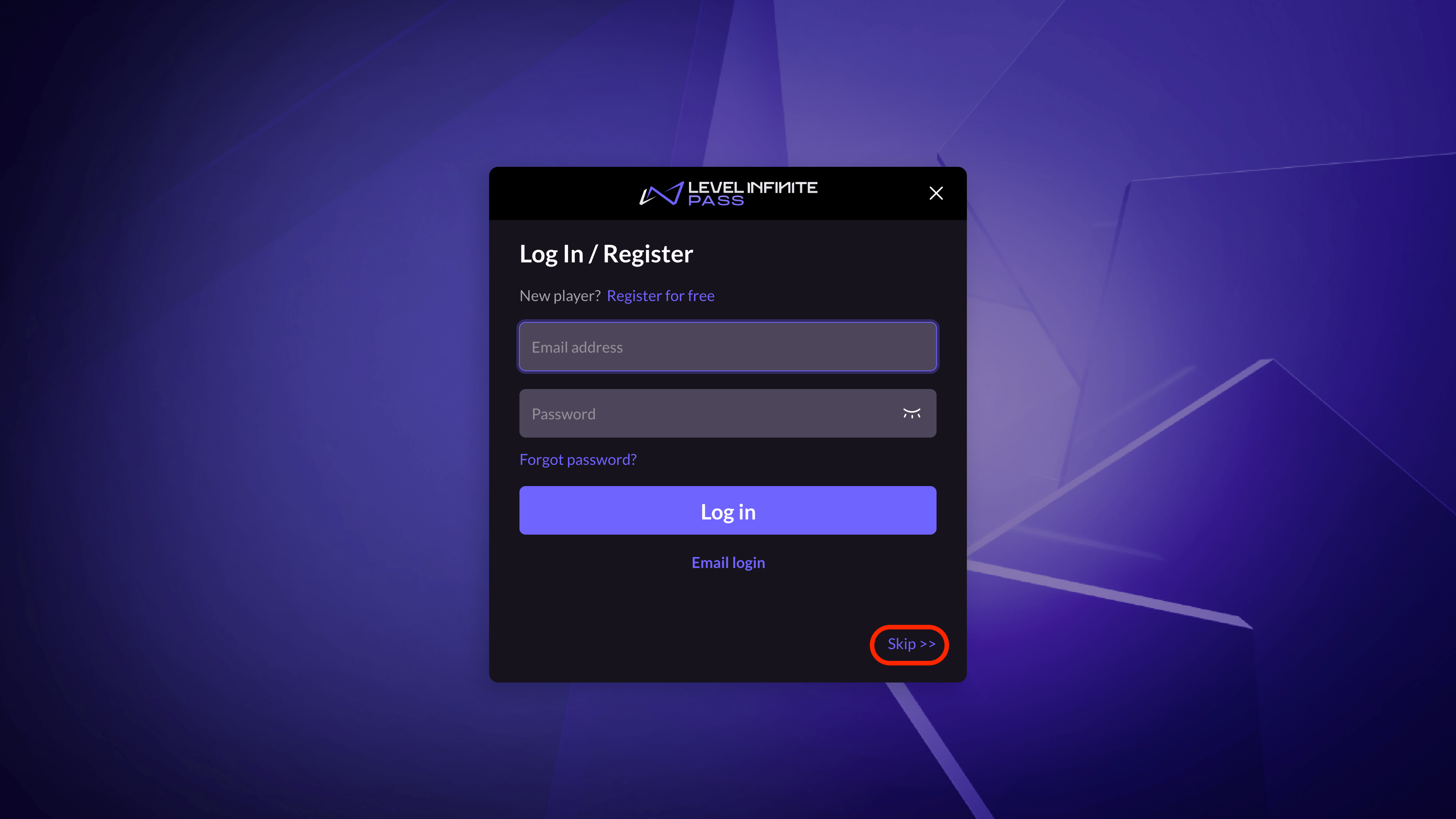
Tarisland runs entirely on centralized cloud data, meaning cross-platform play between Android, iOS, and PC is natively supported. The desktop launcher does not automatically pull your credentials out of thin air if you started as a guest or used a one-tap phone login. To bridge the gap, you need a single master key: the Level Infinite Pass.
Here is how to bind your mobile progress, configure your security correctly, and bypass the common traps that make characters vanish on desktop.
The Level Infinite Pass Architecture Behind Tarisland Cross-Play
Tarisland relies on Level Infinite Pass as its core identity and authentication layer. The system synchronizes player profiles across games and operating systems without charging manual character transfer fees. When you move between mobile and PC, you are not transferring files. You are pointing a different screen at the same cloud database.
[Mobile: Google / Apple / Guest]
           │
           ▼  (Mandatory In-Game Link)
   [Level Infinite Pass]  ◄─── (Email Verification + Master Password)
           │
           ▼  (Direct Client Auth)
      [PC Client]
If you started playing on Android with Google Play or on iPhone with Apple ID, your account lives within that specific mobile ecosystem until you tie it to a Level Infinite Pass. The PC client operates primarily through direct email-and-password authentication. If you try to open the PC client without creating that email bridge first, you end up creating an entirely new, blank account.
Your security tier determines whether your account binds cleanly or triggers automated defensive lockouts.
Account security tiers dictate which sessions the authentication system flags as risky:
| Security Tier | Account Status | Risk Profile and System Restrictions |
|---|
| Low Security | Unlinked Account | Guest accounts or profiles tied solely to one social channel; highly vulnerable to device loss. |
| Medium Security | LI PASS Linked | Account bound to a verified email address with synchronized password authentication. |
| Fairly High Security | LI PASS + 2FA Active (Untrusted Detected) | Two-factor verification enforced, but unrecognized hardware remains active in session history. |
| High Security | LI PASS + 2FA Active (All Trusted) | Two-factor active, secondary hardware verified, and unauthorized sessions purged. |
Maintaining a High Security status ensures that sudden PC client logins do not trigger automated fraud prevention freezes or session disconnects.
Why Desktop Launchers Hide Mobile Characters
Before you touch account settings, understand the two primary reasons PC players see an empty roster.
Regional Registration Mismatch
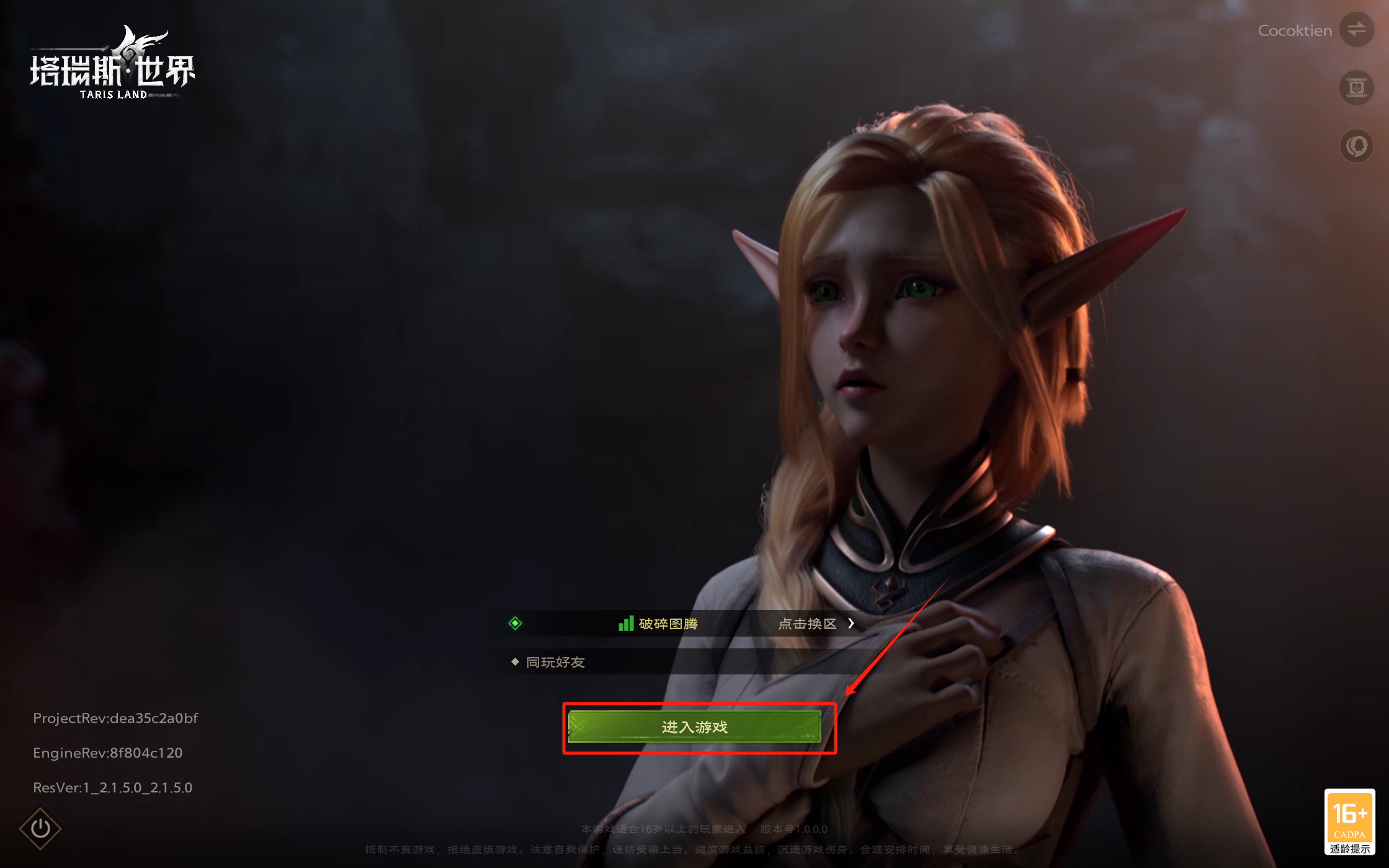
Tarisland accounts and server lists are hard-coded to your registration region. If you originally registered your account while connected to North American routing on your phone, your Level Infinite Pass is tied to the NA regional partition. If your PC client defaults to Europe or Asia due to system locale settings or network routing, the client queries a database where your profile does not exist. The result is an empty character list.
Wrong Server Selection
Each region contains multiple independent game servers. Cloud progression saves your exact class, gear, and quest history to the specific server where you built that character. The PC client does not always remember the last server you used on your phone. If your Paladin is on "Server 1" and the PC launcher defaults to "Server 2," you will see a fresh character creation prompt. Switching back to your original server restores your entire roster immediately.
If you plan to gear up your character after syncing across platforms, top up your Tarisland resources through safe Tarisland balance top-ups before queuing for high-tier raids.
Step-by-Step: How to Bind Your Mobile Account Before PC Login
Do not try to solve this from your PC first. The binding handshake must originate on the mobile device holding your active character data. Follow these steps in order to avoid accidental account overwrites.
Step 1: Open the Mobile Account Center
Launch Tarisland on your Android or iOS device and log in using your normal method. Once in the game world or at the character selection screen, open the Settings menu and locate the Account Center tab. This window displays your current binding status.
Step 2: Establish Email Verification
Select the option to link a Level Infinite Pass. The system requires an active email address. Enter an email you own, then request a verification code. The system dispatches a one-time verification code to your inbox. Enter this code within the time limit. You cannot bind your account without completing this verification step.
After email verification, you must establish your credentials. Level Infinite Pass enforces specific username syntax:
* Must begin with an alphabetic character (A-Z).
* Must consist solely of letters, numbers, and underscores.
* Must measure strictly between 6 and 16 characters in length.
Set a strong password. This password synchronizes globally across the Level Infinite network. If you change it later, the new password applies immediately to all games tied to this pass.
Step 4: Special Handling for Guest Accounts
If you have been playing on a guest account, you face the highest risk of accidental data loss. In the Level Infinite Account Center, you must link your guest account to a Level Infinite Pass before you attempt to bind any third-party social channels. Trying to link external social profiles directly to an unbound guest profile often triggers a session conflict that can strand your local save.
Step 5: Clear the Recurring Binding Prompt
If you use third-party social logins (such as Google or Apple ID) without linking a Level Infinite Pass, the client presents an account binding reminder cyclically every 30 days. Binding your profile to an email eliminates this recurring prompt entirely.
Once your PC client connects properly, you can buy battle passes or cosmetic tokens using direct Tarisland recharge services without relying on mobile app store checkout markups.
Authentication pathways differ depending on the hardware you use. The PC client does not always support every third-party login SDK available on mobile operating systems.
Credential support and session handling vary across client platforms:
| Feature / Method | PC Desktop Client | Android Client | iOS Client |
|---|
| Level Infinite Pass (Email) | Primary / Native | Supported | Supported |
| Google Account Direct | Limited / Web Redirect | Native Google Play | Third-Party Web Auth |
| Apple ID Direct | Not Supported Natively | Not Supported | Native Sign in with Apple |
| Passkey Authentication | Web Portal Auth | Up to 20 Local Passkeys | Up to 20 Local Passkeys |
| Guest Account Access | Disabled | Local Device Storage | Local Device Storage |
| Version Update Pathway | Standalone Launcher Patch | Google Play Store Patch | Apple App Store Patch |
Using a Level Infinite Pass email and password bypasses operating-system limitations across all platforms.
Troubleshooting Missing Characters and Connection Blocks
If you bound your account but still encounter errors on your computer, run through this troubleshooting sequence in order.
Character Missing on PC?
 ├─ 1. Check Launcher Region ──> Does it match your phone registration?
 │       └─ No ──> Switch Region to match mobile.
 ├─ 2. Check Server Selection ─> Are you on the exact server where you created the toon?
 │       └─ No ──> Select original server name from the list.
 ├─ 3. Check Account Security ──> Did you trigger the 24-hour new device freeze?
 │       └─ Yes ─> Authenticate via email code or wait out the timer.
 └─ 4. Check Client Version ───> Is your PC client on the latest patch?
         └─ No ──> Run Launcher Repair to resolve version mismatch.
1. Verify Regional Data Center Alignment
Open the PC launcher before clicking start. Check the regional dropdown in the upper corner. If your mobile character was created on North America, your PC client must point to North America. If your phone was set to Europe, select Europe. Switching regions resets your displayed server list to match that geographical database.
2. Confirm the Target Server Shard
Once the region is correct, look at the server name displayed on the launch gate. If it says "Recommended" or shows a server name you do not recognize, click it. Browse the server directory and select the exact server where your guild and characters live. Once selected, click Enter. Your full roster will load.
3. Handle the 24-Hour New Device Cooldown
Level Infinite Pass includes an automated anti-hijacking system. When you log into an account from an entirely new computer or untrusted network, security configurations can enforce an account linking cool-down window of 24 hours or longer. During this cooldown, the client may restrict account modifications or reject binding changes. If you run into a binding block on desktop immediately after a new login, do not spam attempts. Wait out the security window or verify the device via email.
4. Solve Two-Factor Authentication Prompts
If you have 2FA enabled, logging in on an unrecognized PC automatically triggers a one-time verification code sent to your registered email. Check your spam folders. Enter the code to authorize the PC as a trusted machine. If you skip this, the login sequence aborts.
5. Repair Client-Server Version Mismatches
Tarisland updates frequently. Version mismatches and failed updates block PC client connections to game servers. If your PC client did not finish downloading an incremental hotfix, you may encounter immediate disconnections or authentication failed errors. Close the game, click the gear icon in the PC launcher, and run the file verification tool to force any missing patch files to download.
6. Purge Stale Sessions via Remote Logout
If you suspect an older session is locking your profile, use the account security interface. Level Infinite Pass includes a "Log Out Of All Devices" tool. Clicking this immediately terminates all logged-in sessions across all secondary devices except the hardware you are currently using. This clears ghost sessions that prevent new desktop logins.
Passkeys, Unlinking Rules, and Security Hygiene
Managing your login credentials requires understanding the restrictions built into the Account Center.
Mobile players can register biometric or PIN-based passkeys directly within the Level Infinite Account Center. The system maintains a strict history limit of up to 20 passkeys. If you switch phones frequently or test different hardware, keep this ceiling in mind. Clear obsolete passkeys from the Account Center so you do not hit the registry cap.
If you need to remove a linked Google or Apple account, you cannot disconnect it with a single tap. To prevent takeovers, the system requires an email verification code before detaching any external social channel.
Level Infinite Pass enforces the following operational ceilings and cooldown rules:
| Rule / Restriction | Operational Value | Practical Impact on Players |
|---|
| Username Length | 6 to 16 Characters | Must start with a letter; letters, numbers, and underscores only. |
| Passkey Ceiling | 20 Passkeys Maximum | Old biometrics must be removed once the history threshold is reached. |
| Social Link Cycle | Every 30 Days | Prompts unlinked accounts to establish an email identity. |
| New Device Cooldown | 24+ Hours | Restricts high-level account changes on newly recognized hardware. |
| Class Roster Capacity | 9 Core Classes | Synchronizes all character slots across PC and mobile clients. |
These account limits protect your character data from automated credential stuffing and accidental unlinking.
Roster Synchronization and Class Continuity in 2026
Once your login credentials match, character synchronization is instant. Tarisland features nine playable classes, each with two distinct specializations:
* Bard
* Mage
* Paladin
* Phantom Necro
* Priest
* Ranger
* Shadow Swordsman
* Snowlion
* Warrior
Early beta coverage frequently reported seven playable classes (omitting Phantom Necro, Shadow Swordsman, and Snowlion, while listing a Barbarian Fighter). Official release architecture standardizes on the nine classes listed above. Whichever combination of specs you build on your phone, every talent point, gear loadout, and hotbar configuration pulls directly into the PC client upon login.
Keybinds and interface scales do not fully transfer from phone to PC due to screen geometry differences. Your character stats, inventory items, guild status, and raid unlocks sync directly through the cloud.
Before tackling raid progression on PC, check budget-friendly Tarisland crystals to make sure your primary character is ready for weekly resets.
Frequently Asked Questions
Why are my characters missing after logging into Tarisland on PC?
You are likely connected to the wrong server or an incorrect regional data center. Open the server list in the PC client and choose the exact server where your mobile character was originally created.
Can I link a guest mobile account directly to my PC launcher?
No, you cannot link a guest account directly to the desktop launcher. You must first open the in-game Account Center on your mobile device, bind the guest account to a Level Infinite Pass with an email and password, and use those credentials on PC.
No, cross-progression in Tarisland is completely free. Your character data syncs across mobile and PC through cloud servers as long as you log into the identical Level Infinite Pass on both machines.
What should I do if my mobile social login option is missing from the PC launcher?
Open the game on your phone, navigate to Account Settings, and attach your profile to a Level Infinite Pass email address. Once attached, log into the PC client using that registered email and password.
Why does the game say authentication failed or block my account binding on PC?
You may be hitting a security cooldown window, which can lock account modifications for 24 hours after logging in from a newly detected device. Wait out the timer or confirm the new device via the verification code sent to your registered email.
Will my character transfer if my mobile and PC clients are on different regions?
No, characters are permanently tied to their regional database. If your mobile profile was created in North America, your PC client must also be set to North America to load that character list.
How many passkeys can I register to my Level Infinite Pass?
You can maintain up to 20 passkeys across your devices in the Account Center. If you reach this ceiling, you must delete older, unused passkey entries before adding new ones.
What are the username requirements for a Level Infinite Pass?
A Level Infinite Pass username must measure between 6 and 16 characters in length. It must begin with an alphabetic letter and contain only letters, numbers, and underscores.
Final Verdict: Stick to Direct Email Authentication
Relying on one-tap social logins or mobile guest profiles is asking for trouble when you switch to desktop. Third-party authentication redirects on PC frequently break, drop browser cookies, or hit firewall blocks.
My recommendation is straightforward: open Tarisland on your phone right now, access the Account Center, and bind your profile directly to an email address via Level Infinite Pass. Set a strong password, clear out any old secondary devices using the session manager, and verify your server name before clicking play on PC. It takes three minutes, eliminates missing character bugs, and ensures your progress remains completely safe across every screen you use.










Comments