Stop letting loud red zones and gunshots mask enemy flanks. Dial in your PUBG Mobile audio settings and frequency sliders to isolate quiet footsteps cleanly.
Every competitive player knows the sudden panic of an unexpected shotgun blast on the second floor of a Rozhok apartment. You never heard the enemy sprint up the stairs. You heard the red zone dropping artillery three hundred meters away, the engine hum of a passing Dacia, and your teammate barking callouts over an open mic. The footsteps were completely buried.
Cranking master volume to maximum usually backfires, delivering instant ear strain the moment an AWM fires nearby. The game engine generates the directional cues you need to survive. Default mixing, however, swamps quiet movement beneath heavy combat transients. Hearing footsteps clearly requires balancing in-game sliders, cleaning up output hardware, and isolating the frequency range where boot treads actually register.
Anatomy of the Audio Tab: Sliders That Actually Matter
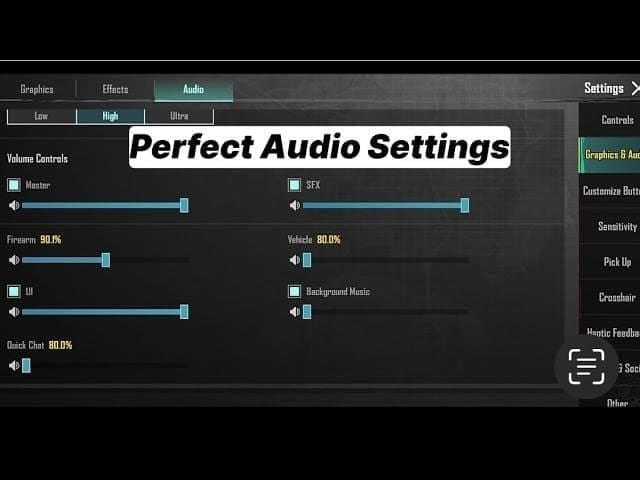
Inside the PUBG Mobile settings menu, the Audio tab splits sound into Master Volume, Sound Effects (SFX), Background Music (BGM), and Voice Chat. Each slider controls a dedicated channel before the mix reaches your headphones.
BGM belongs at zero. Background music offers zero competitive utility and risks masking early-game footsteps if menu cues bleed into the match. Master Volume controls total output gain, while SFX governs environmental audio, gunshots, vehicles, and footsteps. Setting both Master Volume and SFX to 100% ensures the engine passes its full dynamic range directly to your playback hardware.
Total silence upon entering a match typically points to system routing rather than in-game bugs. On iOS, check the physical mute rocker first, then verify system volume buttons and ensure in-game sliders are active. Bluetooth earbuds can also switch into low-bitrate hands-free profiles whenever a microphone opens. Verifying system toggles and in-game volume prevents compressed, muffled playback.
When grinding ranked tiers, picking up PUBG Mobile UC lets you unlock crates and seasonal gear without pulling time away from your practice sessions.
Footsteps do not live in the sub-bass register. Players often mistake heavy footsteps for low-end thumps, prompting them to buy bass-heavy gaming headsets that obscure subtle positional cues.
A sprinting player's weight sits between 150 Hz and 450 Hz. The mechanical scrape, heel strike, and surface texture—whether boots hit concrete, wood, gravel, or dirt—reside between 1 kHz and 4 kHz. Transient details, such as weapon reload clicks and gear rustling, sit slightly higher in the 4 kHz to 5 kHz bracket.
Different flooring shifts these cues. Running across wooden planks in Pochinki produces mid-range resonance between 2 kHz and 4 kHz. Creeping through grass on Erangel shifts friction noise up toward 6 kHz to 8 kHz. Meanwhile, grenade blasts, vehicle engines, and red zone artillery group below 500 Hz. When low frequencies dominate your headphone profile, those heavy rumbles mask the exact 1 kHz to 4 kHz bracket where approaching enemies produce sound.
| Frequency Band | Recommended Calibration | Acoustic Impact on Gameplay |
|---|
| Sub-Bass & Bass (31 Hz - 500 Hz) | Cut by -2 dB to -6 dB (or apply 100 Hz High-Pass Filter) | Attenuates explosion rumbles, vehicle engines, and muddy wind noise that drown out close movement. |
| Upper-Mids & Presence (1 kHz - 4 kHz) | Boost by +3 dB to +6 dB (surgical peak at 3 kHz, Q 1.2) | Amplifies critical boot impact transients and surface textures across concrete, wood, and metal. |
| High Treble & Air (6 kHz - 16 kHz) | Neutral or slight lift (+1 dB to +2 dB) | Captures faint gear shuffling and grass rustle; excessive boost causes listener fatigue and harsh gunshots. |
Attenuating low frequencies clears out low-end clutter, letting upper-mid impact transients cut through chaotic firefights.
Calibrating In-Game Volumes and Voice Chat Ducking
Configure in-game sliders methodically in the training grounds rather than guessing during a live match. You need a controlled space to test footsteps against bot movement and distant weapon fire.
Step-by-step slider setup:
- Open Settings and Select Audio: Tap the gear icon in the lobby or match menu and open the Audio tab.
- Silence Background Music: Pull the Music (BGM) slider down to 0% to prevent soundtrack playback during matches.
- Maximize Sound Effects: Push SFX Volume to 100% for uncompressed output of movement, doors, and surface impacts.
- Set Master Volume to 100%: Keep Master Volume at maximum so your mobile DAC receives an unattenuated digital signal.
- Drop Voice Chat Output: Lower incoming Voice Chat to 60% or 70% so loud callouts do not drown out flanking steps.
- Tune Microphone Input: Adjust microphone gain to 70% to stop heavy breathing or room noise from cluttering squad audio.
- Enable Native HRTF: Turn on Head-Related Transfer Function processing to preserve vertical and 360-degree positioning.
If you want to equip your squad with matching weapon skins or seasonal event outfits, top up via PUBG Mobile UC recharge to claim active rewards.
Adjust this baseline when playing with random teammates using unshielded phone mics. If a squadmate transmits loud background hum or static, drop their individual volume to 40% in the team speaker panel. Protecting your hearing protects your awareness.
Equalizer Profiles: Surgical Cuts and Boosts
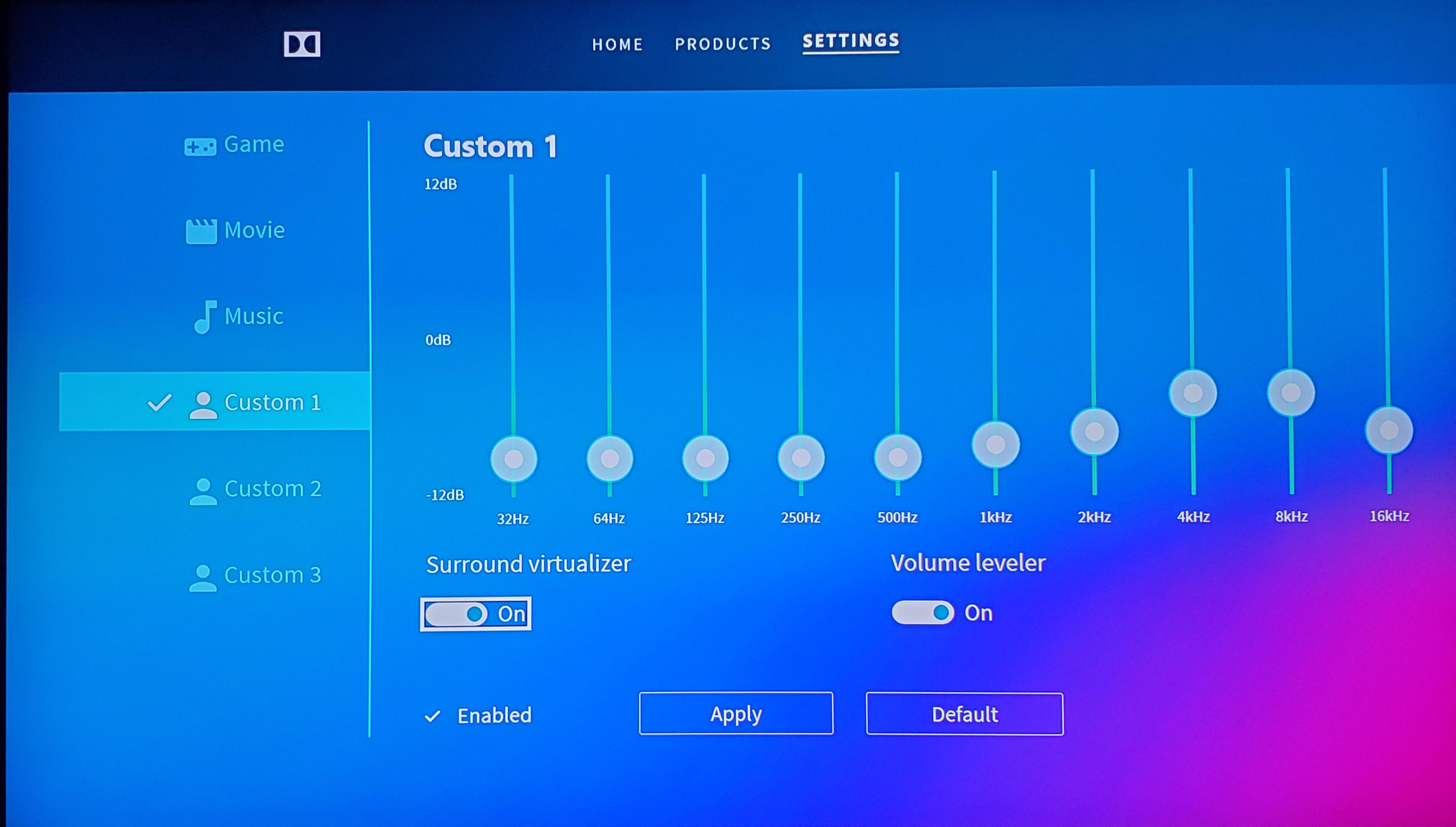
Fine-tuning audio beyond default sliders requires multi-band equalization. Gaming phones, external mobile DACs, and tablet OS software frequently provide graphic or parametric equalizers, giving you precise control over individual frequency ranges.
A boot landing on hard ground generates an acoustic snap between 2.5 kHz and 3.5 kHz. Applying a parametric boost of +4 dB at 3000 Hz with a Q-factor of 1.2 sharpens footsteps against wind audio without creating harsh ear fatigue during extended spray battles. Below 500 Hz, vehicle rumble and explosions pile up. Introducing a cut between 100 Hz and 500 Hz—or enabling a 100 Hz high-pass filter—clears that rumble instantly.
| EQ System Type | Frequency Band | Gain Adjustment | Target Sound Component |
|---|
| 6-Band Parametric | 150 Hz (Q 4.00) | +3.0 dB | Body weight and physical presence of player models |
| 6-Band Parametric | 450 Hz (Q 5.20) | -2.0 dB | Eliminates wind noise and low-mid engine mud |
| 6-Band Parametric | 1010 Hz (Q 4.50) | +3.0 dB | First harmonic of footstep surface friction |
| 6-Band Parametric | 1505 Hz (Q 6.00) | +2.5 dB | Concrete and stone scuff articulation |
| 6-Band Parametric | 2300 Hz (Q 4.50) | +4.5 dB | Hardwood floor creaks and metal stairs resonance |
| 6-Band Parametric | 4100 Hz (Q 3.50) | +6.0 dB | Crisp boot attack transient and surface snap |
| 10-Band Graphic | 31 Hz / 62 Hz / 125 Hz | -6 dB / -4 dB / -2 dB | Sub-bass rumble and explosion decay suppression |
| 10-Band Graphic | 250 Hz / 500 Hz | 0 dB / +2 dB | Neutral low-end balance with slight vocal clarity |
| 10-Band Graphic | 1 kHz / 2 kHz / 4 kHz | +4 dB / +6 dB / +4 dB | Core footstep detection bracket across all terrain types |
| 10-Band Graphic | 8 kHz / 16 kHz | +2 dB / 0 dB | High-end air without sharp acoustic sibilance |
Avoid aggressive high-treble boosting. Some older guides recommend spiking 6.35 kHz, 11.76 kHz, and 16.00 kHz. In competitive matches, excessive gain above 6 kHz causes harsh sibilance, turning automatic fire from an M416 or Beryl M762 into painful spikes that force you to lower overall volume.
The Loudness Equalization Trap: Compression Versus Dynamic Clarity
Loudness Equalization functions as dynamic range compression, pulling faint sounds up toward an audible baseline while squashing loud spikes. It seems convenient on paper: distant footsteps get amplified so you register approaching players from sixty meters away.
However, heavy dynamic compression destroys positional depth. When compression is pushed too hard, an enemy sprinting forty meters away sounds just as loud as someone entering your room. You lose the ability to calculate distance by volume. If you use system-level compression, keep the slider around 50% to 60%.
Combat transients expose an even larger drawback: audio pumping. When a frag grenade detonates or an enemy unloads nearby, the compressor aggressively ducks the entire soundstage to limit the volume spike. As the algorithm pulls the master track down, quiet footstep transients disappear for one to two seconds. An enemy can sprint through a doorway while your audio recovers from an explosion peak. Clean dynamic range paired with targeted EQ boosts delivers far more reliable positional accuracy.
Hardware Realities: Headset Tuning and Acoustic Seal Leaks
Software adjustments cannot overcome hardware that distorts incoming sound. Typical consumer headsets feature heavily scooped, bass-heavy frequency curves built to deliver cinematic explosions. For competitive matches, boosted bass acts as acoustic camouflage for enemy squads. Look for headphones or in-ear monitors (IEMs) offering neutral low-end response, forward upper-mids, and clean treble extension.
Physical seal integrity alters audio just as much as driver tuning. Glasses frames break the seal between over-ear headphone pads and your head, allowing low-frequency air pressure to bleed out and introducing acoustic cancellation of roughly 5 dB to 10 dB across the 2 kHz to 4 kHz range.
Switching to velour pads with relief channels reduces this seal leak. Alternatively, wired in-ear monitors bypass the problem entirely by sealing directly inside the ear canal, preserving upper-mid clarity.
Before heading into scrims or custom tournaments, check your inventory. Grabbing extra PUBG Mobile UC lets you equip customized finish effects and crate rewards before jumping into the lobby.
Operating systems handle game audio pipelines differently across iOS devices, Android flagships, and emulators.
A frequent misstep is running external spatial audio on top of the built-in game engine. Activating Windows Sonic, Dolby Atmos for Headphones, or DTS Headphone:X alongside in-game HRTF causes phase cancellation. Stacking two virtual surround engines smears the soundstage, making it nearly impossible to differentiate between footsteps directly in front of you and those behind you.
| Platform | Spatial Audio Configuration | Primary Optimization Focus | Latency & Routing Risk |
|---|
| iOS / iPadOS | Disable spatial audio processing in Control Center; rely strictly on game HRTF | Check physical mute switch and disable volume limiters in system settings | Bluetooth AAC codec adds 100-150 ms latency; use wired lightning/USB-C connection |
| Android | Turn off system Dolby Atmos or set profile to "Voice" / "Off" | Access onboard multi-band EQ to cut 100-500 Hz and boost 3 kHz | Varying vendor Bluetooth codecs (SBC/aptX); wired 3.5 mm or Type-C dongle recommended |
| PC Emulator | Turn off Windows Sonic and 7.1 virtual surround in sound control panel | Apply system equalizer (10-band or parametric profile) via sound card software | High buffer sizes cause sound lag; configure low audio buffer in emulator engine settings |
Stick to standard stereo output across all platforms, allowing the game's HRTF engine to handle 3D spatial positioning cleanly.
Maintaining Visual Sound Radar and Audio Sync
Visual cues complement your audio setup. PUBG Mobile provides a mini-map radar and on-screen directional indicators (Sound V2) that display orange footstep and firing icons when players move nearby. These visual markers keep your crosshairs aligned during hectic multi-squad engagements.
When frame rates drop, visual and acoustic indicators fall out of sync. Audio cues and visual radar share engine ticks. If your phone thermal throttles, audio delivery stutters behind the visual display. Selecting Smooth graphics and setting your frame rate to Extreme or 90 fps maintains stable hardware pacing.
Smooth graphics keeps internal temperatures down. Preventing thermal throttling ensures your audio thread remains locked to your display refresh rate, so the sound of an enemy boot hitting concrete plays the exact millisecond the marker lights up your screen.
Frequently Asked Questions
Turn Master Volume and Sound Effects (SFX) to 100% while setting Background Music (BGM) to 0%. Lower incoming voice chat volume to around 60% or 70% so loud teammates do not drown out movement sounds. This configuration ensures that subtle environmental movement reaches your ears without acoustic interference.
Footstep cues span between 1 kHz and 4 kHz, with hard boot impact transients peaking sharply between 2.5 kHz and 3.5 kHz. Lower body weight frequencies sit around 150 Hz to 450 Hz, while sub-500 Hz frequencies generally contain masking vehicle rumble and explosion noise.
Should I enable Dolby Atmos or Windows Sonic for PUBG Mobile?
No, external spatial processing layers should remain turned off when playing with the game's native audio engine. Stacking virtual surround software on top of the built-in Head-Related Transfer Function causes phase distortion that blurs positional accuracy.
Loudness Equalization compresses dynamic range to lift faint, distant footstep audio into an audible range sooner. However, setting compression too high ruins distance perception and creates an audio pumping effect that temporarily mutes footsteps when loud gunfire occurs.
Most commercial gaming headsets feature bass-heavy acoustic tuning designed to make explosions sound thunderous, which actively drowns out critical mid-range footstep frequencies. Competitive shooters require neutral sound tuning with tight bass and elevated upper-mid presence.
Yes, eyeglass arms break the acoustic seal of over-ear headphone cushions, creating an estimated 5 dB to 10 dB loss across the crucial 2 kHz to 4 kHz range. Using velour cushions with relief channels or switching to wired in-ear monitors eliminates this acoustic leak.
What should I check first if audio stops working completely in PUBG Mobile?
Confirm that your device volume is raised and that hardware mute toggles—such as the physical iOS mute switch—are turned off. Then verify that in-game sound sliders are above zero and inspect wired or Bluetooth connections for drops or hands-free profile conflicts.
Audio Discipline Beats Sheer Volume
Cranking master volume to maximum is not a strategy; it is an easy route to ear fatigue. Isolating enemy movement requires sound discipline. Zero out background music, pull down squad voice clutter, and run uncompressed stereo output without stacked surround processing.
When using an equalizer, cut the low-frequency rumble below 500 Hz and apply a focused boost near 3 kHz. You will pick up wood creaks, grass rustling, and stair sprints long before opponents realize they made sound.










Comments