The Low-End vs Flagship Contradiction: Which Rule to Follow?
Competitive communities push two opposing theories regarding frame rates and camera values:
- Theory A: Drop sensitivity on flagship hardware. Running high frame rates (90fps to 120fps) offers extreme input fidelity, so lowering sensitivity by 5% to 8% stabilizes your crosshair and eliminates microscopic jitter.
- Theory B: Jack sensitivity up on lower-end devices. Budget hardware running at 30 to 40 fps suffers from input registration lag, requiring drastically higher values to achieve functional turn speed.
Both theories reflect the same mechanical reality. Low-fps screens need a sensitivity push to compensate for lost touch polling samples. Flagship screens need lower values to stop the crosshair from skipping past player models.
Here is how hardware tiers translate into camera values across the standard 200-point scale used across competitive mobile titles:
| Device Tier & Hardware Specs | Recommended General Sensitivity | Action Button Sizing | Expected Performance Focus |
|---|
| Low-End Mobile (2GB–3GB RAM / 30–40 FPS) | 190–200 | 44%–48% | Offsets touch polling delay; prioritizes raw turning speed |
| Mid-Range Mobile (4GB–6GB RAM / 60 FPS) | 170–185 | 48%–52% | Balanced tracking for melee combos and standard jump bridging |
| High-End Mobile (8GB–12GB+ RAM / 90–120 FPS) | 140–160 | 52%–58% | Micro-precision control; stops over-flicking during strafing |
The data above maps required camera values against processing thresholds to equalize turn speed across varied mobile hardware.
Matching your sensitivity value to your RAM and screen capability keeps physical thumb travel consistent across different devices.
The Recommended Bedwars Sensitivity Profile
For a balanced setup that handles sword tracking and fast block placement, start with this baseline profile:
Before loading into matches to test your settings, players who want custom cosmetic sets or account upgrades can review items through Blockman Go top up services before adjusting their competitive controls.
- General Camera Sensitivity: Set to 165 (on a 200-point scale). This serves as the middle anchor for 60 fps devices. Drop to 145 if you run a 120Hz display; bump to 195 if your phone caps at 30 fps.
- Horizontal Swipe Acceleration:Enabled. Swipe acceleration lets slow drags track enemy heads steadily, while quick flicks trigger a rapid 180-degree turn to catch bridge flankers.
- Touch Smoothing / Pointer Precision:Disabled. Remove all artificial smoothing filters. Artificial acceleration curves introduce inconsistent velocity spikes that ruin muscle memory.
- Action Button Scaling: Scale your primary attack button to 50%. Set your block-placement trigger to 52% to prevent accidental misclicks while running along edges.
When should you adjust this profile? Agile jump-shot combat requires your crosshair to swing faster than running speed, needing a baseline boost of 5 to 8 points. If you back-jump out of tight corners while swinging your weapon, add 7 to 10 points to general sensitivity so enemies stay centered during backward momentum.
HUD Architecture: Moving from Two Thumbs to Claw
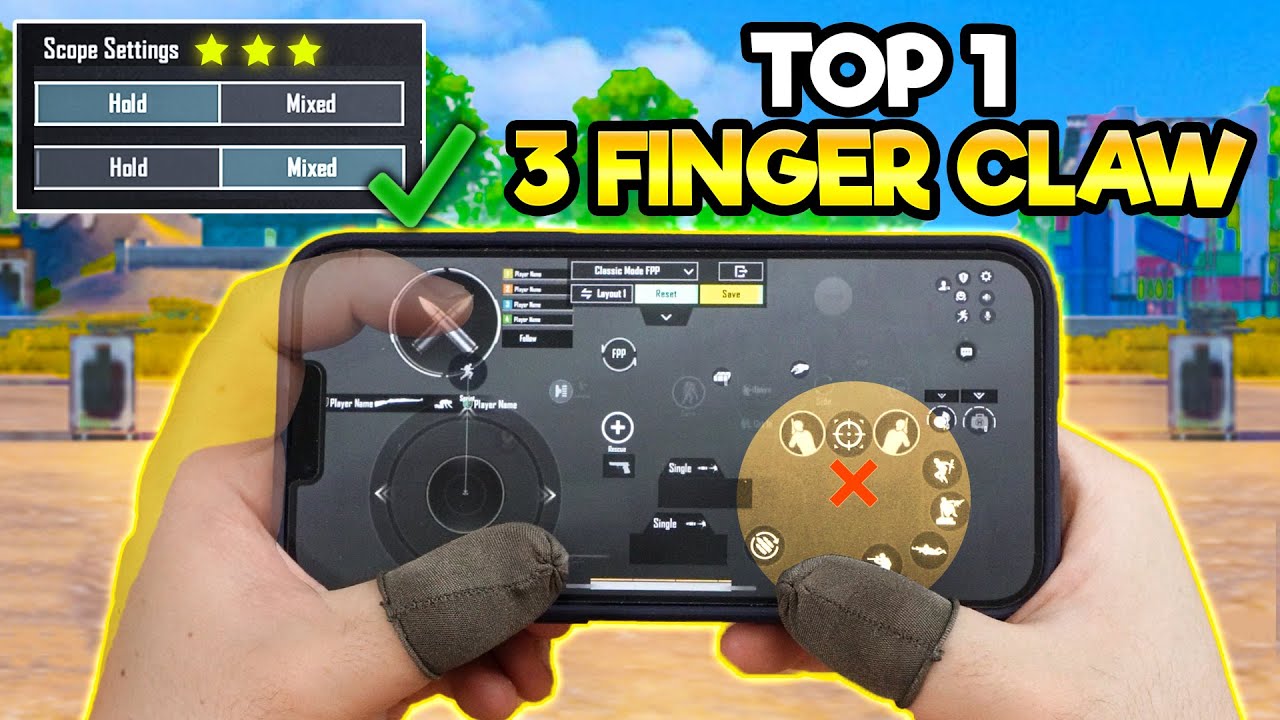
High camera sensitivity cannot fix a flawed button layout. Playing with just two thumbs forces your right thumb to do three incompatible jobs at once: steer the camera, swing your weapon, and place bridging blocks. The moment you lift your thumb to tap attack, tracking stops dead.
Transitioning to a three-finger or four-finger claw grip decouples aiming from action inputs. Shift jumping or swinging to your left index finger, and your right thumb remains dedicated to camera tracking.
Multi-finger layouts alter how your screen handles inputs. When multiple fingers contact the glass simultaneously, small vibrations register as unintended camera drift. Because of this, switching from two thumbs to claw requires dropping base camera sensitivity. Keeping high thumb sensitivity on a claw layout causes the crosshair to twitch every time your index finger taps the upper screen.
Rebuilding muscle memory takes time. Switching your control scheme causes an immediate performance drop and requires 7 to 10 days of daily practice to stabilize. Commit to the layout before changing it back.
Fast Bridging Mechanics and Aim Stability
Bridging across islands demands steady, repeatable screen positioning. Whether you use backward crouching methods, speed-bridging, or sprint-bridging techniques, camera deviation of even two degrees will send you plummeting into the void.
Fast placement requires your crosshair to remain locked onto block boundaries while your character strafes backward or sideways. If your sensitivity is too high, small taps on the screen will shift your placement angle off-target.
Bridging Line: [ Block A ] -> [ Block B ] -> [ Placement Point ]
                     ^
              Crosshair Lock
      (Zero horizontal jitter allowed)
Keep your vertical sensitivity stable. When your horizontal axis moves freely for turns but your vertical axis resists accidental shakes, sprint bridging becomes much more consistent. If your camera drifts downward while spamming blocks, lower your overall sensitivity in 5 to 10 point increments until you can sprint-place twenty blocks in a straight line without a single misstep.
System-Level Android Optimizations for Minimal Latency
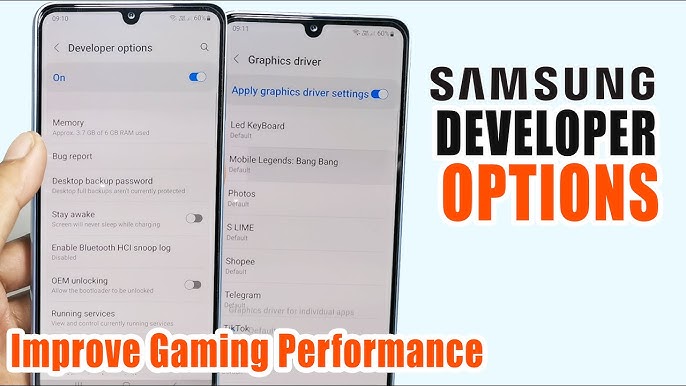
Your in-game sliders only perform as well as your mobile operating system permits. Background processes, animation scales, and power policies introduce latency to touch commands. Adjusting underlying software settings ensures swipe commands register cleanly.
| Setting Location | Target Adjustment | Input Benefit |
|---|
| Developer Options | Window Animation Scale: 0.5x (or Off) | Cuts OS-level window rendering delay |
| Developer Options | Transition Animation Scale: 0.5x | Speeds up system visual response times |
| Developer Options | Animator Duration Scale: 0.5x | Eliminates frame calculation pauses |
| Battery Settings | Battery Saver: Disabled | Stops CPU/GPU core downclocking |
| Power Management | Maintain Battery Above 50% | Prevents thermal and low-voltage throttling |
| Display Settings | Refresh Rate: Locked 120Hz (if supported) | Maximizes touch sampling frequency |
System adjustments in the table above decrease touch latency without modifying game code or violating terms of service.
Disabling battery saver mode is critical. Operating under battery saver throttles processor clock speeds and limits touch sampling rates, introducing input delay. Keeping battery levels above 50% ensures steady current delivery and stops background throttling.
For players who want access to VIP privileges or seasonal passes while optimizing their gameplay, purchasing from cheap Blockman Go top up options allows you to unlock competitive perks through secure checkout steps.
Mobile Touch vs PC Emulator Control Configurations
Mobile touch screens require completely different sensitivity logic than running Blockman Go through a PC Android emulator. On mobile, your physical thumb controls acceleration and absolute position. On an emulator, a mouse sensor translates digital DPI directly into crosshair tracking.
Competitive mouse profiles on PC emulators abandon unified sensitivity entirely. Instead, they rely on specific X-axis and Y-axis ratios to balance fast combat scanning with steady aim.
| Control Parameter | Mobile Touchscreen Standard | PC Emulator Competitive Target |
|---|
| Primary Input | Capacitive Touch Digitizer | Optical Mouse Sensor |
| Horizontal (X-Axis) Sensitivity | 160–180 (Normalized) | 1.45 Ratio |
| Vertical (Y-Axis) Sensitivity | Matches X-Axis (1:1 standard) | 0.85 Ratio |
| Acceleration Setting | Horizontal Swipe Accel Enabled | Pointer Precision / Accel Disabled |
| Effective Turn Speed | Governed by physical swipe distance | Governed by mouse DPI and pad surface |
| Primary Drawback | Thermal throttling and finger friction | Keybind mapping delays and camera snapping |
The cross-platform comparison above highlights why touch sensitivity curves fail when directly applied to mouse-and-keyboard emulator configurations.
On PC setups, setting horizontal X sensitivity to 1.45 gives you rapid 180-degree checks against sneaking opponents. Keeping vertical Y sensitivity at 0.85 locks your aim line to player chest height, preventing accidental upward flicks during mouse clicks. Always disable "Enhance Pointer Precision" inside Windows mouse properties to preserve 1:1 physical tracking.
Dedicated Aim Training Routines
Never jump directly into ranked Bedwars matches right after adjusting your sensitivity sliders. Doing so ruins confidence, invites second-guessing, and leads to unnecessary slider resets.
Use dedicated training sessions to verify your setup:
- Spend 10 to 15 minutes in a private sandbox or low-stakes match before your competitive sessions.
- Practice snap-turns. Pick a specific block corner, flick your camera 180 degrees away, and immediately flick back. If your crosshair lands past the corner, your sensitivity is too high. If you fall short, bump it up.
- Make adjustments strictly in 5 to 10 point increments. Sweeping changes from 140 straight to 190 prevent your brain from building consistent motor memory.
- Practice straight-line sprint bridging across thirty-block spans. Count how many times your camera jerks off the edge path.
Track consistency across multiple days. If you find your character lacking custom equipment or styling blocks during group play, explore Blockman Go recharges to browse all currently supported catalog drops.
Troubleshooting Common Sensitivity Problems
When your crosshair refuses to behave, run through this diagnostic sequence before changing your primary values.
The Camera Feels Jittery
If your screen shivers during micro-adjustments, your sensitivity is too high for your display's refresh rate. Drop your general camera slider down by 5 points at a time. Also, wipe your screen clean: finger oil changes glass friction, which can register as rapid, erratic micro-taps.
The Camera Feels Heavy and Slow
If turning around feels sluggish, check device temperature and battery level. If your battery has dropped under 50% or the back of the phone feels hot, thermal throttling is capping your frame rate. Let the device cool down, turn off battery saver, and verify that your system animation scales remain at 0.5x.
Overshooting Bridge Targets
If you constantly flick past the edge of the block while building, your horizontal acceleration may be kicking in too early. Lower your overall slider by 5 to 8 points, or rely on physical screen distance rather than flick speed to guide your placements.
FAQ
Why does my camera feel jittery during close-range PvP?
Your sensitivity is likely set too high for your screen's refresh rate. Drop your sensitivity in 5-point increments until micro-drags remain completely steady. Also check if finger oils on your screen are breaking capacitive touch contact.
Does my phone's frame rate affect my sensitivity settings?
Yes, lower frame rates create input lag that requires higher sensitivity values. High-refresh screens at 90Hz or 120Hz feel more responsive and require lower sensitivity to avoid overshooting.
No, you should avoid making reactionary changes after single matches. Test adjustments over multiple practice sessions to avoid ruining your muscle memory.
How do I fix sluggish touch response on older mobile devices?
Increase your general sensitivity slider and reduce OS animation scales to 0.5x in Developer Options. Also disable battery saver mode to stop hardware throttling.
Does phone temperature impact camera swipe consistency?
Yes, thermal throttling drops your processor clock speed and frame rates during extended play. This causes swipes to feel suddenly heavy or erratic until the device cools down.
What sensitivity adjustments help with jump-shot combat?
Increase your baseline camera sensitivity by 5 to 8 points. This extra speed helps your crosshair track moving targets quickly while jumping.
How long does it take to adapt to a new mobile sensitivity setup?
It takes roughly 7 to 10 days of consistent training to lock in new muscle memory. Stick to the same values across consecutive sessions rather than tweaking sliders daily.
The Final Verdict on Bedwars Control Tuning
Chasing professional players' exact sensitivity numbers is a trap. Their settings are built around their personal finger size, glass surface friction, and device frame rates. Copying a 120Hz flagship setup onto an older 30 fps phone will leave your aim feeling completely broken.
Lock in a hardware-matched baseline: push between 190–200 if you fight through low-end frame drops, settle near 170–185 on standard 60 fps mid-tier hardware, and pull back to 140–160 on 120Hz displays. Move your attack and placement keys off your aiming thumb by learning a claw grip, set your system animations to 0.5x, and leave your sliders alone for at least seven days. Consistent motor memory wins Bedwars matches, not endless slider adjustments.











Comments