The receipt lives at the payment layer, not in the garage
Tap "buy" on a token pack and Asphalt 9 immediately punts the real transaction over to whatever store your account's tied to. Gameloft books the tokens. Google, Apple, Steam, Microsoft or Nintendo books the money. The receipt gets cut at that money layer. That little "purchase successful" flash you see in-game? It's confirming delivery, nothing more. Gameloft's support docs treat the platform receipt as primary proof and tag the in-game confirmation as strictly secondary.
And here's a quirk barely anyone mentions: token purchases are consumables. Spend those tokens on a car or an event entry and the whole purchase can vanish from the game's in-app history. The store receipt won't. It stays parked in your Google or Apple account forever, burned tokens or not. So if you're glaring at an empty in-game purchase list, wondering where your cash evaporated to, you're searching the one place that never held the record anyway.
That's the lens for everything below. The store is the source of truth.
Pulling order history on every store you might have bought from
Most write-ups cover Google Play or Apple, then quit. But players grab Asphalt 9 tokens across at least seven storefronts, so here's the whole cross-platform map in one shot.
| Platform |
Where to find your order history |
What it shows |
| Android / Google Play |
Play Store → profile icon → Payments & subscriptions → Budget & history |
Order ID, date, amount |
| iOS / App Store |
reportaproblem.apple.com (sign in) or Settings → Apple ID → Purchase History |
Online list + emailed receipts |
| Third-party top-up |
Confirmation email from the service |
Receipt sent on successful payment |
Source: Gameloft Help Center + Google/Apple Support (2026)
Android: the Google Play path

Open the Play Store, tap your profile, then head to Payments & subscriptions → Budget & history. Your order history unfolds with every Asphalt 9 charge listed by order ID, date and amount. That's the official route, straight from Google Play Help. Lost the original email? Doesn't matter. The Google Payments Center keeps the same record and can fire off a fresh copy to your inbox ages after the fact. Trashing the confirmation is a nuisance, not a death sentence.
iPhone and iPad: Apple's two front doors
iOS hands you two ways in. The tidier one is reportaproblem.apple.com. Sign in with your Apple ID and the full history loads, which is the path Apple Support steers you toward. You can also dig it out via Settings → Apple ID → Purchase History on the device itself. Apple emails receipts for in-app buys too, though those famously arrive later than Google's and have a habit of burrowing into Promotions or spam. Look there before you declare anything broken.
Steam, Microsoft Store, Nintendo eShop and the rest
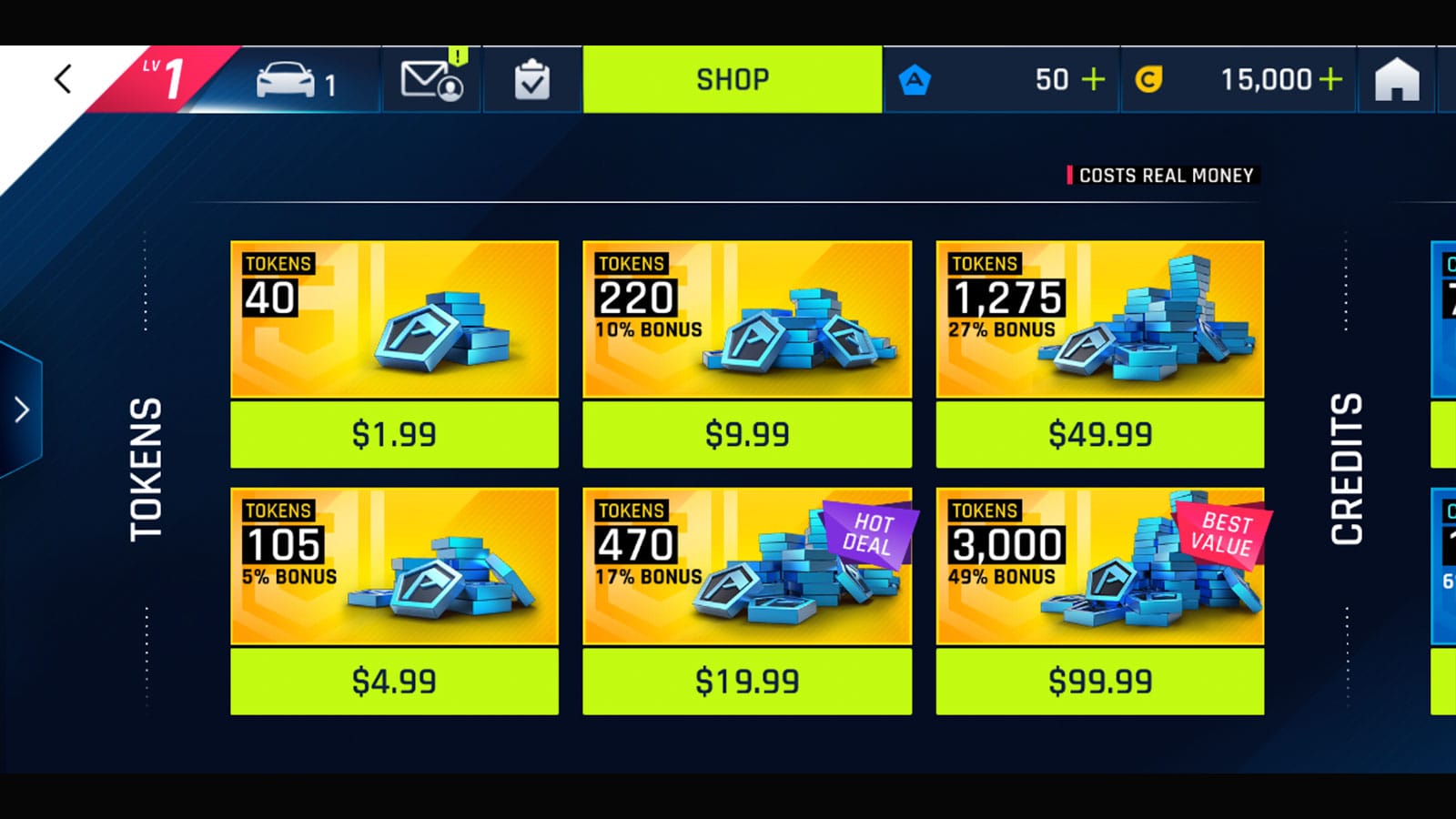
Asphalt 9 runs on PC and console as well, and every storefront keeps its own billing trail. On Steam, your purchase history sits under Account Details → Store & Purchase History, with a receipt emailed per transaction. Microsoft Store orders live in your Microsoft account's Order History. Nintendo eShop logs them under your Nintendo Account purchase history. The Samsung Galaxy Store and Huawei AppGallery each keep an in-app order list plus an email copy. Same principle everywhere: the storefront that took your payment is the one holding your invoice. Don't go fishing for a Steam token charge inside the game.
Top-up services like VGTopup
Topped up through a third-party service instead of the in-app store? Then your receipt is the confirmation email that service shoots over the instant payment clears. Per Razer Gold, that's just how it works. A successful third-party purchase auto-fires an emailed receipt. Where players trip up is treating these as some lesser-grade proof. They aren't. A third-party confirmation carrying an order ID, date, amount and item works for a Gameloft support ticket every bit as well as a Play Store receipt, provided you saved it. There's no backup copy waiting in a Google or Apple account to rescue you here, so the second that email lands, file it away.
Now you know where the document lives. Next question is whether yours is any good.
What turns a confirmation into usable proof
A screenshot of your fat new token balance is not a receipt. Gameloft support wants a financial record, and four fields decide whether yours flies. The support docs say a valid order confirmation has to show the date, pack name, price, and transaction ID. Drop any one and your ticket sits there while an agent pings you to resend.
| Receipt element |
Why it matters |
Where it appears |
| Order / transaction ID |
The single identifier support searches on |
Store order history + email |
| Date |
Anchors the purchase to a billing window |
Store order history + email |
| Amount paid |
Confirms the actual charge |
Store order history + email |
| Item / pack name |
Proves which token bundle |
Email receipt, sometimes truncated in-app |
Source: Gameloft Help Center (2026)
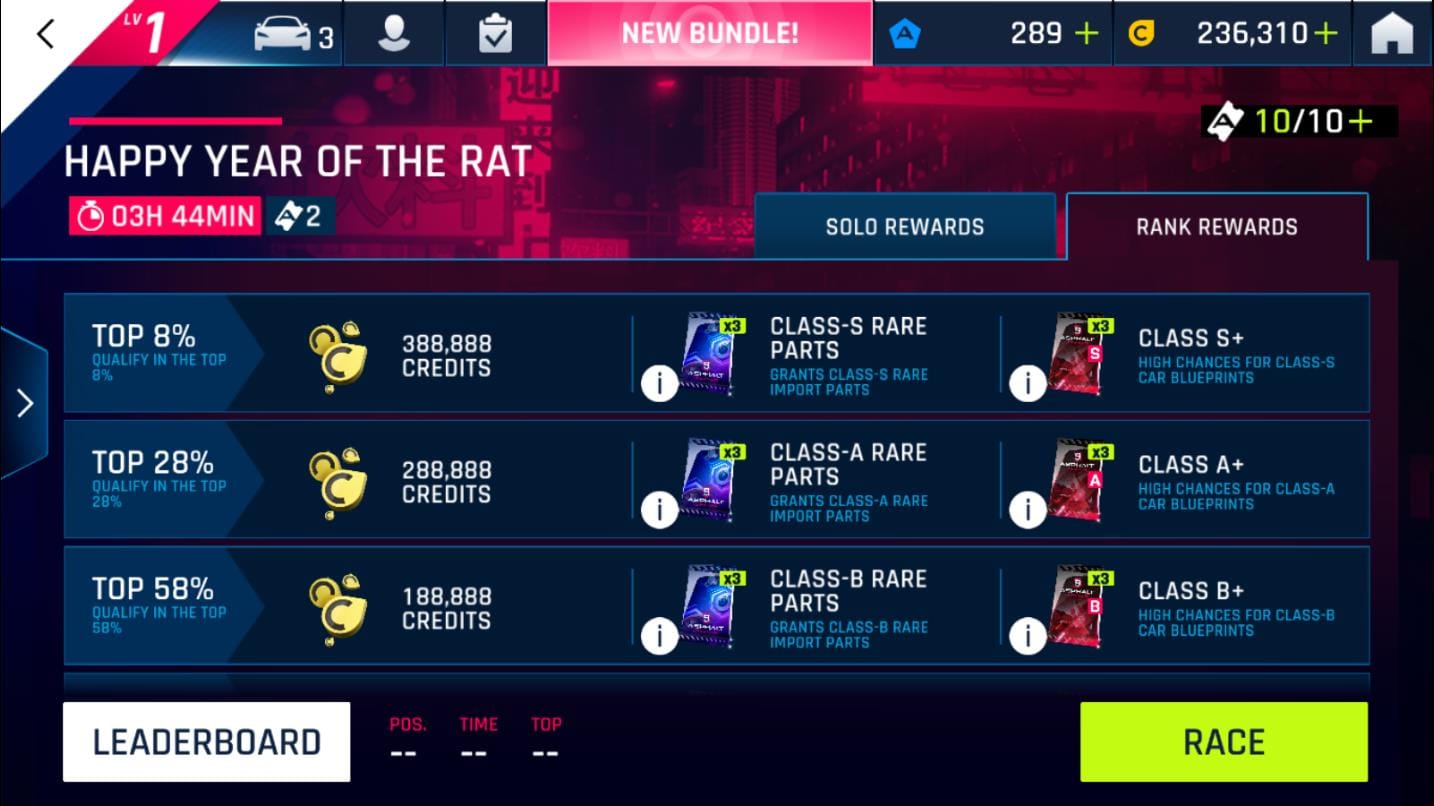
This is exactly where the in-game purchase screen lets you down hardest. It might cough up a pack name and a date, but a clean transaction ID or the precise amount charged in your currency? Rarely. And once you've burned the tokens, it might show you nothing at all. Which is why the store receipt or the third-party email beats it cold every single time. When you ping Gameloft, open with the order ID. A ticket that starts with a transaction number gets closed faster than one starting with "I bought some tokens last Tuesday and they're gone."
Which lands us on the scenario fueling most of these searches: the charge went through, the tokens didn't.
Charged but no tokens? Read this before you re-buy
The priciest blunder here is panicking. A massive chunk of "missing token" reports aren't failed payments at all, they're delivery lag. During heavy-traffic events, order delivery can trail by minutes or a couple of hours, and the megathreads over on r/Asphalt9 are packed with folks who read that lag as a failure, re-bought, and got dinged twice. Don't join them.
Right sequence:
- Wait. Gameloft says give it 24 hours before escalating. Most syncs sort themselves out well inside that.
- Confirm the charge actually landed. Pull your store order history. No charge means nothing to dispute and re-buying's safe. Charge present but no tokens means you've got a real case.
- Open a ticket with proof. In-game, go to Settings → Customer Care and contact Gameloft with your receipt copy or a purchase-history screenshot. That's the documented channel, and support won't move without the proof.
Now for the part that cuts against the grain. The usual wisdom says ping Gameloft first for anything purchase-related. For a charge dispute, though, the store's often quicker. Refunds on the Google side get handled directly by the store inside a 48-hour request window, per Google Play, and a refund is something only the store can issue anyway. Demanding one from Gameloft when the platform is the only party that can actually process it is the single biggest time-sink in the community threads. Gameloft can re-deliver missing tokens. It generally can't claw back a store charge. Route the issue by what you genuinely want out of it.
There's a sharp edge here. Miss the platform refund window and your case wilts fast. Gameloft's own terms permit a 14-day cancellation on some orders through Customer Care, per Gameloft Terms of Use, but that's tighter than it reads and doesn't trump a consumable-token policy. Practical version: report a charged-but-missing purchase inside that 48-hour window, order ID in hand, or accept you're now leaning on goodwill instead of policy.
For third-party top-ups, the routing's identical. You contact Gameloft with the service's confirmation email when tokens go missing, because the in-game delivery is Gameloft's half of the deal. Just check that email carries all four fields first.
Why I screenshot every purchase the second it lands
The email receipt is the most valuable document Asphalt 9 players blow off right up until the moment they need it and can't dig it up. My honest read: treat every top-up like a transaction you might have to defend down the line, because the dispute process drags slowly enough that you really don't want to be reconstructing what you paid from foggy memory.
Three habits worth drilling in. One, don't delete the confirmation email. And if you already did, Google and Apple can re-send theirs from your account, but a third-party top-up usually can't, so those are the ones to archive the moment they show. Two, screenshot the order ID specifically, since that's the field support hunts on and the one most prone to getting chopped or going AWOL in the in-game view. Three, separate "delayed" from "failed" before you spend another cent, because the store order history settles that question in fifteen seconds and spares you a double charge.
The deeper bit the tier lists and top-up guides breeze right past: in-game purchase history feels legit because it lives inside the game, but it's the weakest proof you can bring to an actual dispute. It thins out the instant you spend consumable tokens, and it rarely carries a clean transaction ID. That unglamorous email gathering dust in your inbox is the thing that wins. Save it like it's worth money. In a dispute, it is.
One practical note for next time you're topping up: services that email a clear, itemized order confirmation the second you pay, including third-party routes like Asphalt 9: Legends Tokens top up, leave you one fewer receipt to chase when a sync drags its feet. Whatever channel you pick, the rule holds. Save the proof before you need it.
Frequently Asked Questions
Why didn't I get a confirmation email after buying Asphalt 9 tokens?
Check spam and Promotions first. Apple receipts especially tend to roll in late and get filtered out. Per Gameloft Help Center (2026), if it still hasn't surfaced, the platform's own order history holds the identical record. Google Payments Center and Apple's reportaproblem.apple.com can both re-send a receipt long after the original, so a deleted or missing email isn't the dead end it feels like.
Does Asphalt 9 keep an in-game purchase history I can use as proof?
It keeps a thin one, but I wouldn't bank on it. Consumable token purchases can fall out of in-game history once you've spent them, and the screen rarely surfaces a clean transaction ID. Gameloft's support process treats the platform receipt as primary proof and the in-game confirmation as secondary. So screenshot the store record, not the garage.
Can I actually get a refund on Asphalt 9 tokens?
That hangs on timing and platform, not on Gameloft. Tokens are consumables, which makes refunds discretionary, but Google Play takes a refund request within 48 hours of purchase per its policy. Gameloft's terms also allow a 14-day cancellation on some orders through Customer Care, narrower than it sounds for consumables. Report fast and you keep your options. Wait past the store window and you're on goodwill.
How long should I wait before reporting missing tokens?
Give it 24 hours before escalating, per Gameloft's guidance. Delivery delays of minutes to a few hours are routine during busy events and don't signal a failed payment. Confirm the charge in your store order history first. If money left your account but tokens never arrived after that window, open a Customer Care ticket leading with the order ID.
Is a third-party top-up confirmation valid proof for Gameloft support?
Yes, as long as it carries the same fields a store receipt does: order ID, date, amount and pack name. The catch is that, unlike a Google or Apple purchase, there's usually no backup copy tucked away in a platform account to recover, so save the confirmation email the moment it arrives. Lead any support ticket with that order ID for the quickest resolution.







Comments