Struggling with HUD clutter, flipped cameras, or audio lag? Learn how to change stream controls in Tango Live across mobile, web, and external companion apps.
Setting up a broadcast on Tango Live feels nothing like firing up a standard mobile stream. Most live-streaming apps bundle camera controls, audio toggles, viewer comments, and gift alerts into a single touch interface. Tango splits these functions across separate screens depending on your operating system.
Tapping your screen mid-broadcast to flip a lens or mute feedback will fail if you expect a traditional mobile layout. The interface shifts depending on whether you broadcast natively or route through external capture tools. Configuring your stream controls correctly requires matching your physical setup to Tango's split-dashboard mechanics.

Decoupling Camera Feed from Dashboard Controls
Broadcasting on Tango Live in 2026 requires managing a dual-layer setup. The video capture feed and stream dashboard operate in two distinct environments.
On iOS, Tango routes feeds through an external broadcast workflow: you capture video through a companion tool called BoarCast, while running the tango live broadcast settings menu and chat console through Tango Web in Safari or Chrome.
This split architecture divides control inputs into strict silos:
- Visual and Audio Inputs: Handled on the capture device via BoarCast. This interface houses camera lenses, active beauty filters, and microphone feeds.
- Interaction and Moderation Inputs: Managed through Tango Web. This includes text chat, viewer moderation tools, gift alerts, and guest requests.
- Monetization Triggers: Controlled on the web dashboard. Toggles for premium streams and private 1-on-1 calls live in the browser session rather than on your capture screen.
Attempting to mute your microphone from the chat window or adjust beauty filters from the browser will do nothing. You must adjust settings on the specific client that owns that input.
Regional app store policies dictate how your controls appear. Because of this, an Android streamer's interface looks nothing like an iPhone streamer's layout.
App Store delistings across more than 100 countries prevent iOS creators outside the European Union from downloading a native Tango broadcasting client. Broadcasters globally must run a browser session paired with BoarCast. Creators in the EU have an exception: they can install a native build through the Onside Store marketplace.
Android users bypass these hurdles entirely. Tango hosts a standalone APK on their site (live.tango.me/apk1). Provided your phone runs Android 10 or higher and you enable the "Allow from this source" permission, the native Android app retains a unified HUD combining camera tools and chat in one window.
Control responsibilities break down across the four primary setups:
| Platform / Setup | Video & Audio Source | Chat & Moderation Controls | Special Permissions Required |
|---|
| iOS (Global / Non-EU) | BoarCast Companion App | Safari / Tango Web (tango.me) | Camera/Mic access in BoarCast; PiP enabled |
| iOS (European Union) | Native App via Onside Store | In-app unified overlay | Alternative app marketplace installation trust |
| Android (APK Direct) | Native App (live.tango.me/apk1) | In-app unified overlay | Android 10+; "Allow from this source" enabled |
| Desktop / Dual-Device | BoarCast on Mobile Phone | Desktop Chrome / Tango Web | QR code camera pairing; local network permissions |
Takeaway: If you are outside the EU on an iPhone, you must adopt the dual-viewport workflow rather than hunting for missing in-app buttons on an outdated client build.
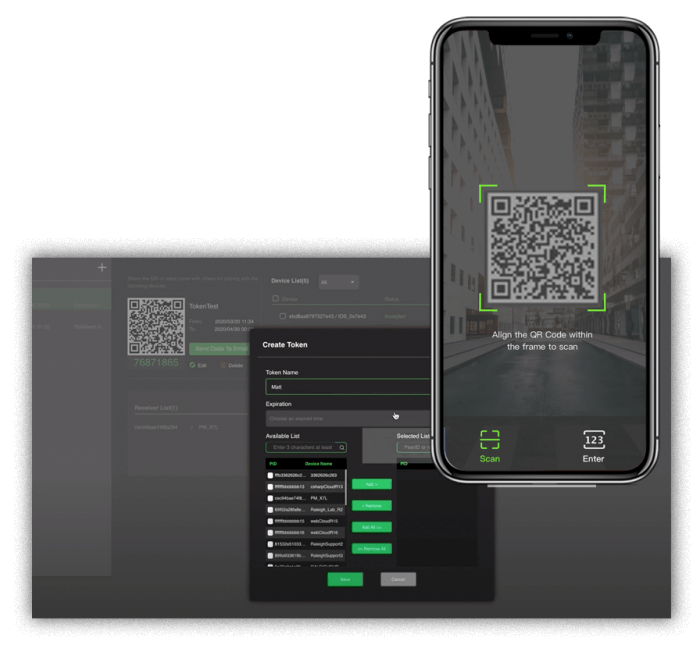
Pairing the companion feed to the web dashboard requires a strict sequence. Skipping a step can freeze the video pipeline or disconnect the chat HUD.
Follow this sequence to configure tango live stream overlay controls before going live:
- Initiate the Web Session: Navigate to
tango.me on desktop or mobile Safari, log into your creator profile, and click the Camera icon. Select "Stream from iOS" or "External Stream" to generate a pairing QR code. - Initialize BoarCast: Launch BoarCast on your mobile device. Grant camera and microphone permissions immediately; denied permissions result in an unrecoverable black screen.
- Scan the Pairing Key: Point your mobile camera at the web dashboard's QR code. BoarCast binds to the active room and routes video and audio directly to Tango's ingest servers.
- Apply Visual Overlays Early: Set beauty filters, skin smoothing, and lighting adjustments inside the BoarCast viewfinder right after pairing. Once minimized, these controls become inaccessible.
- Engage Picture-in-Picture (Single-Phone Broadcasters): If broadcasting from one iPhone, swipe up on BoarCast to send it into Picture-in-Picture (PiP) mode. Video capture and audio continue running in the background.
- Position the Web Dashboard: Return to Safari on your active
tango.me tab. Comments, coin gifts, and viewer metrics populate here while your PiP camera feed floats on screen.
Swiping BoarCast closed rather than sending it into PiP immediately kills your feed.
Managing Camera Orientation, Lens Selection, and Mic Toggles
Hardware toggles inside BoarCast are deliberately sparse, forcing streamers to solve audio sensitivity and framing issues before connecting.
The Camera-Flip Dilemma
BoarCast locks onto your device's primary selfie lens by default. Standard builds offer no on-screen camera-flip toggle or flash control once paired. If you plan to broadcast an unboxing, an art demo, or a secondary angle, you cannot swap between front and rear cameras mid-stream. Secure your phone in a fixed tripod mount and frame the shot before scanning the pairing code.
Fixed Aspect Ratio
Streams routed through BoarCast lock to portrait orientation. Rotating your phone horizontally will not produce a landscape broadcast; the feed stays pinned to a vertical 9:16 canvas to match mobile viewer screens. Tilting the device sideways simply cuts off framing edges and skews your perspective.
Audio Balance and Mic Gain
BoarCast lacks an internal audio gain slider. When viewers report clipping or weak audio, you must adjust sensitivity via hardware placement or phone-level audio settings:
- Keep wireless or lapel mics at least six inches away from your mouth to avoid clipping.
- Disable aggressive voice isolation or noise-cancellation profiles in your phone's control center if singing or playing music.
- Watch the audio meter on the Tango Web dashboard to verify that your voice registers in the green.
Multi-Guest Panels and Interactive HUD Adjustments
Tango Live supports multi-guest broadcasts with up to nine concurrent video panels. Controlling this layout happens entirely on the browser dashboard, leaving your phone feed clean.
Guest invitations, admissions, and screen arrangements must be handled through Tango Web. From this dashboard, tapping an individual participant's panel lets you mute noisy guests, swap their tile positions, or drop them from the broadcast.
Testing how animations sit over guest feeds prevents screen crowding. Creators who want to verify how coin alerts render or check overlay responsiveness can buy Tango Live Coins online to test visual notifications in real time. Seeing where gift badges land makes it easier to organize nine-box panels without covering faces.

Troubleshooting Stream Desync, Crashes, and Disconnects
Mobile streams frequently contend with dropped Wi-Fi signals and background memory kills. A BoarCast crash does not mean your stream is lost.
Tango keeps the room alive in the browser even when your video feed cuts out. If your capture client drops, recover it using this sequence:
- Leave the Web Tab Open: Keep the Tango Web browser tab untouched. Do not refresh. As long as that tab stays active, your stream room and viewers remain connected.
- Relaunch BoarCast: Force-close the unresponsive capture app and reopen it from your home screen.
- Regenerate the QR Key: On Tango Web, click the Camera icon to create a new pairing code.
- Rescan the Code: Scan the fresh QR code in BoarCast. Video and audio re-attach to the active room immediately, keeping your viewer count, chat log, and diamond tally intact.
- Verify System Permissions: If the app reloads to a black screen, open your phone's settings to confirm an OS update did not revoke camera access.
Monetization Toggles: Call Rates, Gifts, and Multiplier Rules
Monetization controls must be configured before your feed goes public. Tango offers several payout mechanics, ranging from public coin gifts to private 1-on-1 video rooms.
Setting Private Call Rates
Broadcasters set their own access pricing for private 1-on-1 calls inside the settings menu, ranging from 500 to 3,000 coins per minute. Viewers wanting to connect privately or send gifts during battles often need to top up Tango coins beforehand to maintain call connections without abrupt cutoffs.
Duration Multipliers
Tango applies diamond bonus multipliers to broadcasters who stream regularly. Streaming for at least one hour daily while exceeding your account's rolling baseline duration triggers progressive bonuses on incoming gifts. Viewers who purchase Tango Coins directly during these active multiplier windows generate substantially higher diamond payouts for your balance.
The bonus structure scales as follows:
| Daily Broadcast Requirement | Duration Baseline Target | Diamond Bonus Multiplier |
|---|
| Tier 1 | 1 Hour Minimum Daily | Exceeds Baseline Average |
| Tier 2 | Extended Daily Session | Exceeds Baseline + Milestone 1 |
| Tier 3 | Marathon Broadcast | Exceeds Baseline + Milestone 2 |
Takeaway: Schedule streams in uninterrupted blocks of at least 60 to 90 minutes to ensure your received gifts trigger the higher payout bonus brackets.
The Economy: Conversion and Cashout Thresholds
Gifts sent in coins convert to creator earnings at a 2:1 ratio (2 coins equal 1 diamond). When cashing out, 200 diamonds convert to $1.00 USD.
Online rumors often claim Tango requires a $100 balance to cash out. Platform documentation establishes much lower payout thresholds.
| Transaction Type | Threshold / Limit | Rule Details |
|---|
| First Cash-Out | $15 USD Minimum | Lowest threshold reserved exclusively for a creator's initial withdrawal |
| Subsequent Cash-Outs | $25 USD Minimum | Standard baseline balance required for all regular recurring withdrawals |
| Daily Redemption Limit | $2,000 USD Maximum | Upper cap on daily cash-out requests across all creator tiers |
| Private 1:1 Call Rate | 500 – 3,000 Coins / min | Broadcaster-defined price floor and ceiling for private sessions |
Takeaway: You do not need to wait for a $100 balance; you can request your first payout as soon as you accumulate 3,000 diamonds ($15 USD).
FAQ
How do I switch or flip the camera when streaming Tango with BoarCast?
BoarCast defaults to your phone's primary front camera with no live toggle to flip to the rear lens. Frame your shot and secure the phone on a mount before pairing the stream.
Can I read stream chat and manage viewer gifts inside the BoarCast interface?
No. BoarCast only manages your camera and mic feed. You must view comments, gifts, and battle requests through the Tango Web browser dashboard.
How can I broadcast from an iPhone if the Tango app is not in the App Store?
Sign into tango.me using Safari and choose "External Stream" to pair with BoarCast. Broadcasters located within the EU can install the native Tango app through the Onside Store.
How do I manage controls on a single phone while live streaming?
Set your filters in BoarCast first, then swipe up to send the app into Picture-in-Picture mode. Open Safari to tango.me to monitor chat and interact with viewers while the video runs in the background.
Can I stream in landscape orientation on Tango Live?
No. Tango Live feeds via BoarCast support portrait mode only. The platform locks your stream to a vertical 9:16 layout.
What happens to the stream controls if my companion video app disconnects?
Your broadcast room remains active in your browser. Reopen BoarCast, generate a fresh QR code on Tango Web, and rescan to re-establish your video connection.
What is the real minimum cashout threshold on Tango Live?
Tango requires a $15 USD minimum (3,000 diamonds) for your first cashout and $25 USD (5,000 diamonds) for all subsequent withdrawals. Claims of a mandatory $100 minimum are false.
Final Verdict on Tango Live Broadcast Controls
Broadcasting on Tango Live feels awkward if you expect a plug-and-play app. Separating BoarCast's video capture from Tango Web's moderation dashboard catches most beginners off guard.
For the cleanest workflow, avoid the single-phone Picture-in-Picture setup. Place an iPhone running BoarCast on a dedicated tripod strictly as your camera, then open Tango Web on a nearby laptop or tablet. That physical separation eliminates screen clutter, prevents accidental stream drops, and keeps moderation tools immediately within reach.










Comments