Lock in smooth 60 FPS in Growtopia on Android. Stop farming stutter, fix 90Hz frame jitter, and prevent phone overheating with these proven mobile settings.
Growtopia looks simple on the surface. Yet this 2D pixel sandbox routinely turns flagship Android phones into pocket warmers that stutter whenever you swing a pickaxe. Harvesting a world of Laser Grids often leads to character rubber-banding and single-digit frame rates.
Your phone's raw processor is rarely the bottleneck. Stutters come from how modern Android displays synchronize refresh rates, how the game client tracks loose entities, and how mobile GPUs handle full-screen redraw passes. Adjusting these three layers eliminates the micro-stutter.
The Screen Refresh Rate Trap on Modern Android Displays
Most modern Android phones feature 90Hz, 120Hz, or 144Hz displays. While high refresh rates make system menus fluid, they cause direct frame pacing issues inside Growtopia.
The game relies on an internal 60 FPS rendering cycle. On a 120Hz panel without hardware frame pacing, the screen refreshes twice per game frame. When frame delivery misses an interval by even a fraction of a millisecond, the display drops frames unevenly, causing micro-stutter despite an FPS counter displaying 60.
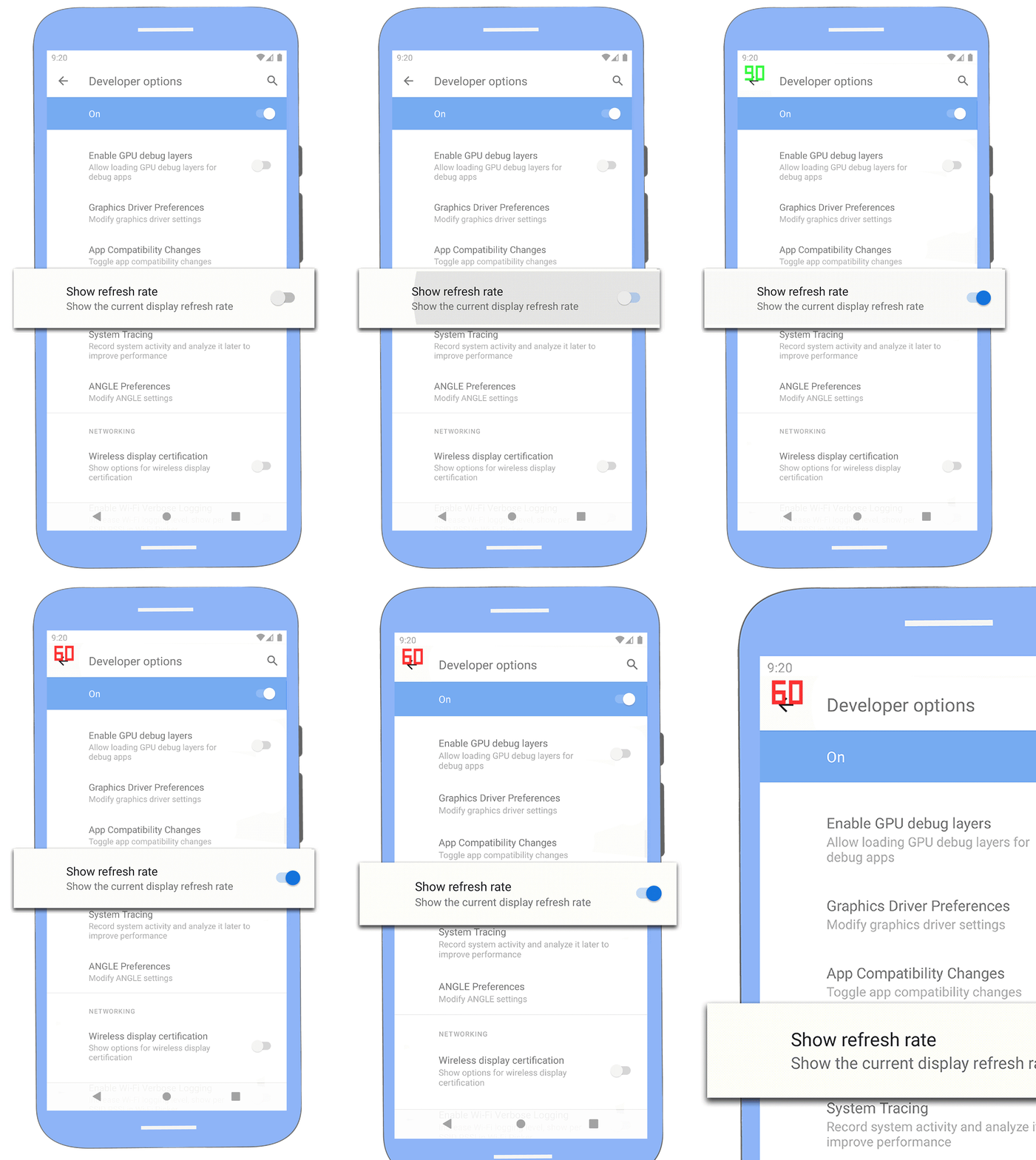
Non-standard refresh rates fare even worse. A 60 FPS signal does not divide cleanly into 90Hz or 144Hz. Without synchronization, devices often drop to 45 FPS on 90Hz screens or fluctuate between 50 FPS and 72 FPS on 144Hz displays. The phone halves or fragments its visual output simply due to mathematical mismatch.
Android 15 limits games to a default 60Hz display refresh rate to reduce heat and save battery. Unless a title requests a higher rate through the Android setFrameRate API or Google's Swappy frame pacing library, the OS holds the screen at 60Hz. On Android 14 or older, you must set this manually to prevent severe display desyncs.
Why Mass Farming Ruins Mobile Frame Pacing
Farming drives Growtopia's economy, but breaking blocks to gather seeds, gems, and World Locks produces the heaviest workload a mobile CPU and GPU handle in this game.
Unlike platformers with static tiles, an active farm world constantly mutates. Breaking a block triggers damage animations, particle bursts, floating collectible items, and immediate server packets. Mobile game engines redraw the full screen on every frame rather than updating only broken tiles. Every loose seed, floating gem, and bouncing item on display adds new draw calls.
Frame targets require strict render budgets. A 30 FPS target allows a 33.3-millisecond window. A locked 60 FPS target cuts that budget to 16.6 milliseconds. Breaking rows of high-tier blocks spawns dozens of floating entities at once, easily exceeding that 16.6 ms limit.
The table below details how common farmables impact hardware through hit counts, drop rates, and account level gates.
| Farmable Block | Punch Requirement | Seed Yield (per 200 Trees) | Drop Density & Visual Load |
|---|
| Sugar Cane | 2 punches (Level 7 gate) | ~25 seeds | Up to 8 items per tree; low particle strain, rapid clearing. |
| Pepper Tree | 4 punches / 3 with Pickaxe (Level 12) | ~18 seeds | Up to 8 items per tree; moderate entity clutter on screen. |
| Laser Grid | 5 punches / 4 with Pickaxe (Level 16) | ~14 seeds | Up to 8 items per tree; heavy visual debris and item drop density. |
| Chandelier | 7 punches / 6 with Pickaxe (Level 19) | ~12 seeds | Up to 8 items per tree; massive floating entity clusters and high CPU stress. |
High-tier farmables like Chandeliers require significantly more punch interactions per block, driving entity rendering spikes that burden mid-range mobile processors.
Accounts created after October 2023 face level requirements on high-tier blocks, locking Laser Grids to Level 16 and Chandeliers to Level 19. Grinding on Sugar Cane or Pepper Trees produces faster drops and higher seed volume (~25 seeds per 200 trees for Sugar Cane). Leaving those dense drops uncollected causes rapid sprite build-up and sharp frame drops.
In-Game Adjustments to Slash Draw Calls
The mobile client lacks graphics options like shadow toggles or shader sliders. You must reduce entity clutter directly.
First, disable screen-shaking effects and minimize UI clutter. Punch animations with visual effects multiply active particles per block. During a 200-tree Laser Grid run, skipping extra particle rendering saves essential time in your frame budget.
Second, collect items continuously. Leaving hundreds of drops floating in your farm lane forces your phone to execute constant collision checks and sprite redraws. Collecting items as you move keeps active entity counts low, keeping draw calls within the 16.6 ms threshold.
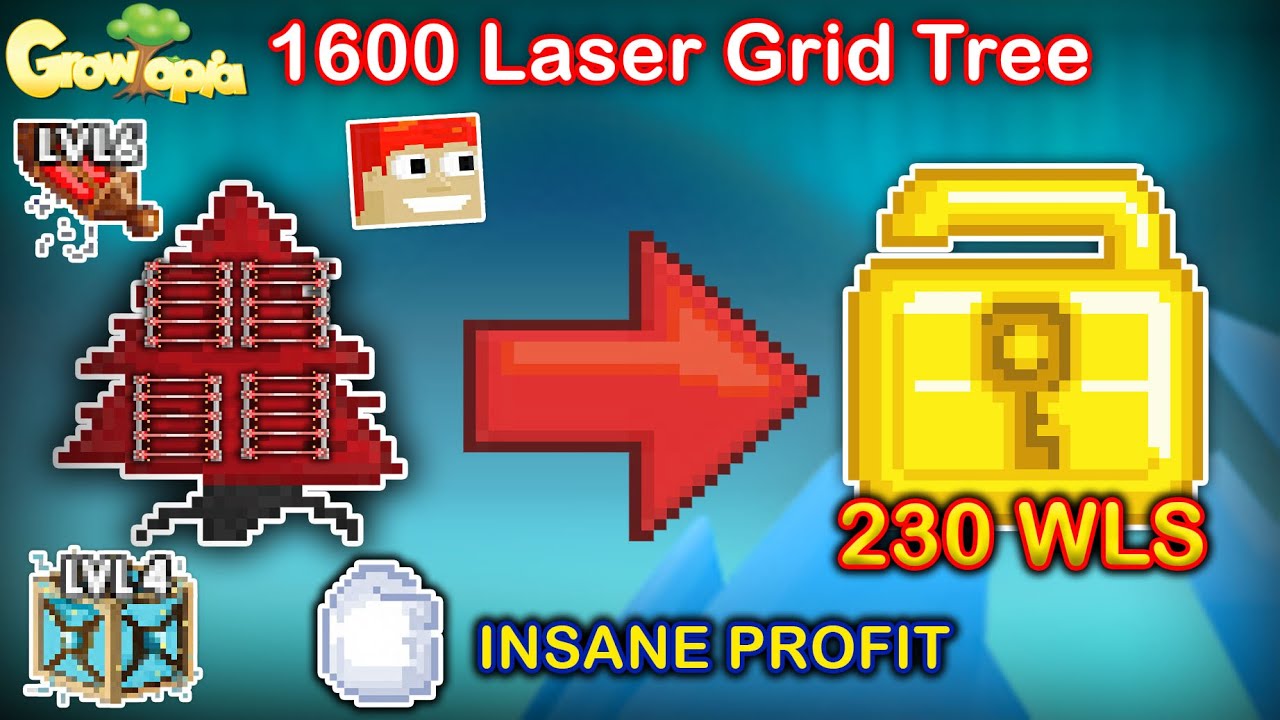
Preparing massive farm rows takes hours. Instead of spending days breaking low-tier blocks for gear, you can purchase Growtopia Gems directly to secure World Locks and farming items without running your phone hot through manual grinding.
Step-by-Step Android Configuration for 60 FPS
Optimizing performance requires adjusting settings outside the game client. Android controls the thermal limits, background syncs, and display rates that dictate framerate stability.
- Force Your Display to 60Hz: Open Settings > Display > Screen Refresh Rate (or Smooth Display) and select Standard 60Hz. Avoid "Dynamic" or "Adaptive." A static 60Hz rate removes the pacing jitter common on 90Hz and 120Hz screens.
- Turn On Android Battery Saver: If your phone cannot manually lock to 60Hz, turn on Battery Saver. This forces the display panel down to 60Hz system-wide, matching Growtopia's 60 FPS loop while curbing background tasks.
- Clear App Cache: Long-press the Growtopia icon, tap App Info (i) > Storage & Cache > Clear Cache. This removes temporary world files without erasing your account login or local preferences.
- Check Android Version: Open Settings > About Phone > Android Version. Growtopia requires Android 8.1 or higher. Older versions miss crucial modern frame-pacing and memory-management libraries.
- Restrict Background Apps: Open Settings > Apps and restrict background data for streaming and social media apps. Background updates trigger network latency spikes that cause visual stutters during play.
A steady 60Hz target lets the mobile processor rest briefly between frames instead of running at peak clock speeds.
Trade Worlds vs Farm Worlds: Taming Heavy Entity Hubs
Farm worlds drop frames because of floating items and break particles. Trade worlds fail for a different reason: dense player crowds and clustered interactive structures.
Growtopia originally used open trade worlds where players dropped items onto the ground. The game later moved toward dense vending machine setups. This design places dozens of interactive blocks, custom prices, and floating trade stock counters in a single room.
Crowded trade worlds demand heavy rendering and network throughput. The mobile client must process animated player outfits, overhead text bubbles, pets, and active vending machines concurrently.
| Environment Type | Primary Performance Bottleneck | Hardware Stress Point | Key Remediation |
|---|
| Mass Farm World (Laser Grid/Chandelier) | Loose floating entities, break particles | CPU draw calls & GPU fill rate | Collect drops immediately; force 60Hz display mode. |
| Dense Trade Hub (Vending Worlds) | Player sprites, chat bubbles, shop text | Network streaming & RAM limits | Close background apps; use high-speed Wi-Fi. |
| Storage / Vault World | Static block placement, tile data | Storage read / Cache retrieval | Clear game cache periodically to clean stale tiles. |
Farming strains the local rendering engine through particle bursts, while vending hubs create networking and sprite-batching bottlenecks.
Trade hubs also drive up operating temperature. Streaming player data and maintaining constant client-server sync drains the battery and heats up the chassis. Once warm, the phone down-clocks its GPU, reducing the trade floor to a slide show.
To skip laggy trade worlds when sourcing equipment, use Growtopia store top-ups to acquire items directly. This saves mobile data and prevents thermal throttling.
Hardware and Architecture Differences Across Devices
Android handles Growtopia's lightweight 2D engine differently than desktop platforms or iOS. Brute-force hardware does not always stop stutter if the rendering pipeline mismatches the display.
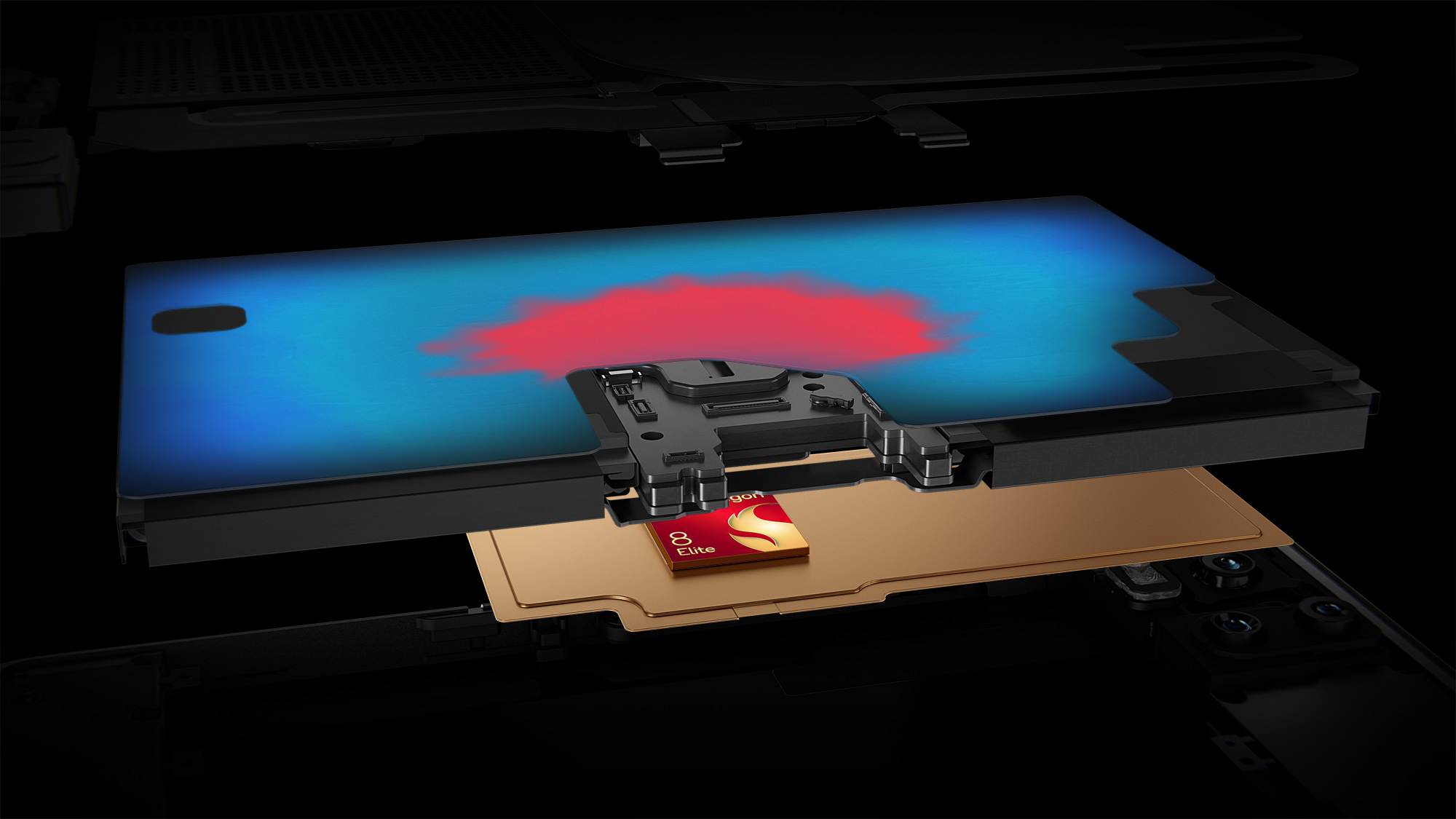
Simpler graphics APIs often handle 2D mobile workloads better than heavy modern rendering pipelines. Utilizing lightweight paths like OpenGLES2 alongside multithreaded rendering helps eliminate frame drops caused by running basic 2D draw calls through modern API layers.
| Platform / Setup | Frame Pacing Behavior | API & Rendering Characteristics | Thermal Throttle Risk |
|---|
| Android (90Hz / 144Hz Screen) | Collapses to 45 FPS or 50-72 FPS if unsynchronized | OpenGLES pipeline; variable refresh causes judder | High; redraws all pixels every frame. |
| Android (Fixed 60Hz Screen) | Locked 60 FPS; clean 16.6 ms frame pacing | Direct 1:1 frame-to-refresh match | Low to Moderate; balanced power draw. |
| Desktop PC (Windows / Mac) | Native high-refresh support without judder | Direct3D / Metal; ample thermal headroom | Negligible; desktop hardware avoids throttling. |
| iOS Devices | Locked 60 FPS target via ProMotion step-down | Metal API; automatic display rate adaptation | Low; aggressive hardware frame pacing. |
Android devices face the highest stutter risk when panel refresh rates do not match Growtopia's fixed 60 FPS output.
While a 120Hz display can cleanly halve to match 60 FPS on some Android builds, 90Hz and 144Hz screens fail to divide the refresh cycle evenly. The system drops output to 45 FPS on 90Hz or stutters on 144Hz unless you force 60Hz in system settings.
Growtopia Battery Saver vs High FPS: Managing Heat
Enabling maximum performance profiles in manufacturer "Game Booster" software usually degrades Growtopia's performance.
Game boosters force CPU and GPU clock speeds to their highest levels. Because the client redraws the display every frame, the phone wastes power rendering static world tiles. The phone heats up and hits thermal throttling within 20 to 30 minutes. Once throttled, the OS cuts clock speeds drastically, causing heavy frame drops during farming runs.
A static 60 FPS limit prevents battery drain and overheating. Capping output at 60 FPS lets the processor enter idle states between frame cycles. The device stays cool, battery runtime increases, and frame rates stay stable over long sessions.
Turn off manufacturer performance toggles that pin clock speeds to maximum, set the panel to 60Hz, and let the processor regulate its workload.
Troubleshooting Persistent Drops and Cache Glitches
If you have forced 60Hz and cleared entity clutter but still experience stutter, look to local asset caches and network instability.
Entering a world prompts Growtopia to download custom layout data, block sprites, and audio files. This cache bloats over time. When internal storage hits read delays, the game freezes for fractions of a second while pulling assets, showing up as a sudden hitch.
Clear the cache in Android Application Manager, then restart your device. Do not clear storage data unless you know your GrowID password, as clearing data erases login credentials.
Keep your device updated to at least Android 8.1, the minimum operating system requirement. Older versions lack modern frame-pacing APIs and background network controls.
A calibrated setup keeps your farming smooth and eliminates misclicks caused by input delay. To jump directly into high-tier farming, you can buy Growtopia Gems to secure seeds, items, and world licenses without delay.
FAQ
Why does Growtopia stutter on 90Hz or 120Hz Android screens?
Growtopia renders internally at 60 FPS. When outputting to a 90Hz or 120Hz display without synchronization, frame delivery desyncs. On 90Hz screens, this often halves output to 45 FPS. Setting your Android display refresh rate to 60Hz resolves the mismatch.
How can I stop battery drain while playing Growtopia on Android?
Lower screen brightness and lock your display to 60Hz. Avoid "Game Booster" software that forces hardware clocks to run at maximum speeds. Enabling system Battery Saver mode also cuts unnecessary background processing.
Does mass block farming cause frame drops in Growtopia?
Yes. Breaking rows of blocks spawns dozens of floating items and particle bursts. Because mobile engines redraw the screen on every frame, high entity counts exceed the 16.6 ms render budget. Picking up items promptly stabilizes performance.
What is the minimum Android version required to run Growtopia?
Growtopia requires Android 8.1 or higher. Older operating systems do not support modern frame-pacing libraries and experience stability issues. Check your settings under About Phone to confirm your Android version.
Does Android 15 automatically lock games to 60 FPS?
Android 15 defaults game refresh rates to 60Hz to reduce heat and power draw unless an app requests higher rates via system APIs. This default stabilizes frame delivery on high-refresh screens without manual adjustments.
Why do crowded trade worlds cause worse lag than farm worlds?
Crowded trade worlds force your phone to render dozens of custom player sprites, overhead text bubbles, and vending machine counters at once. Combined with continuous network data streaming, this creates visual and network bottlenecks.
Yes. Clearing the cache purges corrupt or bloated asset files that create storage read delays during world loading. It clears temporary assets without deleting your GrowID account data.
Smooth Growtopia performance does not require buying a new phone. You only need to align modern high-refresh displays with the game's 60 FPS engine.
Lock the screen to 60Hz, clear the game cache occasionally, and disable aggressive game boosters that trigger thermal throttling. Pick up dropped items quickly during mass harvesting to keep frame render times under 16.6 ms. With proper synchronization, farming Laser Grids and browsing busy trade worlds remain completely smooth.










Comments