Server Maintenance vs Local Glitches: Checking Regional Status
Before modifying your network adapter, determine whether the fault sits on your PC or with backend infrastructure. Help forums frequently misdiagnose this: players assume every server list error stems from broken local network settings, even though developer-side outages and scheduled maintenance produce identical blank screens.
When server-side resource overloads or script crashes occur, host servers return generic HTTP 500 internal server errors. The client cannot parse this response and displays a generic server fetch failure. When scheduled maintenance is underway, no client-side tweak will fix the issue. Regional servers follow strict regional time zones for updates:
| Regional Cluster |
Primary Time Zone Base |
Peak Maintenance Impact |
| Asia |
UTC+7 |
Midday local maintenance windows |
| Europe |
UTC+2 |
Early morning European schedules |
| Eastern Europe |
UTC+3 |
Early morning system deployments |
| North America |
UTC-7 |
Late night / early morning Pacific updates |
| Latin America |
UTC-3 |
Midnight regional downtime windows |
Server clusters follow designated regional time zones, making cross-region play subject to off-hour maintenance lockouts.
Check official social media channels and community tracking feeds to verify current server health. If maintenance is active across your region, you must wait until the maintenance window ends. If the servers are operational for everyone else, the bottleneck is on your local machine or local ISP.
Flush DNS and Reset the Windows Network Stack
When servers are live but the launcher refuses to populate the server browser, local domain caching is the primary culprit. Operating systems store IP lookups to speed up connection requests. When server clusters update their login node IP addresses after a patch, your PC can continue pinging obsolete IP addresses, triggering a connection timeout.
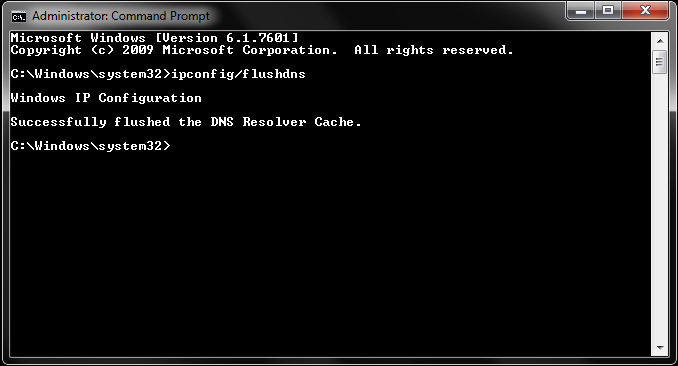
To clear stale domain data and rebuild your IP configuration, execute these commands in an elevated Command Prompt:
- Press the Windows Key, type
cmd, right-click Command Prompt, and select Run as administrator.
- Enter
ipconfig /flushdns and press Enter.
- Enter
netsh int ip reset and press Enter.
- Enter
ipconfig /release and press Enter.
- Enter
ipconfig /renew and press Enter.
- Restart your computer to apply the TCP/IP stack reinitialization.
| Command |
Execution Target |
Technical Result |
ipconfig /flushdns |
Local DNS Resolver Cache |
Clears stale and corrupted domain-to-IP records |
netsh int ip reset |
TCP/IP Stack Configuration |
Rewrites registry keys used by the network protocol |
ipconfig /release |
DHCP Lease Assignment |
Drops the current local IP address from your router |
ipconfig /renew |
DHCP Client Service |
Requests a fresh internal IP allocation from the router |
Running these four network commands completely resets your computer's local routing parameters and forces fresh server lookups.
Running ipconfig /flushdns immediately following major game updates takes five seconds and rules out local caching errors right away.
Switching to Public DNS to Bypass ISP Routing Blocks
Many internet service providers rely on default DNS servers that update routing tables slowly. If your ISP has not resolved the login server's updated dynamic hostnames, your client hangs on the loading screen and returns an empty list.
Switching to Google Public DNS bypasses sluggish ISP lookup servers. This configuration is reliable, free, and secure for gaming.
- Open the Run dialog by pressing
Windows Key + R.
- Type
ncpa.cpl and press Enter to open Network Connections.
- Right-click your active network adapter (Ethernet or Wi-Fi) and click Properties.
- Highlight Internet Protocol Version 4 (TCP/IPv4) and select Properties.
- Click the radio button labeled Use the following DNS server addresses.
- Set Preferred DNS server to
8.8.8.8.
- Set Alternate DNS server to
8.8.4.4.
- Check the box for Validate settings upon exit and click OK.
Preferred DNS:  8 . 8 . 8 . 8
Alternate DNS:  8 . 8 . 4 . 4
On mobile devices, open Wi-Fi settings, switch the IP configuration from DHCP to Static, and input 8.8.8.8 and 8.8.4.4 into the DNS 1 and DNS 2 fields. This adjustment resolves most server list loading failures on both home and public Wi-Fi networks.
Configuring Windows Defender Firewall and Antivirus Rules
Security applications frequently block game executables after major patches. When game files are modified during an update, their security hash signatures change. Windows Defender or third-party suites can flag the revised launcher executable as unverified, silently dropping outbound UDP or inbound TCP server packets.
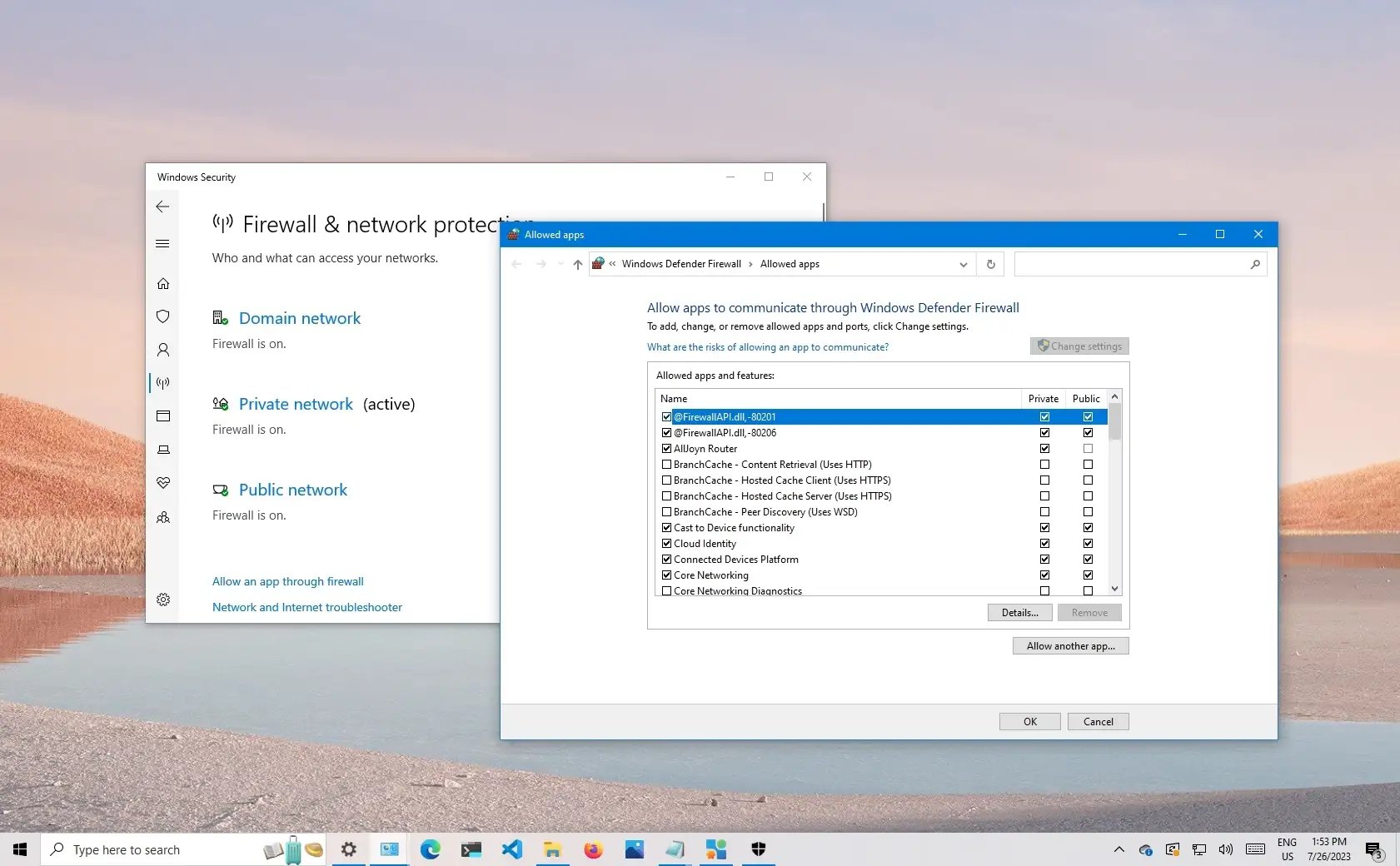
Adding Firewall Whitelist Rules:
- Open the Windows Start menu, search for Windows Defender Firewall, and select it.
- Click Allow an app or feature through Windows Defender Firewall in the left sidebar.
- Click the Change settings button (requires administrator access).
- Scroll through the list to locate the game and launcher executables.
- Ensure both the Private and Public checkboxes are checked for every related executable.
- If the game is not listed, click Allow another app..., browse to your installation directory, select the main
.exe files, and add them manually.
- Click OK and restart the launcher.
Never disable your firewall entirely. Whitelisting the specific binary file grants required network access while keeping your system protected.
Clearing Corrupted Launcher Cache and Temporary Data
Corrupted authentication tokens stored on your local drive can lock the launcher in an infinite handshake loop. When cached session tokens expire or corrupt during an improper shutdown, the launcher transmits invalid credentials. The backend rejects the request, leaving the client unable to retrieve server status.
Purging your local application cache forces the launcher to generate clean session credentials.
Clearing Temporary Game Directories:
- Close the game and ensure the launcher is not running in your system tray.
- Press
Windows Key + R to open the Run window.
- Enter
%TEMP% and press Enter. Delete all temporary files located inside this folder.
- Open the Run window again, enter
%LOCALAPPDATA%, and locate the game client's cache folders.
- Delete the application cache directories under
%APPDATA% and %PROGRAMDATA%.
- Launch the client and allow it to recreate clean configuration files.
If the server list remains blank after clearing the cache, check file integrity via the launcher's repair menu. Missing dynamic link libraries (.dll) or broken patch data can stop the game from communicating with remote clusters. A file verification scan replaces broken files without requiring a complete re-download.
Once your installation is verified, log in, verify your ping, and check secure Tarisland account top-up options directly on the store page.
Advanced Routing Workarounds: Mobile Hotspots and Network Resets
If standard DNS and firewall adjustments fail to resolve the issue, you are likely facing an ISP routing bottleneck or hardware router lockup. Packets pass through multiple intermediate transit hops before reaching data centers. If a single carrier node drops traffic, your client times out.
1. Test with a Mobile Hotspot or USB Tethering
Switching to mobile data isolates home network failures immediately.
* Disable Wi-Fi on your mobile device.
* Connect your phone to your PC via USB and enable USB Tethering (or turn on a Wi-Fi Hotspot).
* Launch the game on mobile data.
If the server list loads over cellular data, your broadband ISP is dropping packets, blocking specific game ports, or experiencing routing failures.
A Virtual Private Network (VPN) forces traffic through an alternate routing path. This bypasses congested ISP nodes and directs packets directly to the login server. Dedicated gaming routing tools operate similarly by selecting low-loss transit nodes during server queries.
3. Run Traceroute Diagnostics
To identify where your connection drops, open Command Prompt and execute a traceroute command to the regional server host. The hop list reveals whether latency spikes and packet loss occur at your local router (Hop 1), within your ISP's network (Hops 2–4), or at the destination server infrastructure.
4. Execute a Windows Network Reset
If persistent issues stem from third-party virtual adapters or corrupted network stacks:
1. Open Windows Settings > Network & Internet.
2. Click on Advanced network settings.
3. Select Network reset and click Reset now.
This reinstalls every network adapter on your PC and resets all networking parameters to factory defaults.
With routing restored, you can stabilize your connection, join your guild's raid groups, and recharge your Tarisland account without unexpected session drops.
FAQ
What causes the Tarisland failed to get server list error?
It is typically caused by active server maintenance, corrupted DNS cache, ISP port blocking, or firewall restrictions preventing client handshakes. When the client cannot complete the initial network query, it fails to display available servers.
How do I flush my DNS to fix the server list error?
Open Command Prompt as an administrator, type ipconfig /flushdns, and press Enter. This clears outdated domain lookups and forces your operating system to request fresh server IP addresses.
Can my antivirus or firewall block Tarisland's server list?
Yes, Windows Defender or third-party antivirus software can flag new game updates and block outbound traffic. Add the game's executable to your firewall whitelist under both Public and Private rules.
Why does switching to a mobile hotspot fix the login error?
Mobile hotspots route through cellular provider pathways rather than your home broadband. This bypasses ISP-level routing bottlenecks, DNS timeouts, or misconfigured router firewalls.
How do I check if Tarisland servers are down for maintenance?
Check Tarisland's official social media accounts or community status trackers. If maintenance is active, you must wait until the regional maintenance window concludes.
Will changing my DNS server help retrieve the server list?
Yes, switching your adapter's IPv4 settings to public DNS addresses like 8.8.8.8 and 8.8.4.4 resolves ISP domain lookup failures. This routes your connection requests through reliable global DNS networks.
Final Verdict: Client-Side Repair or Waiting Out Downtime
Pinpointing the error prevents wasting hours on unnecessary full client reinstallations.
First, check official channels for active maintenance windows matching your regional time zone. If servers are down or returning HTTP 500 errors, client troubleshooting cannot bypass the login screen.
If servers are operational, the fix is local: flush your DNS cache, switch to Google's public DNS (8.8.8.8), and ensure Windows Defender Firewall allows the game binary across Private and Public profiles. If those fail, test a mobile hotspot or USB tether to bypass ISP routing faults. These targeted steps eliminate the bottleneck and get you back into the game.










Comments