Tired of sudden frame hitching in combat? Learn how to fix Once Human stutter PC issues with API changes, system power tweaks, and optimal graphics.
Sprinting across the open map as a Meta-human in Once Human feels fluid until you hit an enemy stronghold or a packed player territory. Suddenly, the frametime graph spikes, audio crackles, and the game hitches for half a second. You die to an elite enemy because the screen froze mid-dodge roll.
Once Human is a free-to-play post-apocalyptic open-world multiplayer survival game where players act as Meta-humans utilizing Stardust powers. It demands serious hardware coordination across CPU draw calls, VRAM caching, and disk streaming. Stuttering on PC rarely stems from pure GPU horsepower shortages. Instead, uneven frame pacing, unoptimized default display APIs, background power state throttling, and real-time shader compilation choke your system.
If you want to dress your character without performance penalties, picking up outfits through a top-up Once Human account gives you immediate access to cosmetics, but your visual settings still need proper tuning to keep gameplay smooth.
The DirectX 12 Port Versus DirectX 11 Dilemma
The default rendering API for Once Human has historically been DirectX 11. While DX11 is mature, it handles multithreaded CPU dispatch terribly in dense multiplayer survival titles. In heavy settlements, DX11 saturates a single CPU thread with draw calls while the remaining cores idle, precipitating violent 1% low frametime collapses.
Benchmarks show the work-in-progress DirectX 12 implementation provides a massive leap in frametime stability. Testing reveals the DX12 mode runs 22% faster at 4K Very High preset compared to DX11. More crucially, DX12 boosts 1% low frame rates by 21% to 45% over DX11, cutting the CPU-related stalls that trigger micro-freezes during border crossings.
Community testing exposes a clear trade-off. DirectX 11 often yields higher average frame rates—roughly 5% to 10% faster on older quad-core processors. However, DX12 delivers far superior 1% lows. Take a steady 75 FPS with flat frametimes over an erratic 90 FPS average that craters to 24 FPS whenever an explosion triggers.
| Rendering API | Average FPS Trajectory | 1% Low Improvement | CPU Draw Call Efficiency | Primary Failure State |
|---|
| DirectX 11 | Baseline (+5% to +10% peak) | Baseline reference | Single-thread bottlenecked | Severe territory hitching |
| DirectX 12 | 22% faster at 4K Very High | +21% to +45% over DX11 | High multithreaded balance | Initial shader caching pause |
DirectX 12 drastically improves bottom-tier frametimes despite slight shader compilation warming.
To manually force DirectX 12 when in-game menus fail to retain the setting, modify your configuration file directly:
- Press
Win + R, input %USERPROFILE%\Documents, and locate the Once Human configuration directory. - Open
GraphicConfig.xml using a basic text editor. - Search for the string
setting_enable_d3d12. - Change the value from
0 to 1. - Save the file and mark it as read-only if your game client reverts changes on startup.
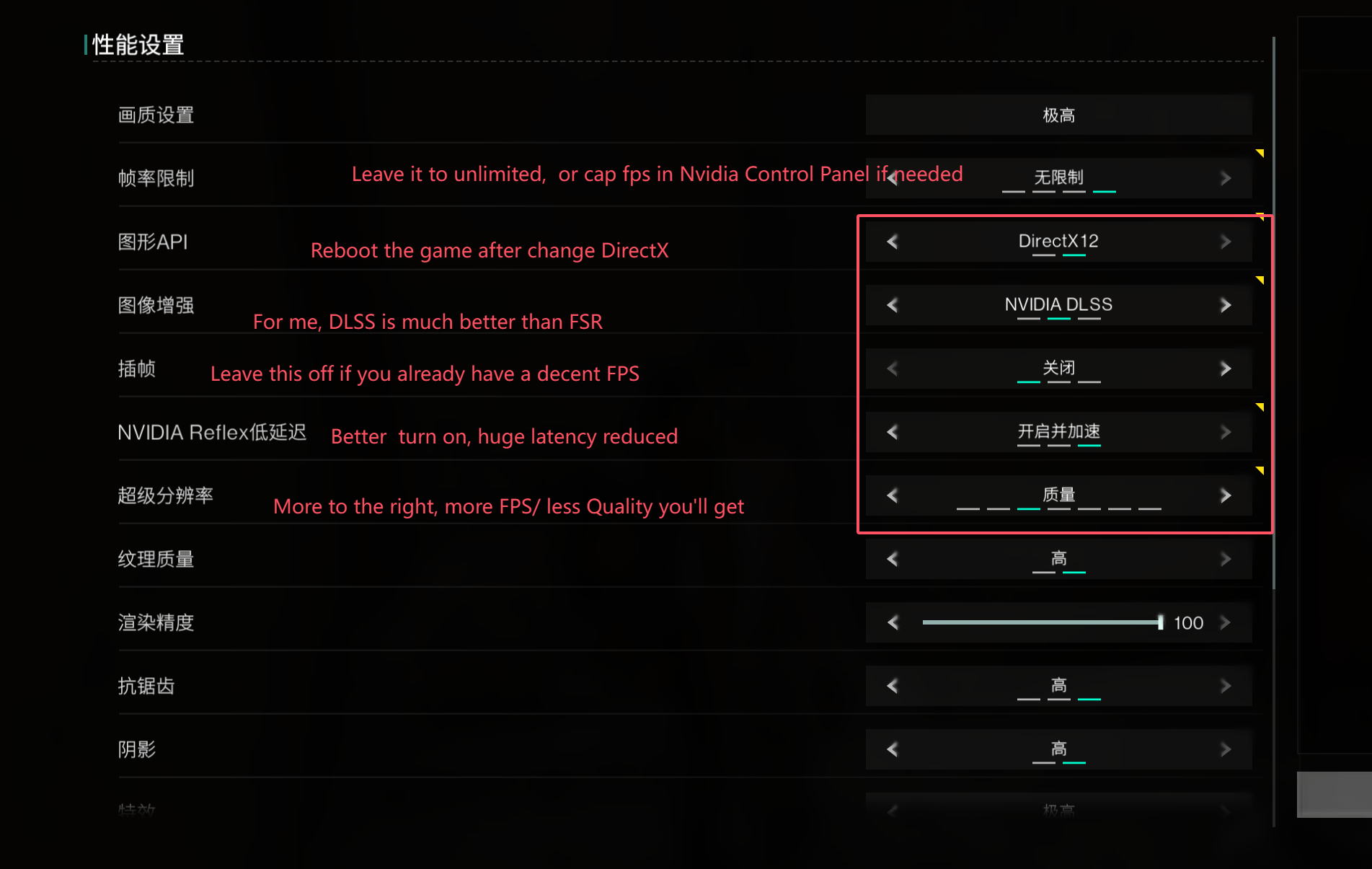
Dialing in the Best Display and Quality Settings
Turning every setting to Low ruins the post-apocalyptic atmosphere, while cranking everything to Ultra turns your rig into a space heater. The goal is pinpoint efficiency: drop settings that cause draw stalls and keep textures crisp.
Shadows represent the single heaviest GPU load in Once Human. Lowering shadow quality, volumetric effects, and vegetation density reduces rendering bottlenecks significantly without washing out the screen. Conversely, texture quality should only be lowered if VRAM limits are exceeded. Textures consume onboard VRAM rather than active GPU compute cycles. Leaving textures on High preserves environmental fidelity with zero frametime penalty if your card carries at least 4 GB to 6 GB VRAM.
Camera field of view also plays a quiet role in performance. Lowering camera distance between 12 and 15 and reducing Screen Shake Density to 0 mitigates frame rate dips caused by wide rendering cones in heavy towns.
Follow these steps in your graphics menu:
- Set Display Mode to Exclusive Fullscreen (avoids Windows desktop compositor lag).
- Change Graphics API to DirectX 12.
- Set Shadow Quality to Medium or Low.
- Set Vegetation Density to Medium.
- Lower Volumetric Fog and Volumetric Cloud to Medium.
- Keep Texture Quality on High (if your GPU has 6 GB VRAM or more).
- Set Camera Distance slider to 13.
- Set Screen Shake Density slider to 0.
- Turn Off Motion Blur entirely.
When should you deviate from this setup? If you pack an older card with only 4 GB VRAM, drop Texture Quality to Medium immediately to prevent memory buffer overruns. If your CPU has 12 or more physical cores, you can nudge Vegetation Density up to High without triggering draw-call hitching.
Frame Pacing, Frame Caps, and Upscaler Traps
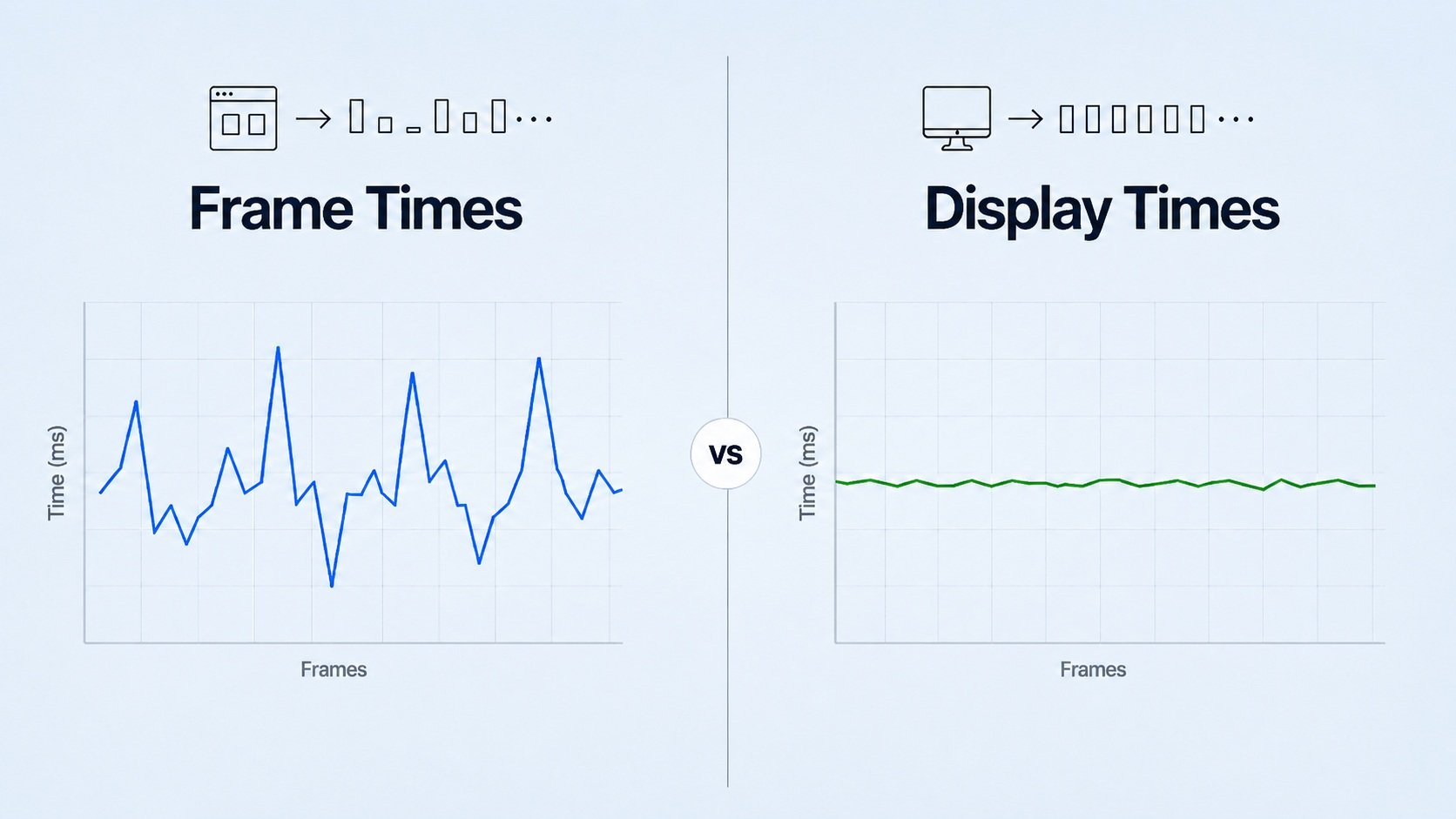
Uncapped frame rates look fantastic on a scoreboard, but they ruin frame delivery. Leaving frame rates completely uncapped forces your GPU to 99% usage continuously, leading to thermal throttling and sudden timing variance when encountering combat particles.
Two schools of thought exist here. Some competitive players insist on leaving Max Frame Rate set to "No Restrictions" to scrape off fractions of a millisecond in input latency. I strongly disagree with that choice for an open-world survival game. Capping FPS to 60, 90, or 120 ensures consistent frametimes and avoids GPU thermal saturation. Match your cap to your monitor's baseline refresh threshold.
| Hardware Class | Target Resolution | Recommended FPS Cap | Target Upscaler Setting |
|---|
| Entry Tier (GTX 1060 / RX 580) | 1080p | 60 FPS | FSR / Balanced |
| Mid Tier (RTX 2060 / RX 5700) | 1080p / 1440p | 90 FPS | DLSS / FSR Quality |
| High Tier (RTX 3070 / RX 6800) | 1440p | 120 FPS | DLSS Quality |
| Enthusiast (RTX 4080 / 4090) | 4K | 120 FPS | DLSS Quality / Frame Gen Off |
Matching your frame limit to realistic thermal ceilings provides smooth pacing across all hardware tiers.
Be cautious with AI frame generation. Benchmarks on top-tier cards show DLSS 3 frame generation pushes raw frame rates from 166 FPS on Quality and 178 FPS on Balanced up to roughly 200 FPS on Performance. Yet frametime analysis reveals erratic frame pacing masked by raw numbers. Generated frames insert synthetic frames between real game states, which spikes perceived input latency and creates visual jitter during rapid camera pans. Keep frame generation off if stutter is your main grievance.
If you are gathering resources or stocking up on premium battle pass tiers, an affordable Once Human top up helps you acquire functional gear skins and cosmetics without messing with game stability.
Storage Bottlenecks and Shader Cache Stutters
Micro-stutter during traversal is often a storage issue masquerading as a graphics bug. As you sprint across the map on a motorcycle, the engine continuously streams in high-resolution meshes, terrain geometry, and audio banks.
Installing Once Human on a solid-state drive is critical. Running the game on a mechanical HDD causes brutal loading hitches when crossing territory lines. An NVMe or SATA SSD is mandatory; if the game cannot pull assets into memory fast enough, the rendering thread simply stalls until the drive responds.
System memory architecture is equally vital. While the absolute minimum RAM is 8 GB, running less than 16 GB in dual-channel mode causes frequent memory paging and micro-stuttering during open-world asset loading. If you run a single 16 GB stick, you cut your memory bandwidth in half. That single-channel bandwidth bottleneck directly prevents your CPU from feeding the GPU fast enough.
Shader compilation during active gameplay causes momentary GPU pipeline freezes. Real-time shader compilation when entering new zones or opening complex menus forces brief engine pauses. To solve this, enforce a larger driver-level shader cache:
- Open your graphics driver control panel.
- Navigate to Global 3D Settings.
- Find the Shader Cache Size parameter.
- Increase it from Driver Default (usually 1 GB or 4 GB) to 10 GB or Unlimited.
- Apply changes and restart your PC.
This permits compiled shaders to remain on your SSD permanently across sessions, eradicating recurring shader hitches.
System-Level Windows Power and Overlay Tweaks
Your operating system might actively work against your game if power-saving routines trigger during play. Modern processors dynamically downclock inactive cores to save energy, but when Once Human suddenly dispatches a batch of sound cues or physics calculations, the core takes precious milliseconds to ramp back up, producing a noticeable micro-freeze.
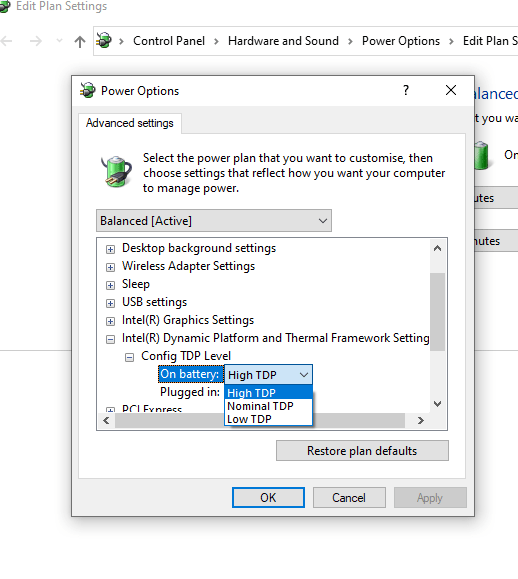
High Performance Windows power plans prevent CPU throttling during gameplay. Setting Windows Power Mode to Best Performance and locking the minimum processor state to 100% in Advanced Power Settings stops clock fluctuations that induce hitching.
Configure your operating system with these steps:
- Type
Power & sleep settings in the Windows search bar. - Select Best Performance under Power Mode.
- Open classic Control Panel, go to Power Options, and select High Performance.
- Click Change plan settings, then Change advanced power settings.
- Expand Processor power management, open Minimum processor state, and set it to 100%.
Third-party overlays inject directly into the game's rendering pipeline. Disabling overlays from chat clients, recording software, and hardware monitors eliminates unnecessary hooks that trigger frametime spikes and crash the renderer.
Operating conditions and runtime environments alter how Once Human schedules assets. Players running alternative operating systems or different launcher wrappers often see divergent frame delivery behavior.
Community testing reveals that running the client through a lightweight native launcher environment reduces micro-freezes compared to launching via crowded secondary clients packed with active background hooks. Linux players using compatibility translation layers must supply specific environment parameters to eliminate asset streaming stalls.
Using PROTON_USE_NTSYNC=1 and PROTON_SET_GAME_DRIVE=1 in your platform launch parameters stabilizes IO lag and eliminates micro-stuttering when running Once Human on Linux systems. These flags bridge the file-access gaps that typically stall Wine translation layers.
| Platform / Runtime Environment | Primary Stutter Trigger | Recommended Corrective Action | Stability Rating |
|---|
| Windows 11 Native | Core parking & aggressive power states | Set Best Performance & minimum CPU state 100% | High |
| Windows 10 Native | Background service scheduling & small shader cache | Increase GPU shader cache to 10GB in control panel | High |
| Linux Proton Compatibility Layer | Synchronization latency & disk IO translation overhead | Add PROTON_USE_NTSYNC=1 and PROTON_SET_GAME_DRIVE=1 | Medium-High |
| Hard Disk Drive (Legacy Windows) | Asset streaming throughput exhaustion | Migrate installation directory to an SSD or NVMe drive | Low (Unviable) |
Platform environments dictate how IO interrupts and thread synchronization affect engine frame pacing.
Recent game patches have also introduced structural stability improvements. The February 25, 2026 update (a 2.7 GB patch on PC) deployed balance adjustments and visual performance optimizations. It fixed rendering bugs surrounding visual effects like Rift Racer-Ultimate and Hymn of the Carnage, directly smoothing out particle hitching during frantic combat encounters.
When exploring the wasteland, acquiring skins through a Once Human top up service lets you refresh your stash of gear without wasting hours troubleshooting store interfaces, leaving you free to focus on raw performance.
Surviving Territory Hubs and CPU-Bound Drops
Even with an RTX 4090 paired with a high-end desktop processor, entering a sprawling territory settlement filled with forty player bases, automated turrets, and moving farming plots will cause framerates to drop. This is not a hardware fault; it is an architectural reality of multiplayer voxel-and-asset systems.
Dense multiplayer zones hammer the CPU. Territory hubs, raids, and player settlements saturate draw calls, dragging down frame rates regardless of GPU tier unless draw distance and player detail are dialed back. The engine must compute physics, lighting passes, and coordinate data for dozens of customized base pieces simultaneously.
To cushion the blow in these dense hubs:
- Lower Player Display Limits in social settings so the game does not render every distant character model.
- Cap your construction draw distances to reasonable thresholds.
- Avoid building your personal territory immediately adjacent to major highway intersections where player traffic concentrates.
Accept that dropping from 120 FPS down to 70 FPS in a massive 50-player stronghold is completely expected. The goal of this guide is to ensure that drop remains a clean, flat 70 FPS without the jerky, erratic frame pacing that disrupts your aim.
FAQ
Why does Once Human stutter even on high-end PC hardware?
Stuttering is typically caused by DirectX 11 CPU draw bottlenecks, background shader compilation, or running the game from a mechanical hard drive instead of an SSD. Switching to DirectX 12 and capping frame rates directly resolves most frame pacing spikes.
Yes, benchmarks show DirectX 12 increases 1% low frame rates by 21% to 45% by reducing CPU draw overhead. You can enable DX12 in the display settings or by editing GraphicConfig.xml directly.
Which graphics settings have the biggest impact on stuttering?
Shadow Quality, Vegetation Density, and Volumetric Effects create the highest rendering load on both CPU and GPU. Lowering these settings provides immediate frame rate stabilization without noticeably degrading visual clarity.
Should I cap my frame rate in Once Human?
Yes, setting a frame cap of 60, 90, or 120 FPS prevents erratic frametimes and reduces hardware temperatures. Uncapped frame rates lead to thermal throttling and noticeable micro-stutter during intense combat encounters.
Can third-party overlays cause Once Human to stutter or crash?
Yes, overlays from chat apps, recording software, and performance monitors frequently cause frametime spikes and renderer crashes. Disabling these overlays frees background resources and restores smooth frame pacing.
Does running Once Human on an SSD make a difference?
Installing the game on an SSD or NVMe drive is strongly recommended to eliminate asset streaming hitches. Mechanical hard drives cannot load textures and shader caches quickly enough, leading to constant micro-freezes during open-world travel.
Why do my frame rates drop dramatically in player settlements?
Player territory hubs saturate CPU draw calls due to dozens of custom bases, turrets, and active entities. Lowering player visibility limits and camera distance helps cushion the CPU load in these crowded zones.
Final Optimization Verdict
Fixing stutter in Once Human comes down to removing CPU bottlenecks and standardizing frame pacing. Forcing DirectX 12 via GraphicConfig.xml delivers the single largest improvement, boosting 1% lows by up to 45%. Back that up with an SSD install, a strict frame cap to stop thermal throttling, and a 10 GB driver shader cache. Stripping away background overlays and setting the Windows CPU power state to 100% will eliminate erratic spikes and keep frame delivery consistent across the entire map.










Comments