For optimal combat awareness in Mecha Break, set Enemy Action Sound Effects to 80 or higher and Energy Warning to 80 or higher, while lowering background clutter and applying an external equalizer curve of -2 to -3 dB on low frequencies and +1 to +2 dB on high frequencies. These adjustments ensure incoming weapon fire, enemy thruster movements, and critical power depletion alerts cut through chaotic aerial engagements.
Core Audio Sliders for Threat Detection
Explosions and engine roar frequently drown out subtle tactical cues in Mecha Break. Adjusting specific volume channels ensures enemy Strikers cannot flank you undetected.
- Open Settings from the main menu and select the Audio tab.
- Raise Enemy Action Sound Effects to 80+. According to TheGamer's PC settings breakdown, this isolates hostile movement sounds and incoming weapon fire from baseline ambient noise.
- Increase Energy Warning to 80+. Running out of energy leaves your mech unable to boost, dash, or evade. Pushing this alert to TheGamer's recommended 80+ threshold ensures you hear the audio alarm before your thrusters stall.
- Lower background music and ambient mix levels so warning sirens and lock-on notifications take priority in your headset.
Stripping away non-essential auditory noise gives you an immediate reaction window when locked by long-range snipers or missile salvos.
Custom Equalizer Tuning for Spatial Clarity
Because the game offers little built-in surround sound or spatial processing, compensating for missing 3D positioning requires an external equalizer curve in your headset or sound card software.
As documented by Immortalboost's settings analysis, the game's audio mix becomes muddy during multi-target engagements. Apply the following frequency adjustments in your external DAC or audio suite:
- Low Frequencies (Bass): Reduce by -2 to -3 dB. Toning down sub-bass removes excess rumble from ambient map explosions, preventing low-end mud from masking mechanical audio cues.
- Mid Frequencies: Keep neutral (0 dB). This preserves vocal alerts and core Striker system notifications without introducing artificial distortion.
- High Frequencies (Treble): Increase by +1 to +2 dB. Boosting the upper register sharpens critical positional cues like distant thrusters, bullet cracks, and missile lock warnings.
This EQ profile acts as a manual spatial filter, making enemy flight trajectories noticeably easier to track by ear alone.
HUD Overlay and Indicator Configuration
Audio cues work best when paired with an uncluttered display. Overloaded visual overlays can distract your eyes during high-speed vertical dogfights, hiding incoming threats behind bulky UI elements.
Under Settings > Accessibility, enable these critical tracking aids identified by TheGamer:
- Enable Directional Indicator (On): Places a clean directional pointer toward your designated target or active combat objective. When tracking erratic aerial units, this icon keeps you oriented without forcing continuous radar checks.
- Squadmate Indicator (On): Renders visible markers above friendly units. In dense skirmishes, instant friend-or-foe identification prevents wasted ammunition and chaotic target switching.
- Double-Tap to Evade (Off): Turning this off under your controls prevents accidental dash and evade misinputs during fine positional adjustments.
Repositioning the HUD with Custom Layout
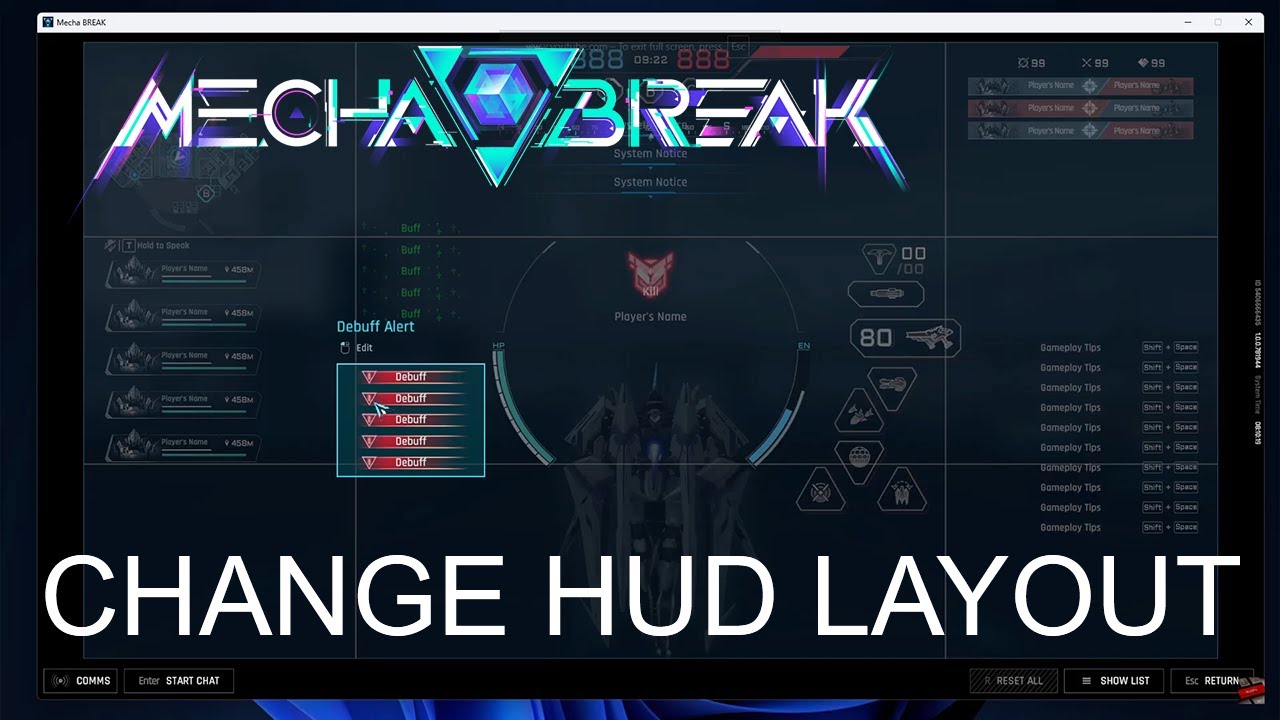
To clear a crowded screen, open Settings > Accessibility > General and select Custom Layout.
This menu lets you resize and reposition individual overlay elements. Shrinking the scoreboard, moving the kill feed away from the center of the screen, and shifting the minimap into direct eye-line prevents visual clutter from obscuring incoming lock-on indicators.
Beyond interface adjustments, you can customize pilot and unit cosmetics with Corite through Mecha Break top-ups.
Recommended Settings Summary
| Setting | Target Value | Strategic Purpose |
|---|
| Enemy Action Sound Effects | 80+ | Amplifies hostile movement and incoming firing sounds (TheGamer) |
| Energy Warning | 80+ | Ensures clear audio alerts before thruster power is fully depleted (TheGamer) |
| Low Frequencies (EQ) | -2 to -3 dB | Cuts bass rumble to eliminate muffled audio (Immortalboost) |
| High Frequencies (EQ) | +1 to +2 dB | Emphasizes weapon discharges and thruster cues (Immortalboost) |
| Enable Directional Indicator | On | Keeps active target located during aerial combat (TheGamer) |
| Squadmate Indicator | On | Clearly marks allied units to prevent target confusion (TheGamer) |
| Double-Tap to Evade | Off | Eliminates accidental dashes during delicate maneuvering (TheGamer) |
Frequently Asked Questions
How can I improve spatial awareness in Mecha Break given the limited built-in audio sliders?
Because Mecha Break provides minimal internal surround sound and spatial audio settings, adjust an external equalizer by cutting low frequencies by 2 to 3 dB and boosting high frequencies by 1 to 2 dB. As detailed by Immortalboost, this EQ curve emphasizes directional cues like weapon shots and thrusters.
Where can I reposition the minimap and scoreboard overlay in Mecha Break?
Adjust and resize interface components such as the minimap, kill feed, and scoreboard under Settings > Accessibility > General > Custom Layout, as outlined in TheGamer's configuration guide.










Comments