On the PC client of Honkai: Star Rail, your 9-digit User Identifier (UID) is permanently displayed in the bottom-right corner of the screen next to your username during normal exploration. If you need to copy the number to your clipboard without manually typing it, press the ESC key to bring up the main phone menu, click your Trailblazer portrait in the top-left corner to open your profile, and click the copy icon adjacent to the UID printed below your Trailblazer name.
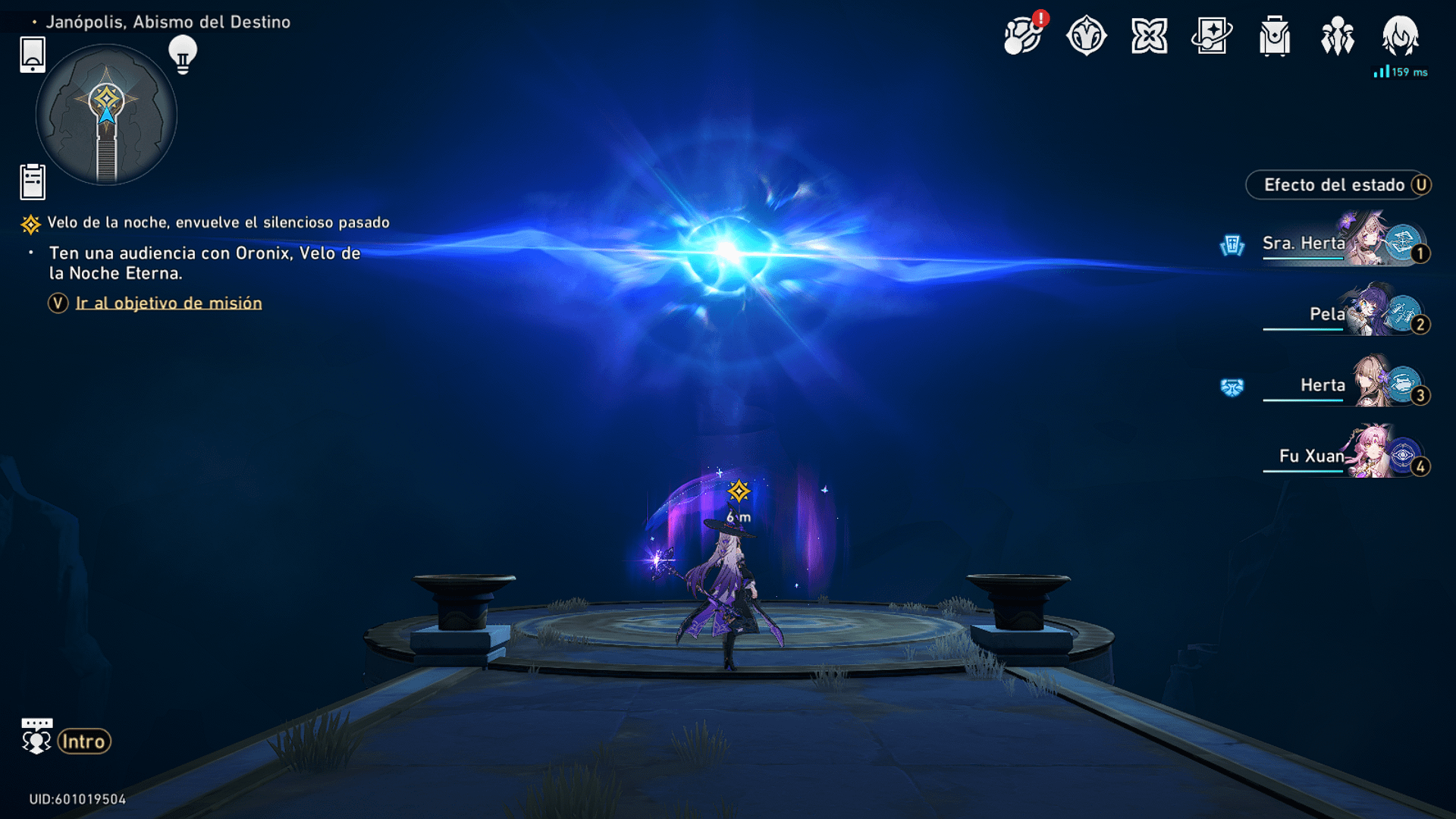
Checking the bottom-right HUD
The fastest way to locate your account identifier requires no menu navigation. When walking around the Astral Express, Belobog, or the Xianzhou Luofu, look at the extreme lower-right corner of your monitor.
According to PlayAware's UID guide, the game prints your 9-digit UID directly on the desktop interface beside your display name at all times during standard gameplay. You can read it off the screen directly whenever you need to confirm which account is active.
How to copy your UID to the clipboard on PC
Typing a 9-digit string manually into forms, community spreadsheets, or third-party web events invites typos. The PC client includes a built-in one-click copy function inside the profile interface.
- Press ESC on your keyboard while in control of your character to open the main phone menu, as outlined by Eurogamer's system walkthrough.
- Move your cursor to the top-left corner of the phone screen and click your Trailblazer portrait.
- Locate your 9-digit UID positioned immediately underneath your in-game name.
- Click the small copy icon sitting right beside the numbers.
The client sends the 9-digit number directly to your Windows clipboard. You can paste it into browser fields, redemption forms, or chat apps using Ctrl+V.
Why your UID might disappear from the PC screen
Occasionally, the bottom-right corner of your monitor goes completely blank. This behavior occurs under three specific conditions:
- Cutscenes and dialogue: Story cinematics and scripted conversations clear the interface entirely to keep the scene cinematic.
- Turn-based combat: When entering an encounter, the battle HUD replaces the exploration interface, removing the persistent bottom-right counter.
- The Alt+Z hotkey: On the PC build, pressing Alt+Z toggles the visibility of the entire HUD overlay on and off. If your UI vanished during normal walking, tap Alt+Z to restore it.
- Simulated Universe co-op instances: In cooperative Simulated Universe chambers, the bottom-right corner shows the host's UID rather than your own. To inspect your personal ID in this scenario, press ESC to check your phone profile.
Server regions identified by your UID
The first digit of your 9-digit code is not random. It directly reflects the regional server hosting your account.
(Note on regional overlap: PlayAware specifies that Asia server UIDs lead with 8 and Taiwan/Hong Kong/Macau accounts lead with 9, whereas some community references group 8 and 9 broadly under Asian regional nodes.)
If you want to confirm your region before logging into the world, look at the bottom-center of the PC title screen. Your active server appears directly beneath the Start Game button, as documented on VGTopup's Honkai: Star Rail page.
Using your UID for social features and account security
Your UID acts as a public address. It allows other players to search for you once social functionality unlocks.
Adding friends via User ID
Social tools are unavailable at the start of the game. According to Rock Paper Shotgun's co-op guide, you unlock the Friends feature only after finishing the prologue mission "The Voyage Continues" and speaking with Conductor Pom-Pom aboard the Astral Express. From there, press ESC, open the Friends menu, and search for any friend's exact User ID to send them a request.
Security rules for your UID
Sharing your UID is completely safe. It appears openly on screen during live streams, in tournament broadcasts, and inside co-op rooms. Third-party top-up services and web-based reward deliveries use the combination of your UID and server to route Oneiric Shards directly to your mailbox without touching your login credentials.
However, a UID cannot serve as a login tool. As explained by Playbite's login report, you cannot sign into the PC client with a UID alone; account access always requires your registered HoYoverse email, username, or linked authentication accounts. Never share your account password or web browser login cookies.










Comments