

VGTopup
Search...

How to fix Party Star login errors and account linking issues

Fix Party Star login errors, resolve authorization timeouts, and fix account binding conflicts on Android and iOS with verified troubleshooting steps.

Author: VGTopupLast updated: 2026-09-17

A Party Star login error typically occurs when third-party authentication services flag a sign-in attempt from an unfamiliar device or network, or when multiple system accounts conflict during profile binding. Resolving authentication failures requires updating the application to meet modern credential standards, re-verifying identity from a trusted location, or reassigning the default Play Games profile in device settings to prevent binding collisions.

Party Star combines group voice chat rooms, casual mini-games, karaoke, and live audio broadcasting. Account data holds your profile rank, room host badges, and Party Star Diamonds; binding errors can lock you out of these paid perks or risk losing a guest profile permanently.

Resolving Google authorization timeouts and blocked sign-ins

When a sign-in attempt fails immediately or hangs on an authorization timeout, the third-party identity provider is often intercepting the connection. Google frequently blocks third-party app sign-ins if the session originates from an unfamiliar device or an unrecognized IP location, returning a generic credential error instead of completing the handshake (Google Account Help).

To bypass these security blocks:

  1. Verify your network and hardware. If you recently switched phones or connected to a new Wi-Fi network, retry the login from a previously recognized home network or your primary device.
  2. Update the client. Running an outdated Party Star build can trigger provider rejections when older versions lack current verification data required by third-party APIs. Check Google Play or the App Store for the latest build.
  3. Respect provider security cooldowns. When identity verification fails repeatedly on new hardware, Google's automated systems can enforce a waiting period. Google Account Help advises waiting a full week before retrying access on the new device.
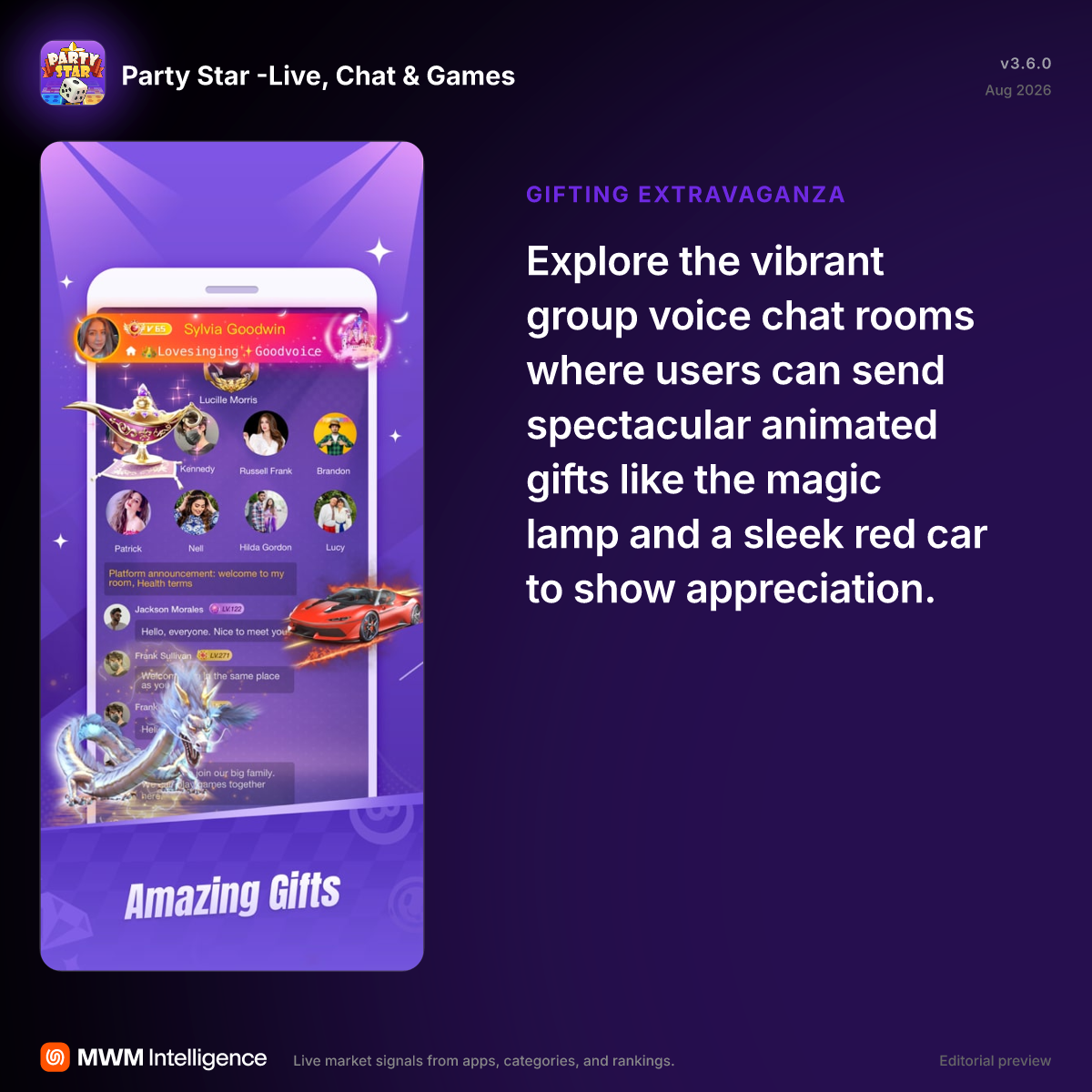
Party Star mobile app interface showing profile options and social rooms

How to switch accounts and fix binding failures on Android

If you see a "party star account binding failed" message, your device is likely attempting to tie the current guest session to a Google account that already holds a separate profile. On Android devices configured with multiple accounts, Play Games services can silently select an unintended default profile.

Android lets you assign specific Google accounts to individual games. According to Google Play Help, you can set this behavior directly in system settings:

  1. Open your device's Settings app.
  2. Select Google > All services.
  3. Tap Settings for Google apps > Play Games > Sign in account.
  4. To fix game-specific binding conflicts, locate Party Star under the Change the account by game section.
  5. Select the exact Google address you wish to pair with the session, or set the option to prompt you each time.

Adjusting these settings ensures that logging into the game pulls the correct cloud save rather than loading an unlinked placeholder profile.

IssuePrimary CauseRecommended ActionSource
Authorization blocked / invalid credentialsUnfamiliar hardware or network flagging automated fraud filtersLog in from a trusted network/device or update the app clientGoogle Account Help
Bound to wrong Google profileMultiple Google profiles installed on an Android handsetConfigure specific profiles in Android Play Games sign-in settingsGoogle Play Help
Security lockout cooldownRepeated sign-in attempts on a brand-new deviceWait a full week before re-attempting login on new hardwareGoogle Account Help

Step-by-step troubleshooting checklist for authentication errors

Follow this sequence to diagnose persistent authentication failures without wiping local session files:

  1. Check for mandatory app updates. Outdated software cannot negotiate modern OAuth handshakes. Update Party Star to ensure secure authentication protocols are active.
  2. Review active accounts in device settings. If attempting to switch accounts, verify that the target account is active inside your system account manager before opening the game.
  3. Avoid clearing app data while on a guest profile. If your guest account has not yet been bound to Google, Apple ID, or Facebook, clearing system cache and app storage will permanently delete the local session keys, making profile recovery significantly harder.
  4. Test third-party permissions. Open your external provider settings (such as Google Connected Apps) to confirm that Party Star maintains authorized access. Revoking and granting permission again can clear corrupt authentication tokens.

Comments

View All →





