

To receive instant attack, low-potion, and death alerts during AFK auto-hunting in Lineage2M, configure your in-game Quick Slots alongside Mobile PURPLE and your smartphone OS background permissions. Unattended grinding depends on maintaining inventory weight strictly below 50% so passive HP and MP regeneration continues; exceeding 50% weight halts natural recovery entirely, and passing 80% weight completely blocks your character from combat actions (TouchArcade). Pairing active quick slots with mobile sleep exemptions and Do Not Disturb overrides ensures audible chimes break through silent hours the moment your character is engaged or killed.
Managing In-Game Weight Thresholds and Quick Slot Automation
An AFK auto-hunting session often fails inside the game client long before an alert triggers on your phone. Carrying excess loot or packing too many supplies pushes the inventory gauge past mechanical safety thresholds documented by TouchArcade:
- Above 50% Weight: Natural HP and MP recovery stops completely. Your character relies entirely on consumable health potions. If incoming damage outpaces potion consumption or your supply runs dry, death follows quickly.
- Above 80% Weight: Combat actions are completely disabled. The character stops fighting, leaving them defenseless against mobs or hostile players until inventory weight is manually reduced below the threshold.
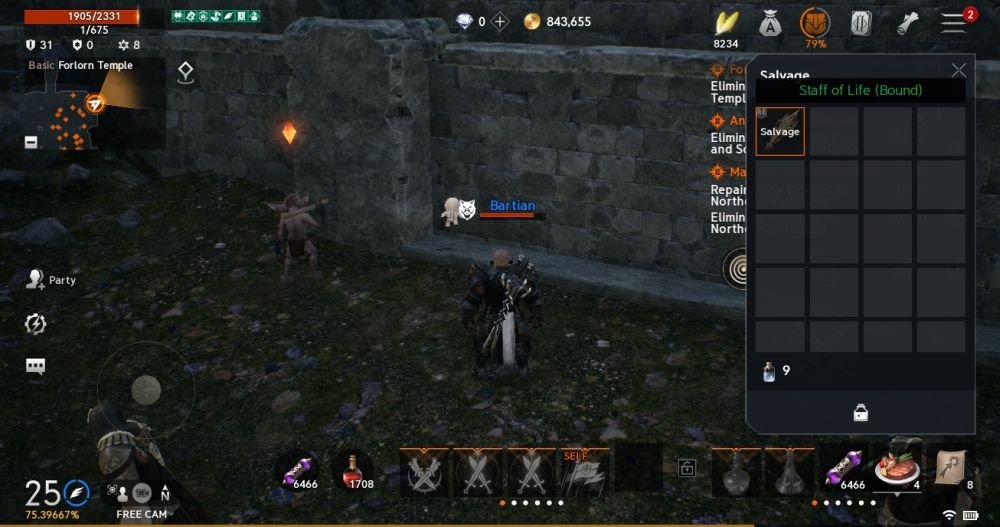
Automating survival requires active Quick Slot management. Drag restorative consumables or defensive skills directly onto an open slot to trigger them automatically off cooldown. Dragging upward across the slot deactivates auto-use (TouchArcade). Balance your starting potion stock carefully: carry enough to outlast incoming monster damage, but keep total weight below 50% so natural regeneration stays online.
For extra carrying capacity or supplies, Diamonds and specialized growth packs are available through third-party platforms such as VGTOPUP, Razer Gold, and MMOexp.
Lineage2M Purple Push Notifications and Remote Streaming
NCSoft's PURPLE ecosystem bridges PC client execution with mobile monitoring. Lineage2M runs on PC at up to 4K resolution, streaming directly to Mobile PURPLE on iOS or Android so you can track vitals and receive alerts away from your desk (IGN).
This connection serves as your primary alert pipeline while the game grinds unattended on PC. When an enemy flags you, health drops below a set threshold, or your character dies, PURPLE pushes a notification straight to your phone. The catch is your phone's operating system: aggressive background task killers will silently drop these alerts unless granted explicit exemptions.
Operating System Overrides: Bypassing Sleep and Do Not Disturb
Stock power-saving profiles treat background game alerts like spam. When a handset sits locked on a nightstand, Android and iOS throttle background polling to save battery. Without explicit system overrides, attack sirens arrive hours late—or not at all.
| Setting Objective | Interface Path | Visual Reference | Alert Behavior | Sourced Documentation |
|---|---|---|---|---|
| Android DND Override | Settings > Apps & notifications > [App] > App notifications > Override Do Not Disturb | 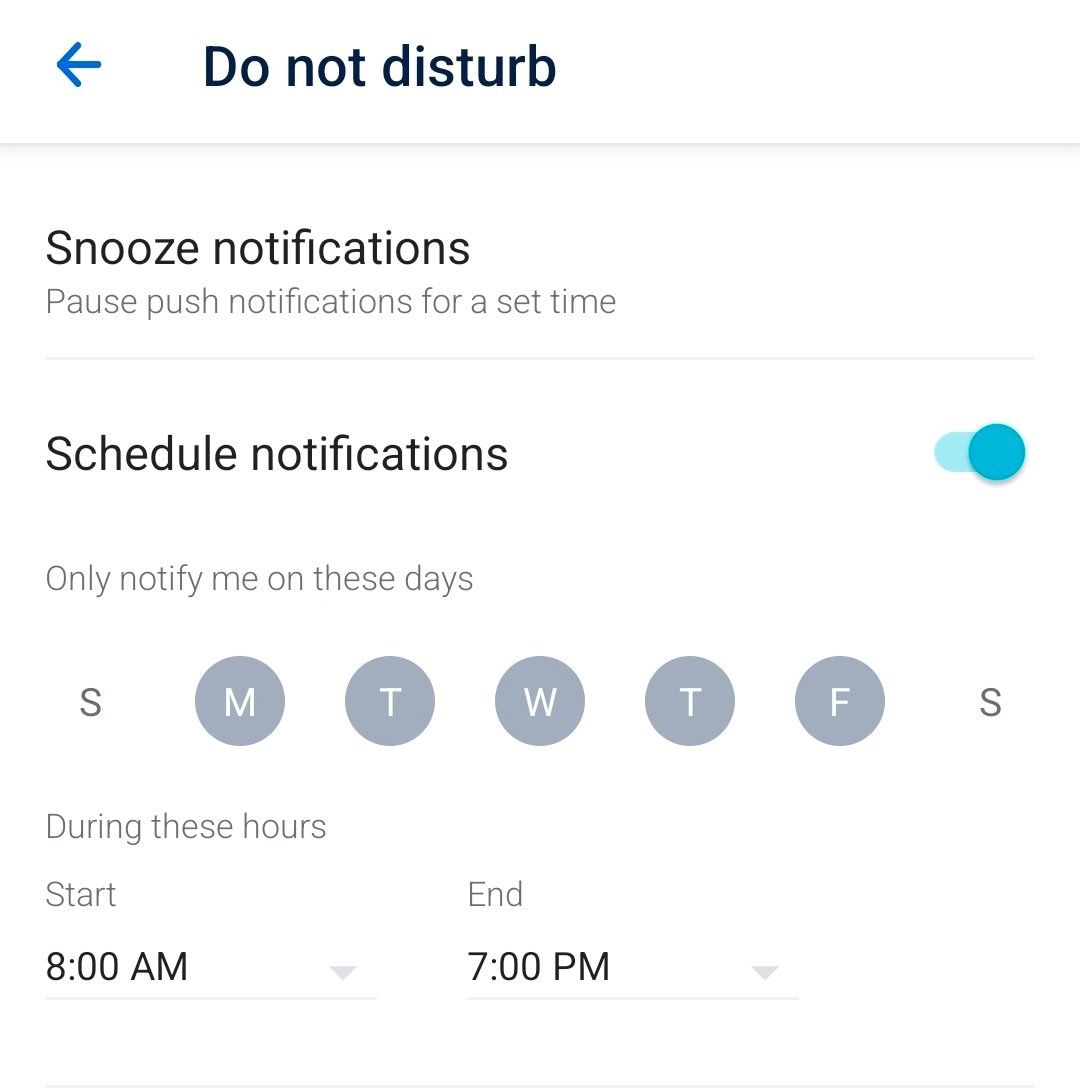 | Pushes emergency alert chimes even when the phone is in scheduled quiet hours. | Google Android Help |
| Android Pop on Screen | Settings > Apps & notifications > Notifications > [App] > Alerting > Pop on screen | 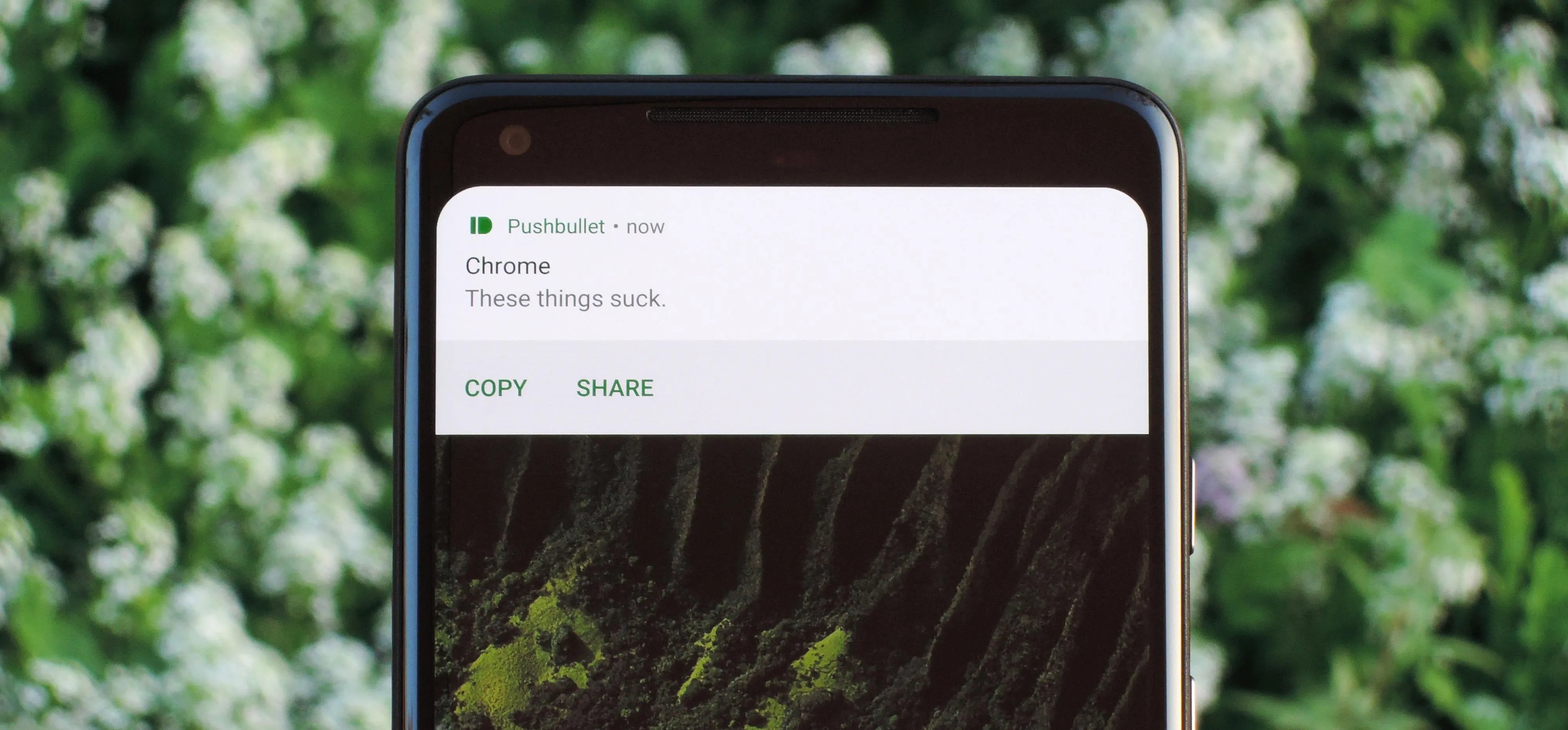 | Triggers audible chimes, lock screen cards, and heads-up banner notifications. | Google Android Help |
| Samsung Deep Sleep Whitelist | Settings > Battery and device care > Battery > Background usage limits > Never sleeping apps | 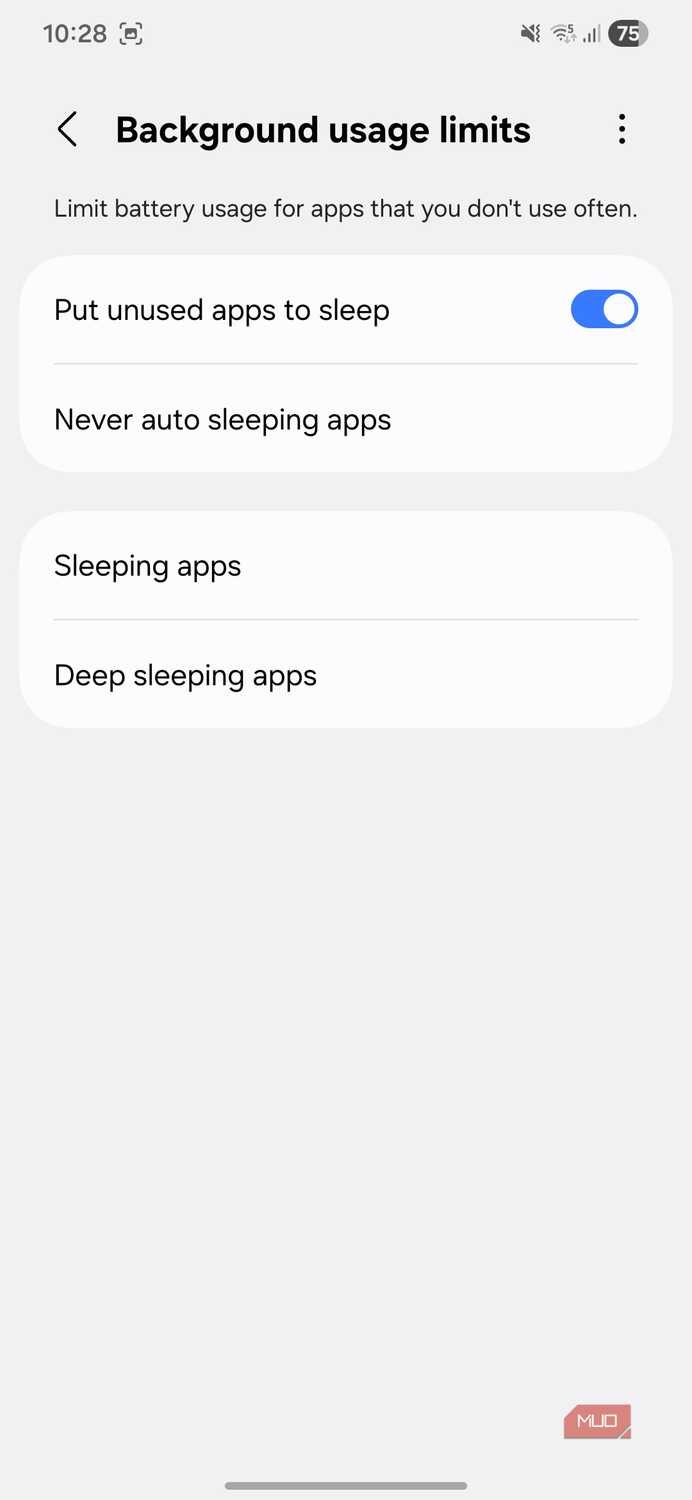 | Stops One UI from suspending the client process during extended idle periods. | Samsung Support |
| iOS Focus Whitelist | Settings > Focus > Do Not Disturb > Allow Notifications > Apps | 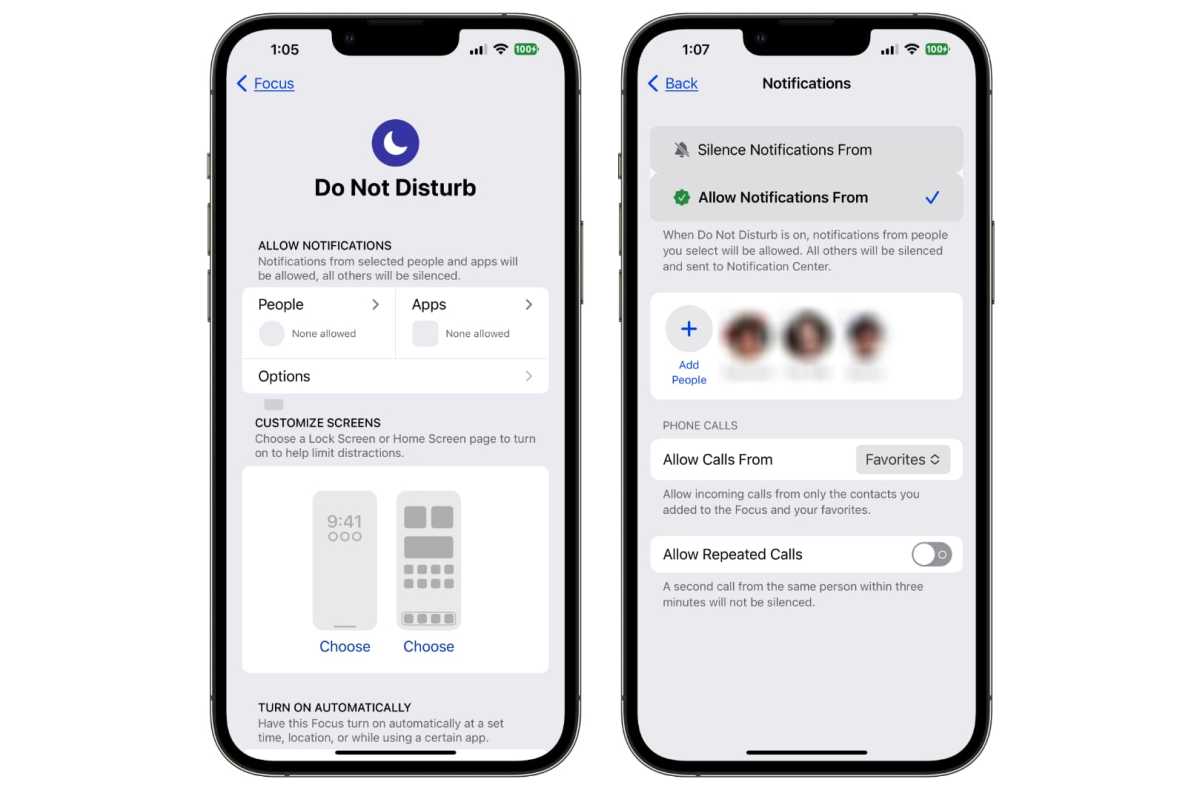 | Delivers immediate push notifications through active Focus and Do Not Disturb modes. | SmartThings Community |
| Samsung Game Overlay Fix | Game Booster / Settings > Block during game > Notifications: OFF | 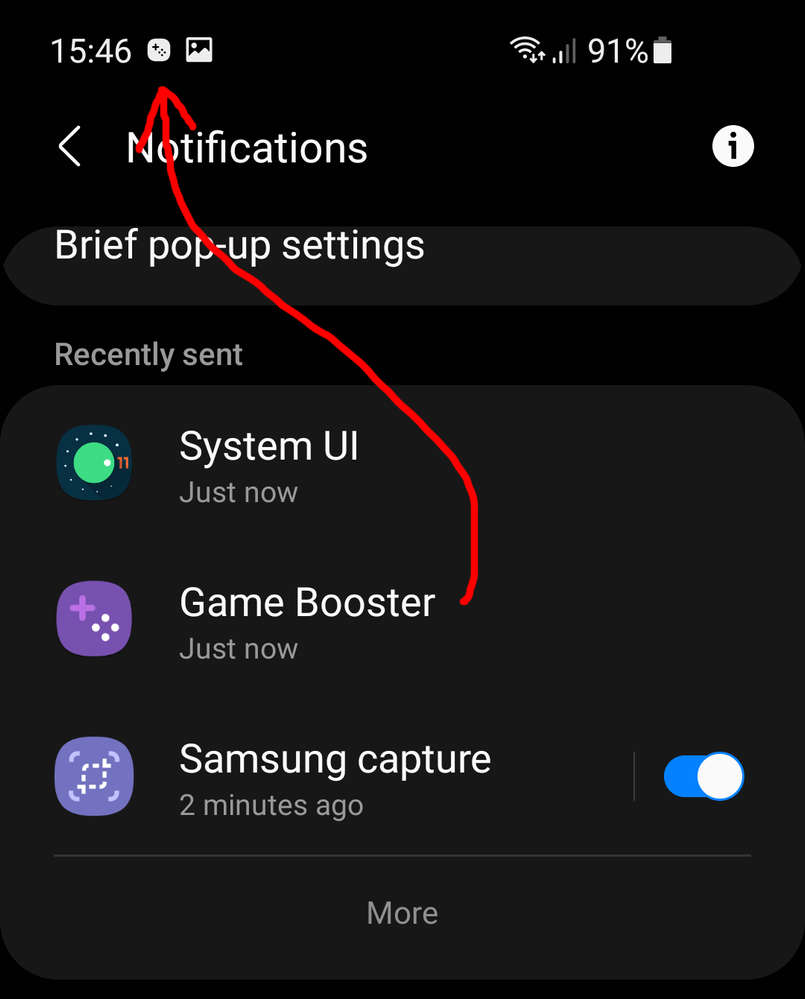 | Prevents Samsung's gaming overlay from hiding incoming alerts while games run. | Samsung Support |
Android Background and Alerting Configuration
Android separates app notifications into two distinct channels: 'Alerting' and 'Silent'. Mobile PURPLE must be set to Alerting so the system plays an audio cue, places an icon in the status bar, and fires an interactive heads-up card via 'Pop on screen' (Google Android Help). To punch through overnight quiet hours, enable 'Override Do Not Disturb' in the app's channel settings (Google Android Help).
Samsung Galaxy devices require an extra step. One UI forces idle background apps into deep sleep, terminating socket connections and blocking push pings entirely. Prevent this under Settings > Battery and device care > Battery > Background usage limits. Tap Never sleeping apps, hit +, and select your monitoring client (Samsung Support).
Also verify Game Booster if running Lineage2M directly on your mobile device. Its 'Block during game' menu contains an option that silences alerts while games occupy the screen. Toggle notifications OFF under that menu to preserve incoming warnings (Samsung Support).
iOS Focus Configuration
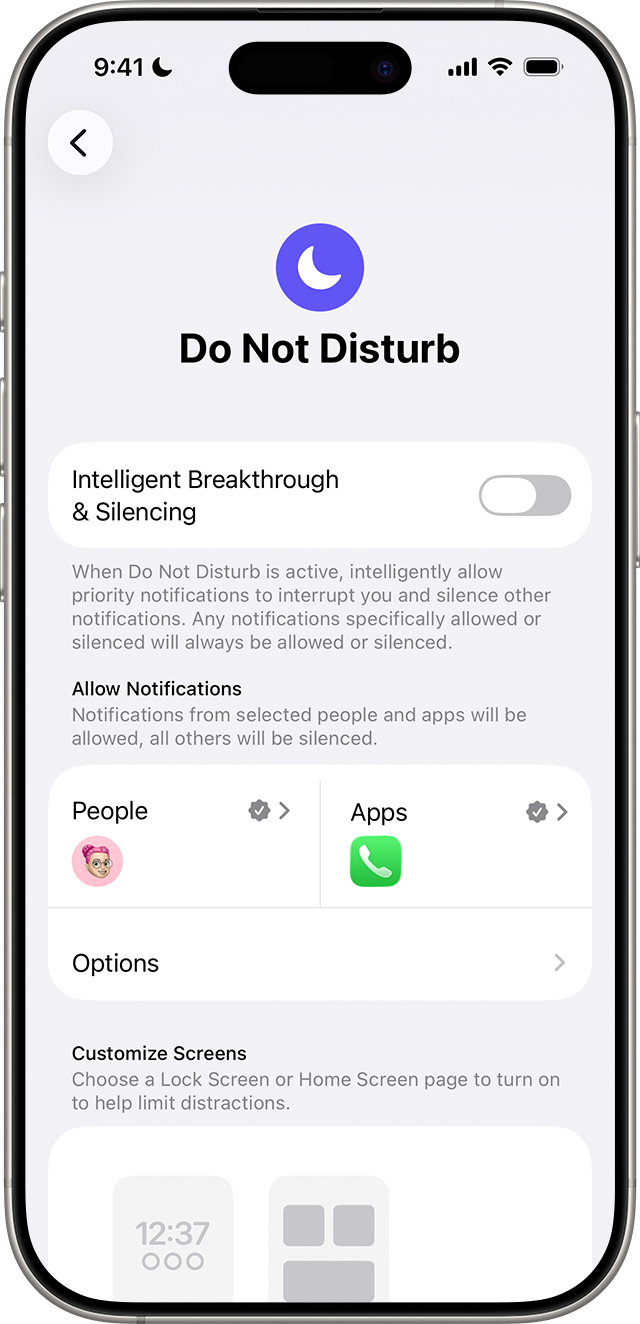
Apple handles silent hours through Focus profiles. 'Sleep' and 'Do Not Disturb' mute PURPLE alerts by default. To punch a hole through active Focus modes, open Settings > Focus > Do Not Disturb > Allow Notifications > Apps and add your client (SmartThings Community). With 'Share across Devices' toggled on, this whitelist immediately mirrors to paired hardware like an Apple Watch.
Step-by-Step Recommended AFK Alert Setup
Use this standard setup routine when preparing your character for prolonged AFK auto-hunting:
- Prune Inventory Below 50%: Sell unneeded equipment, deposit crafting materials in town storage, and calculate your consumable load so the total weight meter sits well under 50%.
- Configure Consumables in Quick Slots: Place HP potions on your active Quick Slot bar. Ensure auto-use is active by confirming the slot is not dragged upward into the disabled state (TouchArcade).
- Initiate PC Client & PURPLE Stream: If farming via PC, launch Lineage2M through the NCSoft PURPLE launcher. Confirm the stream link is active on Mobile PURPLE at up to 4K resolution (IGN).
- Set Notification Channel to Alerting (Android): Open your phone's notification channel settings for the client and verify the delivery status is set to "Alerting" with "Pop on screen" toggled on (Google Android Help).
- Apply DND / Focus Exceptions: Add the monitoring client to "Override Do Not Disturb" on Android or "Allow Notifications" under iOS Focus (Google Android Help; SmartThings Community).
- Exempt Client from Battery Deep Sleep (Samsung): Add the client to "Never sleeping apps" to avoid background process termination while the device is locked (Samsung Support).
When to Deviate from This Profile
You can relax audible alerting and DND overrides when grinding in low-level safe zones where open-world PvP is disabled and incoming mob damage cannot outpace passive regeneration. In those protected spots, silent notifications are adequate. Keep full audible alarms active whenever farming contested wilderness zones or open dungeons where PK is enabled.
Auto-Hunting Operational States
Review this functional summary to diagnose why auto-hunting routines fail or why alert deliveries stop during unattended sessions.
| Operating Condition | Mechanical Impact | System / App Behavior | Documented Source |
|---|---|---|---|
| Weight Below 50% | Full natural HP/MP regeneration; normal auto-skill triggers. | Quick slots automatically cycle potions and skills as cooldowns finish. | TouchArcade |
| Weight Above 80% | Character is completely locked out of combat actions; auto-hunting freezes. | The character stands idle while taking damage, leading to death notifications. | TouchArcade |
| Android Silent Channel | In-game events register on the server, but mobile hardware stays silent. | Status bar receives alerts, but no audible chime plays and screen does not wake. | Google Android Help |
| Samsung Unregistered Sleep | App process is killed or suspended after several hours of idle screen time. | Push notifications cease arriving until the client application is manually reopened. | Samsung Support |
| Active iOS DND without Whitelist | Server alerts arrive at the phone hardware, but iOS suppresses display banners. | Audio and banners remain muted until the scheduled Focus profile expires. | SmartThings Community |
Frequently Asked Questions
Why do AFK notifications stop arriving after my phone has been idle for several hours?
Samsung One UI and stock Android battery management automatically move inactive background applications into deep sleep to preserve battery life. Once placed in deep sleep, apps cannot receive server push events or deliver alerts. Adding your notification client to "Never sleeping apps" under Settings > Battery and device care > Battery > Background usage limits on Samsung devices resolves the issue (Samsung Support).
How does character inventory weight affect AFK auto-hunting in Lineage2M?
Carrying too much weight breaks your auto-hunting loop. Exceeding 50% inventory weight stops all natural HP and MP regeneration, causing health potions to deplete far more rapidly. Exceeding 80% inventory weight completely blocks your character from performing combat actions, freezing auto-hunting until excess inventory is removed (TouchArcade).
Can I receive emergency AFK alerts while my phone is set to Do Not Disturb?
Yes. On Android, navigate to Settings > Apps & notifications > [App] > App notifications and toggle on "Override Do Not Disturb" (Google Android Help). On iOS, open Settings > Focus > Do Not Disturb > Allow Notifications > Apps and add your client to the whitelist so priority notices break through silent profiles (SmartThings Community).
Comments