For stable broadcasting without dropped frames or thermal shutdowns on Tango Live, the optimal baseline is 0p at 30 frames per second paired with a constant upload speed of 3–5 Mbps, a manual display brightness capped at 50%, and an active Wi-Fi connection. Rendering high-definition video while decoding live chat animations forces phone temperatures past internal safety cut-offs—around 45°C on iOS and 50–65°C on Android—triggering immediate frame throttling. Dialing in resolution, offloading chat processing, and staging your audio levels keeps your stream fluid without draining your battery in under an hour.
The Recommended Settings Baseline Profile
Mobile live streaming pushes your phone's camera sensor, hardware encoder, display panel, and network radios simultaneously. To prevent choppy output and rapid discharge, configure your broadcasting parameters in this sequence:
- Set target stream output to 0p at 30 fps: In your broadcasting software or app capture menu, choose 0p (0x720) rather than 0p. The lower resolution cuts encoding overhead significantly while preserving clean detail on mobile screens.
- Verify upload headroom: Ensure your connection delivers a steady 3–5 Mbps upload minimum according to BroadbandNow's streaming bandwidth metrics. If your upload speed fluctuates below 3 Mbps, 0p video drops frames.
- Lock screen brightness to 50%: Running maximum backlight while processing live video is a direct trigger for display heat build-up.
- Unplug fast chargers while broadcasting: High-wattage charging generates substantial heat inside the battery cell, accelerating thermal throttling when layered onto video encoding.
- Stage microphone input levels: Keep microphone gain positioned so spoken peaks settle between -18dB and -6dB, keeping the mic capsule 6 to 12 inches from your mouth as outlined by BOYA's audio gain setup guidelines.
When should you deviate from this baseline? If you switch from mobile hardware to a wired PC setup running Tango Web Desk, you can step up to 0p at 30 fps (requiring 4–8 Mbps upload) or 0p at 60 fps (requiring 6–12 Mbps upload). On mobile, staying at 0p remains the safest threshold for extended sessions.
| Output Profile | Upload Bandwidth Required | Operational Impact | Recommended Use Case | Visual Reference |
|---|
| 0p at 30 fps | 3–5 Mbps | Lowest thermal footprint and lowest battery draw | Standard mobile broadcasts on Wi-Fi | 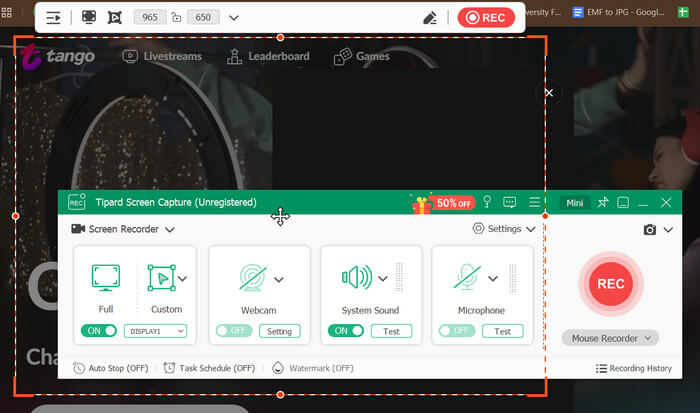 |
| 0p at 60 fps | 3–8 Mbps | Moderate encoder stress; increases battery consumption | Fast-motion content on newer devices | 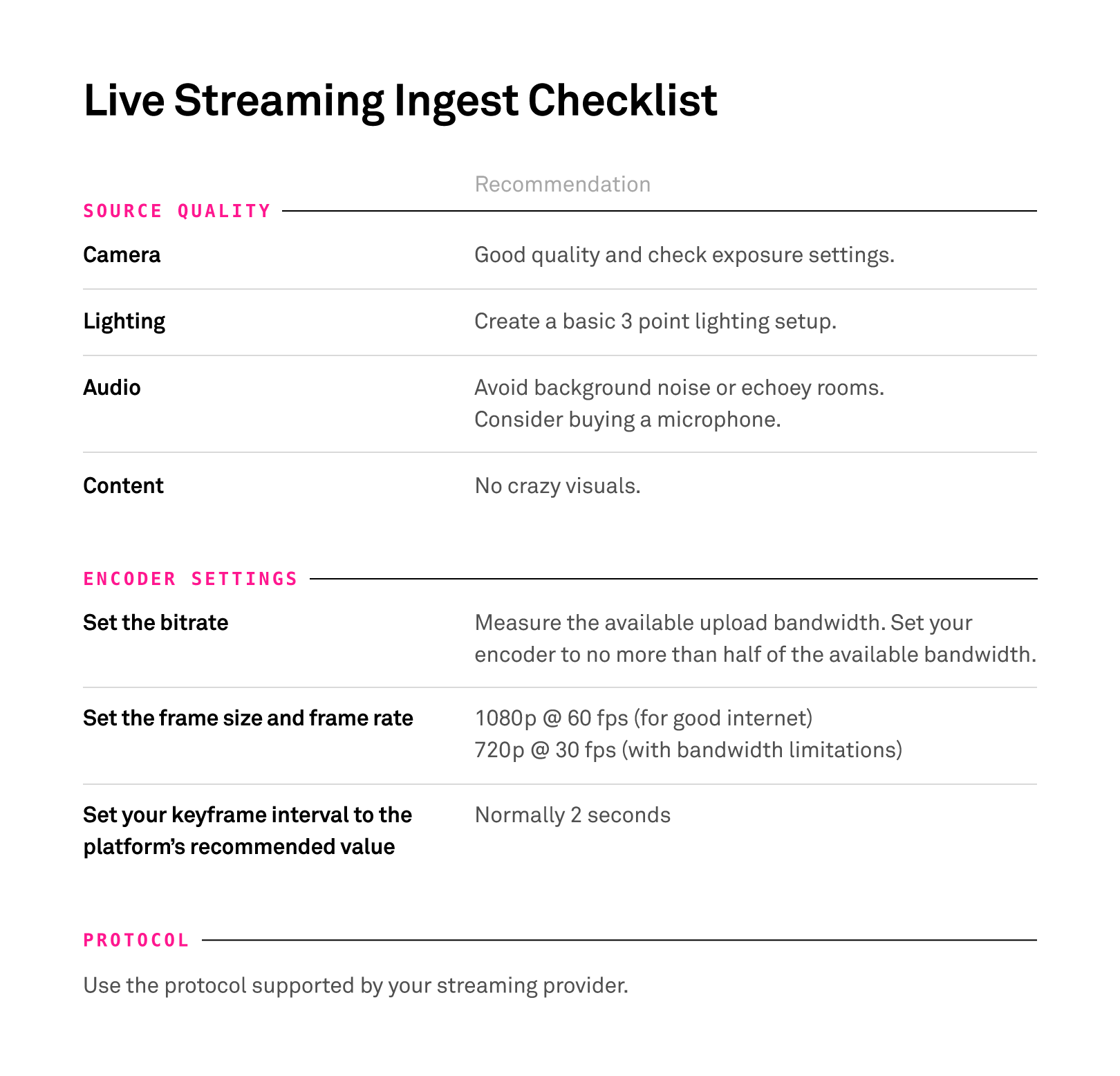 |
| 0p at 30 fps | 4–8 Mbps | High mobile heat; optimal for desktop hardware | Desktop capture via Tango Web Desk | 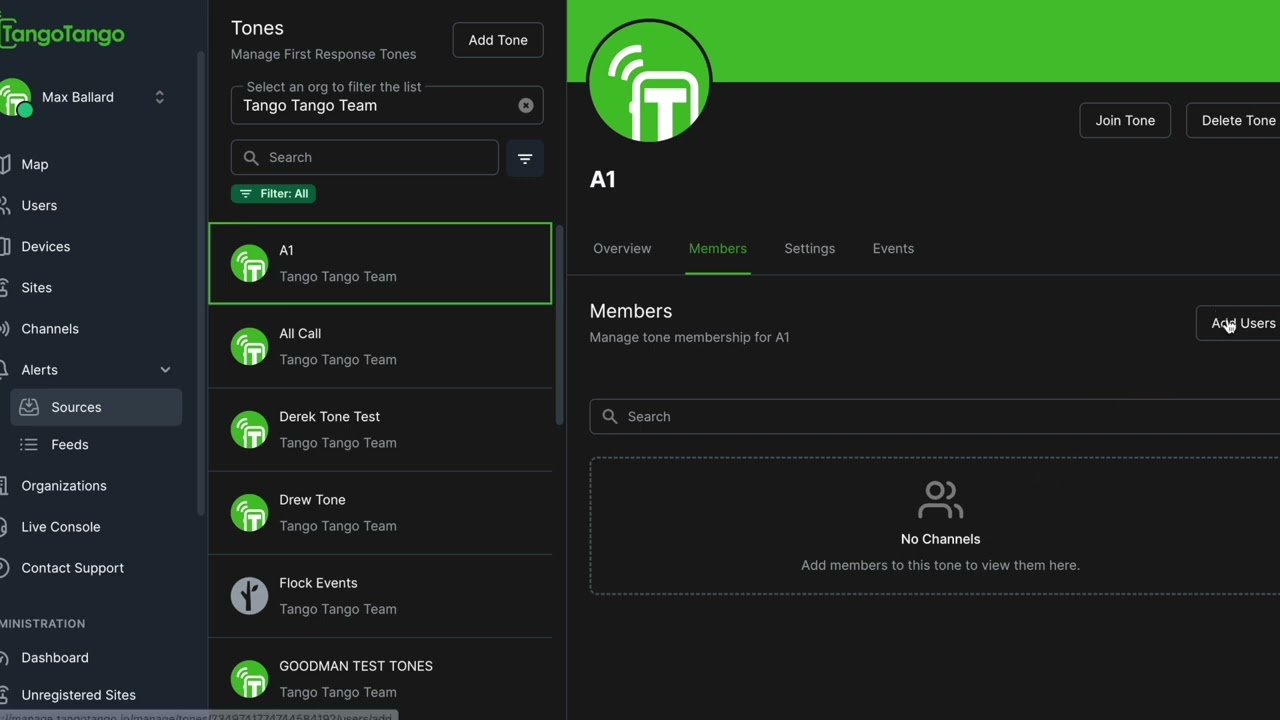 |
| 0p at 60 fps | 6–12 Mbps | Severe mobile thermal load; requires wired network | OBS Studio with direct Ethernet | 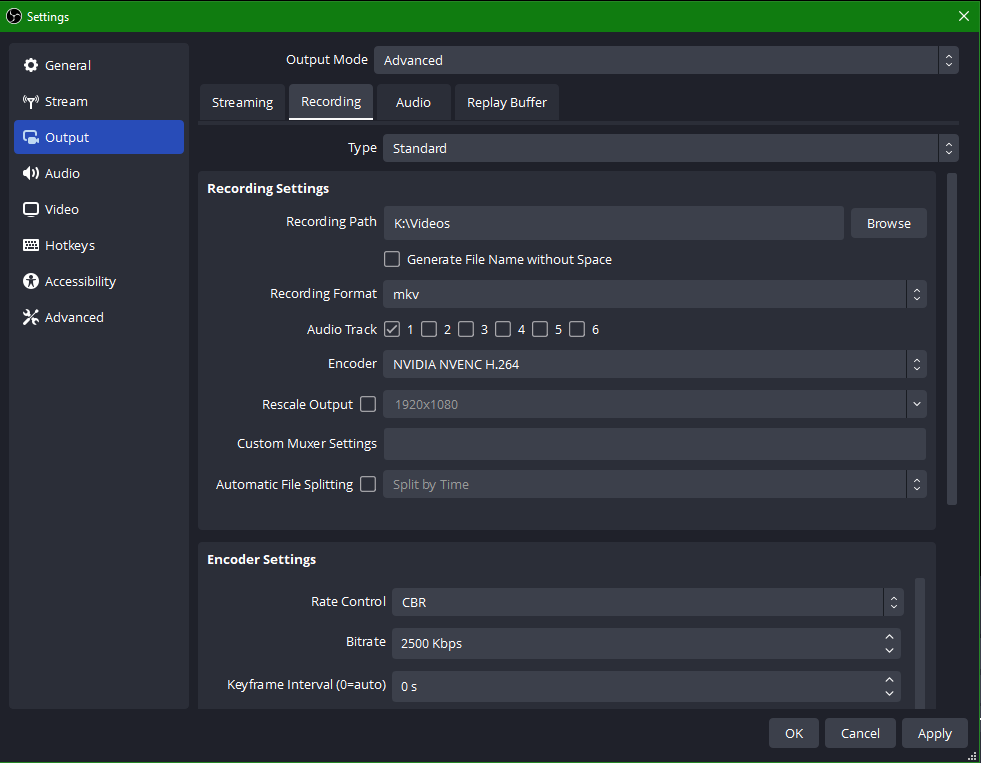 |
Bandwidth profiles and upload speed baselines sourced from BroadbandNow.
Isolating Thermal Throttling and Battery Drain
Phones do not shut down during a live stream because of a single random defect. Overheating happens when concurrent hardware demands—camera capture, real-time video compression, display backlighting, and cellular transmission—produce heat faster than passive phone chassis can dissipate it.
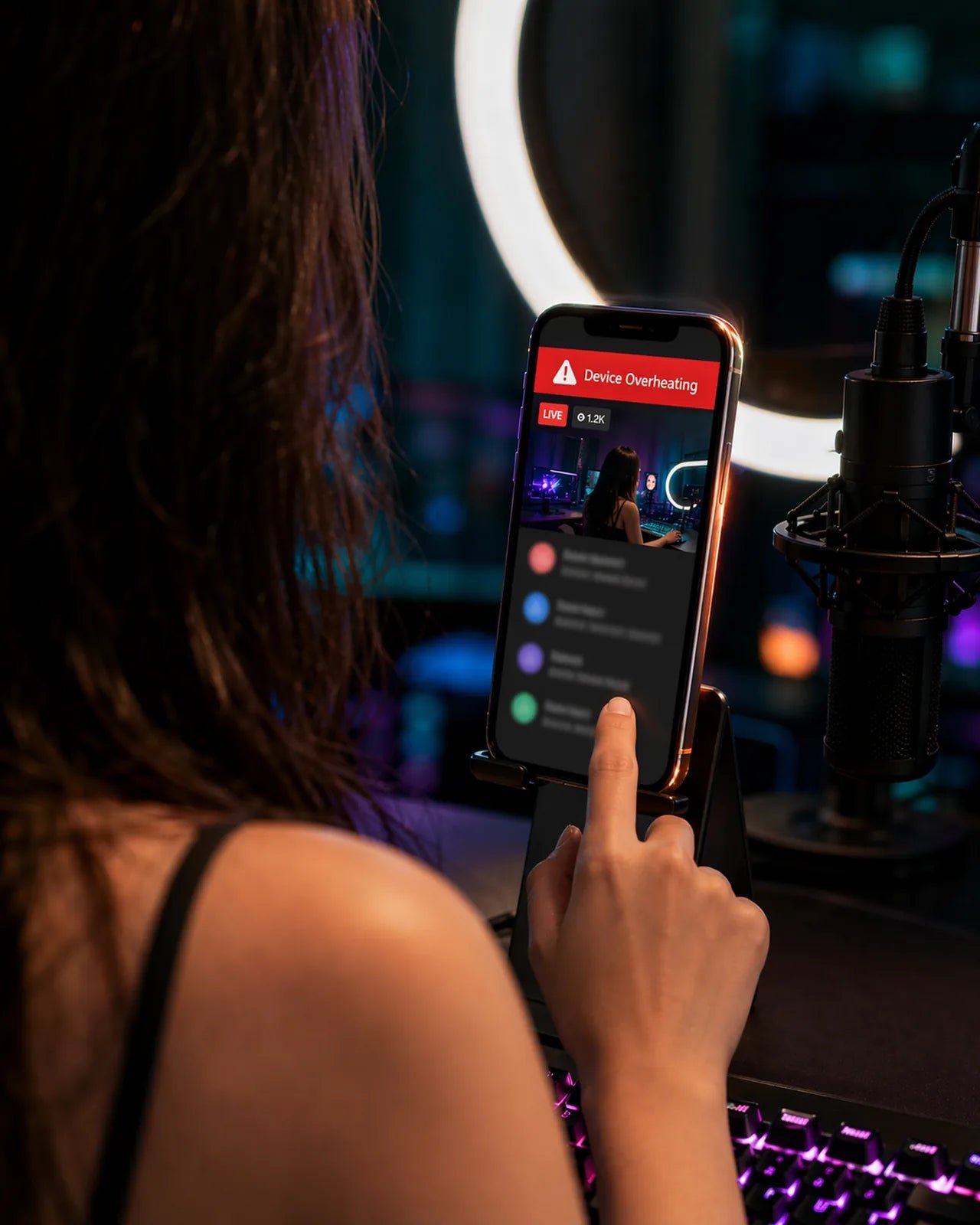
According to research documented by Kryozon, hardware temperatures can spike rapidly under stacked loads, with internal readings swinging from ambient levels (such as 16°C) up to 41°C and reaching 57°C when fast charging and cellular transmission operate simultaneously. As noted by StreamCot, modern operating systems enforce strict safety thresholds: an iPhone initiates emergency thermal shutdowns when its internal temperature reaches roughly 45°C, while Android hardware typically throttles performance or shuts down between 50°C and 65°C.
To isolate your device's heat limits before a critical broadcast:
- Connect to an indoor Wi-Fi network rather than cellular data to remove 5G modem heat.
- Set stream resolution to 0p and lock screen brightness at 50%.
- Leave the device unplugged from its charger.
- Broadcast for a 30-minute test window while monitoring heat build-up.
- Change only one operational variable (such as bumping resolution, plugging into power, or switching to 5G) every 15 to 20 minutes to see precisely which factor induces lag.
Remove thick, unventilated protective cases before going live. A synthetic or rubber phone case acts as thermal insulation, trapping radiant heat directly against the battery pack and processor.
Offload Room Overhead with Dual-Device Streaming
When you stream solely on a single mobile device, the phone encodes camera output while simultaneously rendering dynamic on-screen gifts, chat tickers, and interactive coin effects. Viewers spending Tango Coins to send animated gifts or trigger creator battles generate graphics and network payloads that your phone must decode in real time alongside video transmission.
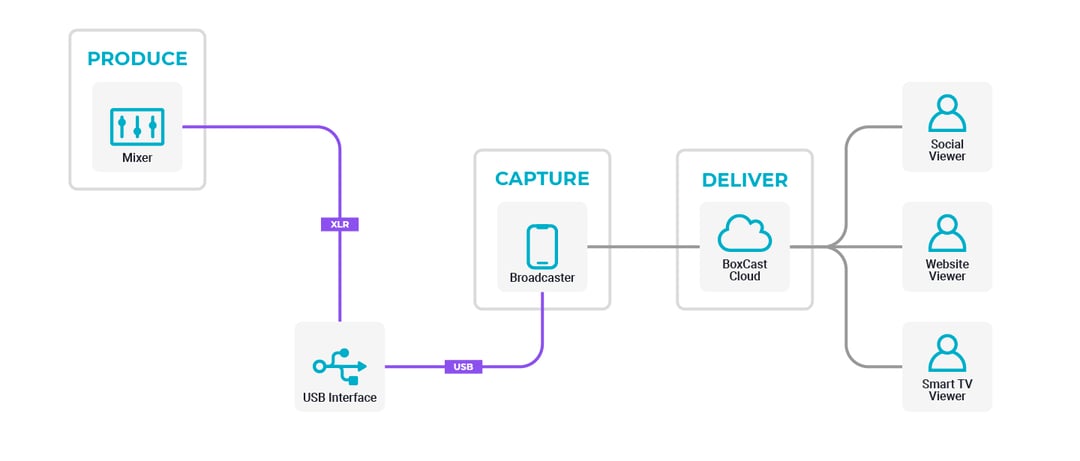
To eliminate this bottleneck, Tango provides an official dual-device workflow documented by Tango Support:
- Designate your phone for capture: Install the BoarCast mobile application. Your phone's camera and microphone handle video and audio capture exclusively, stripping out chat rendering and gift overlay animations.
- Open Tango Web on a separate computer: Open a web browser on a laptop or desktop PC and log into your Tango account.
- Manage the room via browser: Use the PC browser window to read live chat messages, acknowledge incoming gifts, trigger battle invites, and manage 1-on-1 stream upgrades.
This division of labor prevents stream stuttering during high-traffic broadcasts because the heavy interactive graphics are computed on your computer rather than inside your phone's processor.
iPhone Workarounds: BoarCast and Picture-in-Picture
Platform availability for Tango varies by region. On Android, the primary application is found on Google Play. On iOS, the native Tango app is absent from the Apple App Store in numerous regions outside the EU (where alternative app marketplaces like the Onside Store operate). For iOS users broadcasting through the web, Tango's iPhone streaming guide outlines a dedicated method to retain stream quality:
- Open Safari or your preferred mobile browser and go to
tango.me. - Log in and tap Go Live.
- Toggle the broadcast mode to External Stream, which connects the web session to the companion BoarCast camera utility.
- Apply your desired beautification filters inside BoarCast.
- Minimize BoarCast into Picture-in-Picture (PiP) mode and return to your mobile browser window to track chat messages and gifts.
Tango's documentation confirms that running BoarCast in Picture-in-Picture mode does not degrade your broadcast's output quality. Your audience continues to receive full-resolution camera output while your browser displays chat interactions.
Desktop Production: Tango Web Desk with OBS Studio
If your mobile hardware throttles regardless of setting adjustments, routing your stream through a computer eliminates battery constraints entirely. Broadcasters can connect standard desktop production software to Tango using Tango Web Desk, as outlined by Tango's OBS documentation.
To broadcast from desktop:
- Open your computer browser and launch Tango Web Desk.
- Select the OBS Stream broadcast option from the live stream console.
- Open OBS Studio on your computer.
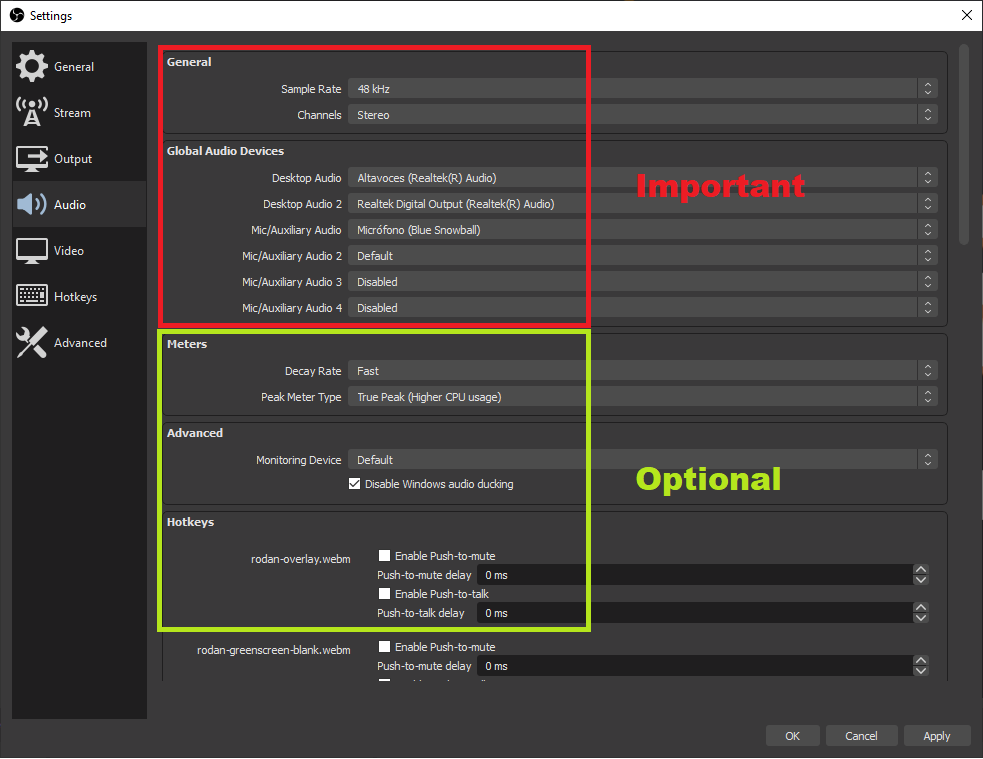
- In OBS Studio, open Settings > Output and assign your video bitrate to match your upload speed (4–8 Mbps for 0p at 30 fps, or 6–12 Mbps for 0p at 60 fps per BroadbandNow).
- Set your audio bitrate and verify your mic sources.
- Click Stream with OBS inside Tango Web Desk, then click Start Streaming in OBS Studio to transmit your feed.
Streaming via a computer shifts video encoding to a dedicated desktop CPU/GPU while power draws directly from a wall outlet, removing device overheating risks.
| Streaming Architecture | Hardware Components | Battery Impact | Lag & Throttling Risk | Configuration Source |
|---|
| Single Smartphone | 1 Phone (Tango App) | Extreme; drains rapidly under combined camera and UI load | High; triggers 45°C (iOS) or 50–65°C (Android) shutdowns | StreamCot |
| Dual-Device Setup | 1 Phone (BoarCast) + 1 PC (Tango Web) | Moderate; camera encodes while PC renders chat and gifts | Low; removes graphical event rendering from the phone | Tango Help Center |
| Desktop OBS Studio | PC/Mac + Webcam + Tango Web Desk | Zero phone battery used; powered via desktop hardware | Minimal; limited only by home internet upload speed | Tango Help Center |
Microphone Gain Calibration
Choppy playback and poor audio quality often coincide when a broadcaster's device struggles with signal processing. Setting audio input gain incorrectly either pushes the feed into harsh digital clipping or forces the software encoder to amplify ambient background hiss.
According to BOYA's gain calibration framework, streamers should adhere to the following audio parameters:
- Gain Target: Slowly increase your hardware or software microphone gain until conversational vocal peaks land consistently between -18dB and -6dB. Aim for standard speaking levels to hover around -12dB.
- Avoid the Red Zone: Levels approaching -3dB to -1dB introduce signal saturation and clipping distortion, which sounds harsh on viewer speakers.
- Physical Placement: Keep external lavalier or desktop condenser microphones roughly 6 to 12 inches from your mouth. Placing the microphone too far away requires artificial gain boosts that capture room echo and cooling fan noise.
Operating System Tweaks and Cache Maintenance
Adjusting network and background settings in your smartphone's operating system stabilizes your feed and stops stuttering caused by background tasks.
Disable iOS Wi-Fi Assist
On iPhones, an active feature called Wi-Fi Assist automatically shifts data traffic to cellular networks whenever Wi-Fi signal strength drops. During a live stream, this creates rapid network handover loops that spike modem temperatures and cause video stutters. Open Settings > Cellular (or Mobile Data), scroll to the bottom of the menu, and toggle Wi-Fi Assist off (StreamCot).
Turn Off Background App Refresh
Background syncing by mail clients, social media apps, and cloud drives drains processing cycles during a broadcast. In device settings, disable Background App Refresh (iOS) or restrict background battery usage for non-essential applications (Android) prior to starting your session.
Clear Tango Application Cache and Data
If the Tango app stutters, freezes, or crashes on launch, corrupted temporary cache files are frequently the cause. As noted in troubleshooting on Şikayetvar technical documentation, Android users can clear these files under:
Settings > Apps > Tango > Storage > Clear Cache & Clear Data
Clearing cache and data purges broken temporary stream files without deleting your account credentials, providing a clean slate for video memory buffers.
Frequently Asked Questions
How can iPhone users broadcast on Tango if the app is missing from their local App Store?
Broadcasters outside the European Union can log into tango.me using Safari or Chrome on their mobile device, select Go Live, choose External Stream, and link the session to the companion BoarCast camera app. Live chat and interactive gifts are managed directly in the mobile browser while BoarCast transmits camera video (Tango Help Center).
Why does my phone shut down automatically after 20 to 30 minutes of streaming?
Mobile operating systems include emergency thermal protection. iPhones shut down when the internal battery and chassis temperature reaches around 45°C, while Android phones throttle or shut down between 50°C and 65°C. Running 5G data transmission, high screen brightness, continuous camera capture, and battery charging at the same time rapidly exceeds these safety ceilings (StreamCot; Kryozon).
Does running BoarCast in Picture-in-Picture mode reduce stream quality?
No. Minimizing BoarCast to Picture-in-Picture on an iPhone so you can read live chat in Safari preserves full broadcast quality. Your viewers continue to receive the full camera stream without resolution drops or bitrate downgrades (Tango Help Center).
What upload speed is needed to stream in 0p at 30 fps without buffering?
A stable upload speed of 3–5 Mbps is recommended for 0p at 30 fps. Higher profiles require more bandwidth: 0p at 60 fps needs 3–8 Mbps, 0p at 30 fps requires 4–8 Mbps, and 0p at 60 fps demands 6–12 Mbps upload headroom (BroadbandNow).








Comments