To change your server in the Honkai Impact 3rd Global client, log out to the start screen and use the server selection button to switch between the Americas and Europe regional servers. Characters, currencies, and story progression do not transfer between servers, meaning switching creates a fresh profile on the new server rather than migrating your data (vgtopup.com).
If you downloaded the game expecting to join a friend in Southeast Asia, toggling inside the Global client will not work. Southeast Asia runs on a completely independent application package (Honkai Impact 3 SEA on Uptodown).
| Regional Client | Target Server Coverage | Operating System Baseline | Client Visual |
|---|
| Honkai Impact 3rd (Global) | Americas and Europe regional servers (vgtopup.com) | Android 6.0+ on mobile; official PC client (Uptodown Global) | 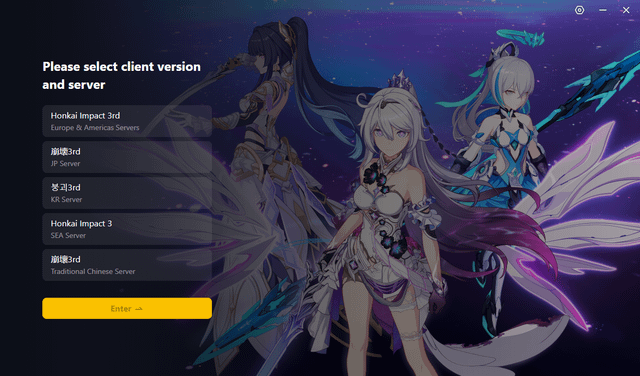 |
| Honkai Impact 3 (SEA) | Southeast Asia regional server (Uptodown SEA) | Standalone application requiring Android 6.0+ (Uptodown SEA) |  |
Switching Between Americas and Europe on the Global Client
The standard Global game client contains two isolated regional instances: Americas and Europe. Both run within the same application build on mobile and the official Windows PC launcher.
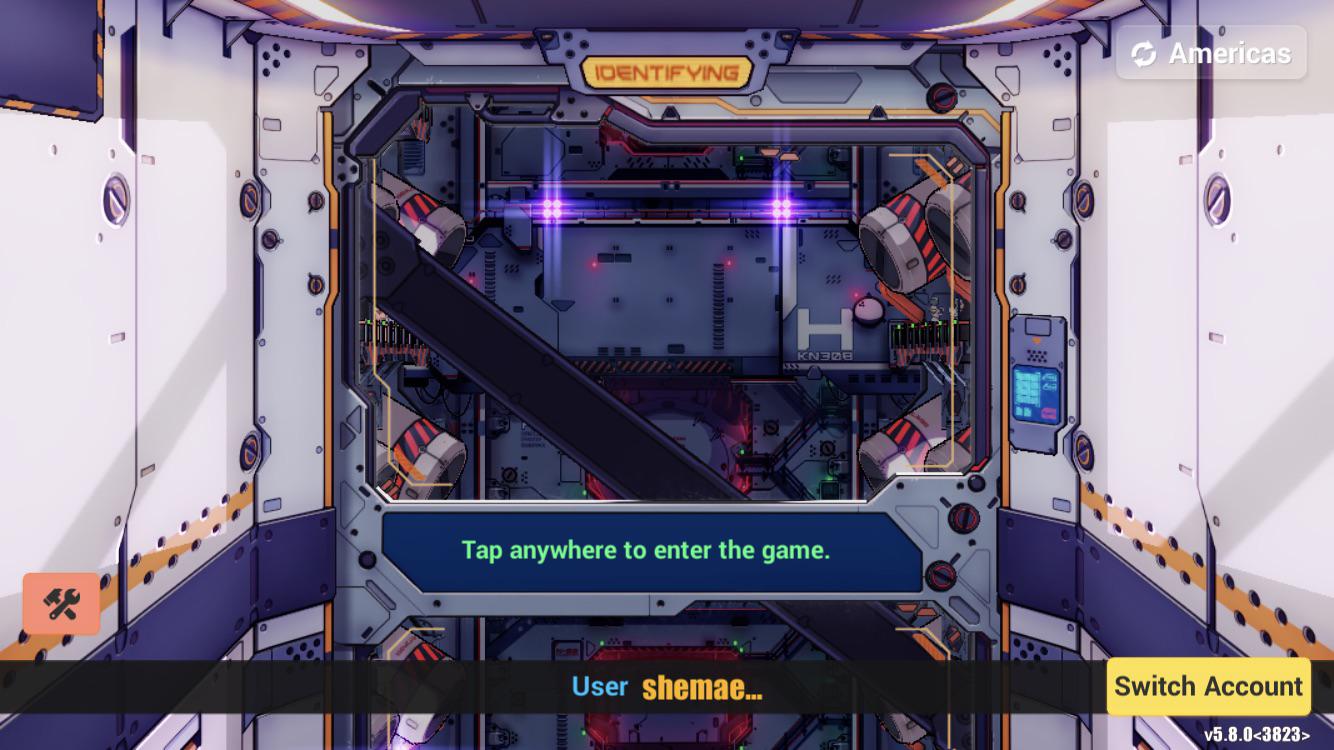
Follow these steps to toggle between them:
- Launch Honkai Impact 3rd on your PC or mobile device.
- Stop at the main "Tap to Enter" start screen before loading the Hyperion bridge.
- Locate the server display button, typically positioned near the top right or lower corner of the start interface.
- Click or tap the button to bring up the server selection prompt.
- Select either Americas or Europe.
- Confirm the selection and enter the game using your standard HoYoverse account.
When you log in under the alternate server, you will be greeted by the introductory cutscene and early tutorial. Your original characters remain safe on your original regional server.
Why Your Account Reset: Diagnosing Server Mismatch
Logging in to find the opening cutscene or a reset bridge usually indicates a regional server mismatch rather than deleted game data.
Because game delivery and account identification rely on the official game UID, progress and account synchronization operate across Android, iOS, and the official PC client as long as the Captain connects to the correct server (vgtopup.com).
| Diagnostic Check | What to Inspect | Source Verification |
|---|
| Bridge Level & Profile | Captain profile banner in top-left corner of the bridge | vgtopup.com |
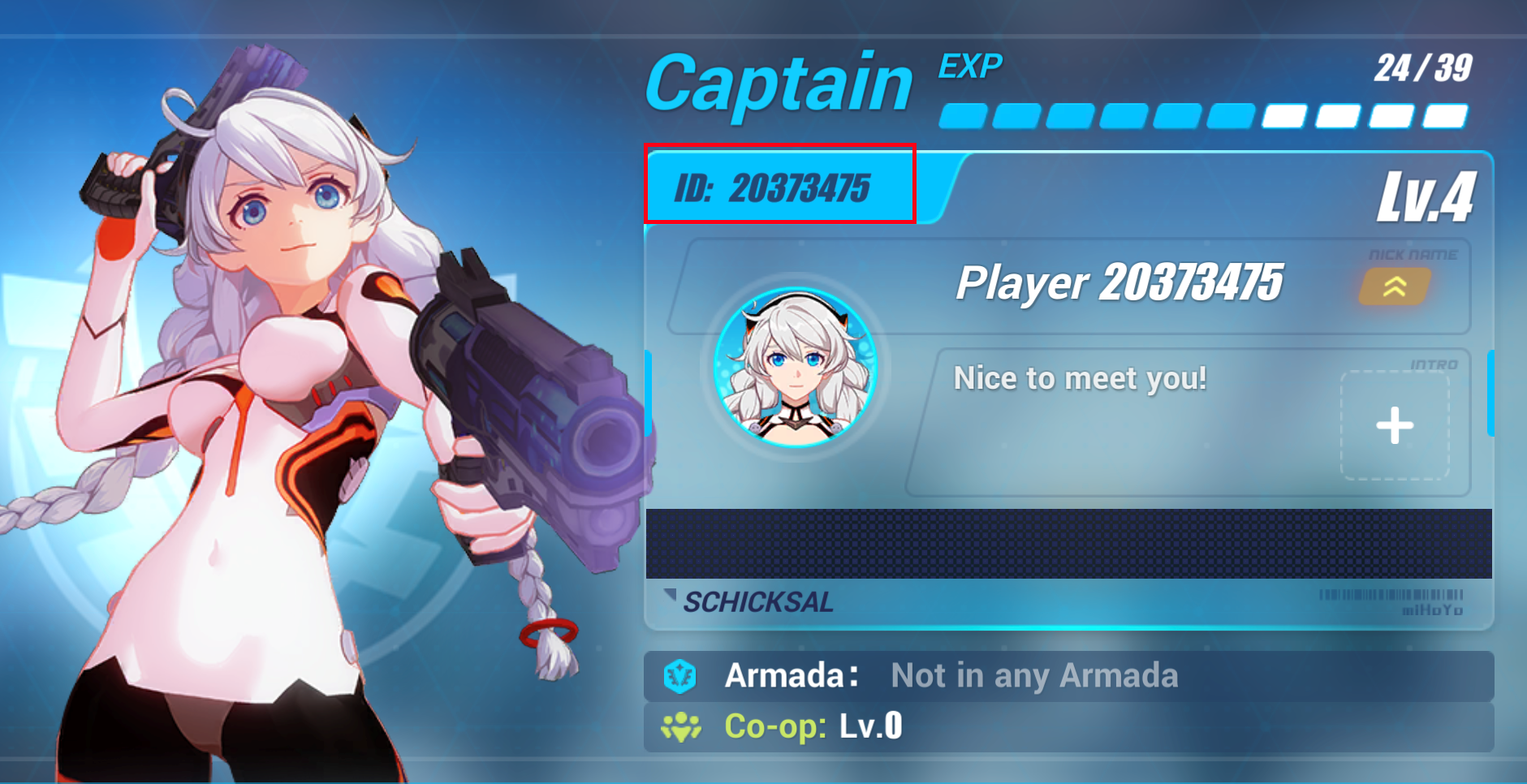
| In-Game UID | Numeric UID listed on the Captain Info screen under nickname | vgtopup.com |
| Application Package | Global package vs. standalone SEA application package | Uptodown Global; Uptodown SEA |
To diagnose and fix a mismatched profile:
- Complete or skip the opening sequence until you reach the bridge.
- Click or tap your Captain name in the top-left corner of the bridge screen.
- Note the numeric UID listed on the Captain Info screen under your nickname and level (vgtopup.com).
- If the UID does not match your historical profile, return to the start screen.
- Switch from Americas to Europe (or vice versa) and log back in.
Southeast Asia vs. Global: The Separate App Problem
A frequent stumbling block occurs when players try to switch to the Southeast Asia server from inside the Global client. You will not find SEA listed beside Americas and Europe.
Southeast Asia operates through an independent mobile application package titled Honkai Impact 3 (SEA), which requires Android 6.0 or higher (Uptodown SEA). Connecting to friends on SEA requires installing this dedicated client build rather than toggling regions inside the Global installation.
Cross-Play Boundaries Between PC and Mobile
Honkai Impact 3rd supports cross-platform play across Android, iOS, and PC. However, progress synchronizes only when your PC client connects to your standard HoYoverse account on the exact same regional server where your mobile character resides (vgtopup.com).
Before purchasing currencies like Crystals and B-Chips—which fund gacha supply pulls for Valkyries, weapons, Stigmata, and AstralOps, or unlock progression bundles—verify your active regional server. Account top-ups, such as Honkai Impact 3 Crystals & B-Chips packages, deliver items based directly on your chosen server and numeric UID.
Steam players face additional launcher restrictions. While the official Windows PC launcher uses standard HoYoverse account credentials, Steam authenticates accounts through its own platform ecosystem, preventing cross-save with standard mobile accounts.
Frequently Asked Questions
Can I transfer my existing Honkai Impact 3rd Valkyries and progress to a different regional server?
No. Progress, characters, and inventory are bound to the specific regional server (such as Americas, Europe, or SEA) where the account was created; connecting to a new server starts a fresh profile on that server (vgtopup.com).
Why did my progress disappear when logging into Honkai Impact 3rd on PC?
Progress is server-specific. If your PC client connects to a different regional server than your mobile client, your existing Captain profile will not load until you select the matching server associated with your standard HoYoverse account (vgtopup.com).
How do I check my current server profile and UID in Honkai Impact 3rd?
Go to the Hyperion bridge screen and click or tap your Captain name in the top-left corner; your numeric UID will be shown directly on the Captain Info screen under your nickname and level (vgtopup.com).




Comments