If your Identity V Echoes have not arrived after payment, first force-close the app from background tasks and inspect your in-game mailbox by the Manor mirror. While many transactions clear rapidly, NetEase Games documentation notes that delivery times vary by payment authorization status and regional gateways. If client refreshes fail to credit your balance, the issue often stems from server mismatches, payment gateway processing holds, or wrong account inputs that require formal support escalation.
Step 1: Force Client Refresh and Check the Manor Mailbox
A desynced client cache is the most common reason a balance looks unchanged. The game client frequently holds old session data until you force a full reconnection.
- Exit the game completely.
- Open your device's app switcher or task manager and swipe Identity V away to clear it from background tasks.
- Relaunch the application and log back into your profile.
Once inside the lobby, do not look only at the currency counter at the top of the screen. Promotional or supplementary items often bypass the main balance bar. Head over to the Manor mirror and check the in-game mailbox (VGTopup). System delivery notices and bonus rewards are frequently deposited directly into this inbox rather than updating your top-bar Echoes immediately.
Delivery Latency: Normal Delays vs. Delivery Failures
Third-party storefronts frequently advertise instant delivery, but payment networks introduce processing buffers between authorization and fulfillment.
Official NetEase GamesClub top-up documentation explicitly states that while most orders are processed quickly following payment confirmation, delivery speed varies depending on your region and payment status. Customer feedback across external stores like SEAGM confirms that payment verification can sometimes stretch past an hour.
A pending status indicates your bank authorized the charge, but NetEase has not received final settlement confirmation. Allow the payment processor to finalize authorization before assuming an order has failed.
Check for Server Mismatch and UID Typos
Check your purchase receipt if a client restart does not restore your balance. Input mistakes account for most uncredited purchases.
Identity V maintains separate, non-transferable account databases for its regional clusters. A numerical User ID (UID) on the Asia server is not tied to the same player profile on the NA / EU server.
| Server Region | Covered Geographic Areas | System Behavior on Direct UID Top-Up |
|---|
| Asia Server | East Asia, Southeast Asia, Oceania | Direct UID credit applies strictly to Asia. Selecting NA / EU during checkout causes transaction failure or misroutes currency (VGTopup). |
| NA / EU Server | North America, South America, Europe | Direct UID credit applies strictly to NA / EU. Selecting Asia while registered on NA / EU prevents successful delivery (VGTopup). |
If you play on Asia but accidentally selected NA / EU during checkout, your purchase cannot complete properly. In the worst-case scenario, the system delivers the Echoes to an unintended player who happens to share that numerical UID on the other server (VGTopup).
A mistyped numerical UID leads to similar consequences. According to customer dispute records on SEAGM, entering an incorrect ID usually voids refund eligibility. Once currency is pushed to an active account matching your typo, merchant support routinely denies refund requests because the delivery went through on their end.
Locating Your Correct Numerical UID
Confirm your ID through the lobby interface:
- Profile Avatar: Open the Manor lobby and tap your profile avatar in the top-right corner; your numerical UID sits right below your username (VGTopup).
- Profile Interface: Other platform guides direct you to click "Profile" on the main screen.
- Settings Tab: Certain community guides note the User ID can be confirmed under the Settings menu.
Compare the UID on your order receipt digit-by-digit against the UID shown directly on your in-game profile.
Gathering Transaction Evidence for Support
Support teams will not investigate missing currency without verified proof of purchase. Before opening a ticket, gather the exact identifiers required by billing departments.
For Purchases via Google Play
Do not rely on simple email notifications. Grab the official invoice from the billing source:
- Go to the Google payments center.
- Sign in with the Google Account used for the purchase.
- Select the Activity tab.
- Select the Identity V transaction to view the full receipt with its unique transaction ID (Google Support).
For Third-Party Merchant Orders
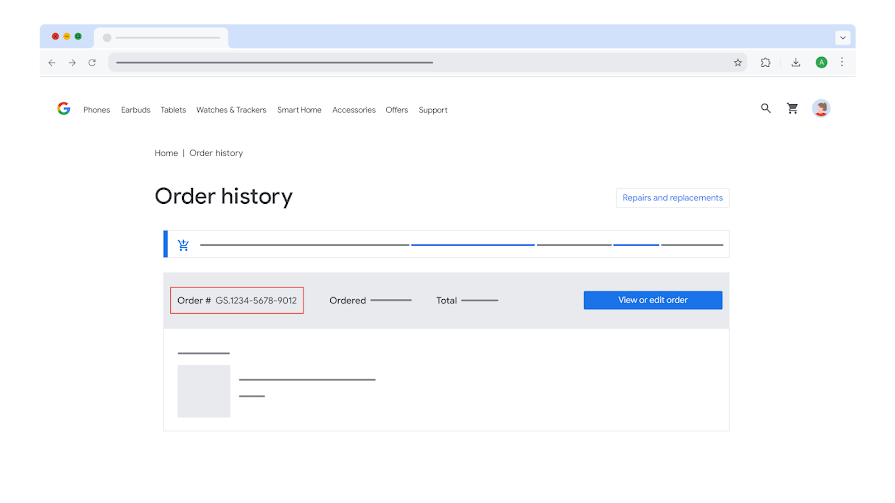
If you purchased via an authorized storefront or platform like VGTopup, locate your order confirmation screen. You must have:
- The merchant order number
- The numerical UID entered at checkout
- The active server selected during payment
Escalating to NetEase Customer Service
When your payment has cleared, the UID and server match your profile, and the Echoes still do not show up, contact the publisher directly.
NetEase Games guidelines instruct players facing missing top-ups to prioritize in-game customer support. Using the in-game channel routes your inquiry alongside your active device and account metadata, speeding up investigation.
If you cannot access the in-game helpdesk, email the NetEase operations team directly at support@global.netease.com (NetEase Games). Structure your request clearly:
- Subject: Missing Echoes Top-up - [Your Server] - [Your Numerical UID]
- Account Details: In-game username, numerical UID, and active server (Asia or NA / EU).
- Transaction Details: Date and time of purchase, gateway used (e.g., Google Play, App Store, web portal), and the merchant or platform order ID.
- Attachments: A clear screenshot of the official payment invoice showing the transaction ID and cleared status.
Submitting the exact transaction number, UID, and server in your initial message prevents prolonged back-and-forth and allows the billing team to locate the purchase in their payment logs immediately.
Frequently Asked Questions
Where can I locate my Identity V numerical User ID (UID)?
Open the Manor lobby and tap your profile avatar in the top-right corner. Your numerical UID is displayed directly below your player name (VGTopup).
What should I do if I entered the wrong UID or wrong server during recharge?
Check your purchase receipt immediately. Third-party merchants generally decline refunds once an order completes, and choosing the incorrect server risks routing the currency to another player's profile (SEAGM, VGTopup). If the order has not yet been processed by merchant support, contact their customer service desk right away with your order number to halt fulfillment.
Submit an inquiry through the in-game customer service portal in Identity V, or email NetEase Games at support@global.netease.com with your official payment invoice and profile details (NetEase Games).










Comments